Does your Microsoft Teams client crashes every time when you try to join a meeting? A handful of users have found this possible bug where their MS client is automatically crashing when the user is trying to join a meeting. It seems that the corruption of the Edge WebView2 component is responsible for this issue, and can be easily fixed following these easy fixes.
Fix 1 – Uninstall and reinstall MS WebView2 Runtime
You have to uninstall the current version of Edge WebView2 Runtime component, and reinstall the latest version of WebView2 Runtime.
Step 1 – Close the Microsoft Teams. Quit it from the taskbar as well. Just, tap the arrow button on the taskbar. Right-click the Teams app, and tap Quit Teams.
Step 2 – At first, go to the Windows Settings. Open the Apps tab.
Step 3 – Go to the Installed Apps category on the other hand of the screen.
Step 4 – Then, search for edge webview from the search box.
Step 5 – Find the Microsoft Edge WebView2 Runtime component there. Tap the three-dot button next to it, and tap the Uninstall button.
Step 6 – Now, go to the Microsoft Edge WebView2 page. Tap the Download button there.
Step 7 – Go to the Evergreen Bootstrapper panel, and tap Download.

Step 8 – After this, run the installer file. It will download the WebView2 Runtime library package and install it.
After installing the Edge WebView2, there won’t be any further issues with the MS Teams app sudden crash issues.
Fix 2 – Repair the Teams Client
Try repairing the Microsoft Teams app on your system.
Step 1 – Press the Win+I button together to load up the Settings console.
Step 2 – Then, proceed this way –
Apps ⇾ Installed Apps
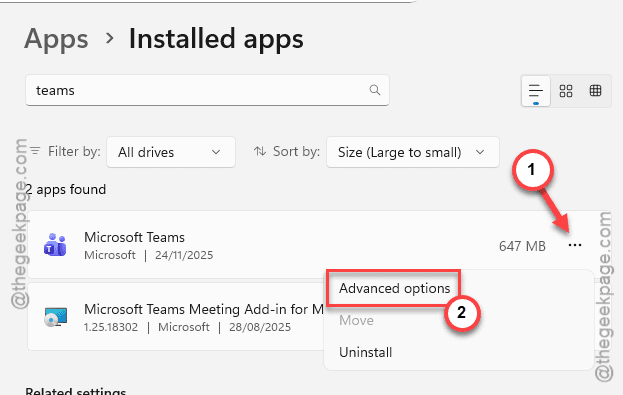
Step 3 – Search for the teams in the search box, and locate the Microsoft Teams app.
Step 4 – Then, tap the three-dot button next to the app and tap Advanced Options.
Step 5 – Just use the Repair function here to repair the MS Teams app.
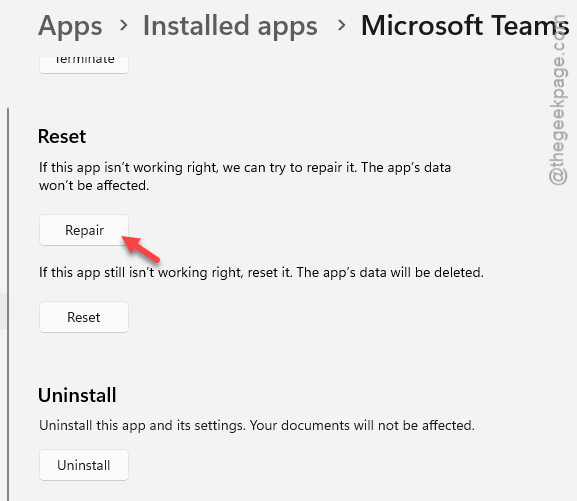
It will take only a few seconds for the MS Teams app to be repaired.
Fix 3 – Uninstall and reinstall Microsoft Teams
Remove the current instance of the MS Teams app, and reinstall the application to fix the issue.
Step 1 – Open the Settings console. Go to the Apps tab again.
Step 2 – Now, tap the Installed Apps section to open it up.
Step 3 – Find the Microsoft Teams app from the list. Later, tap the three-dot button next to it, and tap Uninstall.
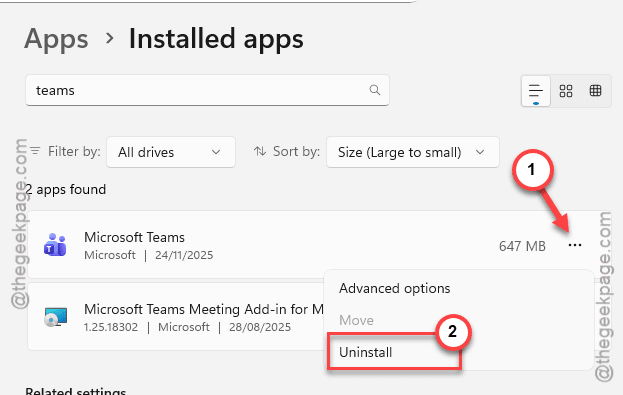
After uninstalling the Teams app, you can reinstall the Teams app from Microsoft Store or using a separate installer.
Sign in using your Microsoft account credentials and it will be ready to use it.
Fix 4 – Use the Microsoft Teams on Web
If the MS Teams app is still crashing while trying to join a meeting, and it is urgent, you should look at a different option to use the Microsoft Teams. One of the key alternatives is to use the Microsoft Teams on the web browser.
Step 1 – Open up Google Chrome or Microsoft Edge.
Step 2 – Load up the Teams.

Step 3 – Tap the Sign in button at the right-top corner.
Step 4 – Log in with your credentials. You can join the meeting using a shared link or with the Joining ID.
The web version of the MS Teams won’t crash while trying to join a meeting. Check whether this works.