iPhone users use their device with all the time with external accessories like mounts and holders. But, waking up the iPhone using Face ID can be a bit tricky while using the device using mounts or accessories. Actually, Face ID technology needs the IR sensors to map your face properly for authentication. The Attention Require feature, or misconfiguration of the raise to wake feature on the iPhone, can be blamed for this situation. These solutions should fix this issue.
Fix 1 – Disable Require Attention Feature
The Require Attention Feature got increased restrictions for users on iOS 26 where it requires eye contact. Disabling it should help you unlock the iPhone even while the device is located in a holder/mount.
Step 1 – Go to the iPhone Settings and load up the Face ID & Passcode settings.
Step 2 – Input your Apple Passcode to proceed.
Step 3 – Find the Require Attention for Face ID setting and turn it off from there.
Step 4 – Tap Ok, if any dialogues show up on the screen.
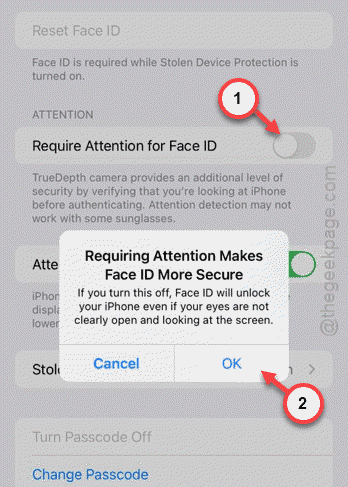
If you have the Security Delay activated, it will start up a 60-minute timer where you can only make such changes after it elapses, i.e., after exhausting the Security Delay.
Fix 2 – Reset the Raise to Wake on iPhone
Refreshing the Raise to Wake feature has solved the issue where the users have come across a black screen on wake of the device.
Step 1 – Load up the Display & Brightness section in iPhone Settings.
Step 2 – Then, locate the Raise to Wake feature.
Step 3 – Toggle it off. Wait for a few seconds, and then, turn it back On.
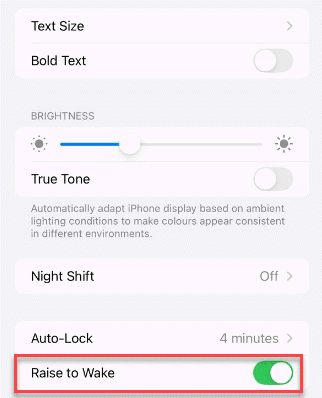
It will recalibrate the accelerometer, which is responsible for this type of issue. Place the device on your accessory and check again.
Fix 3 – Set up an Alternate Appearance while using accessories
You should set up an alternative appearance while using the iPhone using the accessories. This way, iPhone can be unlocked even while using the device on a holder/mount.
Step 1 – Place the iPhone on the holder or mount that you use.
Step 2 – Load up the Face ID & Passcode settings once again in iPhone Settings.
Step 3 – Next, proceed to Set Up an Alternative Appearance tab.
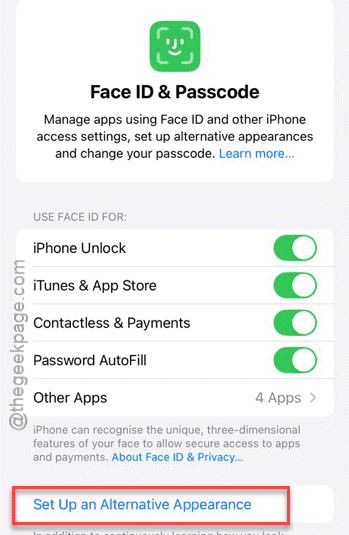
Step 4 – Go through the entire process of scanning your face and complete the entire Face ID scanning process.
Once you are done, the iPhone will recognize you and let you wake the device even when it is attached to the accessories.
Fix 4 – Turn off Stolen Device Protection Feature
If you are trying to reset the Face ID, the stolen device protection feature may block you from doing that.
Step 1 – Proceed to the Face ID & Passcode settings.
Step 2 – Then, tap the Stolen Device Protection and disable it.
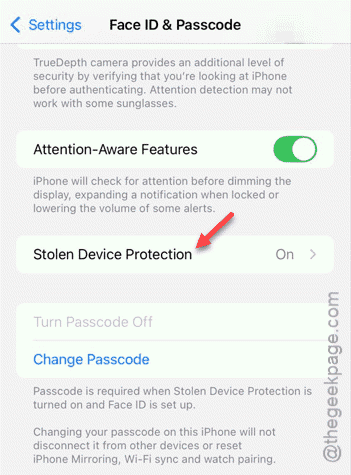
Step 3 – Turn it Off and turn it back On to refresh it.,

NOTE – If the Security Delay is active on your iPhone, it won’t let you deactivate the Stolen Device Protection. Start the security delay. It will last for an hour. Later, you can turn off the Stolen Device Protection.
Fix 5 – Check the Holder for Sensor Obstruction
If the holder or mount that you are using obstructs the sensor region near the notch of the iPhone, even by slightly, it won’t let you access the device using Face ID. This can be the actual cause why you are not able to unlock or wake up the iPhone using Face ID. Clear up any obstruction from the notch region of the iPhone.