The specific update version 2408 has faced quite a bit of criticism from the Microsoft Excel user base for causing unnecessary instability, unresponsiveness, and cloud-syncing failures. Usually, when Microsoft Excel continuously crashes after an update, it is the conflict between the new build and the existing environment settings of the device. Enact these fixes to troubleshoot the problem yourself.
Quick Fix Table –
| Issue | Recommended Fix |
| Crash on startup (Splash Screen) | Launch in Safe Mode |
| Crash when opening cloud files | Disable OneDrive/SharePoint AutoSave temporarily |
| Constant Not Responding | Roll back to previous version using CMD |
Fix 1 – Launch Excel in Safe Mode to Isolate Add-ins
New updates often break compatibility with the older COM add-ins, which in turn may cause the
Step 1 – Then, use the Win+R buttons together to call up a Run box.
Step 2 – Paste this code there and click OK to launch the Excel app in Safe Mode.
excel /safe
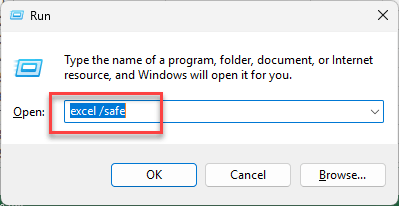
Microsoft Excel shall load up without the interference of third-party plug-ins.
After this, it won’t crash again.
Fix 2 – Disable Hardware Graphics Acceleration (Registry Method)
If Microsoft Excel does not load up properly, you should implement a registry fix to disable the graphics acceleration feature.
Step 1 – Hit the Win+R buttons together. Type this there, and click OK.
regedit
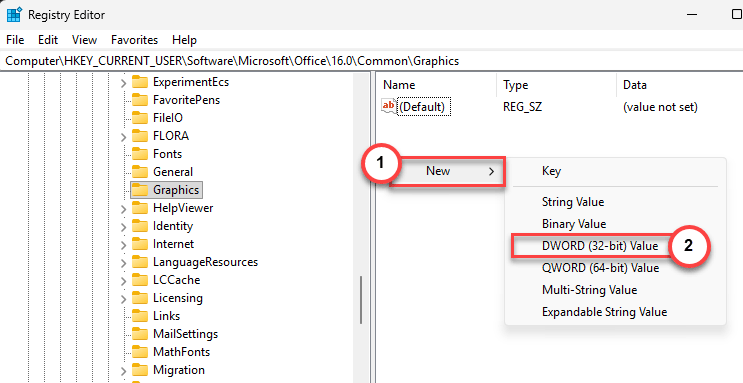
Step 2 – Then, go to this address –
HKEY_CURRENT_USER\Software\Microsoft\Office\16.0\Common\Graphics
Step 3 – Now, right-click there, and choose New> and DWORD (32-bit) Value to create this value.
Step 4 – Then, name this DisableHardwareAcceleration feature. Set this value to 1 and click OK.
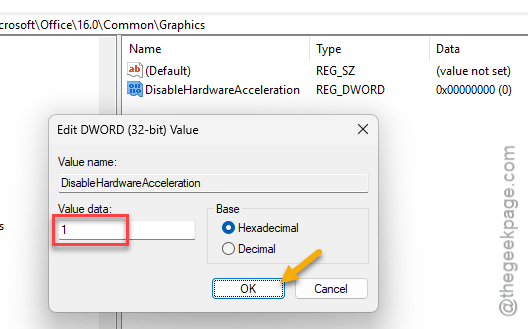
After this, close the Registry Editor and then restart the system once.
Fix 3 – Run an Online Repair of Office
If the update installation is corrupted in the middle of the process, you should run Online Repair to find and fix the issue.
Step 1 – Hit the Win+R buttons at once. Then, put this in the Run box, and click OK.
appwiz.cpl
Step 2 – Look for the Microsoft Office app there in the list of apps.
Step 3 – Then, right-click the app, and tap the Modify or Change button.
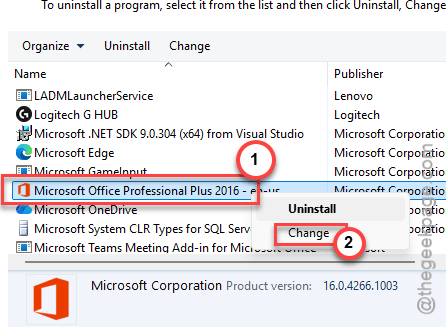
Step 4 – Choose the Online Repair mode and click Repair to start processing the online repairing process.
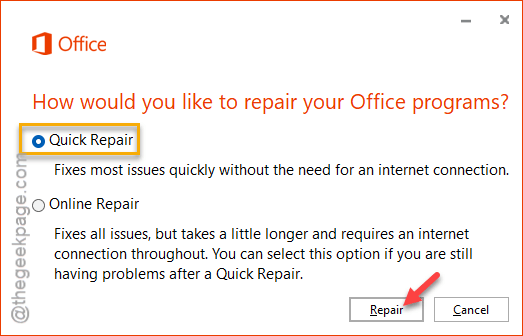
After running the online repair in Microsoft Office, it will fix the update crash issue you were facing before.
Fix 4 – Roll Back to the Version 2407
If the Excel 2408 is completely broken for your system, you should perform a rollback to the 2407 version. There is no usual way to do this. So, you have to use the shell to do that.
Step 1 – Right-click the Start icon and choose to run the Terminal (Admin).
Step 2 – Make sure to open up a Command Prompt panel in the Terminal.
Step 3 – Then, input this two codes there and hit Enter to rollback to the 2407 version.
cd %programfiles%\Common Files\Microsoft Shared\ClickToRun
officec2rclient.exe /update user updatetoversion=16.0.17830.20166
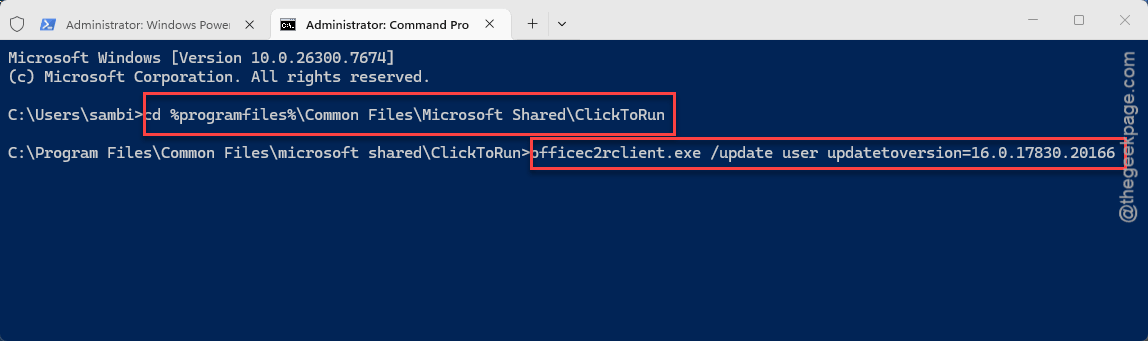
After you have run these two codes, the sudden crash issue will be fixed.
Fix 5 – Clean up the Document Cache
Sometimes the corrupted cache from the previous build can cause this sort of issue in the Microsoft Excel 2408 build.
Step 1 – At first, close all the Microsoft Office programs, like Word, Excel, etc.
Step 2 – Open the File Explorer. Paste this into the address bar and hit Enter.
%LocalAppData%\Microsoft\Office\16.0\
Step 3 – Find the OfficeFileCache folder there. Rename it to OfficeFileCache_Old.
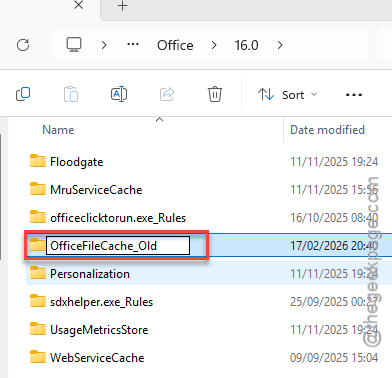
Microsoft Excel will automatically create a new, clean folder at the next Excel startup.
This should have resolved the issue.