Having some problem with the Shift Lock button in Roblox? The Shift Lock option allows you to lock the point of view camera to your character’s direction, allowing you to play the game without overly relying on the right-click button to change the camera angle again and again. But, some of the users recently have faced issues with the Shift Lock function on the Roblox app. Adjusting the camera angle, disabling and re-enabling the Shift Lock switch should fix the issue.
Fix 1 – Turn Off the Shift Lock Switch and Turn it back On
Refresh the Shift Lock Switch in the Roblox settings by disabling it and re-enabling the same.
Step 1 – Launch the Roblox game, if you have not yet. Just start up a random game of your choice in Roblox.
Step 2 – Now, press the Esc key to access the Settings page.
Step 3 – Next, turn Off the Shift Lock Switch mode.
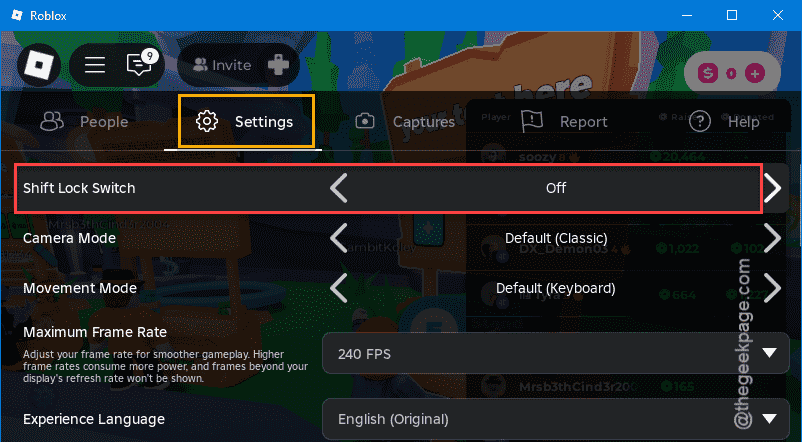
Step 4 – Later, turn on the Shift Lock Switch mode from there.
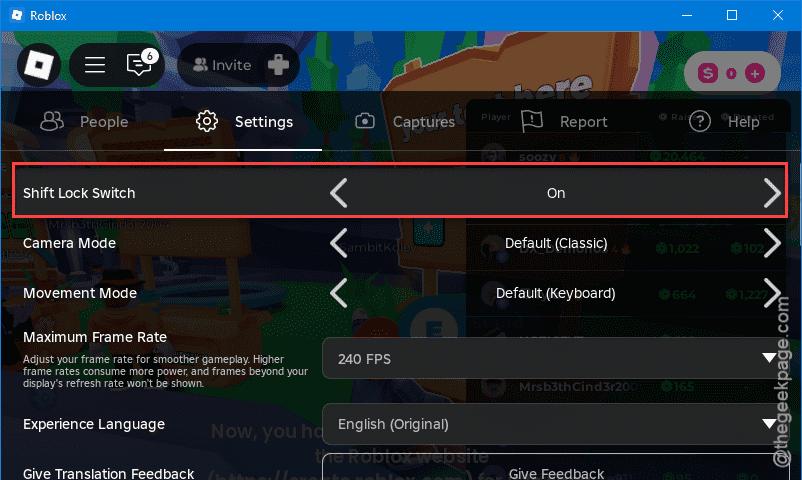
Now, press the Shift button and test whether the camera is automatically moving according to your movement or not.
Fix 2 – Change the Camera Mode to Default (classic) mode
The Shift Lock works well if you stick to the Default (classic) mode in the camera.
Step 1 – Start an experience in Roblox. Next, press the Esc button and reach the Settings tab.
Step 2 – Later, set the Camera mode to Default (classic).
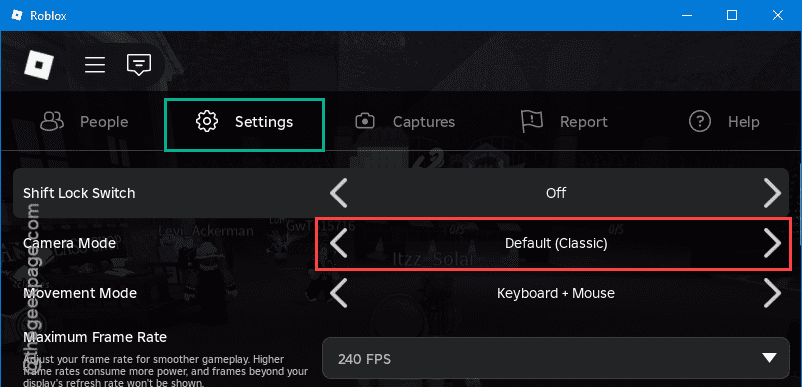
Try using the Shift button or not.
Fix 3 – Set the Movement Mode to Keyboard and Mouse
Roblox disables the Shift Lock if the movement mode is set to Click to Move mode.
Step 1 – Load up a game in Roblox and open the Settings overlay using the Esc button.
Step 2 – Next, go to the Settings panel. Set the Movement mode to Keyboard+Mouse.
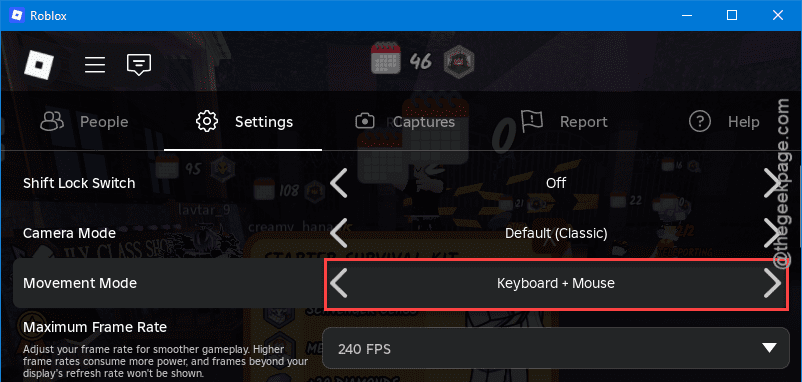
Now, try to use the Shift Lock mode. See if this works.
NOTE – If you don’t see the Keyboard+Mouse option there, follow the instructions mentioned in Fix 5.
Fix 4 – Set the Display Scale to 100%
The Shift Lock may malfunction if you have set the display scale to 125% or more.
Step 1 – Pressing the Win+I button should open up the Settings page.
Step 2 – Next, open up the System settings. Thereafter, go to the Display settings.
Step 3 – Set the Scale to 100% (Recommended) and click OK.
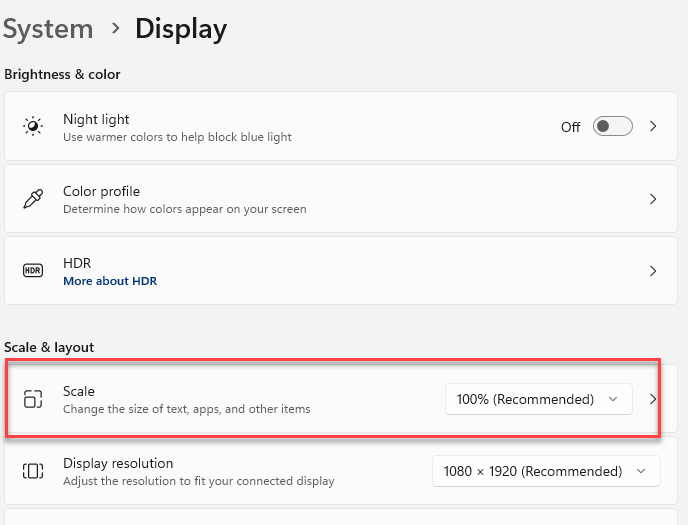
You may have to sign out of your account once to apply this change. If that happens, log back into your system. This shall fix the Shift Lock issue that you are having.
Fix 5 – Uninstall every Roblox and do a fresh reinstall
There is a chance that an existing corrupted version of Roblox is creating this problem. So, uninstalling all Roblox apps and reinstalling afresh should fix it.
Step 1 – Open the Windows Settings and load up the Apps tab.
Step 2 – Later, go to the Installed Apps section.
Step 3 – Now, use the search box there to perform a search for Roblox there. This way, you will get a list of Roblox apps on your system.
Step 4 – Now, tap the three-dot button next to Roblox and tap Uninstall to uninstall the game.
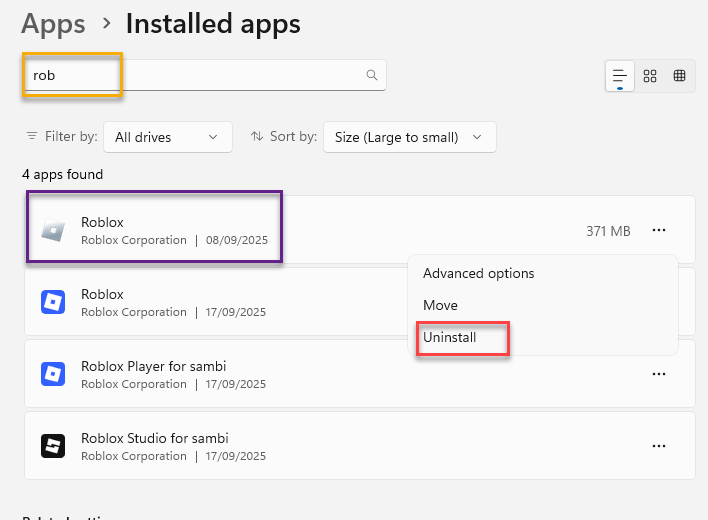
Step 5 – This way, uninstall all the instances of Roblox from your system.
Step 6 – Now, install the Roblox game from Microsoft Store or from the Roblox official website.
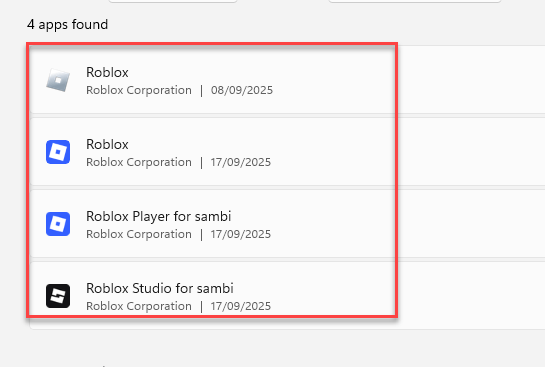
After installing Roblox, try the Shift Lock now. Check if this time it works or not.
FAQs –
1. What does the Shift Lock does in Roblox?
The Shift Lock Switch, when switched on, pressing the shift button in Roblox allow the gamers to move around along with the camera. In simpler words, the camera point of view move alongside the direction of the player. It replaces the painstaking process of using the right-click drag process to move the camera with your avatar in Roblox.
2. Why can’t I use Shift Lock in Roblox?
Roblox sometimes disables the Shift Lock due to the reason of wrong movement mode selection, misconfigured camera mode, or just a simple bug in the game. You can fix simply by adjusting the movement mode, changing the camera angle or input type. See if this works.