Having problem with the @ key on your keyboard? Some users have recently faced this problem where pressing the Shift+2 buttons does not input the @ key on their system. This particular originates from the usage of the wrong keyboard layout. So, if you just use the standard US layout of the keyboard, the Shift+2 buttons should give you the @ input. Along with this, there are several other reasons that may cause this problem. This is the only troubleshooting guide you will need to fix the issue, irrespective of the reason behind this @ key not working issue.
Fix 1 – Change the Keyboard Layout to US pattern
The best possible fix for this problem is to change the keyboard/language layout to US keyboard.
Step 1 – Look for the keyboard layout or language button on the taskbar. It should be located just by the side of the clock.
Step 2 – Tap the language/keyboard button there, and select the English (United States) keyboard layout option.
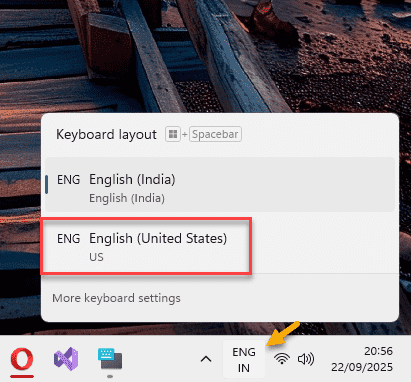
After changing the language and keyboard layout, try using the Shift+2 buttons together to input the @ sign.
But, what if you can’t see the US Keyboard layout option in that toggle? Follow the Fix 2 in that case.
Fix 2 – Install the US/UK language from Settings
If you can’t find the English US keyboard or any other suitable variant of the keyboard, you must install that particular language to use it on your system.
Step 1 – Open the Windows Settings. Now, go to the Time & Language settings from the left tab.
Step 2 – Next, go to the Language & Region section.
Step 3 – Tap the Add a language for the ‘Preferred language’ option there.
Step 4 – Type ‘us‘ in the search box. Then, select the English (United States) language there.
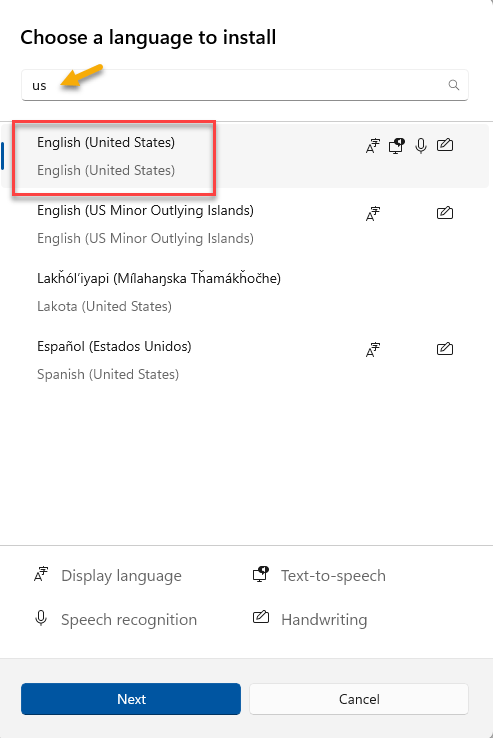
Step 5 – Next, tap the Install option there.
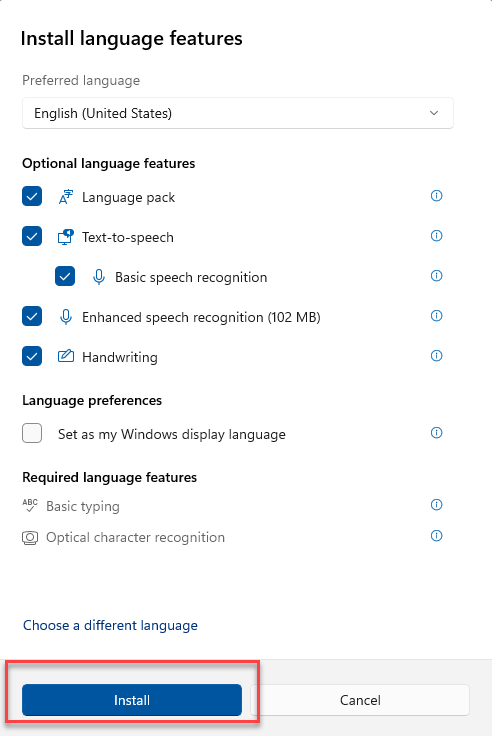
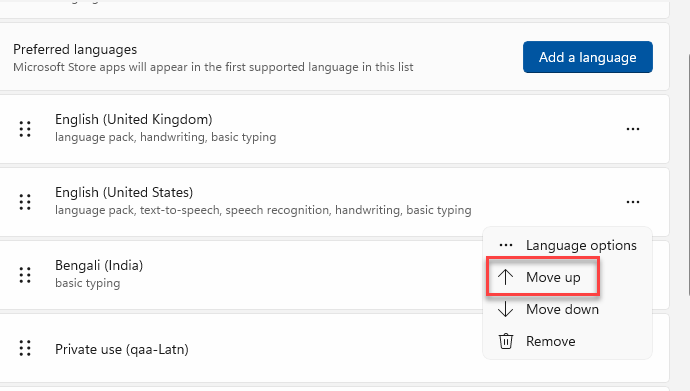
Now, wait for the language to get installed on your machine. You can now make the switch to English US keyboard or use these steps to move it to the top of the list to set it as default input system.
Step 1 – Tap the three-dot button for the English (United States) option and tap Move Up.
Step 2 – Repeat the same steps until the English (United States) has reached the top of the list.
NOTE – You can also remove the additional keyboards from the list that you don’t need any more.
Step 1 – To do that, go to the same list of the keyboards in the Settings page, you will find them here –
Settings > Time & Language > Language & region
Step 2 – Now, delete any unnecessary languages or keyboards that from the right-hand side. To delete one, tap the three-dot button next to it and tap Remove to delete it.
Step 3 – This way, delete any other languages/keyboard inputs that you no longer use on your device.
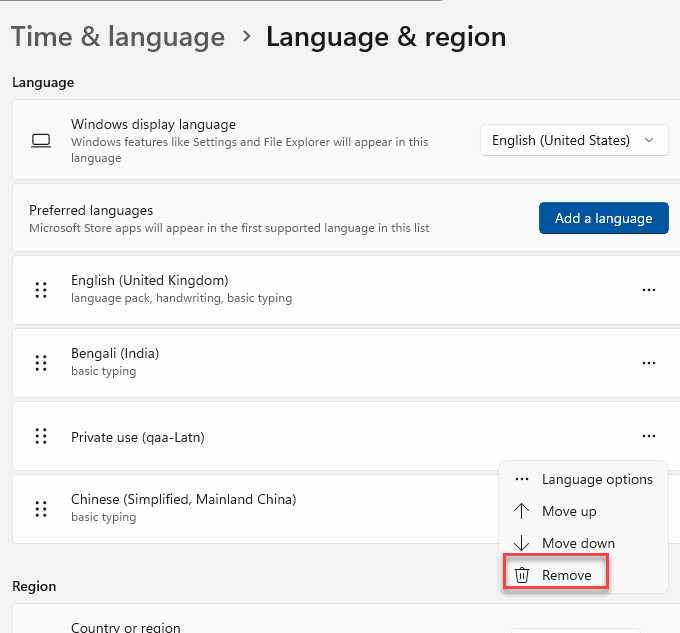
This way, there will be no chances of further issues with the Shift+2 keys.
Why the @ Key is not working by pressing the Shift+2 keys?
The @ key is normally bound to the Shift+2 buttons on a regular keyboard. So, pressing the Shift and 2 buttons together inputs the @ sign. However, this only works if your device is set to English (US) or English (UK) or other sub-variants of English, like English (India). The other language or that language associated keyboard may not have the Shift+2 mapping to @. The quickest resolution to this issue is to switch to a different keyboard layout, preferably to the English (US) or English (UK) variant.
FAQs-
1. Why can’t I write @ sign using Shift+2 buttons together?
You can’t write the @ sign because your keyboard mapping is not set to Shift+2 button combinations. This only works if your current keyboard is set to English (Uninted States) or English (United Kingdom). You can change it from the language selector button on the taskbar.
2. How can I input @ without using keyboard?
You can easily input the @ keyboard using the on-screen keyboard facility or directly copy-pasting the icon from the web. You can just search for @ sign using a query like ‘at the rate’ and copy-paste the icon directly from the search results. On-screen keyboards can be used as well, provided the current language is set to English (US) or English (UK).