You type your PIN. Wrong. Try again. Wrong. But you’re typing it correctly. Turns out your keyboard is messing things up. The shift key is stuck. Or Filter Keys kicked in. And it’s silently changing what you’re typing.
Known Windows 11 bug where accessibility features interfere with PIN entry on the lock screen.
Why This Happens
Basically? Windows has accessibility features called Sticky Keys and Filter Keys. They can activate on the lock screen without you knowing. Sticky Keys makes modifier keys “stick” — so pressing Shift once applies it to the next key. Filter Keys ignores rapid or repeated keystrokes.
Both mess with PIN entry. You think you’re typing 1234. But Windows reads something different because Shift is silently engaged. Or Filter Keys is eating some of your key presses.
And the lock screen doesn’t show any indicator that these are active. So you just keep typing the “wrong” PIN. So yeah.
Fix 1 – Disable Accessibility Features on the Lock Screen
Quick fix. Disable Sticky Keys and Filter Keys right from the lock screen.
1 – On the lock screen, look for the Accessibility icon in the bottom right corner.
2 – Click it.
3 – Make sure Sticky Keys is turned off.
4 – Make sure Filter Keys is turned off.
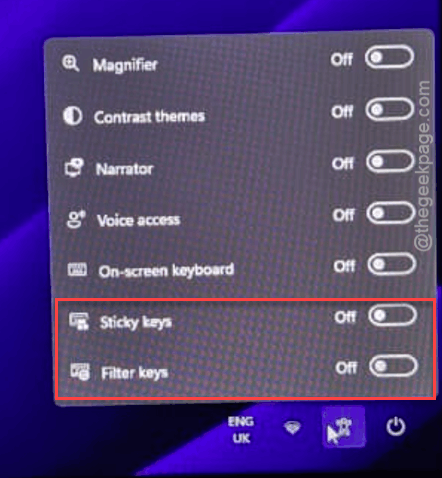
5 – Try your PIN again.
Fix 2 – Use the On-Screen Keyboard
If your physical keyboard is acting up, bypass it entirely.
1 – On the lock screen, click the Accessibility icon in the bottom right.
2 – Enable On-Screen Keyboard.
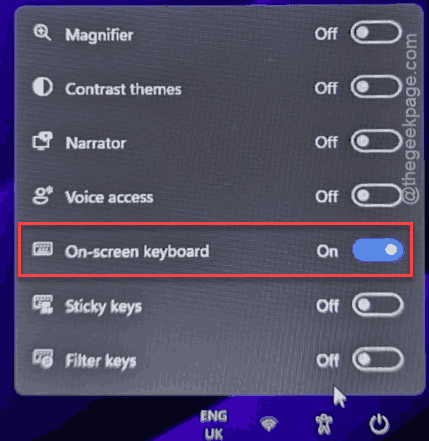
3 – Use the on-screen keyboard to type your PIN by clicking each number.
Works with the on-screen keyboard but not the physical one? The keyboard or its drivers are the problem. Not the PIN.
Fix 3 – Sign In with Password and Fix the PIN
Get in first. Fix after.
1 – On the login screen, click Sign-in options.
2 – Click the key icon (password option).
3 – Enter your Microsoft account password.
4 – Once logged in, press Windows + I to open Settings.
5 – Click Accounts from the left sidebar.
6 – Click Sign-in options on the right side.
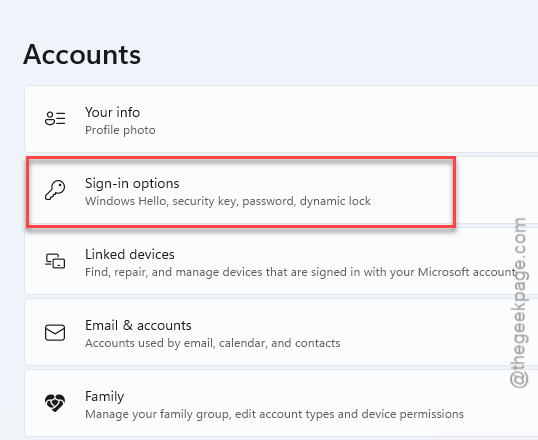
7 – Under PIN (Windows Hello), click Remove.
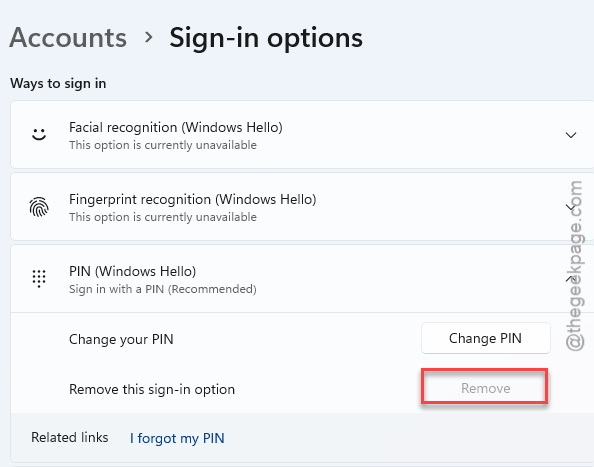
8 – Then click Add to create a new PIN.
Check if this works.
Fix 4 – Disable Accessibility Features Permanently
Prevent this from happening again.
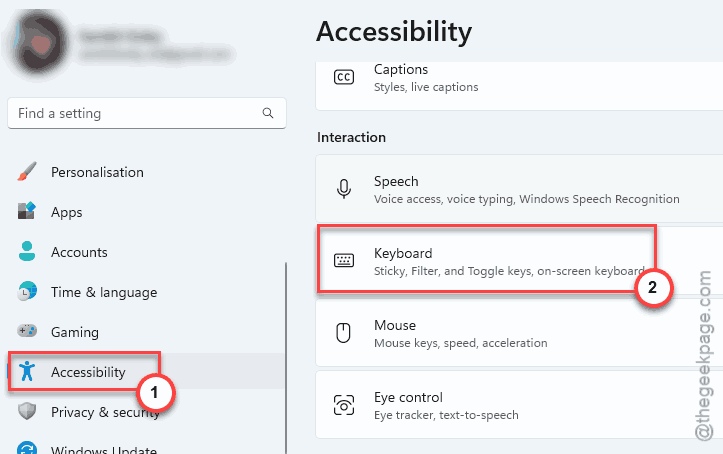
1 – Press Windows + I to open Settings.
2 – Click Accessibility from the left sidebar.
3 – Click Keyboard on the right side.
4 – Turn off Sticky Keys.
5 – Turn off Filter Keys.
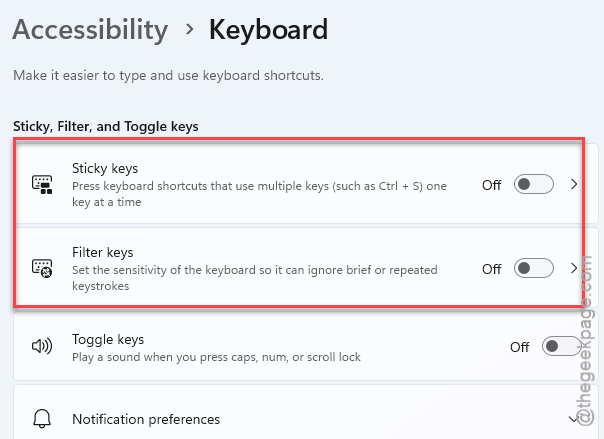
6 – Also uncheck any options that say “Allow the shortcut key to start…” for both features.
This prevents them from activating accidentally on the lock screen. And honestly, most people do not need either of these features.
Fix 5 – Check Your Physical Keyboard
If it’s not an accessibility feature issue, the keyboard itself might have a stuck key.
Unplug and replug a USB keyboard. For laptop keyboards, restart the PC. If a key is physically stuck, clean it or try an external keyboard temporarily. Worth checking before assuming it’s a software problem.
How to Prevent This
- Disable Sticky Keys and Filter Keys through Settings > Accessibility > Keyboard.
- Disable the shortcut key activation for both features so they don’t turn on accidentally.
- Always have your password as a backup sign-in option.
- If you use a mechanical keyboard, check for stuck switches periodically.
People Also Ask
Why is my PIN not being accepted on Windows 11?
Probably Sticky Keys or Filter Keys interfering with what you’re typing. Click the Accessibility icon on the lock screen and make sure both are turned off. Or use the On-Screen Keyboard to bypass the physical keyboard entirely.
How do I fix Windows Hello not accepting my PIN?
First disable Sticky Keys and Filter Keys from the lock screen Accessibility menu. If that doesn’t work, sign in with your password instead. Then go to Settings > Accounts > Sign-in options, remove the old PIN, and add a new one.
Why does my keyboard type wrong characters on the lock screen?
Usually Sticky Keys is the culprit. It makes the Shift key “stick” after one press, changing what characters your key presses produce. Disable it from the Accessibility icon on the lock screen. Or use the On-Screen Keyboard as a workaround.