Getting the ‘Multiplayer is disabled. Please check your Microsoft Account settings.’ message in the Minecraft? This is a type of warning prompt where your access to the Minecraft Multiplayer mode is disabled. Actually, the Multiplayer mode in Minecraft might be turned off for the children accounts. So, you either change the account type or allow the multiplayer access for the game to play in multiplayer mode in Minecraft.
Here is the Quick Fix table for a brief overlook on the solutions list –
| Issue Cause | Quick Fix | Time Needed |
|---|---|---|
| Underage account | Change the DOB of the Microsoft account | 3 min |
| Disallowed Multiplayer access | Privacy Settings on Xbox ⇾ Xbox One/Windows 10 Online Safety ⇾ Multiplayer game access (Allow) | 3 min |
| Wrong MS Account | Sign out and sign in with correct account | 2 min |
Fix 1 – Change your Account Age of your Microsoft Account
Actually, Mojang by default blocks the multiplayer mode on Minecraft if you try to access it using an underage Microsoft account. So, you must change the account’s Date of Birth to play in the multiplayer mode.
Step 1 – Open the Microsoft Account. Sign in using your Microsoft account, if it is required.
Step 2 – Next, tap the three-bar menu in the top-left corner. Later, open up the Your Info tab there.
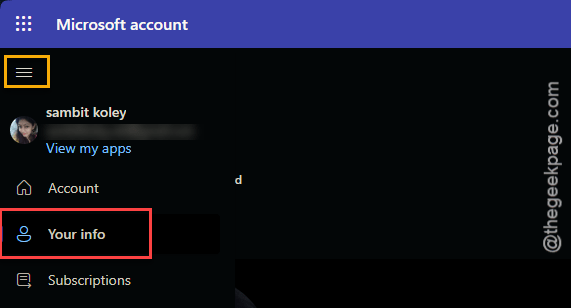
Step 3 – Tap the Edit Profile Info button there to start the editing process.
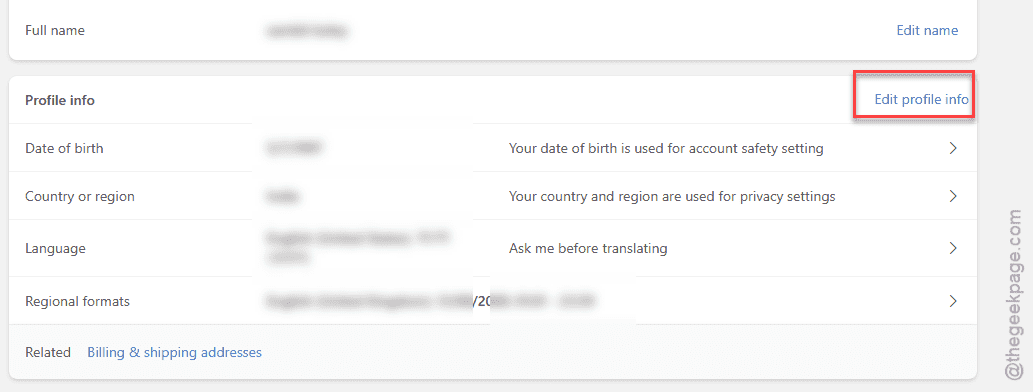
Step 4 – It will ask you to sign in or validate the login (like using PIN, fingerprint or MS Authenticator app code). Do that to proceed further.
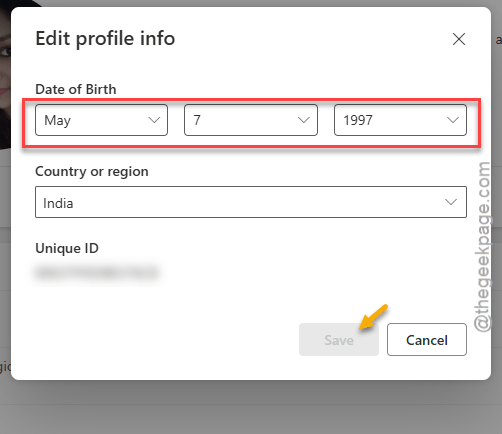
Step 5 – Now, go ahead and change your birthday from there. Use any year from 1990-1998 in there to bypass the age criteria.
Step 6 – Save the modified changes there.
Now, you can enjoy Minecraft in multiplayer mode.
Fix 2 – Allow Multiplayer feature in Privacy & Online Safety Settings
You have manually the multiplayer feature for your Xbox account.
Step 1 – At first, reach the Xbox Privacy & Online Safety page.
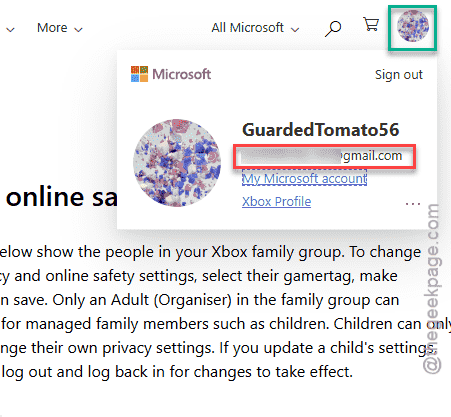
Step 2 – Tap the profile icon in the top-right corner. Check whether you are using the correct Microsoft account or not.
[If you are not, you can just sign out and sign in to your correct account.]
Step 3 – Then, go to the Xbox and Windows 10 device Online Safety section.
Step 4 – Scroll down to find the You can join multiplayer games option. Set it to Allow mode.
Step 5 – Tap Submit to save the changes.
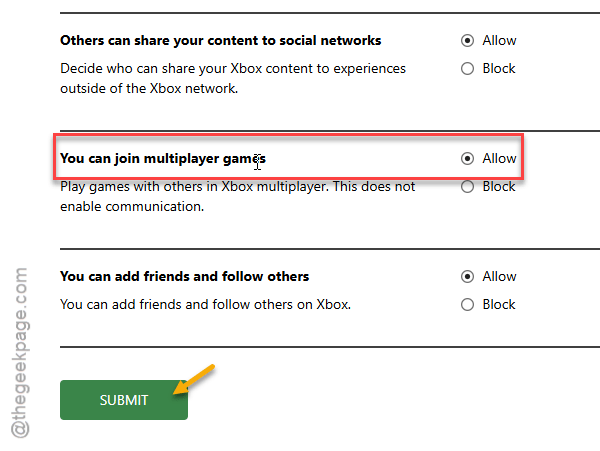
After saving the changes, try to play Minecraft and play it in multiplayer mode.
Fix 3 – Use the correct Microsoft Account to play Minecraft
Check whether you are using the correct MS Account to play Minecraft account. If you have a Microsoft Family account, where your children accounts are connected, this issue may arise.
Step 1 – Launch the Minecraft Launcher.
Step 2 – After it loads up, you will see the profile name in the top-left corner.
Step 3 – If you have mistakenly logged in with the wrong account, you tap the profile icon and use the Log out function.
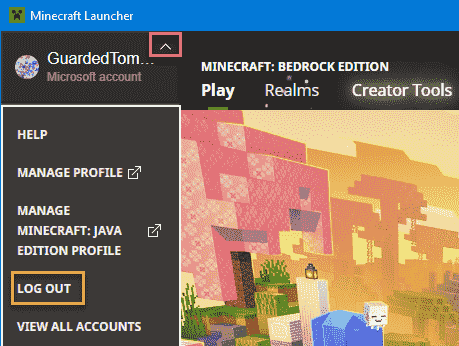
Step 4 – Now, make sure you are logged into your device with your actual Microsoft account.
Step 5 – Now, tap the Sign in with Microsoft option. Use the correct MS account to log into Minecraft. Make sure there are no age-related issues with your Microsoft account (ref – Fix 1) or, else take care of it.
After logging in to Minecraft, try to go into any of the worlds.
Fix 4 – Launch the game in Grid Format on Xbox, PC
The Xbox users having the multiplayer access blocked only on some of the games, has solved this problem simply by adjusting the games in a grid format.
Step 1 – Launch Minecraft on your console.
Step 2 – Then, select Play from the main menu.
Step 3 – You will see the list of worlds that you have created there.
Step 4 – Now, put it in the list format from the top left corner button there.
Step 5 – You can now launch and play the game from there.
While this is a weird fix, it has helped a lot of gamers.
FAQs-
1. Why Minecraft shows Multiplayer is disabled message?
Minecraft shows ‘Multiplayer is disabled’ message due to the age-related restrictions of the Microsoft account trying to access the game. However, it can be a temporary serve issue as well. Check the MS account that you are using to play Minecraft.
2. How can I fix the Multiplayer is Disabled message?
If you are getting ‘Multiplayer is Disabled’ message, it can be a network connection issue, Microsoft account age problem or a simply an occasional bug. Using the proper credentials, there should not be any problem going multiplayer in Minecraft.