Does the iPhone’s Night Shift turn off automatically after getting the iOS 26 update? Some users have noticed this weird behavior where the iPhone is switching off the Night Shift mode before it is scheduled to end. Apply these resolutions to fix this problem at your end.
Fix 1 – Disable True Tone Sync
A new feature in the iOS 26 may override the display tints trying to match the True Tone (color) of the iPhone.
Step 1 – Go to the Display & Brightness tab in the iPhone Settings.
Step 2 – Toggle the True Tone settings to OFF.
Step 3 – Check whether the Night Shift stays active.
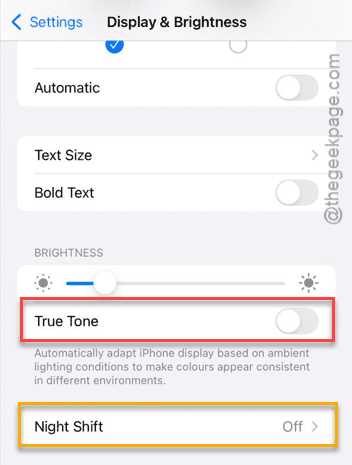
You should refrain from using True Tone mode if the Night Shift works works according to schedule.
Fix 2 – Overlap the Sunset to Sunrise Schedule
Sometimes, the automatic Sunset/Sunrise feature can glitch out the Scheduled Night Shift feature and cause to break earlier than preset time.
Step 1 – Proceed to the Display & Brightness settings. Proceed to the Night Shift tab.
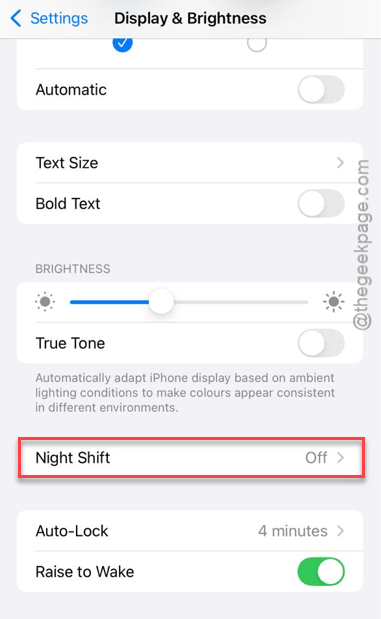
Step 2 – Open the Scheduled mode and choose Custom Schedule from there.
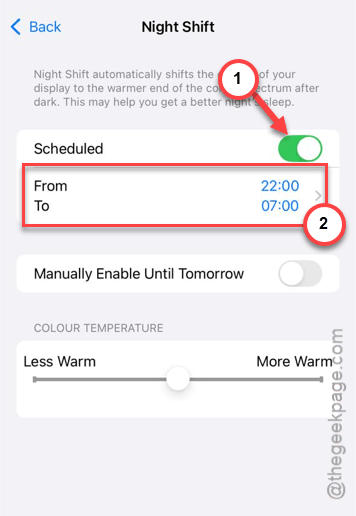
Step 3 – Then, set the Turn On time to 10:00 PM and Turn Off time to 9:59 PM.
[NOTE – Use 22:00 and 21:59 respectievely, if you are using the 24-hour system. ]
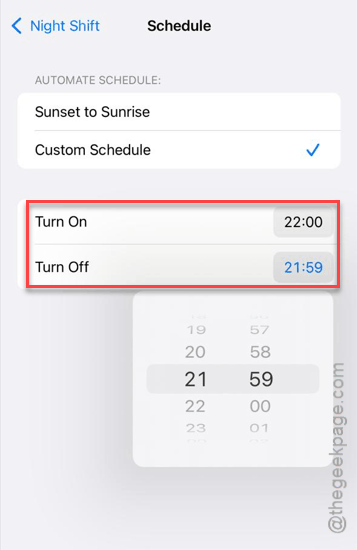
This 23-hour manual reset should clear out the glitch that has caused this issue.
Fix 3 – Clear the Focus Mode Display Filters
The iOS 26 has the focus filters that can disable the display tints like Night Shift that can cause such issues.
Step 1 – Open the Focus settings in iPhone Settings.
Step 2 – Now, open the focus mode (like Do Not Disturb or Sleep) that is currently activated on the device.
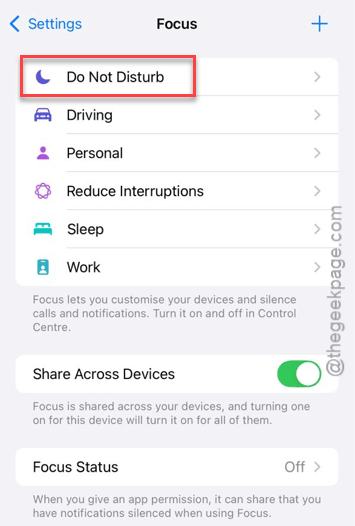
Step 3 – Scroll down to the Focus Filters. Look for any Display or Night Shift filter there, and delete it from there.
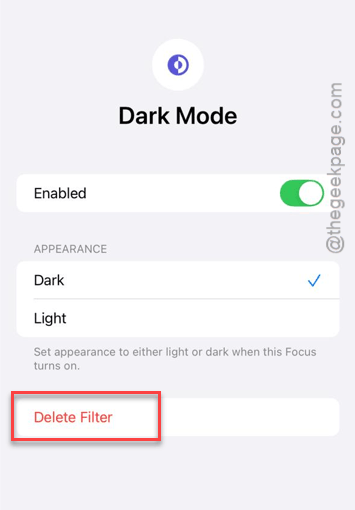
See if this fixes the issue.
Fix 4 – Adjust the Color Temperature Slider
If the iPhone’s display temperature is set to Less Warm side, iOS26 may disable the effects of the night shift filter on the display.
Step 1 – Open the Display & Brightness tab in iPhone. Proceed to the Night Shift settings.
Step 2 – Manually drag the Color Temperature slider to at least 50% towards More Warm side.
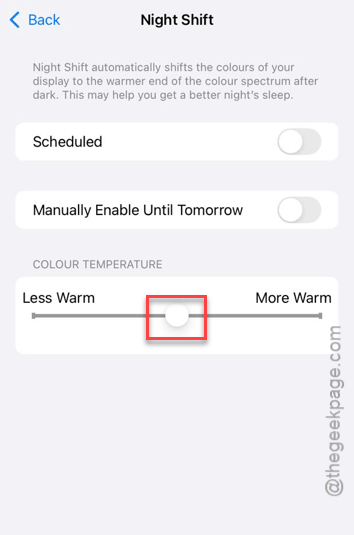
Now, reset the Night Shift one more time and check whether it ends prematurely or not.
Fix 5 – Reset the Location Services System Cache
The system feature that retrieve the sunrise/sunset data according to your system location can glitch out to cause this issue.
Step 1 – To do this, load up the main iPhone Settings. Next, open up the Privacy & Security tab.
Step 2 – Open up the Location Services from there.
Step 3 – Scroll down to the bottom and open up the System Services.
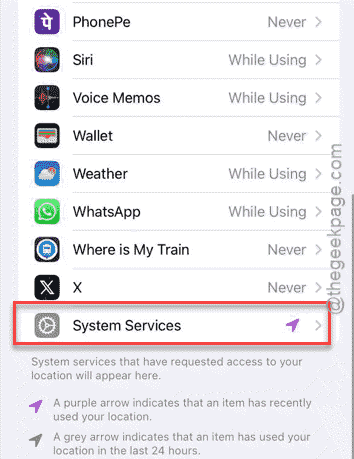
Step 4 – Toggle the System Customization and Setting Time Zone to OFF. Wait for 10 seconds or so. Then, turn it back to ON.
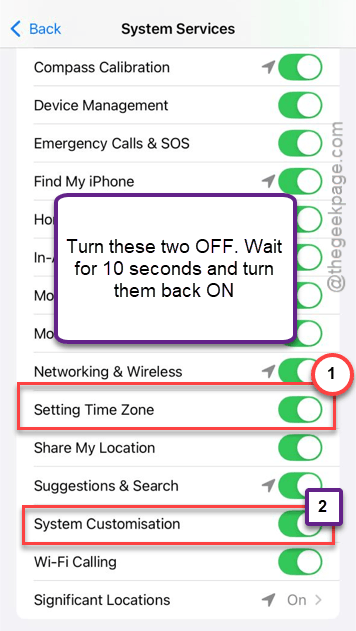
This refresh should fix the abrupt night shift issue.