Not getting the notifications from Microsoft Teams app for an important can be an extremely annoying experience. A few Teams users have notified this problem across various threads. Usually, this is a very simple case of Focus Assist or Do Not Disturb mode turned on, which have silenced the Teams app notifications. Here is a brief list of countermeasures that you may apply to resolve the issue.
Fix 1 – Disable the Focus Assist/ DND Mode
The Focus Assist or Do Not Disturb mode automatically silences the notification from apps on Windows. You can turn off the Focus Assist.
Step 1 – Open the Settings and load up the System settings.
Step 2 – Then, proceed to the Notifications panel.
Step 3 – Turn off the Do Not Disturb mode from there.
Step 4 – If the Focus is turned on, turn it off from there.
After turning it off, the notifications from Microsoft Teams will be delivered on time.
Fix 2 – Reset the Teams app notification system
Restore the default settings for all the Teams app from the in-app settings console.
Step 1 – Open up the Microsoft Teams app. Then, tap the three-dot button and tap the Settings.
Step 2 – In the Teams app Settings page, open the Notifications and activity.
Step 3 – Now, make sure these boxes are checked –
Play sounds with notifications
Play sounds with incoming calls, requests to join, and meeting start notifications
Show message and content preview in notifications
Step 4 – Turn on the all notifications option in Meetings panel as well.
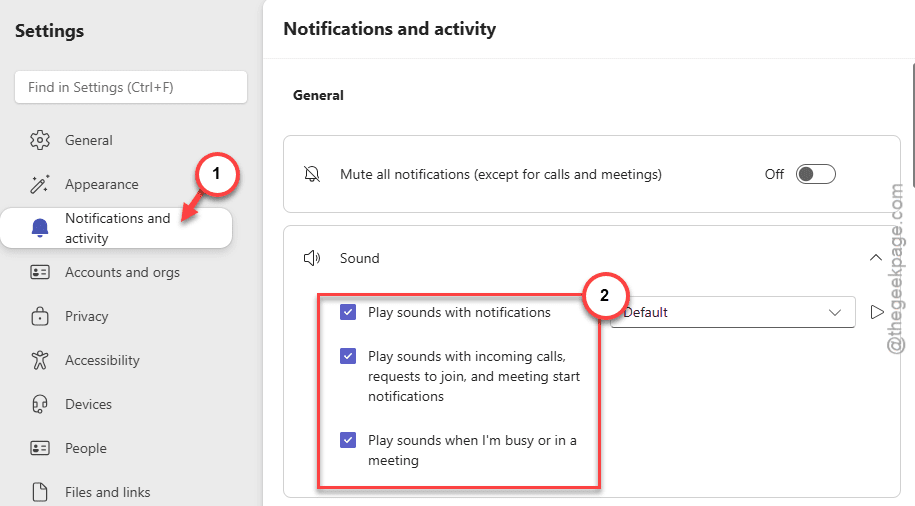
These changes will ensure there are no further issues with the notification system of the Teams app.
Fix 3 – Log out and log back into Teams
Simply sign out of your Microsoft Teams account and logging back into it should fix the issue.
Step 1 – On the Microsoft Teams client, tap your profile icon on the top bar. Tap the Sign out from the drop-down to sign out of MS Teams.
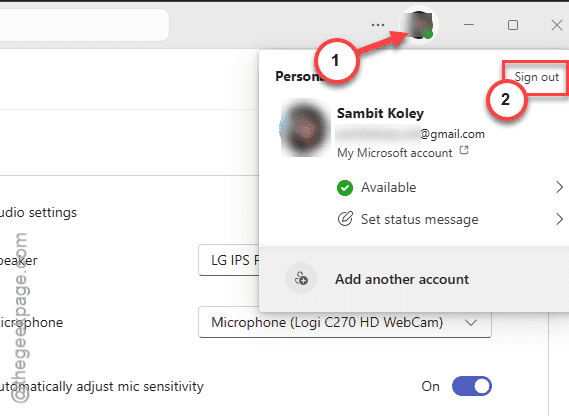
It will return you to the default page of Teams app.
Step 2 – Then, tap the Sign in button there to sign in.
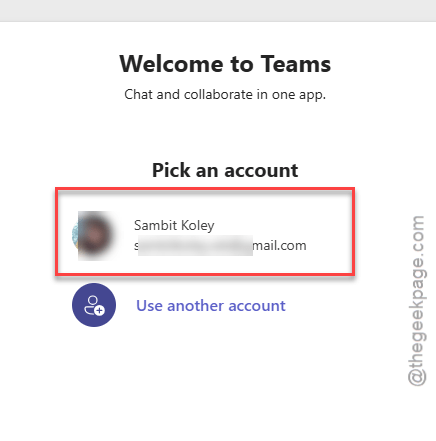
After this, sign in using your Microsoft Teams credentials. Check whether you are getting the notifications or not.
Fix 4 – Re-register Windows Notifications Platform
This issue may not be limited to the Microsoft Teams app. So, you should re-register the Teams app and restart the Windows Notifications platform entirely.
Step 1 – Right-click the Windows button and tap Windows Terminal (Admin).
Step 2 – In the terminal, paste this command and hit Enter to re-register the Windows Notification system.
pwsh -command "Get-AppxPackage Microsoft.Windows.ShellExperienceHost | Reset-AppxPackage"
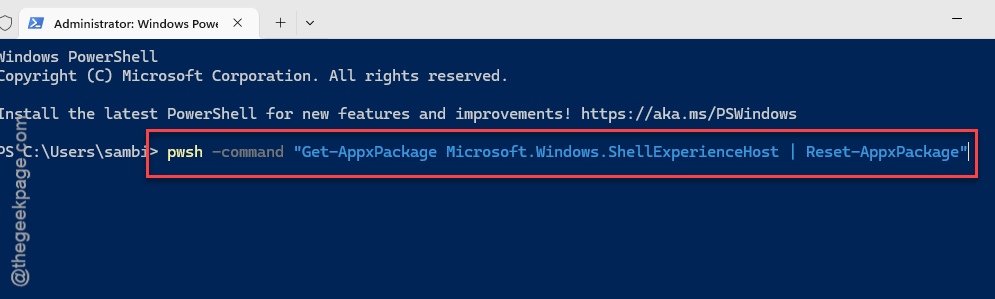
Step 3 – Now, search for services in the Windows Search, and open the Services.
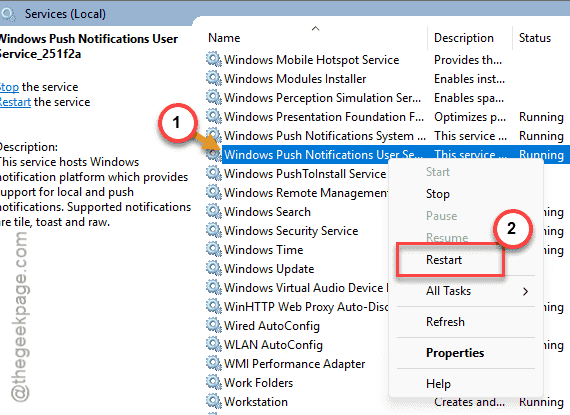
Step 3 –Find the Windows Push Notifications User Service there. Right-click that service and tap Restart to restart the service.
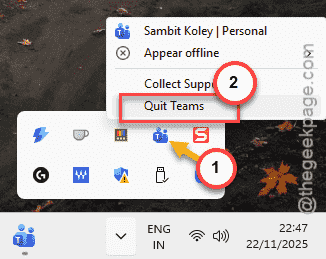
Step 4 – Now, you have to restart the MS Teams. Close the main panel of the app, and quit the Teams from the taskbar button as well.
Send a demo chat to yourself from another Teams account to test out the notification system.