You hit cancel. Nothing happens. The print job just sits there. “Deleting…” forever.
And every new print you send? Stuck behind that ghost job. Nothing prints. Annoying. Here’s how to actually clear it out.
Why This Happens
Basically? The Printer Spooler is the main culprit here. It keeps trying to send the job. Or it can’t tell Windows the job is done.
Windows asks the spooler to remove it. The spooler is frozen. So the file stays.
Sometimes the printer port itself is the problem. Duplicate entries. Corrupted configs. The spooler tries to talk to a port that doesn’t really exist anymore. Just lag and pending jobs forever.
Fix 1 – Try the Standard Cancel First
Before doing anything technical — give the basic method a shot. Sometimes it actually works.
1 – Look at your system tray (bottom-right of the taskbar). Click the small printer icon.
2 – If you don’t see one, hti the Windows + I to reach the Settings.
3 – Then, proceed to the Bluetooth & devices on the left sidebar.
4 – Click Printers & scanners.
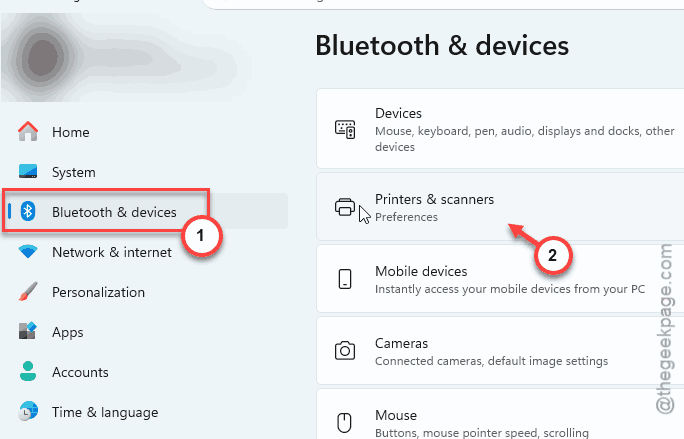
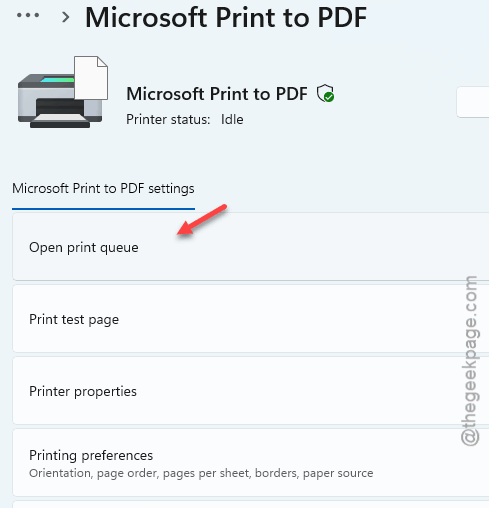
5 – Click your printer name. Then click Open print queue.
6 – Right-click the stuck job. Select Cancel.
7 – Or click Printer in the top menu, then Cancel All Documents.
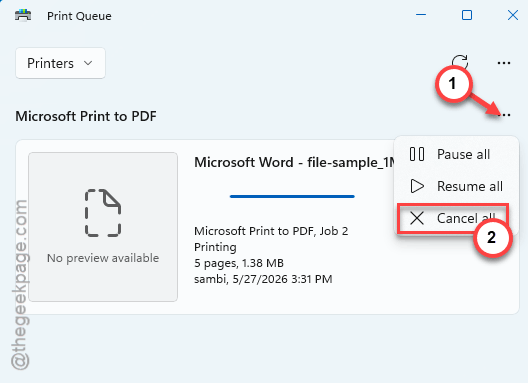
If the job clears? Great. If it says “Deleting…” and just hangs? Move on.
Fix 2 – Force Clear the Spooler Folder
This is the fix that always works.
1 – Press Windows + R to open Run.
2 – Type services.msc and press Enter.
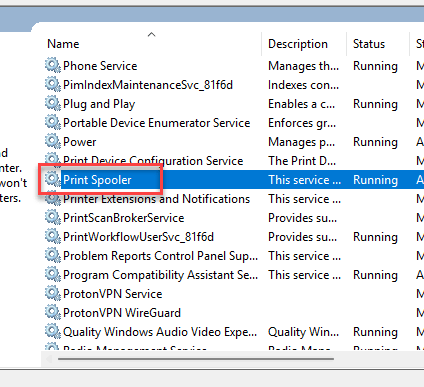
3 – Scroll down to find Print Spooler in the list. They’re alphabetical.
4 – Right-click Print Spooler. Select Stop.
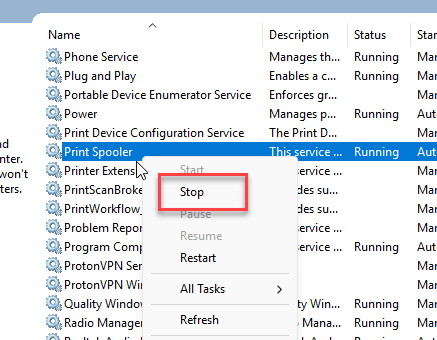
5 – Don’t close the Services window. You’ll need it again in a minute. Just minimize it.
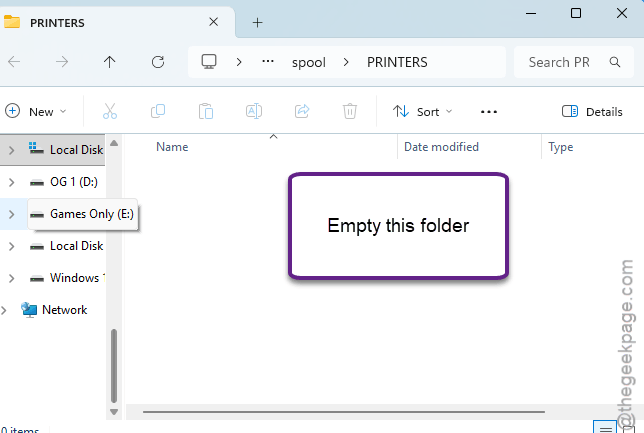
6 – Press Windows + E to open File Explorer.
7 – Tap the address bar at the top. Paste this:
C:\Windows\System32\spool\PRINTERS
8 – Press Enter. Click Continue if Windows asks for admin permission.
9 – Select every file in the folder (Ctrl + A is fastest). Press Delete.
10 – Go back to the Services window. Right-click Print Spooler again. Select Start.
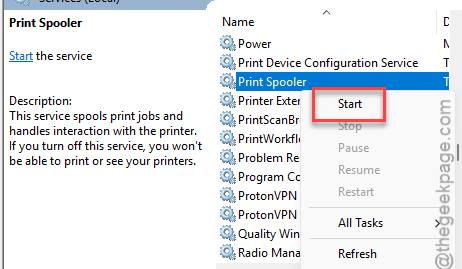
Done. The queue should be empty now. Try printing something to confirm.
Fix 3 – Restart the Print Spooler Only
Quick fix. Sometimes the queue clears as soon as the spooler restarts. No need to delete anything manually.
Press Windows + R. Type services.msc and press Enter. Find Print Spooler. Right-click. Select Restart.
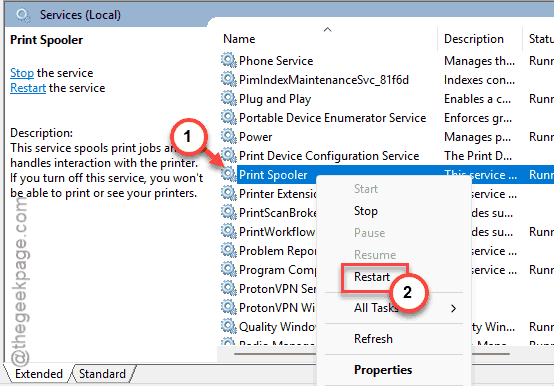
Wait a few seconds. Open your print queue. Empty? You’re done. You can use Fix 2 if you are stuck.
Fix 4 – Remove Duplicate Printer Ports
If jobs keep getting stuck — like every time — you’ve probably got duplicate or corrupted printer ports. Common with network printers.
1 – Press Windows + I to open Settings.
2 – Click Bluetooth & devices on the left.
3 – Click Printers & scanners.
4 – Scroll to the bottom of the page. Click Print server properties.
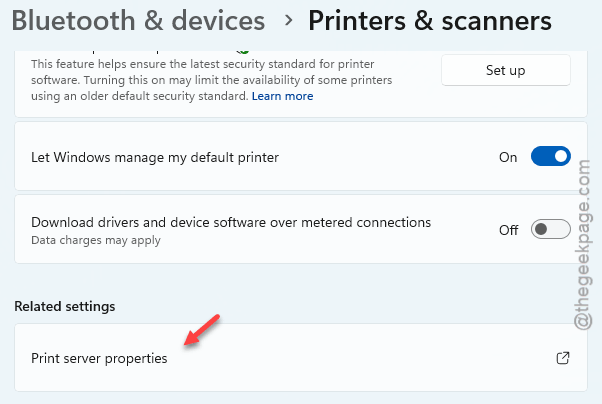
5 – Click the Ports tab at the top.
6 – Look through the list. Find the port matching your printer’s IP address or name.
7 – See duplicates? Multiple entries for the same printer? That’s your problem.
8 – Select each duplicate. Click Delete Port.
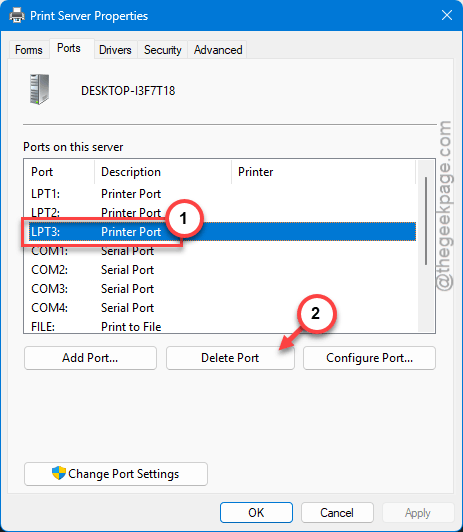
9 – Once cleaned up, go back to Printers & scanners and click Add device to re-add the printer fresh.
Check if this works.
Fix 5 – Verify Spooler Startup Type
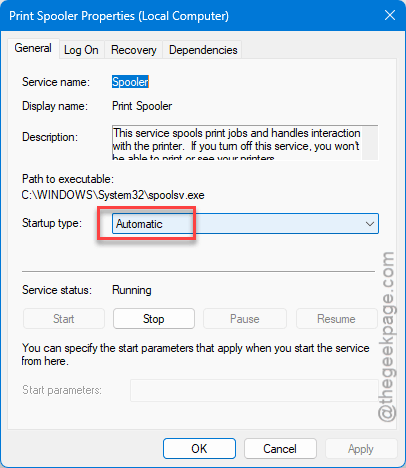
If the spooler keeps stopping on its own, the startup type might be wrong. Should be Automatic. Sometimes Windows resets it.
1 – Press Windows + R. Type services.msc. Press Enter.
2 – Find Print Spooler.
3 – Double-click it to open properties.
4 – Look at Startup type. If it says anything other than Automatic — change it to Automatic.
5 – Click Apply, then OK.
6 – Restart your PC.
How to Prevent This
– Download the latest version of printer driver from the printer maker’s website. Not Windows Update.
– Try using a static IP in case you are using a network printer. Stops the duplicate port problem.
– Power cycle your printer once a week. Sounds silly. But it clears its memory.
People Also Ask
How to remove print jobs stuck in queue?
You have to stop the Print Spooler service, first. Then, delete every file from the C:\Windows\System32\spool\PRINTERS location. Don’t forget to start the Print Spooler service. Queue’s finally empty.
Why can’t I cancel a print job on my Windows 11 device?
Sometimes, the print jobs can get stuck in the Print Spooler service. You can easily clear print queue to get out of this debacle.