Multiple users have come across the rendering lag or delay problem on their Windows 11 systems after updating to the 24H2 or 25H2 version. This type of rendering lag issues are not completely unheard of. Users may experience this sort of lag in while exiting the Chromium-based apps, where the Multiplane Overlay can leave a trace of the layer of the previous window on the screen. We have discussed the absolute fix for this, along with some other solutions to fix this particular issue.
Fix 1 – Turn off MPO at System Root
The Multiplane Overlay used by the Chromium based apps such as Google Chrome, Microsoft Edge may leave a layer on the screen after closing or minimizing the window. This ‘Eraser’ effect can be easily solved via a simple registry edit.
Method 1 –
You can commit this change with a simple one line code from the CMD terminal.
Step 1 – At first, search cmd. Next, right-tap the Command Prompt, and tap Run as administrator.
Step 2 – Paste this code and hit Enter to modify the registry on the system.
reg add "HKLM\SOFTWARE\Microsoft\Windows\Dwm" /v OverlayTestMode /t REG_DWORD /d 5 /f
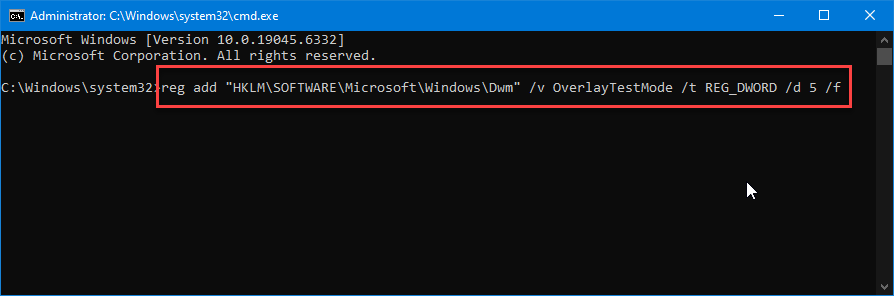
This will change a simple value in the system registry. You may get a warning message that it will change the system registry. Tap Yes if you get any such message.
Method 2 –
Step 1 – To edit the system registry manually, search for regedit.
Step 2 – Next, tap the Registry Editor in the search box.
Step 3 – Then, proceed to this point in there~
HKEY_LOCAL_MACHINE\SOFTWARE\Microsoft\Windows\DWM
Step 4 – Once you have reached the location, go to the right-hand pane, and right-click on the space, followed by a further tap on New > DWORD (32-bit) Value.
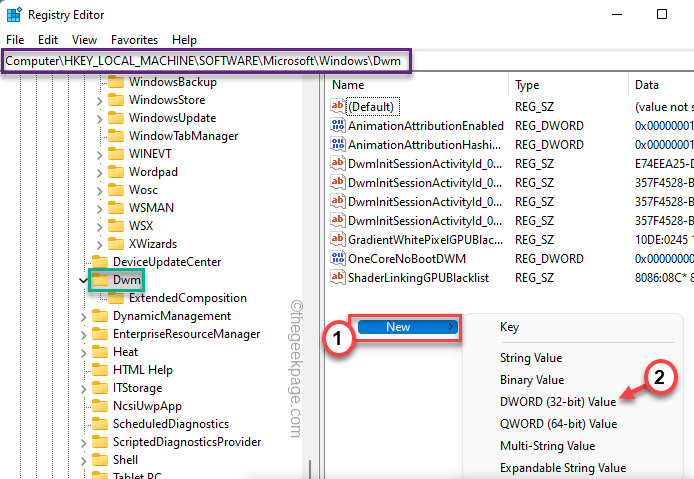
Step 5 – Name this value as OverlayTestMode. Then, just double-click the value to modify it.

Step 6 – Set the Value Data to 5.
Step 7 – After that, click OK to save the changes.
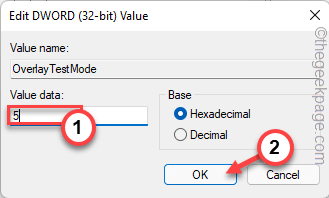
After disabling the MPO, close the Registry Editor. Then, restart the computer to apply the change.
Fix 2 – Install the latest version of GPU driver
Older GPU driver on your system may lead to such rendering lag problems.
Step 1 – Go to the NVIDIA App or AMD Adrenalin App.
Step 2 – Find the Drivers tab and tap Download to download the latest version of the GPU driver.
Step 3 – Due to the size of the GPU driver package, it may take some time to download it.
Step 4 – Once it is downloaded, you can install it on your device.
NOTE – We also recommend a complete clean installation of GPU driver. You can use Display Driver Uninstaller or DDU tool to boot into safe Mode and clean up the GPU driver files. You can find a detailed, step-by-step guide here.
Fix 3 – Disable the Wallpaper Engine
Some of the users have complained that the Wallpaper Engine from Steam is causing such issues. The wallpaper modifier utilities often consume a chunk of your hardware resources. This may impact if your system has an older GPU, that may lead to the Eraser effect layer that we have discussed before. So, if you own or installed any such desktop wallpaper engine, disable it or uninstall it from your system to fix the issue.
Step 1 – Quickly hit the Win+R buttons at once.
Step 2 – Next, type the appwiz.cpl and click OK.
Step 3 – Locate the Wallpaper Engine or other desktop modifying tool there. Right-click that and tap Uninstall.
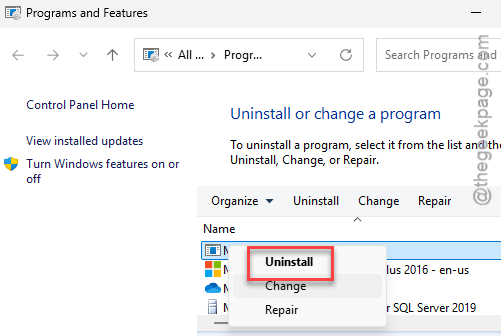
Step 4 – It will open up the Steam console, asking your permission to uninstall it. Tap Uninstall to uninstall it from the device.
After uninstalling the tool, do reboot the system.
Fix 4 – Disable Hardware accelerated GPU scheduling
The hardware-accelerated GPU scheduling may lead to rendering lags on your computer.
Step 1 – In the Settings page of Windows, go to the System settings.
Step 2 – Then, follow this path –
Display ⇾ Graphics
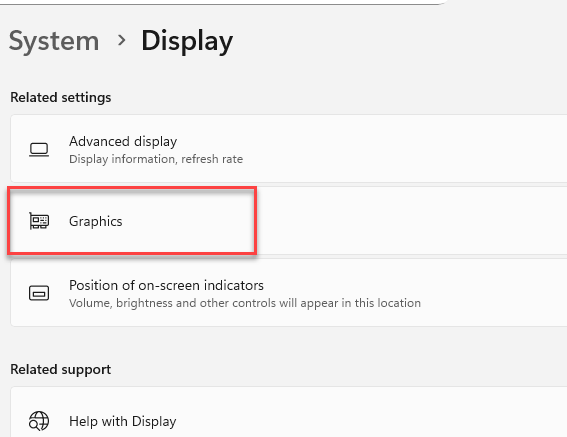
Step 3 – Under the Default settings option, tap the Hardware-accelerated GPU Scheduling option. Turn it off.
After turning it off, restart your system to apply the changes. See if this helps to fix that rendering lag issue you are experiencing on the 24H2 and 25H2 system.
NOTE – If you don’t see the Hardware-accelerated GPU Scheduling option, your GPU does not offer that feature.