Can’t see the ESU option on your Windows 10 machine? With the end of the life for the Windows 10 support drawing near, this paid Extended Security Update (ESU) scheme from Microsoft can be considered a lifeline for all unsupported devices that cannot be upgraded to Windows 11. Some of the Windows 10 users have complained of not seeing the ESU option in the Windows Settings page. In this article, we have focused on this particular problem and discussed possible resolution to this issue.
Fix 1 – Check for the ESU compatibility
Before trying to find the ESU option, you should check whether the ESU option is actually available or not.
Step 1 – Search cmd from the search bar. Next, right-click the Command Prompt, and tap Run as administrator option.
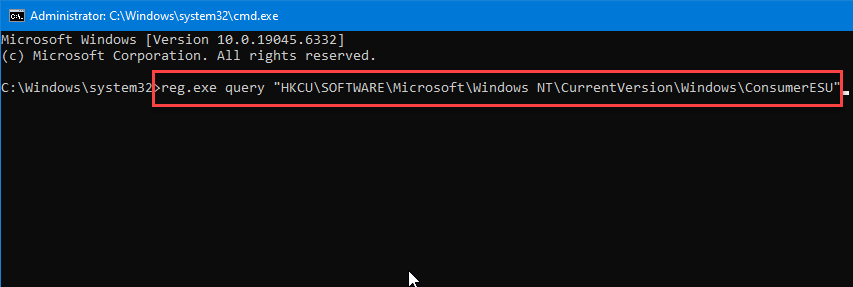
Step 2 – Then, input this line of command, and hit Enter to check the ESU eligibility.
reg.exe query "HKCU\SOFTWARE\Microsoft\Windows NT\CurrentVersion\Windows\ConsumerESU"
Step 3 – It will fetch two distinct keywords in the results. One is the ESUEligibility and the other one is ESUEligibilityResult. Note down both the results.
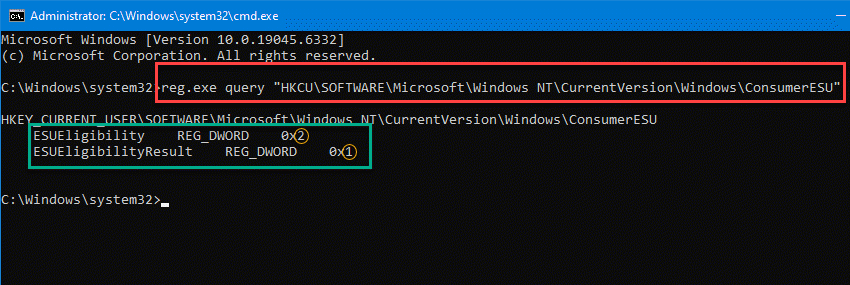
Note down the last digit for each key and match it with the table provided below to understand whether your system is compatible with the ESU criteria.
| ESUEligibitlity Value in terminal | What it means |
|---|---|
| 0 | Unknown / Feature is not enabled |
| 1 | Ineligible |
| 2 | Eligible |
| 3 | Device enrolled |
| 5 | MSA Enrolled |
| 8 | Login with primary account to enroll |
| ESUEligibilityResult Value in terminal | What it means |
|---|---|
| 1 | Success |
| 3 | Non-Consumer edition |
| 4 | Commercial device |
| 5 | Non-Admin account |
| 6 | Child account |
| 7 | User region is embargoed |
| 8 | Azure device |
| 11 | Unknown / Feature is not enabled |
If the ESUEligibility and ESUEligibilityResult stands for 2 and 1, your device is eligible for ESU program and already successfully enrolled.
Fix 2 – Enroll in ESU via Windows Update
You may directly enroll to the ESU program from the Windows Update page on the Windows Settings page.
Step 1 – Go ahead and load up the Settings page.
Step 2 – Next, go to the Update & Security settings console.
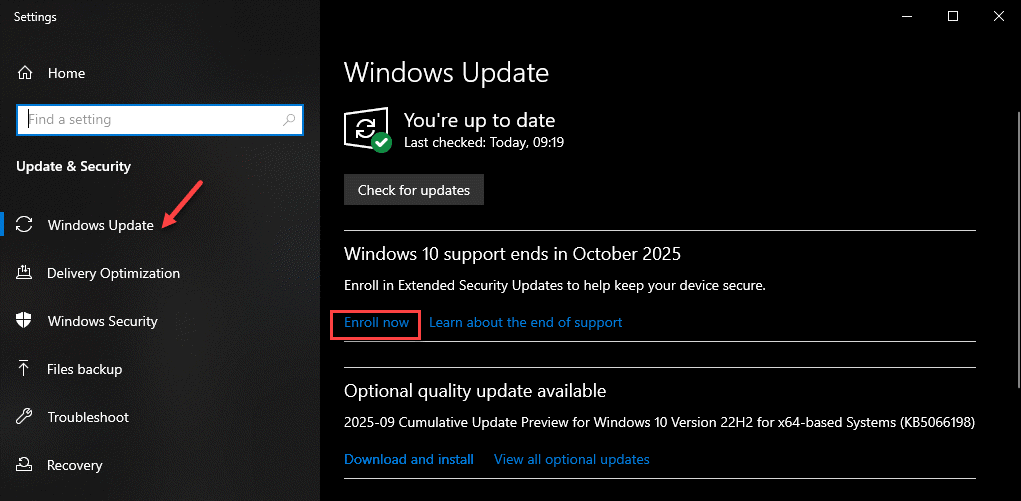
Step 3 – Open the Windows Update page. On the right-hand side, find the Extended Security Update option panel. Tap the Enroll now button.
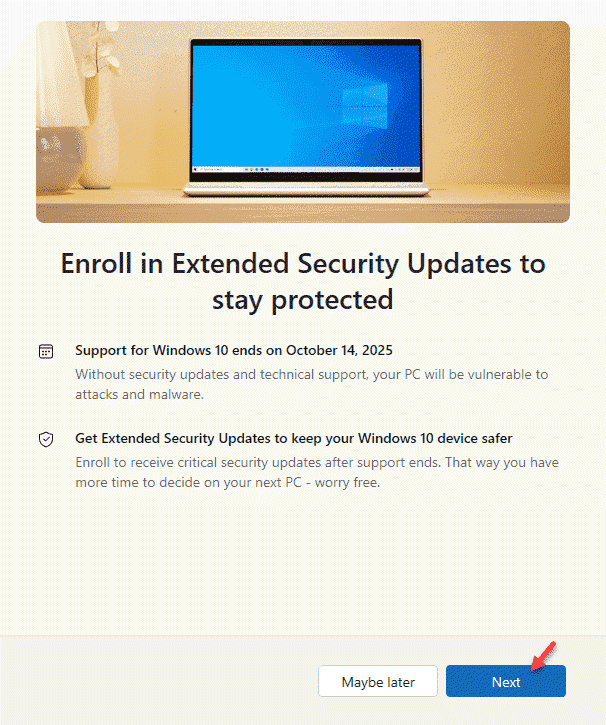
Step 4 – Tap the Next button on the ESU console page and follow the rest of the on-screen instructions to complete the enrolment procedure.
Keep in mind that this ESU program will be charged annually, so you will have to set up the billing details as well. You can read more in details in the ESU page.
If you can’t see the Enroll Now button or the mention of the ESU program, follow the next steps.
Fix 3 – Force-enable the ESU enrolment process
If your device is eligible for the update, but you have not received it yet, you can force-enable the update for your system.
Step 1 – Open up an elevated CMD terminal with administrative rights.
Step 2 – Next, input these two commands and hit Enter to automate and start the Windows Diagnostics Tracking service.
sc.exe config DiagTrack start= auto
sc.exe start DiagTrack
Step 3 – Use this command in the same terminal to force-enable the ESU program for your device.
reg.exe add "HKLM\SYSTEM\CurrentControlSet\Policies\Microsoft\FeatureManagement\Overrides" /v 4011992206 /t REG_DWORD /d 2 /f
You will get a confirmation prompt like this –
The operation completed successfully.
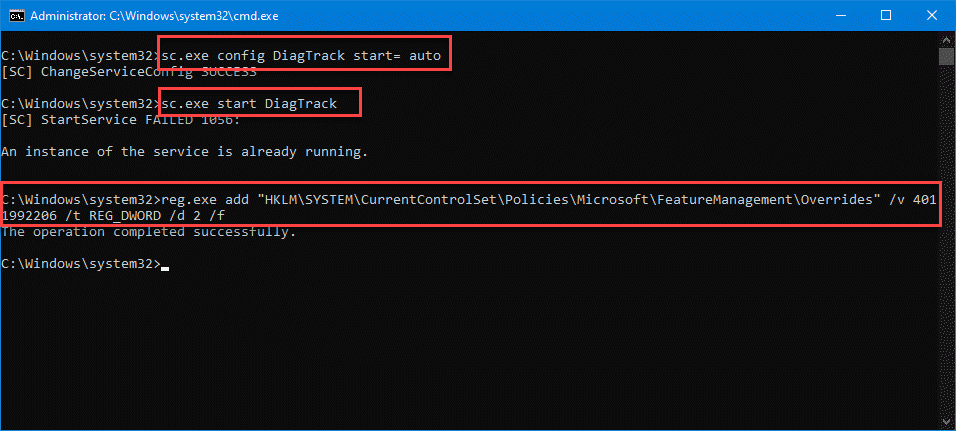
Close the terminal and restart the system. There is one more thing left to do, that is to enable the ESU.
Step 4 – So, load up the CMD terminal with administrative rights.
cmd /c ClipESUConsumer.exe -evaluateEligibility
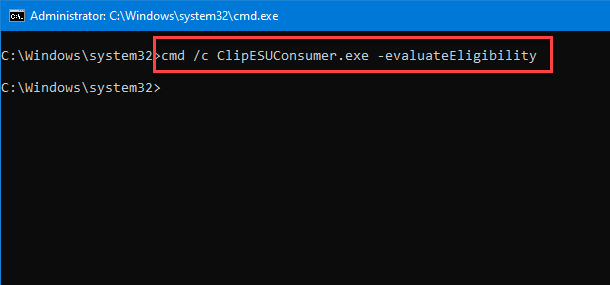
If this command runs without any error messages or codes, your device is successfully enrolled to the ESU program.
Step 5 – Go ahead and open the Windows Update panel and complete the enrolment process from there.
See if this works.
Fix 4 – The enrolment process is ongoing
Microsoft has initiated the ESU rollout process for the eligible or supported devices. This program is usually rolling out for the organizations with large user base to smaller user base. So, if your device is illegible for the ESU enrolment program, it will be rolled out eventually. You don’t have to do anything, your device will continue to get security updates from Microsoft, provided it is eligible.
FAQs on Windows 10 ESU option is not showing up –
1. What is ESU option on Windows 10?
The Extended Security Updates program has been designed to cater to a handful of Windows 10 users who will continue to get security updates for up to 3 years after the support officially ends in October 2025. This is a paid program that will be useful for organizations to make their upgrade process to Windows 11 significantly smoother.
2. What happens after the end of support for Windows 10?
After the support for Windows 10 ends in October 2025, it will continue to be working as usual. But, it won’t get any further feature or security updates in the future. You may upgrade to Windows 11 for free, provided your device does satisfy the hardware requirements to install Windows 11 and running on the latest Windows 10 version.