Updated Windows. Now Remote Desktop won’t connect. Keeps timing out or dropping the session right after login. Classic post-update mess. The KB5079473 update broke UDP transport for RDP. Microsoft already acknowledged it. But if you haven’t received the the patch yet on your machine, here’s a detailed guide how to fix it manually.
Why This Happens
Microsoft pushed KB5079473 as part of the 25H2 update cycle. It changed how RDP handles UDP connections. This change broke things for a lot of people. Sessions drop immediately or the login screen freezes. Microsoft released a fix (KB5085516) on March 21, 2026 to address this problem. But not everyone gets it automatically. And if you need RDP working right now, you can’t wait for Windows Update to get around to it.
Fix 1 – Install the Fix Update KB5085516
The official fix. Microsoft released this on March 21, 2026. Should appear under “Latest Updates” in Windows Update.
1 – Open Settings (press Windows + I).
2 – Go to Windows Update in the left sidebar.
3 – Click Check for updates.
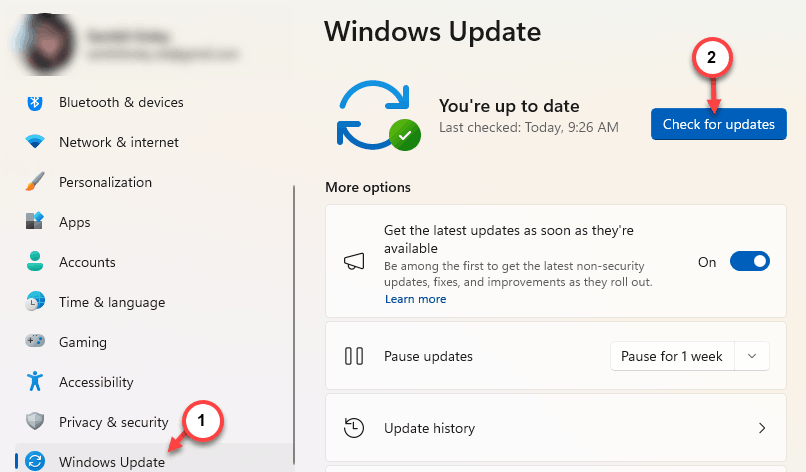
4 – Look for KB5085516. If it’s there, click Download & install.
5 – Restart when prompted.
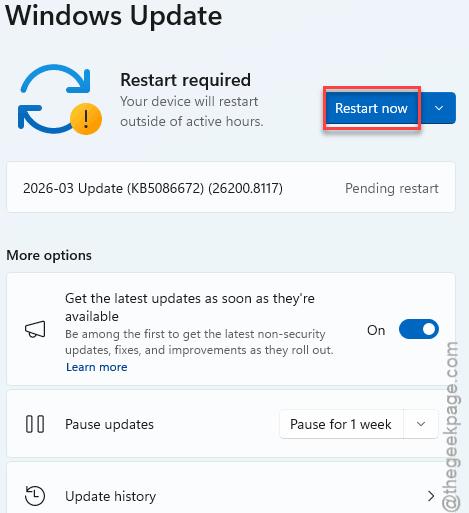
6 – If you don’t see that update, you have to ensure that the “Get the latest updates as soon as they’re available” feature is enabled in Windows Update page.
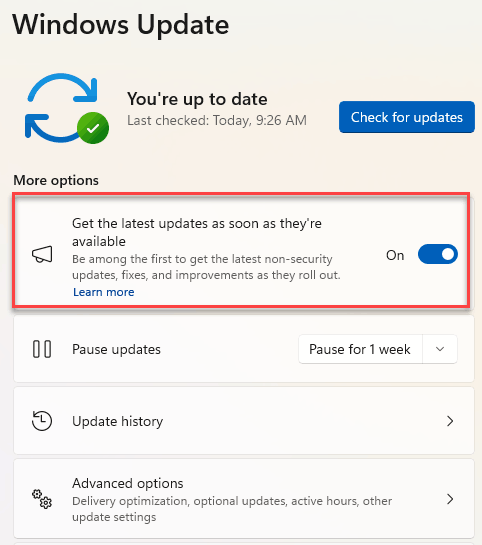
You will find it just below the Windows Update section in Settings page. Sometimes the fix sits in that optional queue as well.
Fix 2 – Disable UDP for RDP via Registry
Can’t get the update? This forces RDP to use TCP only. Bypasses the broken UDP transport entirely.
1 – Hit the Windows + R, type regedit, press Enter.
2 – Go to:
HKLM\SOFTWARE\Policies\Microsoft\Windows NT\Terminal Services\Client.
3 – If you don’t see the Client key on the left hand side, do this: right-click Terminal Services and create a new Key called Client.
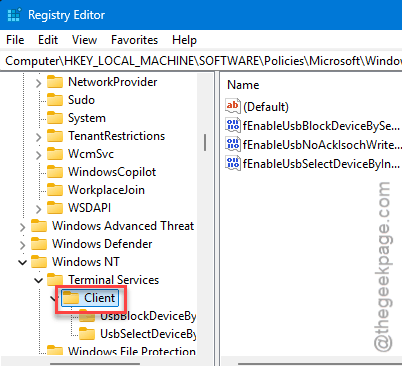
4 – Now, right-click the right pane. Select New > DWORD (32-bit) Value.
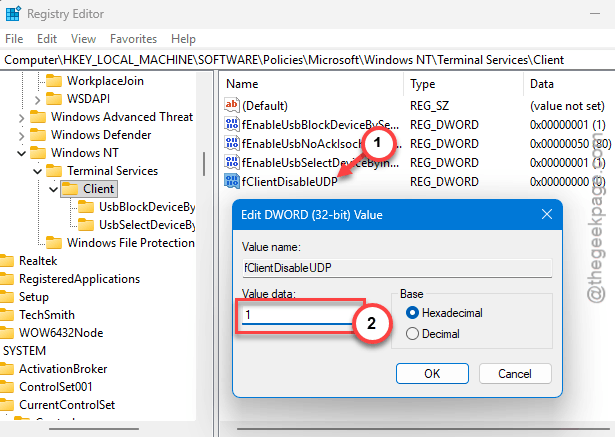
5 – Name it fClientDisableUDP.
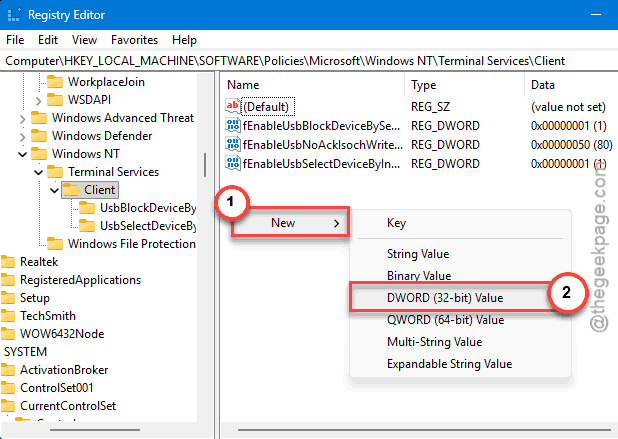
6 – Double-click it. Set the value to 1.
7 – Click OK.
8 – Close Registry Editor. Restart the machine.
And RDP should connect again. Not the prettiest fix. But it works until you can install the official patch.
Fix 3 – Disable UDP via Group Policy
Same idea as Fix 2 but through Group Policy instead. Better if you manage multiple machines.
1 – Press Windows + R, type gpedit.msc, press Enter.
2 – Go to:
Administrative Templates -> Windows Components -> Remote Desktop Services -> Remote Desktop Connection Client
3 – Find Turn Off UDP on Client policy.
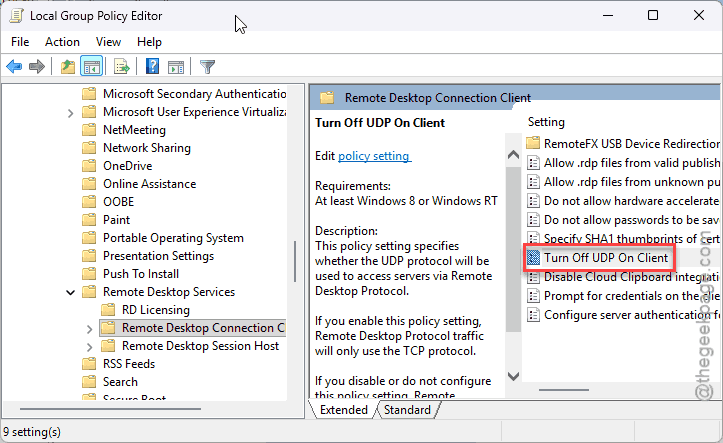
4 – Double-click it. Set it to Enabled.
5 – Click Apply, then OK.
6 – Restart.
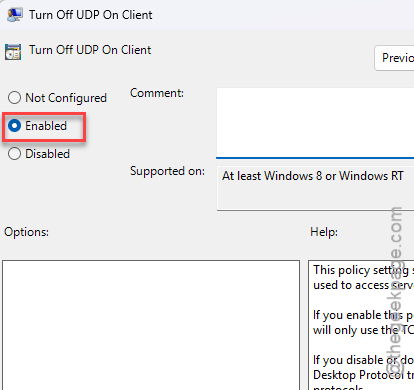
Done. Same result as the registry fix — forces TCP only.
Fix 4 – Reset Windows Firewall
If disabling UDP didn’t help, the firewall might be blocking RDP entirely after the update.
1 – Open Windows Defender Firewall from the Start menu search.
2 – Click Restore defaults on the left side.
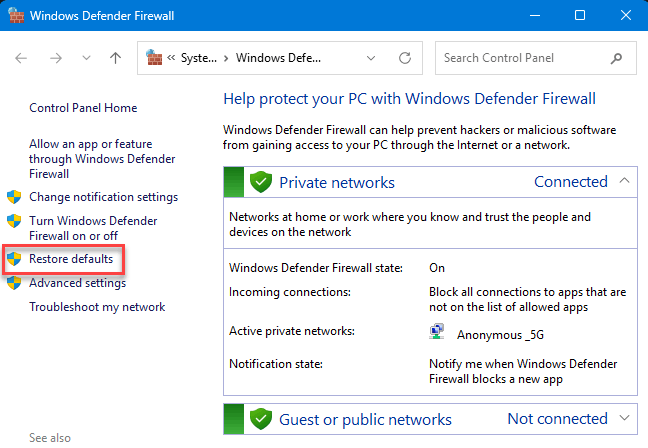
3 – Confirm the reset.
4 – Restart your PC.
Alternative Method-
You can do this from the command line as well: open Command Prompt as admin and run this code –
netsh advfirewall reset
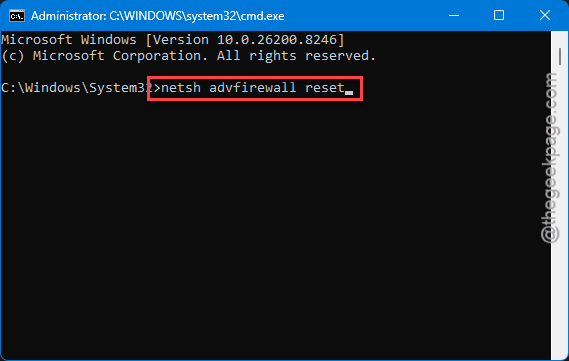
This is the nuclear option for the firewall, but it clears whatever the update messed up.
How to Prevent This
- Turn on “Get the latest updates as soon as they’re available” in Windows Update settings. Hotfixes land there first.
- Before major updates, check known issues on Microsoft’s release health dashboard.
- Keep the UDP disable registry key handy. It’s a safe fallback whenever RDP breaks after patches.
People Also Ask
How to fix RDP after Windows Update?
Disable UDP first. Set fClientDisableUDP to 1 in the registry under Terminal Services\Client. Then check for the latest cumulative update. Microsoft usually patches RDP breaks within a week or two.
Why Windows 11 24H2 has issues with RDP after recent updates?
Microsoft changed how RDP handles UDP transport. The change broke session negotiation for a lot of configurations. KB5085516 fixes it. But disabling UDP manually works as a quick workaround.
What is the problem with KB5074109 Remote Desktop?
Similar to KB5079473. These updates modify the RDP protocol stack and break UDP transport. Forcing TCP-only mode via registry or Group Policy bypasses the issue until a fix is released.