Does the File Explorer crashes while trying to open large folders on your Windows 11/10 system? Windows native file processor utility, File Explorer, does handle bulky folders without any struggle. But, in some cases, the users have noticed a certain lag or stutter along with the ‘Not Responding’ message on the File Explorer console, which eventually crashes while loading up large folders on the system.
Fix 1 – Rebuild the Index in File Explorer
If you have large folders on your system, corruption in the indexing process may cause such crash issues in the File Explorer.
Step 1 – At first, load up the Win+R buttons at once.
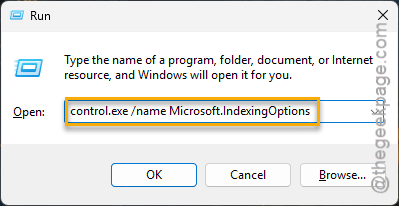
Step 2 – Next, paste this code in the Run panel. Click OK to proceed.
control.exe /name Microsoft.IndexingOptions
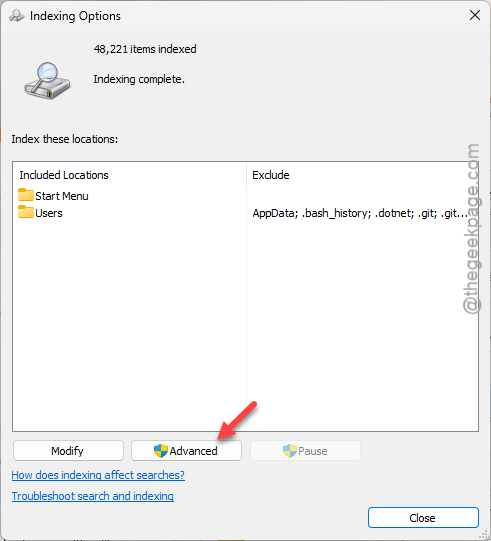
Step 3 – After the Indexing Options panel opens up, tap the Advanced button there.
Step 4 – In the Troubleshooting section, tap the Rebuild option to start rebuilding the index.
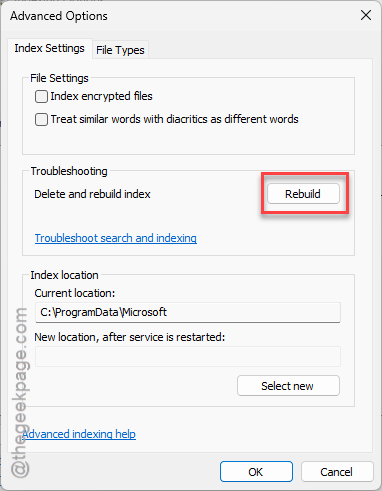
The index rebuilding process do take some time. You can leave it running in the background while you are working.
Fix 2 – Turn off the Folder Preview option in Explorer
Sometimes, the preview or thumbnail of the items in the large folder can crash the File Explorer itself.
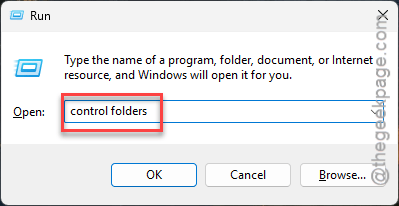
Step 1 – Use the Win+R buttons together. Input this code in the Run box and, hit Enter.
control folders
Step 2 – In the Folder Options page, get to the View tab.
Step 3 – Make sure to check these two boxes in the View tab –
Always show icons, never thumbnails, and Hide protected operating system files (Recommended)
Don't show hidden files, folders or drives
Step 4 – Finally, tap the Apply and OK function to save the changes.
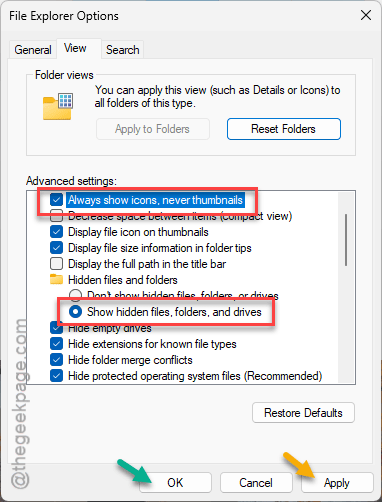
After saving the changes there, try to load that same folder again.
Fix 3 – Restart the File Explorer process
If the File Explorer has become unresponsive while accessing the said large folder, you should reboot the File Explorer.
Step 1 – While the File Explorer is showing up ‘Not Responding’, minimize it.
Step 2 – Next, right-click the Windows button, and tap the Task Manager to load it up.
Step 3 – In the Task Manager utility page, locate the File Explorer utility. Right-click that and tap the Restart to reboot the File Explorer process.
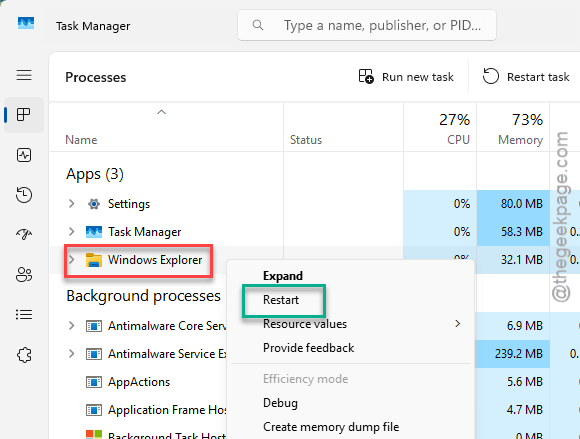
Your computer will become unresponsive for a short duration. Once it is operational, try to load up the large folder again.
Fix 4 – Clear the File Explorer History
You must clear the File Explorer history to avoid such issues.
Step 1 – Quickly, press the Win+R buttons together.
Step 2 – Write this code in the Run box and, hit Enter.
control folders
Step 3 – Go to the General tab and find the Clear File Explorer History.
Step 4 – Tap the Clear option to clean it up.
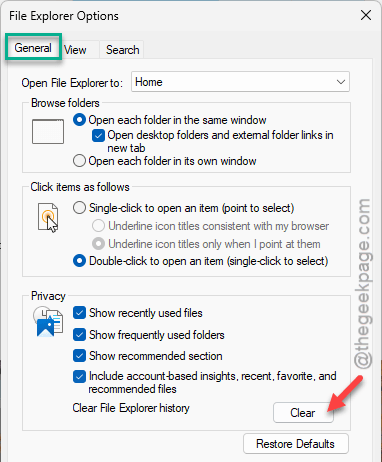
After clearing the file explorer history, give that large folder another try.
Fix 5 – Reset your PC from Windows Settings
If nothing is working and the File Explorer is continuously struggling with large folders, you should definitely reset the Windows, without removing any files or folders.
NOTE – Microsoft apps along with some additional third-party apps may get deleted from your system, but your personal files or data will remain intact.
Step 1 – Go to your Windows Settings console.
Step 2 – Tap the System panel. Open up the Recovery settings.
Step 3 – Under the Recovery Options tab, tap the Reset PC option in the Reset this PC option.
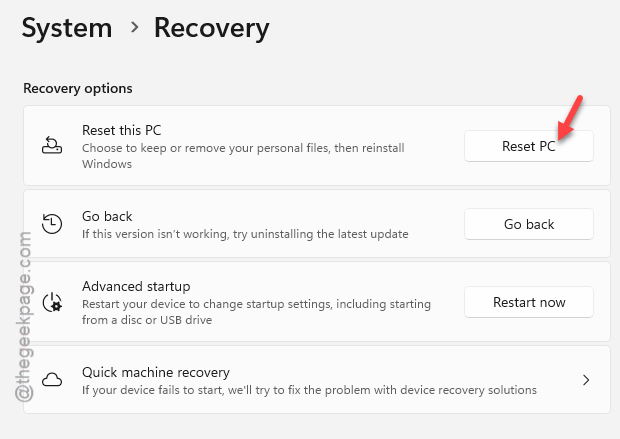
Step 4 – Select the Keep my files option.
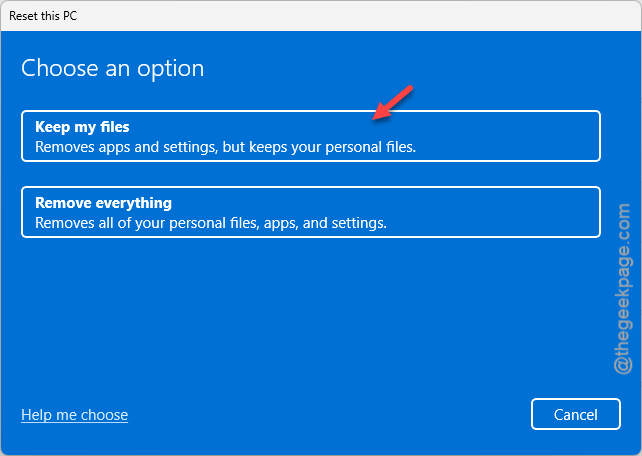
Follow through the on-screen steps to reset the PC. After resetting the PC, you won’t face such crash problem while accessing large folders in File Explorer again.
Additional Tips –
1. If the large folder is located on an external storage device, check it for corruption. Eject the device safely and reconnect it.
2. File Explorer may struggle to read through large folders if there is something wrong with the system RAM. Corrupted or bad sectors of RAM can slow down the read/write speed significantly for the drive. Run a Memory Diagnostics check to check.
FAQs on why File Explorer is crashing while opening large folders –
1. What are the space limits on Windows File Explorer?
File Explorer on Windows has mainly two major limitations. The first one being the path size limitation, set to the 256 characters to 32, 767 characters. The other one is the single file size, which is further restricted by the file system (like 4GB for FAT32, 16TB for NTFS and so on).
2. Can Quick Access cause File Explorer to crash?
Yes. While Quick Access is a useful component of the File Explorer, too many faulty items in the Quick Access may cause the such instability issues. The wrong or corrupted folders pinned in the Quick Access can also play a pivotal part as well.