settsdsYou updated Windows, and now Quick Settings looks wrong. There are some of the buttons missing, or the entire layout is jumbled. Or the whole panel freezes when you open it. This is a known bug. Microsoft’s been rolling out fixes. But not everyone gets them automatically.
Why This Happens
Basically, the 25H2 and 24H2 updates changed how Quick Settings renders. The UI packages — CBS and XAML — got updated. But the registration sometimes fails during the update. So old layout data conflicts with the new framework. The panel tries to render. Gets confused. Shows a broken layout or freezes. And there’s a GPU angle too. Older NVIDIA drivers cause the panel to freeze mid-render. A settings panel needing GPU acceleration.
Fix 1 – Install the Latest Windows Update
Microsoft released a patch for this. KB5085516, March 2026.
1 – Open Settings.
2 – Click Windows Update.
3 – Click Check for updates.
4 – Look for KB5085516 or anything newer beside the update package.
5 – Install it.
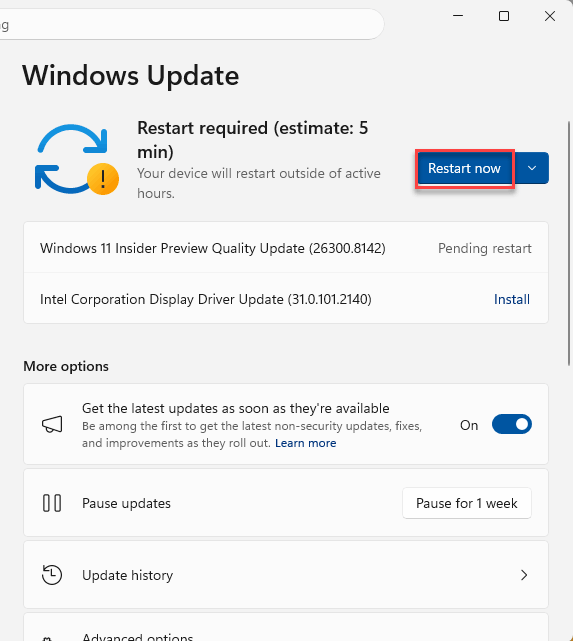
6 – Restart.
If it’s not showing up, check optional updates too. Sometimes the fix hides there.
Fix 2 – Re-register UI Packages via PowerShell
No update available? Manually re-register the broken packages.
1 – Click Start.
2 – Type Terminal.
3 – Right-click Terminal and select Run as administrator.
4 – Type this command and press Enter:
Add-AppxPackage -Register -Path 'C:\Windows\SystemApps\MicrosoftWindows.Client.CBS_cw5n1h2txyewy\appxmanifest.xml' -DisableDevelopmentMode
5 – Then type this command and press Enter:
Add-AppxPackage -Register -Path 'C:\Windows\SystemApps\Microsoft.UI.Xaml.CBS_8wekyb3d8bbwe\appxmanifest.xml' -DisableDevelopmentMode
6 – Ignore red error text.
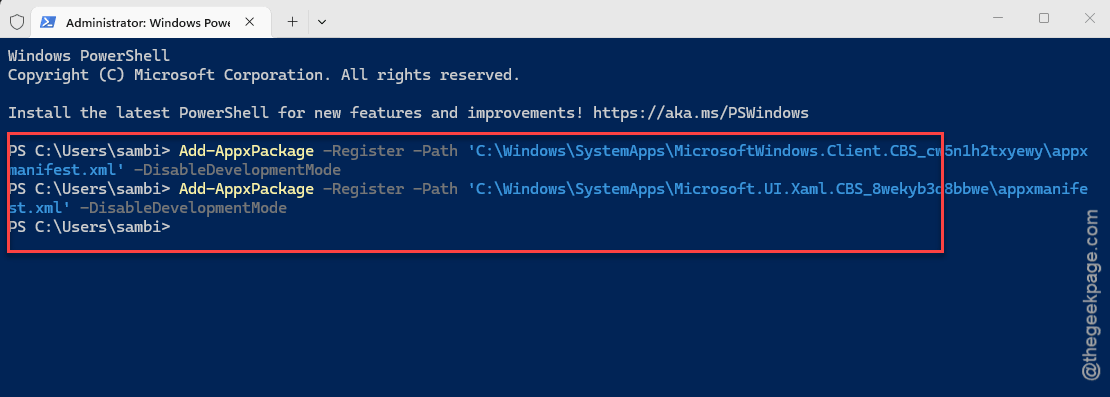
7 – Restart your computer.
And that should fix the layout. These commands re-register the exact packages that handle the Quick Settings UI.
Fix 3 – Restart Windows Explorer
Quick fix for temporary layout glitches.
1 – Press Ctrl + Shift + Esc to open Task Manager.
2 – Find Windows Explorer.
3 – Right-click it.
4 – Click Restart.
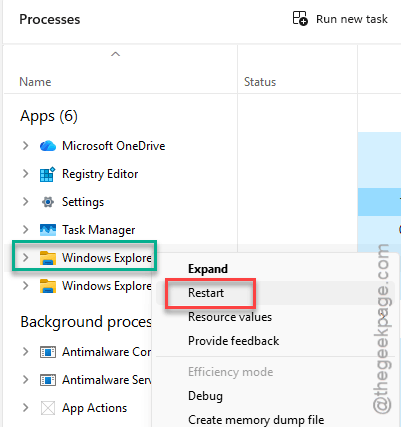
Done. If the layout looks normal now, it was temporary. But if it breaks again after a reboot, use the PowerShell fix.
Fix 4 – Update GPU Drivers
Quick Settings freezing? Might be your GPU driver. Especially NVIDIA.
1 – Right-click Start.
2 – Click Device Manager.
3 – Expand Display adapters.
4 – Right-click your graphics card.
5 – Click Update driver.
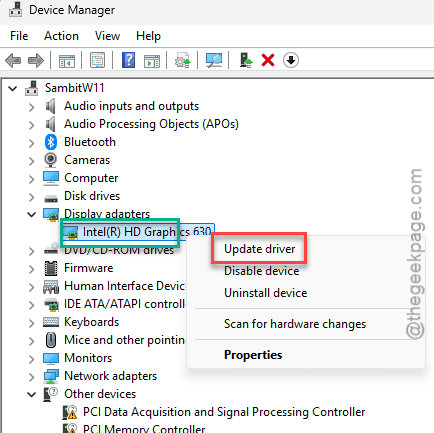
6 – Click Search automatically for drivers.
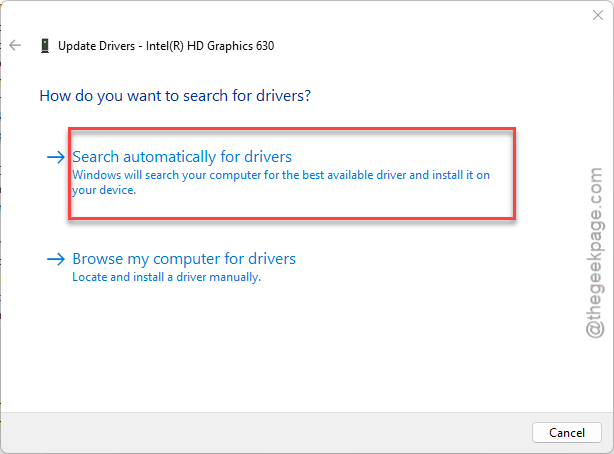
Or better yet—download the latest driver directly from NVIDIA, AMD, or Intel’s website. Windows Update doesn’t always have the newest version. And for some reason, old NVIDIA drivers cause more UI glitches on Windows 11 than anything else.
How to Prevent This
- Install Windows updates promptly. The fix was in KB5085516.
- Keep GPU drivers current. From the manufacturer, not Windows Update.
- After feature updates, test Quick Settings immediately.
- Check optional updates if things look broken.
People Also Ask
What is the problem with Windows 11 25H2 update?
Bunch of UI bugs. Broken Quick Settings. Freezing panels. Missing buttons. KB5085516 fixes it. Update.
How do you customize quick settings in Windows 11 24H2?
Click Quick Settings area in taskbar. Hit the pencil icon. Add, remove, rearrange. Fix the layout first if it’s broken though.
How to fix quick access menu missing in Windows 11?
Re-register CBS and XAML packages via PowerShell. Check for KB5085516. SFC and DISM if that doesn’t work.