Widgets button is gone from the taskbar. Or you click it and nothing opens. No weather. No news. No panel at all. Just… nothing.
Usually a disabled setting, a crashed process, or a missing component called the Web Experience Pack. All fixable.
Why This Happens
The Widgets panel in Windows 11 depends on three things: the taskbar toggle being on, the Widgets process running in the background, and the Windows Web Experience Pack being installed. If any one of those breaks, the whole panel disappears.
And the Web Experience Pack is the sneaky one. It can get uninstalled during updates. Or the related WebView2 Runtime goes missing. Without those, Widgets has nothing to render content with. So it just doesn’t show up.
Fix 1 – Make Sure Widgets Is Enabled in Taskbar Settings
Obvious check. But it gets toggled off more than you’d think.
1 – Right-click the taskbar (any empty spot).
2 – Click Taskbar settings.
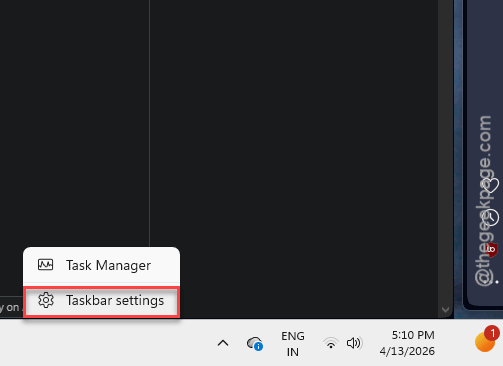
3 – Find the Widgets toggle. Make sure it’s On.
4 – If it was already on, toggle it Off and back On again.
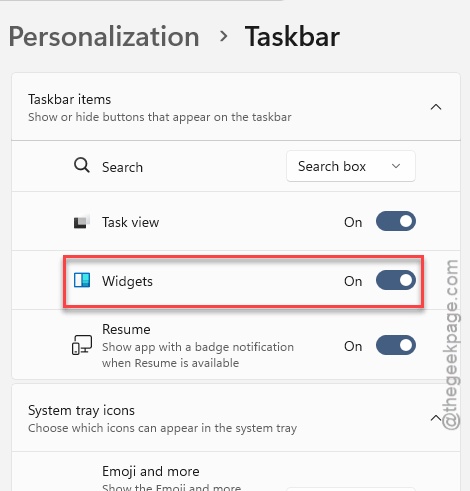
Sometimes just flipping the switch resets things. Check if the Widgets button reappears on the taskbar.
Fix 2 – Restart the Widgets Process
The Widgets process might have crashed silently. Killing it forces a restart.
1 – Press Ctrl + Shift + Esc to open Task Manager.
2 – Look for Windows Widgets or Widgets.exe in the Processes list.
3 – If you find it, right-click it. Click End task.
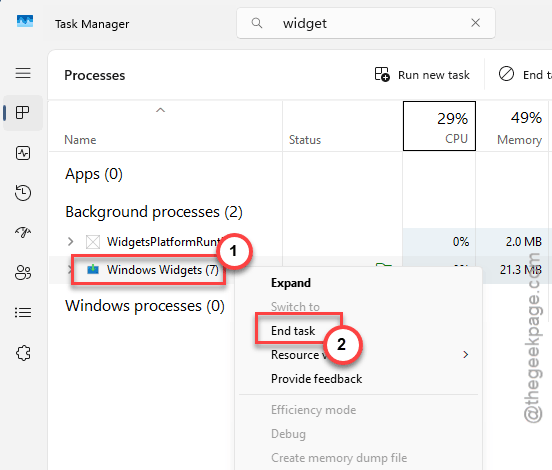
4 – Press Windows + W to relaunch the Widgets panel.
It should restart on its own. If not, the keyboard shortcut forces it.
Fix 3 – Restart Windows Explorer
Widgets live inside the taskbar process, which is part of Windows Explorer. Restarting Explorer refreshes everything.
1 – Open Task Manager (right-click Start button > Task Manager).
2 – Find Windows Explorer in the Processes list.
3 – Right-click it. Click Restart.
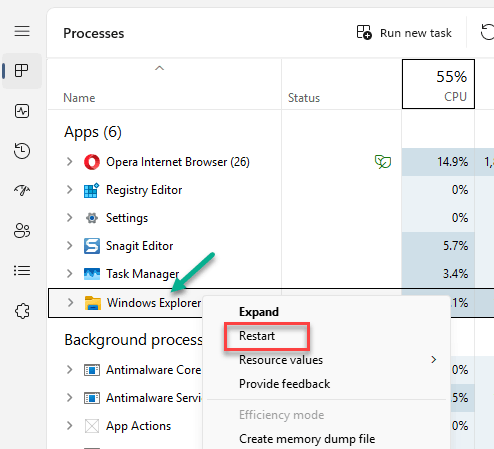
Your taskbar will flicker for a second. Normal. Check if Widgets comes back after.
Fix 4 – Reinstall the Windows Web Experience Pack
This is the component that actually renders Widgets content. If it’s missing or corrupted, nothing loads.
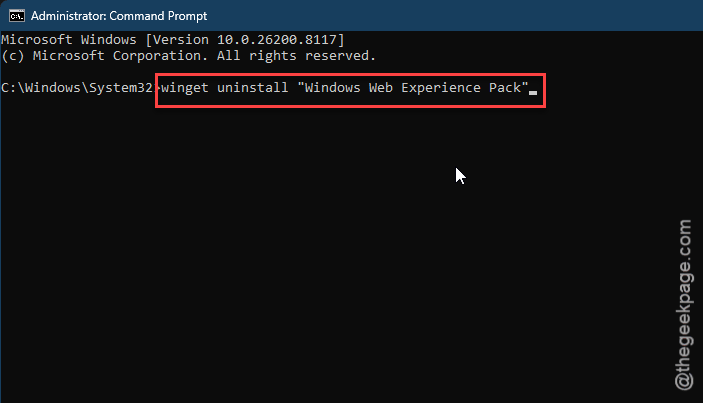
1 – Open Command Prompt as administrator.
2 – Run:
winget uninstall "Windows Web Experience Pack"
3 – Restart your PC.
4 – Open the Microsoft Store. Search for Windows Web Experience Pack.
5 – Install it.
6 – Restart again.
And the Widgets panel should work now. This reinstall fixes corrupted or missing pack files that updates sometimes break.
Fix 5 – Check for Microsoft Edge WebView2 Runtime
Widgets use WebView2 to display content. If it’s missing, the panel opens but shows nothing. Or won’t open at all.
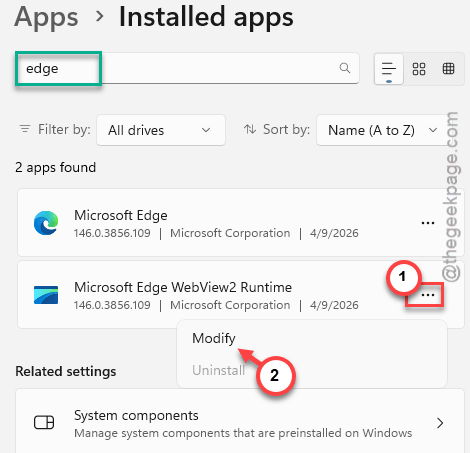
1 – Open Settings > Apps > Installed apps.
2 – Search for Microsoft Edge WebView2 Runtime.
3 – If it’s there, click the three dots > Modify.
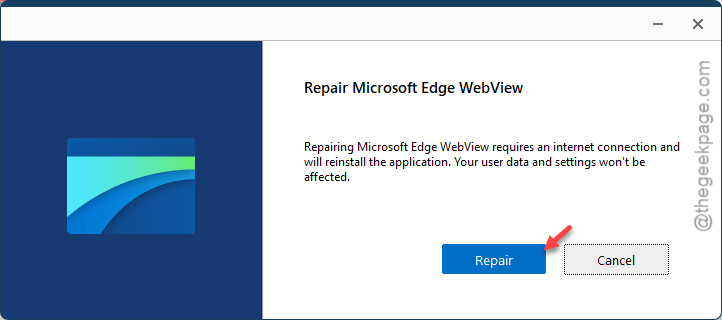
4 – Tap the Repair button there.
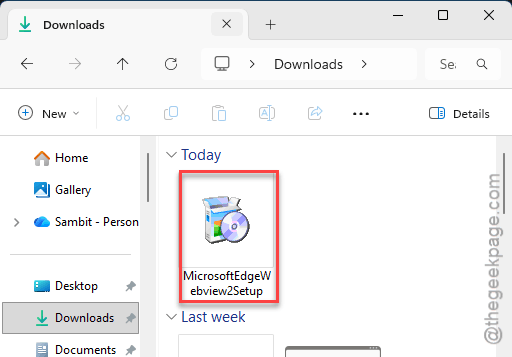
4 – If it’s NOT there, download it from Microsoft Edge WebView2 Runtime.
5 – Install it.
Restart your PC.
Without WebView2, Widgets literally cannot render anything. Make sure it’s installed and working.
[
NOTE –
If you can’t find the WebView2 Runtime, you have to unhide it from the system registry –
HKEY_LOCAL_MACHINE\SOFTWARE\WOW6432Node\Microsoft\Windows\CurrentVersion\Uninstall\Microsoft EdgeWebView
Change the SystemComponent value to 1.
]
Fix 6 – Run System File Checker
If nothing above worked, system files might be corrupted.
1 – Open Command Prompt as administrator.
2 – Run:
sfc /scannow
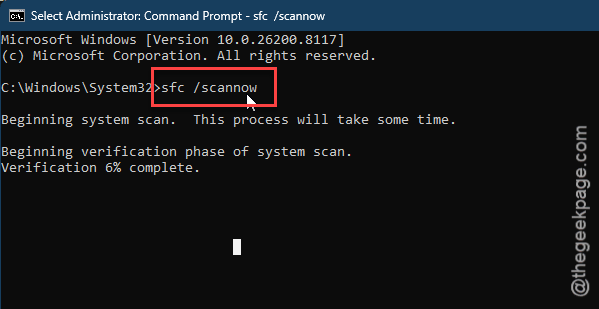
3 – Let it finish. Takes a few minutes.
4 – Restart and check Widgets again.
Not the most targeted fix for this specific problem. But it catches deeper corruption that the other fixes can’t reach.
Fix 7 – Re-register All System Apps via PowerShell
Last resort. This re-registers every built-in Windows app, including the Widgets framework.
1 – Open PowerShell as administrator.
2 – Run this command:
Get-AppXPackage -AllUsers | Foreach {Add-AppxPackage -DisableDevelopmentMode -Register "$($_.InstallLocation)\AppXManifest.xml"}
3 – Wait for it to finish. You’ll see some red errors — ignore those.
4 – Restart your PC.
Heavy-handed. But it fixes broken app registrations that nothing else catches.
How to Prevent This
- After Windows updates, check that the Widgets toggle is still on in Taskbar settings.
- Keep the Windows Web Experience Pack and WebView2 Runtime updated through the Microsoft Store.
- Don’t uninstall Microsoft Edge. Widgets depend on Edge components even if you use a different browser.
- If you use third-party taskbar tools like ExplorerPatcher, they can conflict with Widgets. Check compatibility after updates.
People Also Ask
Why is my widget not showing up in Windows 11?
You should check the Taskbar settings first. At ifrst, right-click the taskbar and open the Taskbar settings. Then, make sure Widgets is On. If it is on but nothing shows, reinstall the Windows Web Experience Pack from the Microsoft Store. That’s the component that actually runs Widgets, which should fix your problem.
How to get widgets back on Windows 11?
Toggle Widgets off and on in Taskbar settings. If that doesn’t work, restart the Widgets process in Task Manager. If that does not work, you should reinstall the Web Experience Pack and make sure Edge WebView2 Runtime is installed.
How to open widget panel in Windows 11?
Just press the Windows + W buttons together. Or hover over the weather icon on the far left of the taskbar. If neither works, the Widgets component is broken. Reinstall the Windows Web Experience Pack and restart your PC.