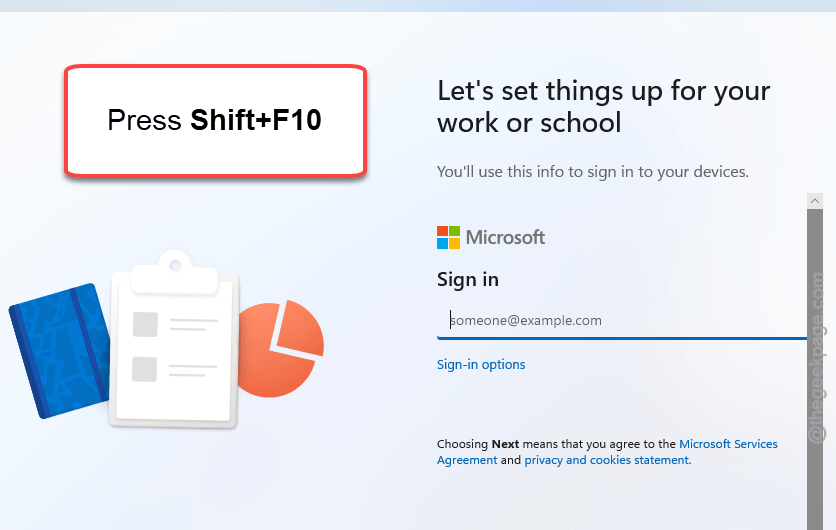
Getting “Sign in to access work or school” message during Windows 11 setup process? Unlike the Windows 10 setup system, Windows 11 doesn’t natively allow you to install the Windows using a local account. You won’t even get a straight option to use the local account instead of creating or logging in using your Microsoft credentials.
Fix 1 – Use the setup in local only mode
Windows 11 Setup doesn’t allow anyone setting up in local account mode. But, you can do that if you are running the Windows Setup in offline mode.
Step 1 – Launch the Windows Setup on your computer.
Step 2 – In the Windows 11 Setup page, proceed with the installation, until you have reached the Region selection page.
Step 3 – Now, you can just press the Shift+F10 buttons together to access the terminal from there.
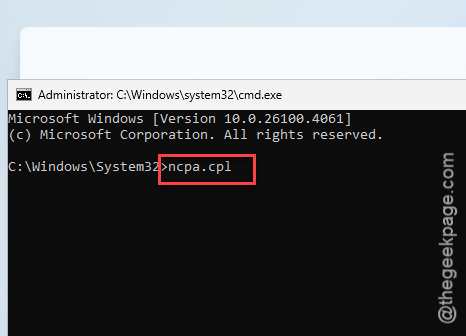
Step 4 – Now, type this code there and hit Enter to load up the Network Connections page.
ncpa.cpl
Step 5 – When you reach the Network Connections page, you will find the network adapter driver that is connecting you to the internet.
Step 6 – Right-click that adapter and tap “Disable” to disable the network adapter.
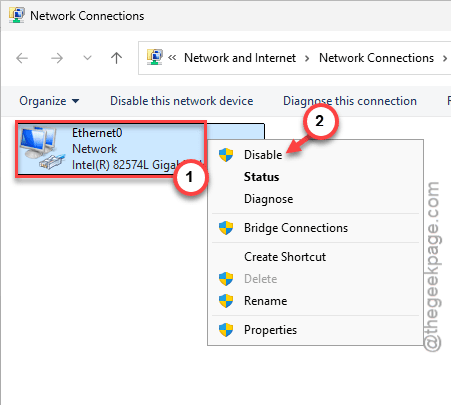
This will make the setup online.
Step 7 – Close the Network Connections page.
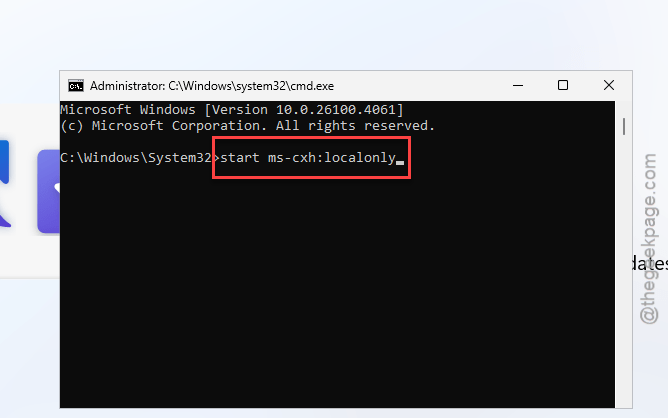
Step 8 – Come back to the command terminal and execute this code –
start ms-cxh:localonly
[NOTE – You may use the “OOBE/BYPASSNRO” code if you are installing an ISO before the 26100 and 26200 build version of Windows 11. Otherwise, you may stick to the aforementioned method.]
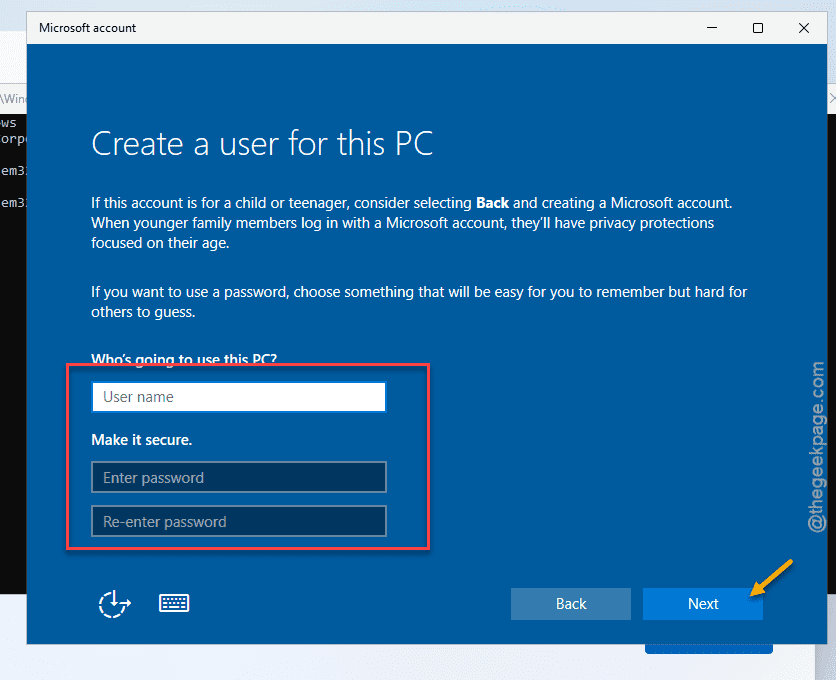
This will load up the Local Account panel.
Step 9 – Follow the next steps to create a local account and proceed.
Step 10 – Fill up the necessary information there and complete the process.
Step 11 – Finally, when you have booted up Windows 11 using the local account, call up a Run dialog box.
Step 12 – Type this there. Click “OK“.
ncpa.cpl
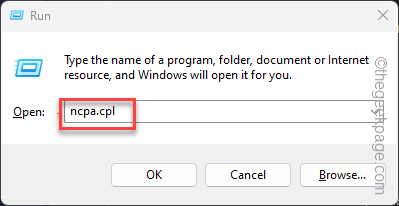
Step 13 – Once you are there, right-tap the network adapter and tap “Enable device” to enable the device.
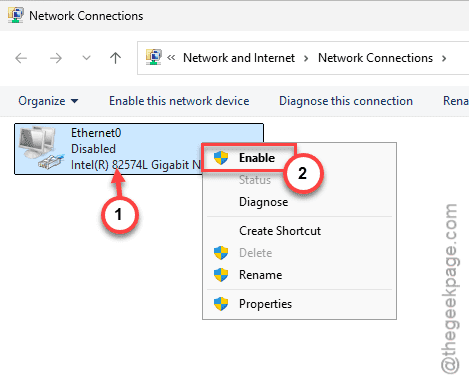
This way, you won’t get the ‘Sign in to access work or school‘ messages again.
Fix 2 – Run the Setup in Audit Mode
Windows Setup has the special Audit Mode that allows changes to the Setup process before the completion of the entire process.
Step 1 – Start the Windows 11 setup and complete the installation steps.
Step 2 – You have to disable the network connections, again. So, press Shit+F10 buttons.
Step 3 – Execute the “ncpa.cpl” code to load up the Network Connections tab.
Step 4 – Disable the internet by disabling the network adapters there.
Step 5 – After disabling the internet, come back to the Setup page.
Step 6 – Close everything else except the Setup process.
Step 7 – Then, press the Ctrl+Shift+F3. On some computers, you may have to use the Ctrl+Shift+Fn+F3 keys to achieve the same results.
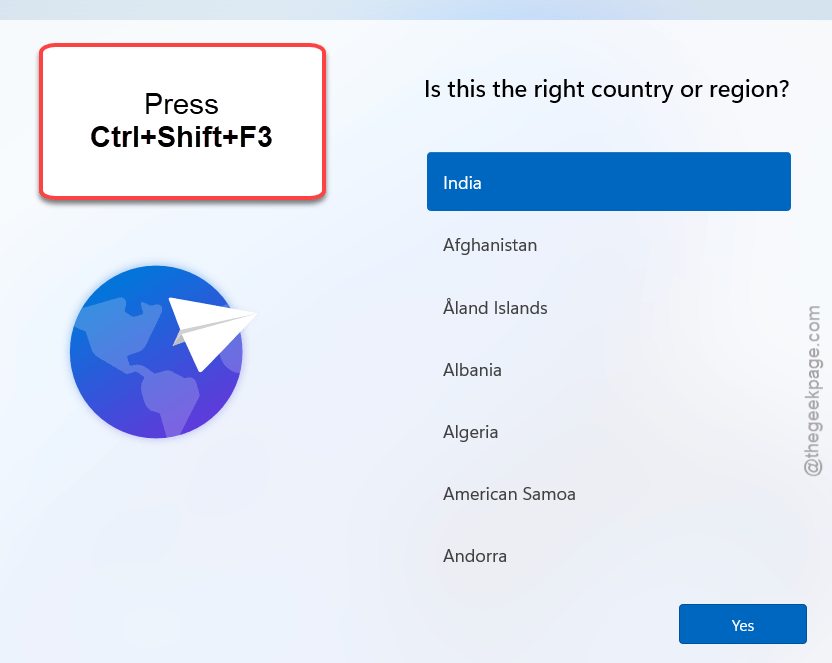
Step 8 – This will restart your computer and boot up the Windows 11, using a standard administrator account.
Step 9 – You will see the System Preparation Tool has opened up. Just tap “OK“.
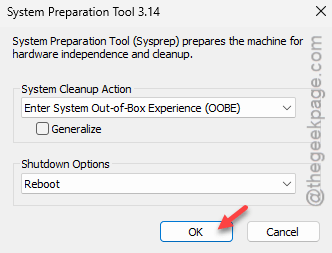
Step 10 – Later, you can just set up a local account manually from the Windows Settings page.
Step 11 – Re-enable the network adapter to retrieve the network connection functionalities (Ref. – Steps 11-13 of Fix 1).
That should do it. You can sign in using your Microsoft account from the Accounts settings.
Fix 3 – Use Windows 10/11 Home edition
The first two solutions should be enough for you to set up Windows using local account. But, if that is not enough, you can choose to install the Windows 11, 10 Home Edition.
But, there is a catch to this method. You can’t bypass the Microsoft account creation process. After installing the Windows 11 on the system, you can later convert it to a local account.
NOTE – If your computer already comes with a Windows 11/10 Home version, you may not be able to reinstall it straightaway. Create a bootable USB drive using Rufus and reinstall Windows.
Fix 4 – Use an MS account bypassed ISO file
There are different sorts of Windows 11/10 ISO files that can be used to users to supplement their needs. You can very easily get or create an ISO where you won’t even need the Microsoft account to set up the Windows 11 on your computer. This way, you can set it up all the way using just a normal local account.
Fix 5 – Retract the device out of the Autopilot mode
Microsoft has the Autopilot console to control the deployment of Windows across the users of organizations. If your device comes into that category, you can’t bypass that unless you get your device out of the Autopilot program. You may ask your IT administrator to do this. Then, you can setup Windows using local account.