You go to set up a Dev Drive. Pick your disk, hit create, and Windows throws a formatting error. No drive, just a dead end.
And the disk itself is healthy. Plenty of space, no bad sectors. So what’s wrong? It’s a dynamic disk. And Dev Drive flat-out refuses to work on one. Here’s why, plus the ways around it.
Why This Happens
Short version: Dev Drive runs on a file system called ReFS — the Resilient File System Microsoft built for fast, reliable storage.
And ReFS expects a plain, modern disk layout. A basic disk, in Windows terms.
But your disk is a dynamic disk. That’s an older Windows format, the one people used to span or mirror drives years back. Dev Drive and dynamic disks just don’t mix — they’re built on different foundations. So the format fails before it even starts. Nothing’s broken. It’s a compatibility wall, and you’ve got a few ways over it.
Fix 1 – Host It on a VHDX (No Data Loss)
Start here, because it keeps everything on your disk intact. Instead of formatting the physical disk, you create a virtual disk — a VHDX file — that sits on top of it. Windows mounts that file as a clean basic drive, and ReFS is happy.
1 – Press Windows + I to open Settings.
2 – Go to System, then Sfb, then Dev Drive.
3 – Click Create Dev Drive.
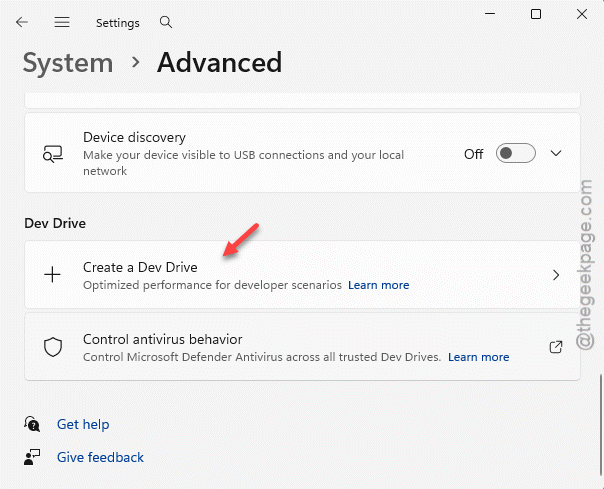
4 – Choose Create new VHDX.
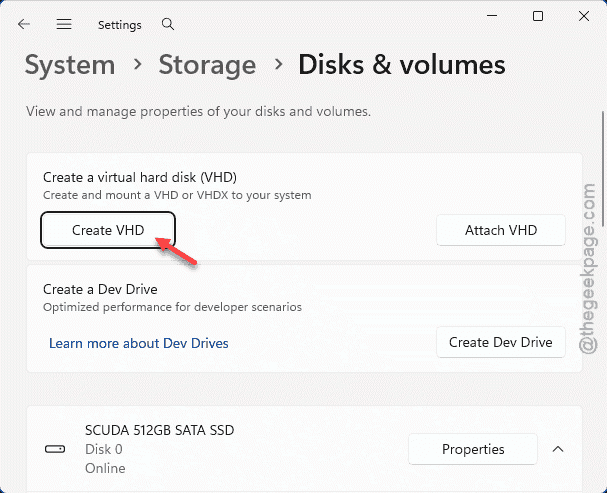
5 – Pick where to store the file — a folder on your existing volume is fine — then set the size and finish the wizard.
Windows mounts the virtual drive as a normal basic volume that can run ReFS. Your dynamic disk’s data never gets touched. For most people, that’s the cleanest fix.
Fix 2 – Convert the Dynamic Disk Back to Basic
Want Dev Drive directly on the physical disk? Then it has to become a basic disk. Big warning first: converting wipes the entire disk. Back up everything on it before you touch this.
1 – Press Windows + X and click Disk Management.
2 – Find your dynamic disk. Right-click each volume on it and choose Delete Volume. Yes, this erases that data — that’s why you backed up.
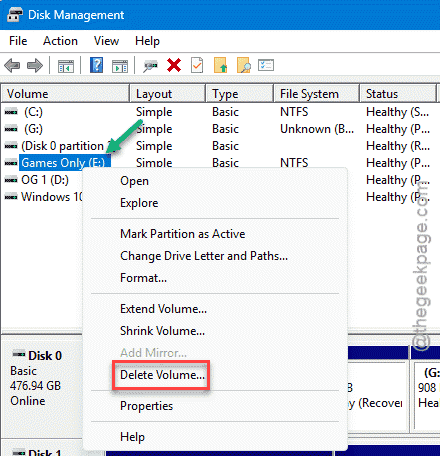
3 – Once the whole disk shows as Unallocated, right-click the disk’s label block on the left (like Disk 1) and choose Convert to Basic Disk.
4 – Now open Settings, go to System, then For developers, and create your Dev Drive on the freshly basic disk.
It should format without complaint this time. The compatibility wall is gone.
Fix 3 – Force the Drive With PowerShell
Disk is already basic but still throwing partition errors? PowerShell can build the Dev Drive directly and bypass the glitchy wizard.
1 – Right-click the Start menu and open PowerShell (Admin).
2 – Type this command and press Enter. Swap in your target drive letter and the size you want:
New-DevDrive -DriveLetter D -Size 50GB -Label "DevDrive"
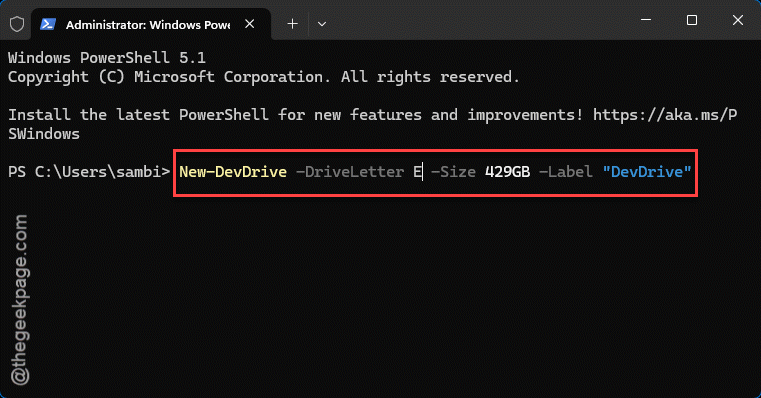
That creates the secure developer volume in one shot. Handy when the Settings screen keeps refusing.
Fix 4 – Rebuild With Storage Spaces
Were you using a dynamic disk to mirror or stripe several drives together? Then you need Microsoft’s modern replacement, Storage Spaces. It does the same job and fully supports Dev Drive.
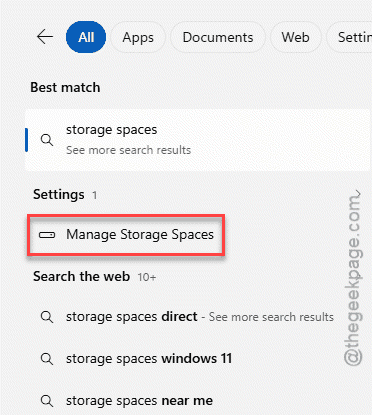
1 – Click Start, type Manage Storage Spaces, and open it.
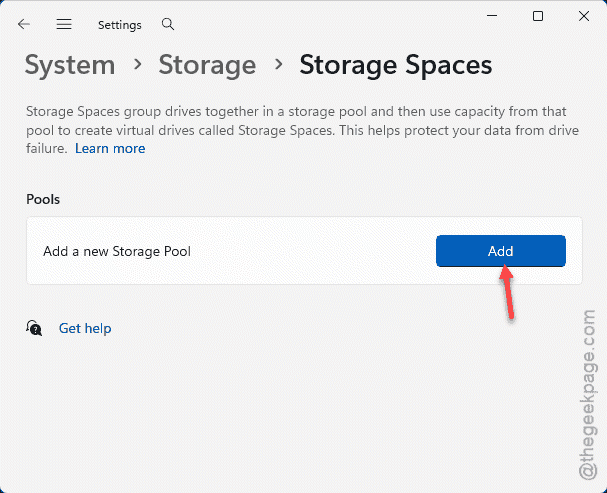
2 – Click Create a new pool and storage space.
3 – Select your raw, basic disks to build the pool.
4 – When you set the layout, choose ReFS as the file system — or provision it as a Dev Drive directly through the developer settings.
You keep your mirroring or striping, and you get a Dev Drive on top. Note this means moving off dynamic disks for good, which is the direction Microsoft’s headed anyway.
How to Prevent This
– Stick with basic disks for anything you might put a Dev Drive on. Dynamic disks are the old way out — avoid them.
– Need software RAID? Use Storage Spaces, not dynamic disks. It’s the supported modern path and works with ReFS.
– When you just want a quick Dev Drive without repartitioning, reach for the VHDX option first. No data risk.
– Always back up before converting a disk. Conversion wipes it completely, and there’s no undo.
People Also Ask
How do I fix a dynamic disk error with Dev Drive?
Dev Drive can’t run on a dynamic disk at all — that’s the root of the error. The easiest fix is to create the Dev Drive as a VHDX file on your existing volume, which avoids any data loss. If you want it on the physical disk, back up your data and convert the dynamic disk to basic in Disk Management first.
What file format does Dev Drive use?
ReFS, the Resilient File System. Microsoft tuned it for developer workloads — fast file operations, better handling of large numbers of files, and built-in resilience against corruption. It’s different from the NTFS most Windows drives use, and it’s why Dev Drive is picky about the disk layout underneath it.
Can chkdsk fix a Dev Drive that won’t format?
No — chkdsk repairs file system errors on an existing drive, but here the format never completes, so there’s nothing for it to check. This isn’t corruption; it’s a dynamic-disk compatibility block. Use the VHDX route or convert the disk to basic instead. chkdsk won’t get you past it.