Getting No Service message on your Apple Watch despite having an active cellular plan? The cellular plan automatically links with the Apple Watch when you pair it up with your iPhone. Now, the Apple Watch only shows up the ‘No Service’ message if it can’t get any cellular services. This may happen due to any of the reasons such as corrupted cellular plan, a glitch in the watchOS, etc. Go through these solutions to retrieve the active service.
Fix 1 – Refresh the Airplane Mode
Put the Apple Watch in Airplane mode and turn it off to refresh the cellular services for the wearable.
Step 1 – Slide down from the top to load up the Control Center of the Apple Watch. Turn on the Airplane mode from there.
Step 2 – Wait for 10–15 seconds. Then, turn off the Airplane mode from the same Control Center.
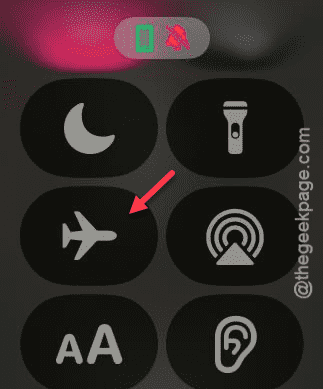
Check the Apple Watch for an active cellular connection status.
Fix 2 – Force Restart the Apple Watch and iPhone
A clean reboot may re-register the cellular service on the Apple Watch.
Step 1 – Start holding the Side button and Digital Crown buttons together. Do this until the Apple logo lights up the watch screen.
Step 2 – After that, release those two buttons and wait for the Apple Watch to boot up properly.
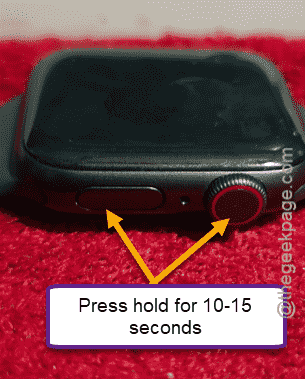
Once the Apple Watch does boot up, check the cellular status.
Fix 3 – Remove the Cellular Data plan and add again
You just have to remove the cellular data plan from the Apple Watch, and reinstate the same cellular plan in the device.
Step 1 – Load up the Watch app on your iPhone.
Step 2 – Then, proceed to the Mobile Services tab.
Step 3 – Locate the active cellular plan that you have there. Select that plan and Remove Plan.
Step 4 – Then, go ahead and restart the iPhone.
Step 5 – Now, in the Watch app. Proceed to the Mobile Services tab.
Step 6 – Tap the Set up Mobile Service option there.
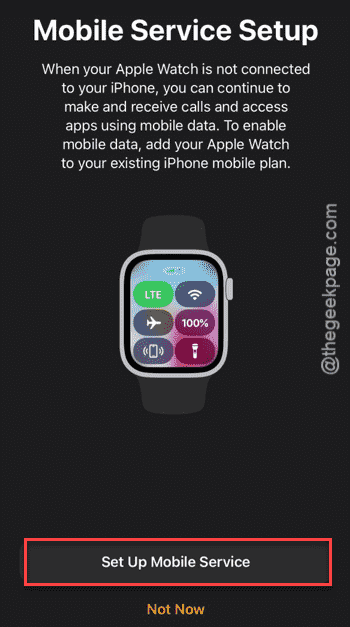
Follow the on-screen steps and set up the mobile services plan. It should automatically recognize the active plan on the iPhone, and add it to the Apple Watch.
This will restore the cellular services on the wearable.
Fix 4 – Install the Carrier Update (if available)
You must install any pending carrier plan updates on your iPhone.
Step 1 – Go to the iPhone Settings.
Step 2 – Next, reach the General part of the settings.
Step 3 – Proceed to the About section, later.
Step 4 – If you see any prompt to install the pending update for the carrier plan, tap to install it on your iPhone.
Once you have updated the carrier updates for the device, the cellular services will be restored on the Apple Watch.
Fix 5 – Unpair and pair it up again
Unpair the Apple Watch and, pair up the Apple Watch to fix this cellular services issue altogether.
Step 1 – Go to the Watch App. Tap the All Watches on the top-right-corner.
Step 2 – Then, click the ℹ button next to the Apple Watch to load it up.
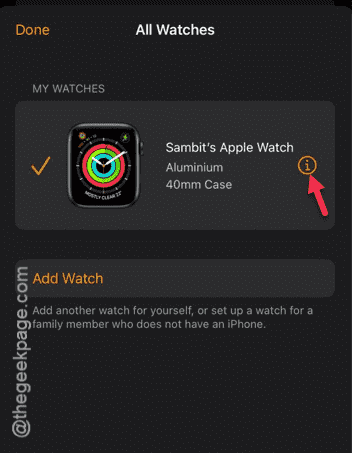
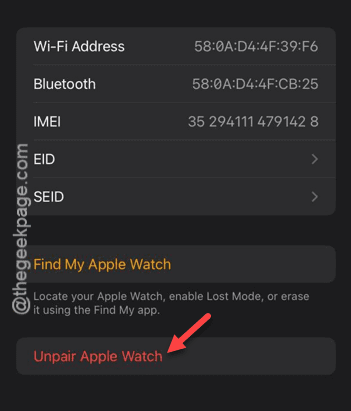
Step 3 – Tap the Unpair Apple Watch button.
Step 4 – Choose to keep the backup for the Apple Watch.
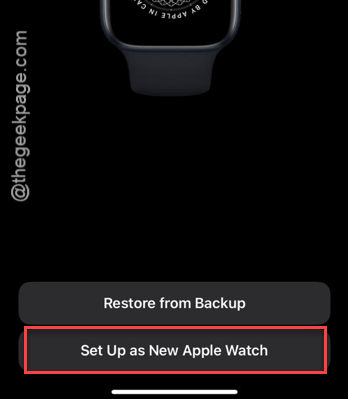
Step 5 – Then, choose the Set Up as New Apple Watch option there and follow the rest of the instructions to complete the Apple Watch setup.
Step 6 – Set up the mobile services plan, when the prompt asks you to do so.
This way, the cellular service will start to work on the Apple Watch.