Does the EA AntiCheat throwing up error message ‘EA Javelin Anticheat encountered an error‘ while loading up the Battlefield 6 Beta on your computer? This problem is affecting a wide range of users, while the Battlefield 6 Open Beta is crashing right at the EA Javelin Anticheat loading screen. We have the absolute fixes that you can apply to fix this problem.
Fix 1 – Enable UEFI and Secure Boot, TPM, fTPM, PTT
The Battlefield 6 (Open Beta) developers have flagged the lack of Secure Boot and TPM features for this certain EA Javelin Anticheat crash issue.
Step 1 – Restart your computer. While the machine is booting up, press-hold the corresponding key such as F2, Delete, Esc, F10 (varies with the manufacturers) to boot up the BIOS/UEFI mode.
Step 2 – Proceed this way and enable TPM, fTPM(AMD), PTT(Intel) –
Security → Advanced → Trusted Computing

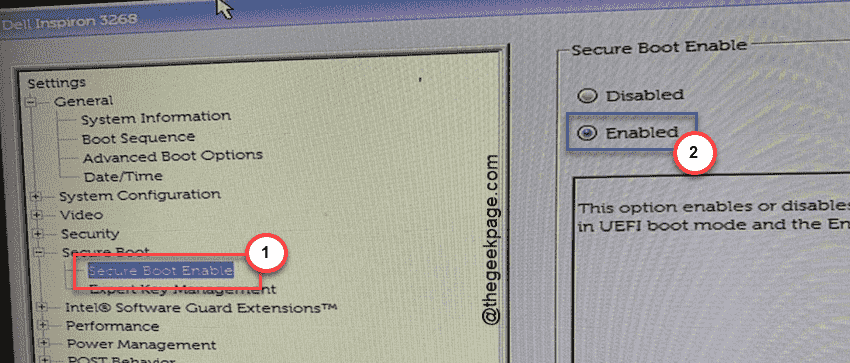
Step 3 – Next, go to the Secure Boot section following this path –
Boot → Secure Boot
Step 4 – Enable Secure Boot from there.
Step 5 – Set the Boot Mode to UEFI.
Step 6 – Find CSM Settings in Boot CSM Compatibility mode and disable it from there.
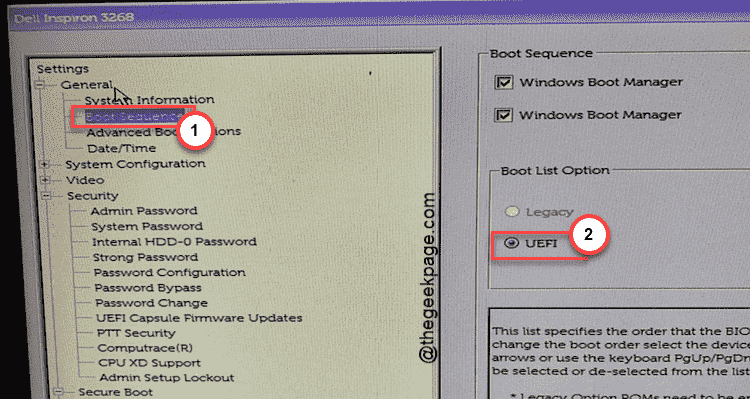
After tweaking these settings, don’t forget to save the changes on your system.
Step 7 – Get out of the BIOS mode and restart your system normally.
Launch the Battlefield 6 and see whether it has worked or not.
Fix 2 – Repair/Uninstall and reinstall the EA Javelin AntiCheat for Battlefield 6
Possible corruption in the EA Javelin Anticheat files for BF6 may lead to this issue.
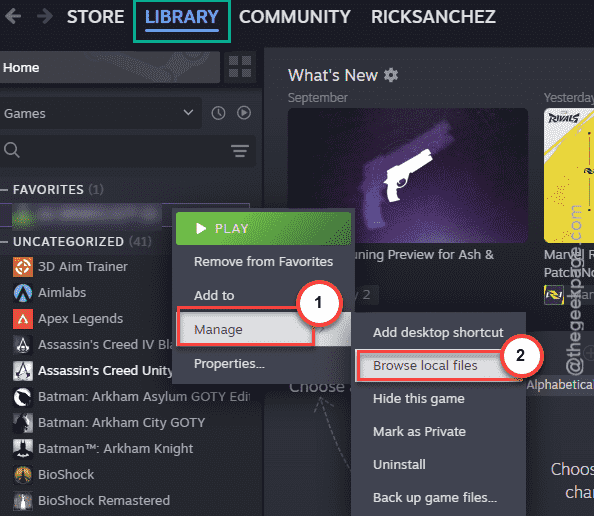
Step 1 – On your Steam Library, right-click the Battlefield 6 game and tap Manage → Browse local files option.
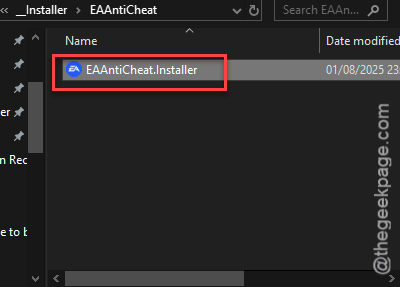
Step 2 – Then, open the EAAntiCheat folder there. Run the EAAntiCheat.Installer executable file.
Step 3 – Choose the Battlefield 6 from the drop-down and tap Repair first to repair the files.
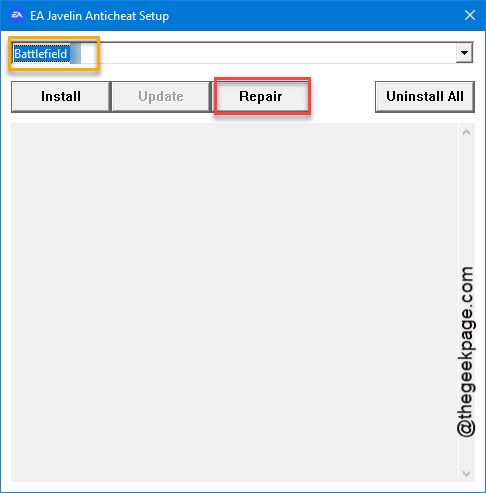
Try running the game now and test.
Step 4 – If that does not work, tap Uninstall All to uninstall all the Javelin AntiCheat files.
Step 5 – After this, make sure the Battlefield 6 is selected and tap Install to install the anticheat files afresh.
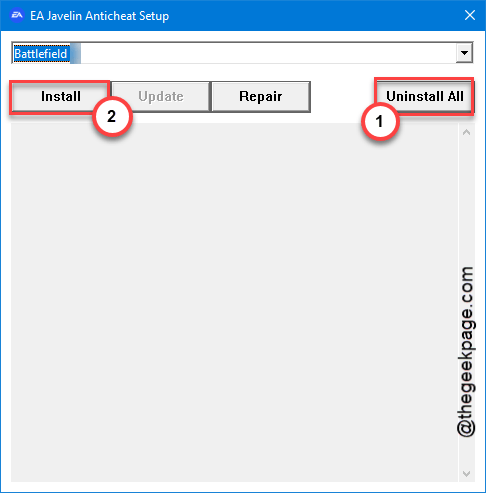
After uninstalling and reinstalling the anticheat files, the game shall be running without any more issues.
Fix 3 – Clear the EA App Cache
Though Steam players won’t need the EA App to play the game, the players who have installed it from EA App, may need to clear the EA App cache.
Step 1 – Load up the EA App. Next, tap the three-bar menu and tap the App Recovery settings.
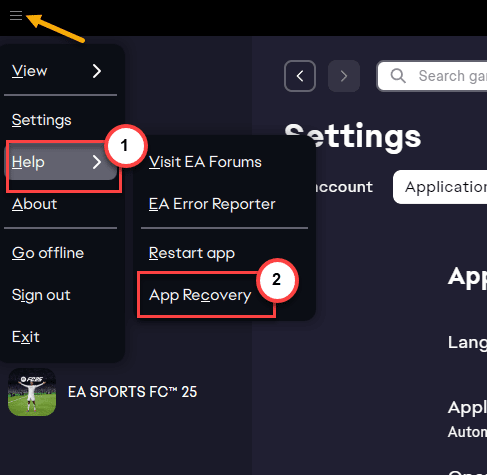
Step 2 – You will get the Restart to run App Recovery option there. Tap the Clear cache option to remove the EA App cache from your system.
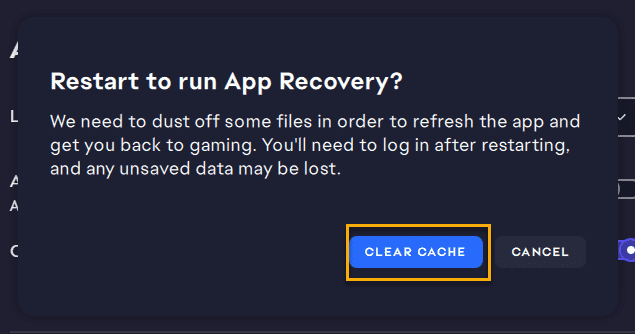
During the recovery process, EA App will remove some of the local files from your system, but your game files will remain untouched.
Check whether you can launch and play BF6 now.
Fix 4 – Uninstall and Reinstall of Battlefield 6 Afresh
Still having EA Javelin Anticheat issue during the Battlefield 6 startup? Uninstalling and reinstalling the game should fix solve the issue.
Step 1 – Open the Steam app or EA App, from where you have downloaded the Battlefield 6 game. Reach the Library section.
Step 2 – Find the Battlefield 6 on the right-hand side. Then, right-click the game and tap Manage and tap Uninstall.
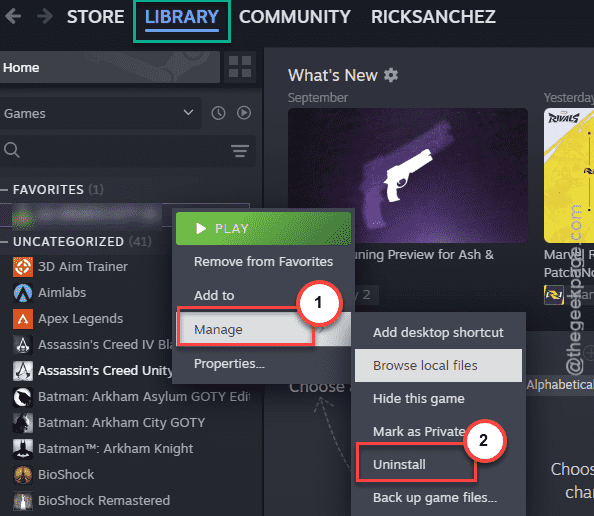
Step 3 – Once you have uninstalled the Battlefield 6, reinstall the game from the same place.
After a fresh reinstall, BF6 should be playable once again. You may
Final Words –
As of now, Battlefield 6 is still in its nascent stage where certain bugs like this may crash the game. In the upcoming updates, including the certain patches just after the final release on October 10th, these issues should be resolved. All the BF6 players must note that the EA Javelin Anticheat will require all the gamers to have the Secure Boot enabled on their devices. So, you can expect this problem to be resolved automatically during the main game release.