Does the Teams app crash while starting up a video call while you are using the device on an ARM-based device? Many users who use Microsoft Teams on ARM-based devices, like Surface Pro X, Surface Laptop 7, have noticed their Teams app crashes as soon as they start a video call. It seems that the Windows Studio Effects or extreme CPU throttling has caused this issue. Here are the fixes you can apply to solve the issue.
| Issue | Recommend Fix |
| Teams crash as soon as camera turns On | Disable Windows Studio Effects |
| Entire PC freezes or lags | Run the system in Best Performance Mode |
| Video is black or flickering | Run the setx GPU disabling command |
Fix 1 – Disable the Windows Studio Effects
Some of the ARM devices running Snapdragon X Elite or Plus chipset, Teams can crash trying to run the AI effects like background blur, eye contact, etc.
Step 1 – Load up the Windows Settings. Load up the Bluetooth & devices tab.
Step 2 – Go to the Cameras tab.
Step 3 – Choose the front camera or the camera device you are using.

Step 4 – Then, look for the Windows Studio Effects (like Background Blur, Eye Contact) feature and turn them OFF from there.
After disabling these Windows Studio effects, there won’t be anymore crashing issues for the Teams app.
Fix 2 – Force-Disable the GPU via Command Line
The GPU acceleration feature in Microsoft Teams for the AMD device can crash the entire app.
Step 1 – You can’t disable the GPU acceleration directly on the Teams client. Close the Teams app completely. Do quit it from the system tray, as well.
Step 2 – Right-click the Start button, and tap the Windows Terminal (Admin).
Step 3 – Then, paste this command in the terminal, and hit Enter.
setx WEBVIEW2_ADDITIONAL_BROWSER_ARGUMENTS --disable-gpu
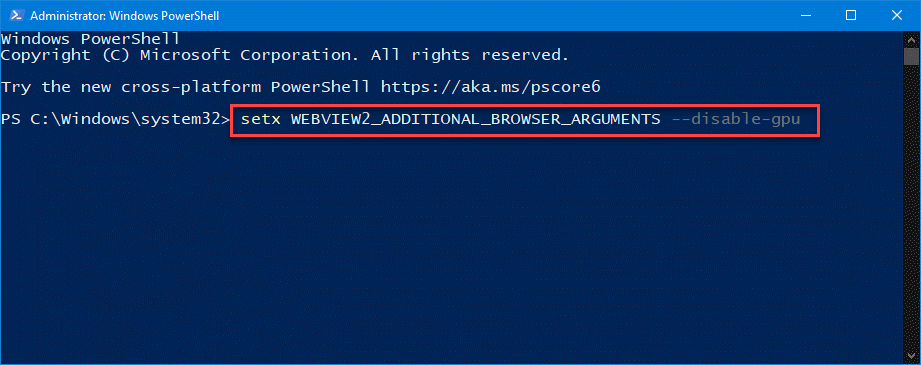
After running this code, close the terminal.
Then, restart the computer. Try to use the Teams app and start a demo video call to check whether it works or not.
Fix 3 – Run the device in Best Performance Power mode
Switching your system to best performance mode should allow Teams app to run without any power constraints.
Step 1 – Hit the Win+R buttons together.
Step 2 – Paste this there in the Run box and hit Enter.
powercfg.cpl
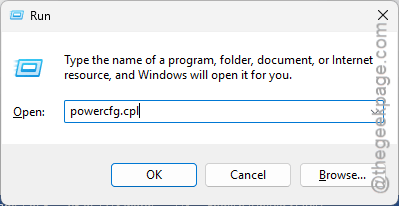
Step 3 – Choose the High Performance or Best Peformance mode from there.
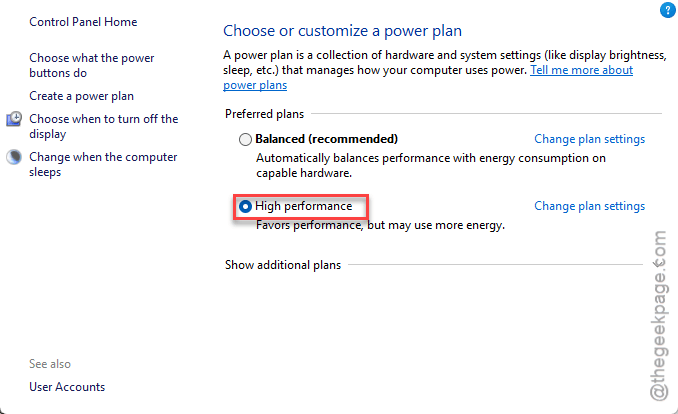
Now, try to run the Teams client and use the video calling feature while you the device is running in the High Performance mode.
Fix 4 – Clear the Microsoft Teams Cache
If you used the Microsoft Teams on a non-ARM device previously, the older cache files can sometimes can such issues.
Step 1 – Quit the MS Teams client.
Step 2 – Then, go ahead and press the Win+R buttons. Paste this there, and click OK.
%localappdata%\Packages\MSTeams_8wekyb3d8bbwe\LocalCache\Microsoft\MSTeams
Step 3 – Delete everything inside that folder.

Once you have cleaned up the folder, go ahead and restart the system. After restarting it, MS Teams won’t crash again.
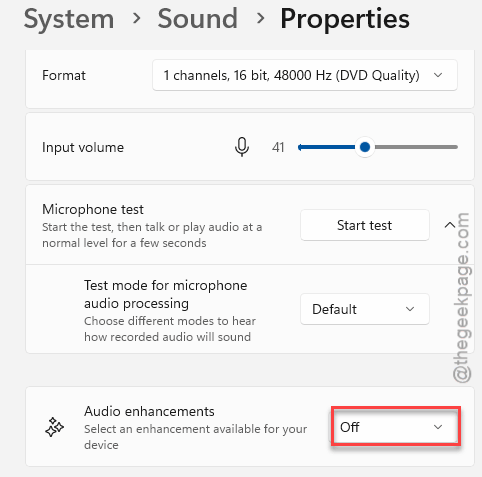
Fix 5 – Turn Off Audio Enhancements Feature
Sometimes, the audio enhancements of the microphone lead to such crashing events in MS Teams.
Step 1 – To do this, open the Windows Settings. Go to the System settings. Load up the Sound tab.
Step 2 – In the Input section, open the Microphone settings.
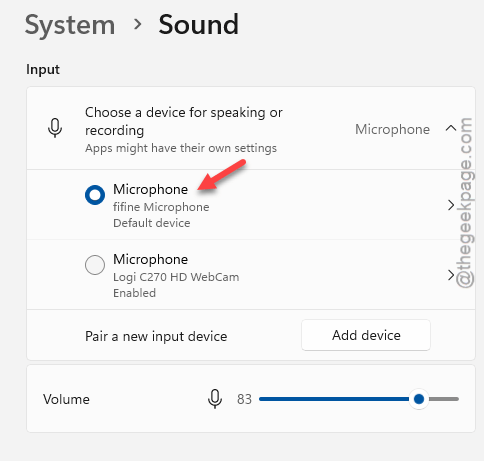
Step 3 – Find the Audio enhancements tab and set it to OFF mode.
Step 4 – Find the Output settings and disable any such enhancements for it as well.
Once you have disabled it, MS Teams won’t crash again.