Does your MS Edge crashes while trying to print some files on your Windows 11, 10? Instead of using third-party tools, many Windows users use the Microsoft Edge to view and print the PDF files on Windows. But, if the Edge browser is crashing while you are trying to print some files from there, it is of no use. You should implement these solutions to troubleshoot the issue on your own.
Quick Fix ~
| Issue Cause | Quick Fix | Time Needed |
|---|---|---|
| Clogged PRINTERS folder | Stop Print Spooler service. →
Clear PRINTERS folder – → Start Print Spooler |
3 min |
| Faulty third-party extension | edge://extensions/ → Disable or remove MS Edge extensions | 2 min |
| Buggy MS Edge version | edge://settings/help → Wait for Edge installation → Restart | 2-3 min |
Fix 1 – Clear the Printer Spool folder and restart Printer Spooler service
The printer service on your system does depend on several factors. Refresh the whole printing layout and that should take care of your issue.
Step 1 – At first, hold the Win+R buttons briefly.
Step 2 – Next, paste it there. Click OK.
services.msc
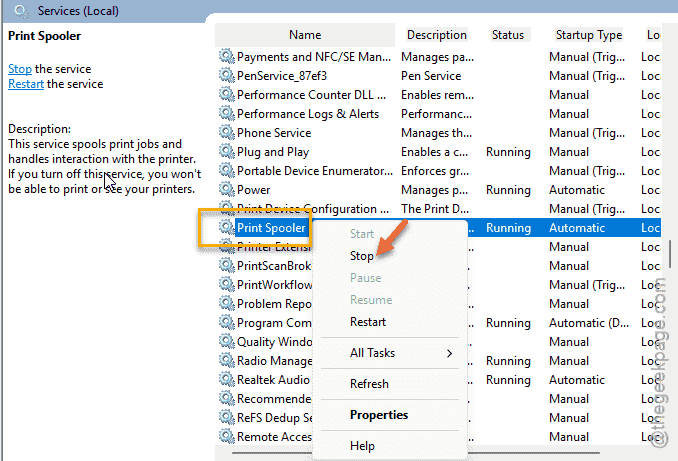
Step 3 – Locate the Print Spooler service. Then, right-click the service and tap Stop to pause it. Minimize the Services page.
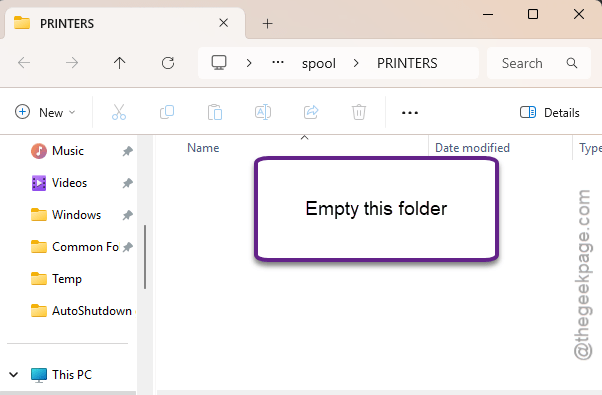
Step 4 – While the Print Spooler service is stopped briefly, reach this location~
C:\Windows\System32\spool\PRINTERS
Step 5 – Remove everything from the PRINTERS folder at once.
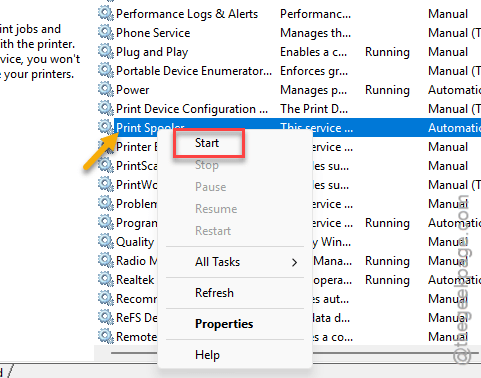
Step 6 – Return to the Services page. Next, right tap the Print Spooler service and tap Start to start the service.
After starting the Print Spooler, return to the Microsoft Edge and retry printing the same file once again.
Check if this works.
Fix 2 – Disable Faulty Third-party extensions on MS Edge
Some faulty third-party extensions on MS Edge can cause obstruction in printing files.
Step 1 – Paste this in the Edge address bar, and hit Enter. This will load up the Edge extensions page.
edge://extensions/
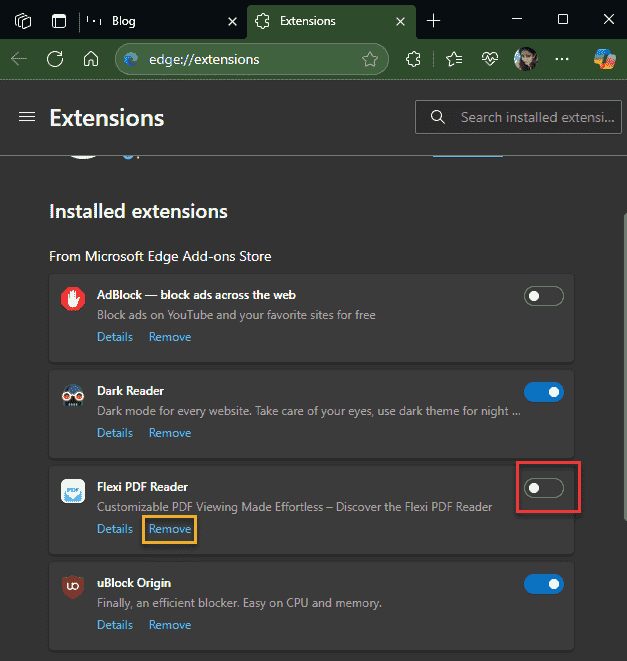
Step 2 – Disable any third-party extension that you have recently installed on MS Edge.
Step 3 – You can go one step ahead and remove the suspected extension from Microsoft Edge using the ‘Remove‘ option.
After removing the extensions, try to print the same file once again.
Fix 3 – Reinstall printer drivers
This certain crash can be a simple issue of printer driver. Uninstalling and reinstalling the printer driver should help you resolve the issue.
Step 1 – Load up the Device Manager. Just right-click the Windows icon and tap Device Manager.
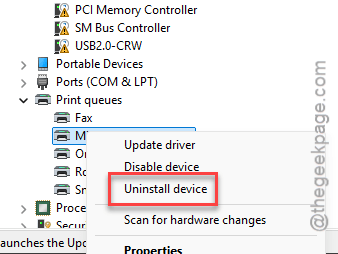
Step 2 – Next, expand the Print Queues panel to view all the printer devices on your machine.
Step 3 – Later, right-click the printer and tap Uninstall device.
Step 4 – Confirm the removal of the printer device.
Now, restart your computer once.
Step 5 – Later, reinstall the printer driver from your printer manufacturer’s website. Otherwise, you can also just plug in the printer device and use the printer app (like if you have an HP printer, use HP Smart) and reinstall the printer drive from there as well.
After reinstalling the printer, try printing the same files on MS Edge.
Fix 4 – Install the latest version of MS Edge
Certain bugs in the version of Microsoft Edge can cause this issue with the printing process.
Step 1 – Simply open up a fresh new tab on Microsoft Edge.
Step 2 – Paste this there and hit Enter.
edge://settings/help
Microsoft Edge will now inquire about the latest version of the browser and download-install it on the device.
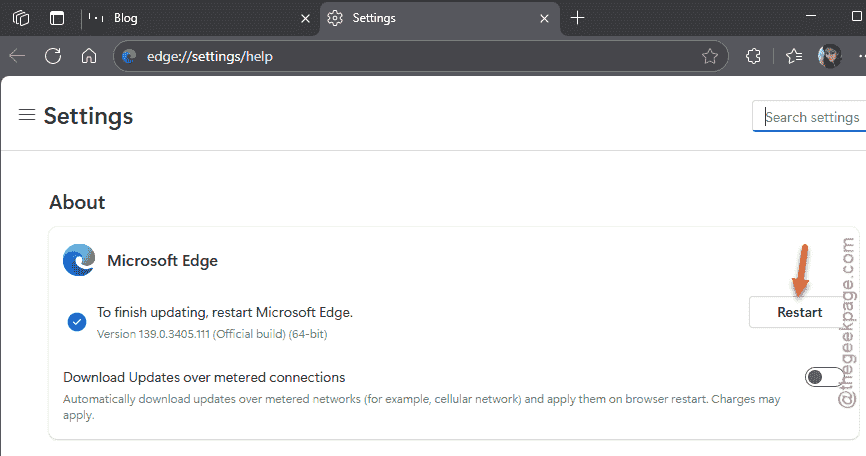
Step 3 – Once it is done, you will get the following message –
To finish updating, restart Microsoft Edge.
Step 4 – Tap Restart to close and relaunch to complete the update process.
Once the Microsoft Edge relaunches, you can use it to print your files with ease.
FAQs –
1. Why does MS Edge crash when I hit Ctrl+P?
The Microsoft Edge is crashing upon pressing Ctrl+P is due to a printer-related error. Misconfigured printer settings, third-party extensions can lead to printing issues while trying to print files from Microsoft Edge.
2. Can I print from other browser?
Yes. Almost all the latest version of the browser such as Google Chrome, Microsoft Edge, Mozilla Firefox is capable of handling PDF files with ease. If you are having any issues printing files with the Microsoft Edge, you can use Google Chrome or any other browser of your choice to print the file.