You glance at the bottom-right corner of your screen. Your tray icons — Wi-Fi, volume, the little app shortcuts — are just gone. Or worse, they’re piled on top of the clock.
Then they come back. Then they vanish again. Here’s how to settle it down.
Why This Happens
Icons drop off. They overlap the clock. They flicker in and out. Not because anything’s truly broken — Explorer just failed to redraw that corner properly.
So what sets it off? Most of the time, a Windows update. A recent optional preview update — KB5089573 — has been a known troublemaker for exactly this. And here’s the kicker: it’s an optional update you never needed to install in the first place.
Damaged system files can do it too. So can a half-finished update that didn’t apply cleanly. We’ll start with the instant fix and work toward the deeper ones.
Fix 1 – Restart Windows Explorer
This is the quick one, and it fixes the tray instantly nine times out of ten. You’re just reloading the process that draws your taskbar.
1 – Right-click an empty spot on the taskbar and choose Task Manager.
2 – On the Processes tab, scroll to find Windows Explorer.
3 – Right-click it and choose End task. Your taskbar will vanish for a second — that’s normal, don’t panic.
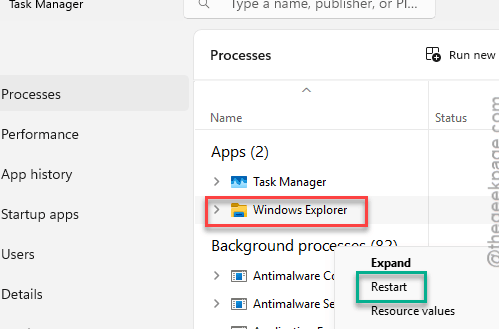
4 – At the top of Task Manager, click Run new task (or File > Run new task).
5 – Type explorer.exe and click OK.
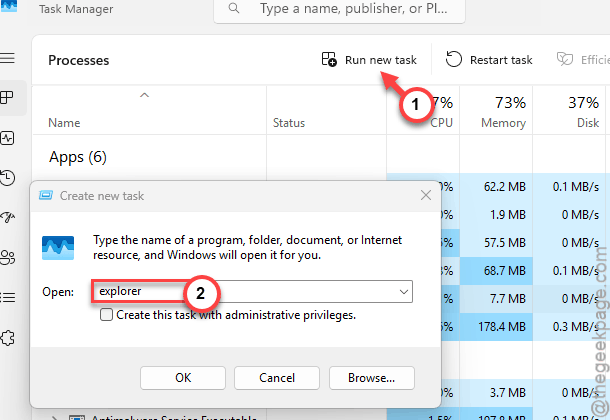
And your taskbar reloads, with all the tray icons back where they belong. If they keep disappearing later, the cause is deeper — keep reading.
Fix 2 – Uninstall the Update That Started It
If this began right after an update, the update is the prime suspect. KB5089573 in particular has been causing tray problems, and since it’s an optional preview, removing it costs you nothing.
1 – Press Windows + I to open Settings.
2 – Click Windows Update in the left sidebar, then Update history.
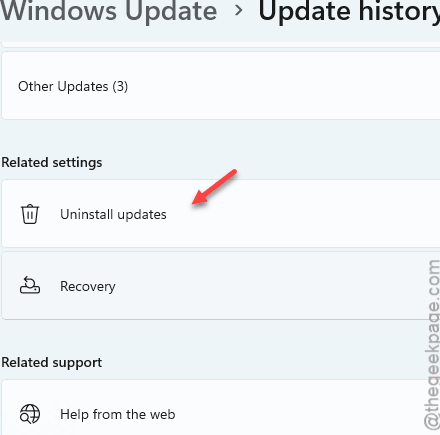
3 – Scroll to the bottom and click Uninstall updates.
4 – Find KB5089573 in the list (the KB number is in the name).
5 – Click Uninstall next to it and confirm.
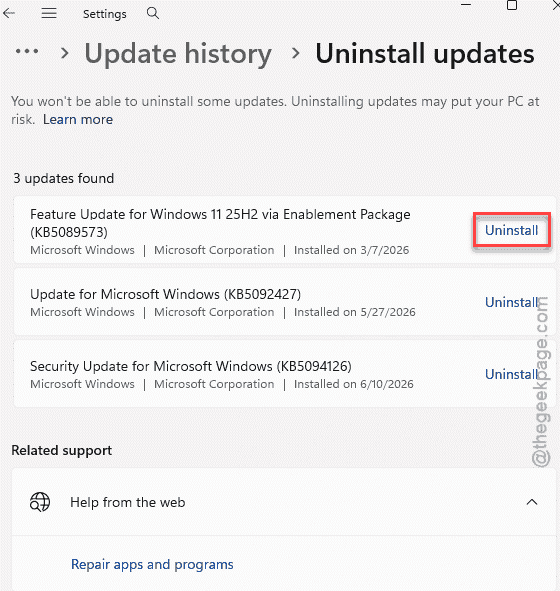
6 – Restart when it asks.
Don’t see that exact number? Uninstall whichever update lines up with the date your tray started acting up. Then pause updates for a week so it doesn’t sneak back in.
Fix 3 – Reinstall Windows Without Losing Your Files
Try fixing the Windows update issues that can cause this problem.
1 – Press Windows + I, then go to System.
2 – Click Recovery.
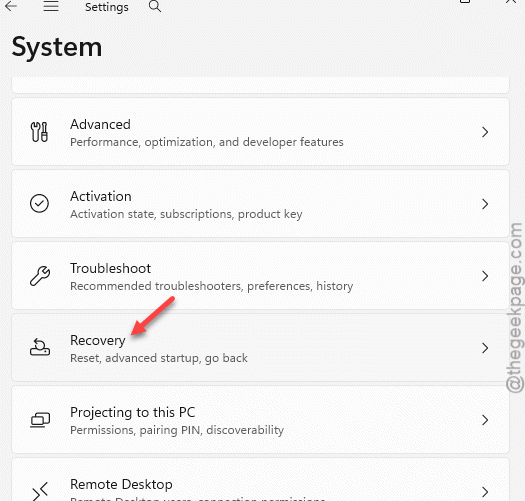
3 – Look for the Fix problems with Windows Updates section.
4 – Click the Reinstall Now button there.
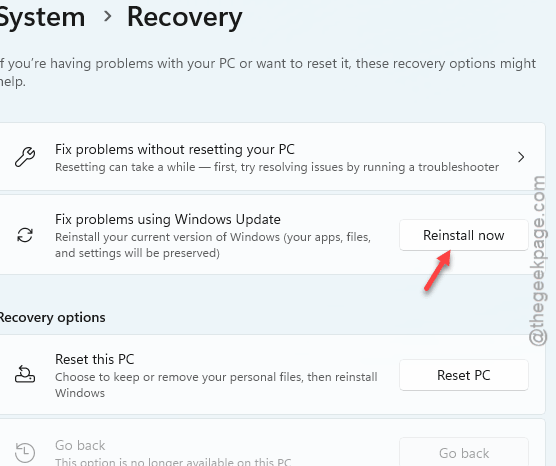
5 – Let it run.
Wait until this entire process is complete. Your stuff stays put. It’s the cleanest fix when icons keep vanishing no matter what.
Fix 4 – Repair Your System Files
Corrupted system files can leave the taskbar glitching. These two built-in tools scan and repair them.
1 – Click Start, type cmd, right-click Command Prompt, and choose Run as administrator.
2 – Type and press Enter.
DISM /Online /Cleanup-Image /RestoreHealth
3 – Then type this and press Enter to run the system file check.
sfc /scannow
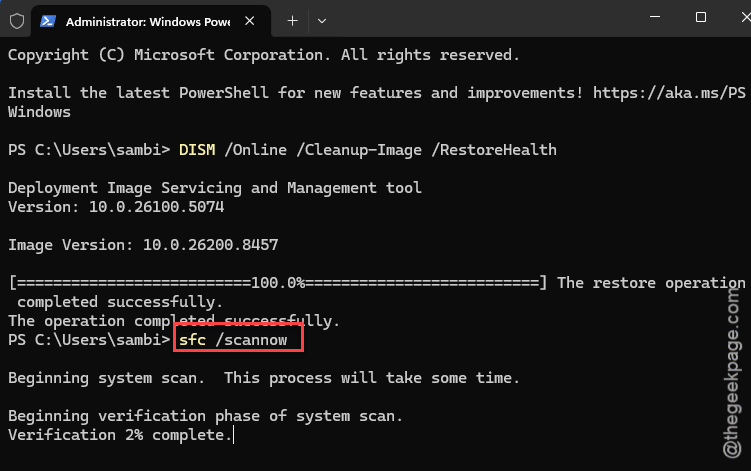
4 – Restart your PC.
One thing to know: DISM sometimes throws error 3017 and says a restart is needed. That’s actually okay — let Windows configure updates and reboot (it may restart twice), then run sfc /scannow again.
Fix 5 – Toggle the Tray Settings
Quick one for the overlap-the-clock version of this bug.
1 – You have to right-click the taskbar, choose Taskbar settings.
2 – Scroll to Other system tray icons. Flip a couple of the toggles off, wait a second, then back on.
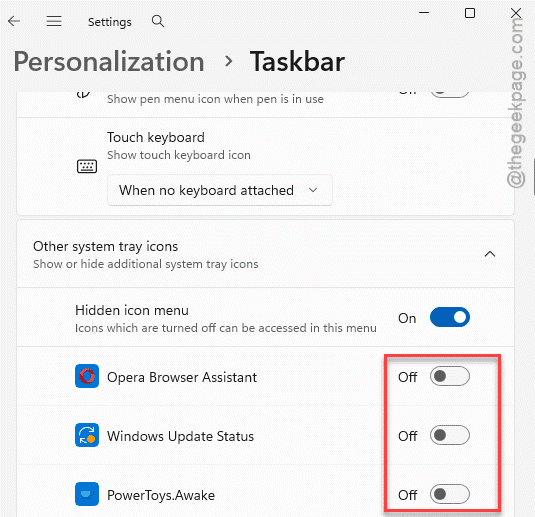
This forces Windows to re-lay-out that corner from scratch. Often that’s enough to un-stack the icons from the clock and space everything back out properly.
How to Prevent This
– Skip optional preview updates. They’re labeled “optional” for a reason — buggy ones like KB5089573 are exactly how this starts.
– Keep a quick mental note of the Explorer restart trick. It’s the fastest patch when the tray glitches mid-task.
– Run a DISM and SFC scan now and then. Catching file damage early stops these little display bugs.
– Let updates finish fully before shutting down. A half-applied update is a common cause of taskbar weirdness.
People Also Ask
Why do my system tray icons keep disappearing?
It’s almost always Windows Explorer glitching — that’s the process that draws your taskbar. A buggy Windows update is the usual trigger.
Why are my taskbar icons overlapping the clock?
The taskbar failed to lay out its corner correctly, usually after an update or an Explorer hiccup. Restart Windows Explorer from Task Manager to redraw it cleanly. If they keep stacking, toggle the system tray settings off and on to force Windows to space the icons out again.