Click a download in Edge. Edge dies. Just gone. Sometimes it takes the whole tab with it. Sometimes the entire browser closes. Either way — annoying.
Why This Happens
Here’s the deal. Edge has its own built-in PDF viewer. And lately? It’s been buggy.
Corrupt browser cache makes downloads crash aside the usual PDF crash issues that you are having. So does an outdated build. Or a bad extension hooking into the download handler.
Microsoft pushed a fix in a recent update. But not everyone has it yet. So some users still hit the crash.
Fix 1 – Update Edge First
Microsoft fixed this in a patch. So check if you’re on the latest version before anything else.
1 – Open Microsoft Edge.
2 – Just tap the three dots (⋯) button in the top right.
3 – Hover over Help and feedback. Click About Microsoft Edge.
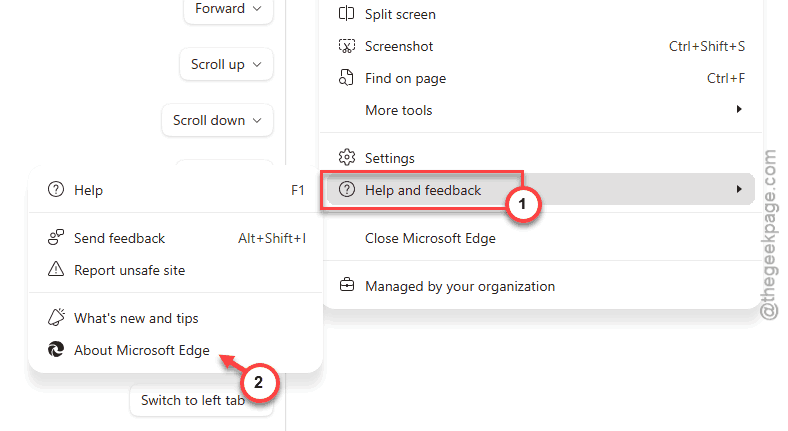
4 – Edge automatically checks for updates. If one’s available, it downloads.
5 – Click Restart when it finishes.
And if you’re already on the latest? Move on to Fix 2.
Fix 2 – Disable Edge’s Built-in PDF Viewer
The PDF viewer is the crash trigger. Force Edge to download instead of preview.
1 – Open Edge.
2 – In the MS Edge address bar, paste this and press Enter.
edge://settings/content/pdfDocuments
3 – Toggle on Always download PDF files.
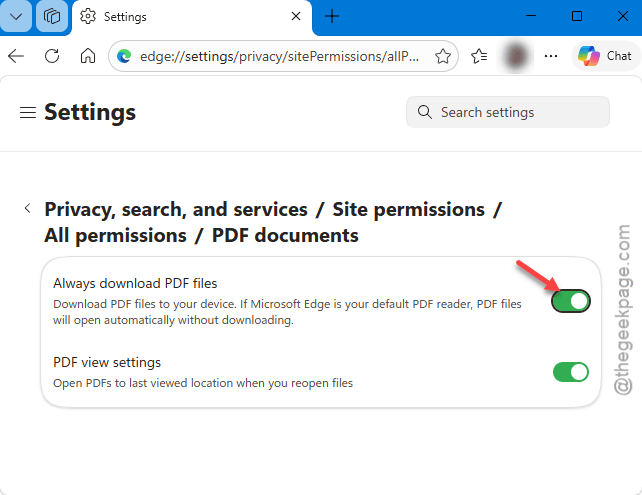
Done. PDFs will not open up on MS Edge, instead you can find it directly in the Downloads folder.
Honestly? This should be the default. Edge’s PDF viewer is just not stable enough.
Fix 3 – Clear Cache and Cookies
A bloated cache crashes downloads more than people realize. Wipe it.
1 – Open Edge. Click the three dots (⋯) in the top right.
2 – Go to Settings.
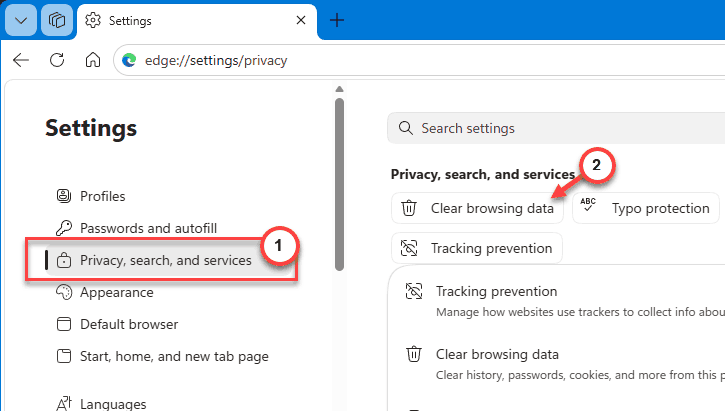
3 – On the left sidebar, click Privacy, search, and services.
4 – Scroll to Clear browsing data. Click Choose what to clear.
5 – Set Time range to All time.
6 – Tick Cookies and other site data and Cached images and files.
7 – Click Clear now.
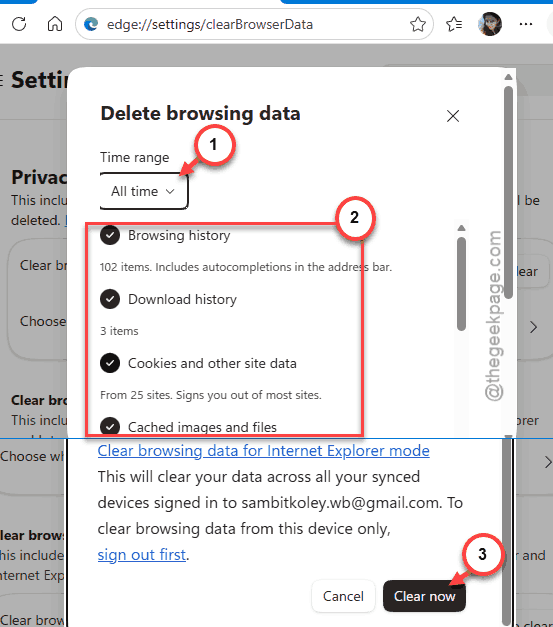
Heads up — this signs you out of most websites. Worth it if Edge is crashing on every download.
Fix 4 – Disable Extensions
Quick test. An extension might be hooking into the download handler and crashing it.
1 – Tap the three dots (⋯) button in Edge.
2 – Tap the Extensions, then Manage extensions.
3 – Toggle off every extension. Yes, all of them.
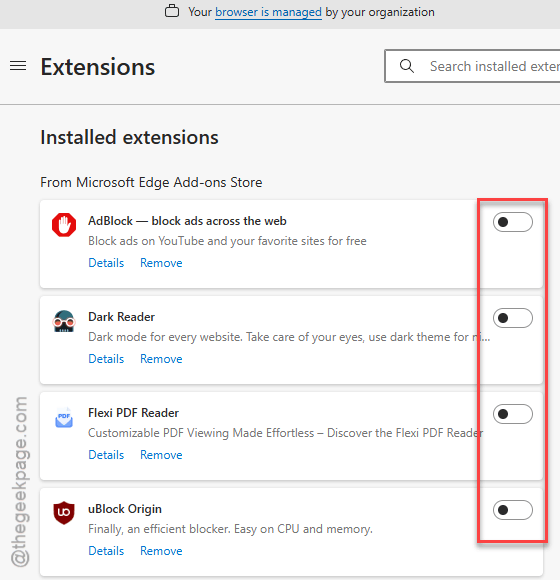
4 – Restart Edge.
5 – Try opening a download.
Worked? Now turn extensions back on one at a time. Find the bad one. Remove it.
Common culprits — download managers, ad blockers, security add-ons.
Fix 5 – Reset Edge Settings
Nuclear option. But it doesn’t delete your bookmarks, passwords, or history. Just resets settings to defaults.
1 – Open Edge Settings.
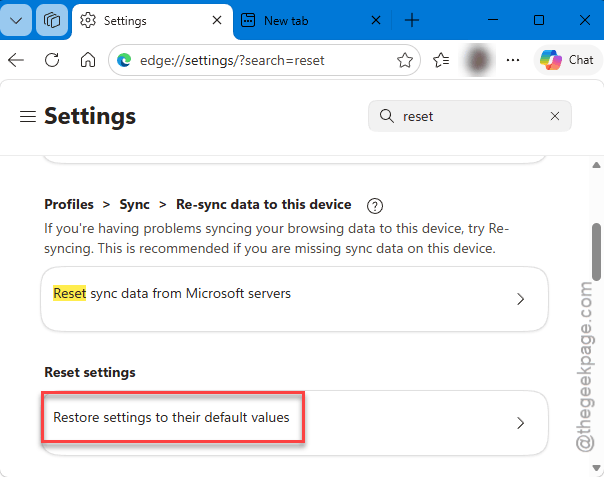
2 – In the search bar at the top of Settings, type Reset settings.
3 – Click Reset settings from the results.
4 – Click Restore settings to their default values.
5 – Click Reset to confirm.
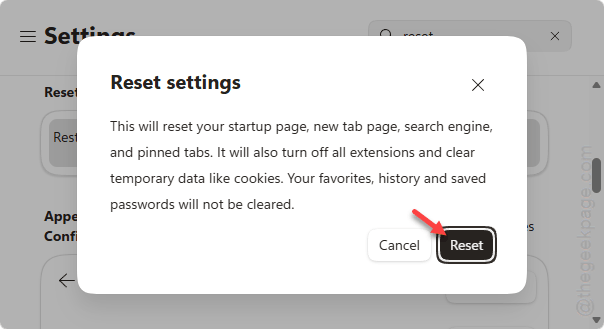
After this, Edge feels brand new. Default homepage, default search, all that. But your data stays.
Fix 6 – Repair Edge
Sometimes the install itself is broken. Use Windows Settings to repair the Edge client.
1 – Press Windows + I to open Settings.
2 – Go to Apps > Installed apps.
3 – Search “Microsoft Edge“.
4 – Click the three dots (⋯) next to it. Pick Modify.
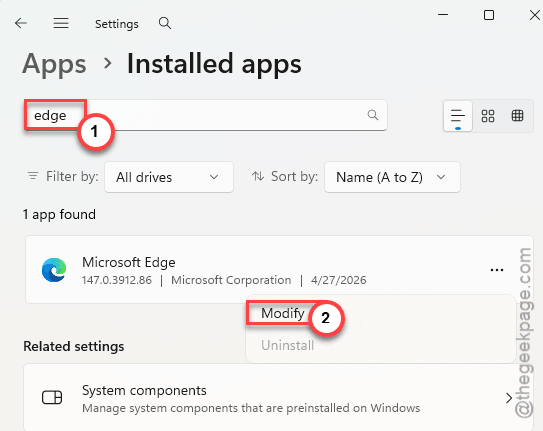
5 – A repair window pops up. Click Repair.
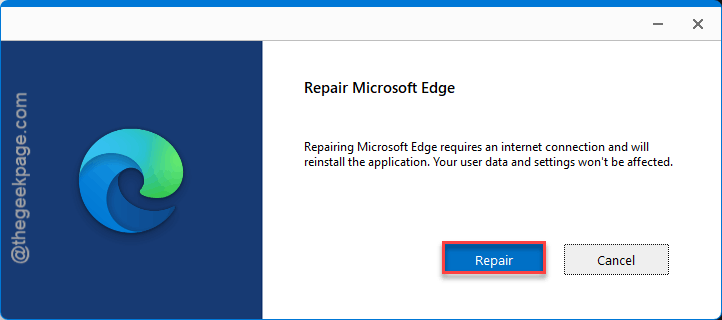
6 – Edge re-downloads itself. Takes a few minutes.
Won’t lose your stuff. Just rebuilds the broken parts.
How to Prevent This
- Disable the built-in PDF viewer. Always download PDFs instead.
- Clear cache once a month. Stops a lot of weird crashes before they start.
- Don’t install download manager extensions.
People Also Ask
Why does my computer crash when I open Downloads?
Probably not your computer — just Edge. The browser handles the download list and any preview action. If the PDF viewer or a corrupt cache hits an issue, Edge dies, and it can look like a system crash. Disable the PDF viewer and clear the cache. Should stop instantly.
Why won’t my Downloads open on Microsoft Edge?
Edge’s download handler depends on the right file association. Usually, if PDF is not assigned a default app to operate this problem occurs. Go to your Windows Settings > Apps > Default apps. Inside the Default Apps page, make sure an app (even if it is the Edge or any other browser of the latest version) is assigned to it.