Are the screenshot previews freezing, or can’t you dismiss them from your screen on your iPhone? The iOS 26 users have recently complained about this problem where the full-page screenshot previews are just freezing up the device completely. It is usually the conflict between the Liquid Glass overlay and the Visual Intelligence overlay. Here are some tips to get out of this problem.
Fix 1 – Disable Full-Screen Previews in iPhone
The standard screenshot capture procedure in the iOS 26 opens up a large, full-screen window, which can trigger a freeze effect on the overall UI.
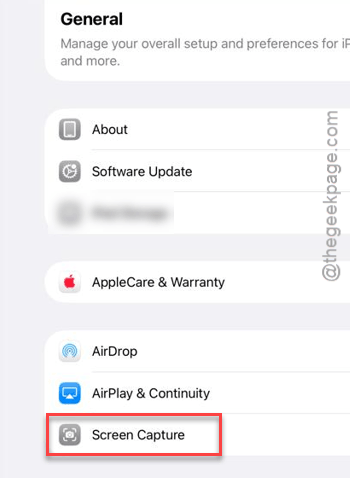
Step 1 – Open the iPhone Settings. Go to the General tab.
Step 2 – Tap on the Screen Capture tool.
Step 3 – Toggle Full-Screen Previews to OFF mode.
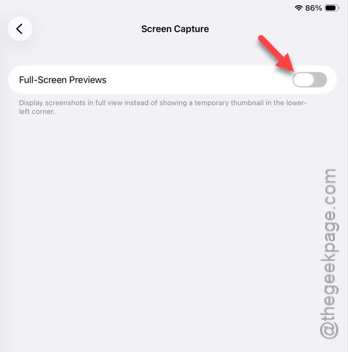
The screenshots will now appear as a small thumbnail in the bottom-left corner that you can easily swipe away from the iPhone interface.
Fix 2 – Do the Power-Down Handshake
If the screenshot has frozen the device, you can force the UI layer to refresh by entering the power-down sequence without force-restarting the actual device.
Step 1 – At first, press and hold the Side Button and Volume Up buttons together.
Step 2 – Wait for the Slide to Power Off slider to show up.
Step 3 – Tap the X button or Cancel button at the bottom to quit from the power console.
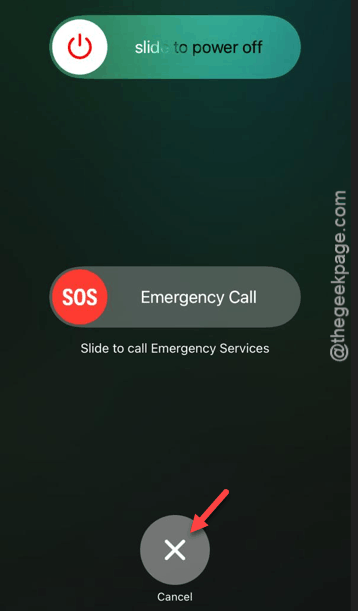
This simple refresh will free up the device from the frozen status.
Fix 3 – Disable the Automatic Visual Look Up
The iOS 26 scans screenshots instantly to identify objects and texts. This can sometimes cause the device to hang.
Step 1 – Proceed to the iPhone Settings. Go to the General tab once again.
Step 2 – Then, load up the Screen Capture settings.
Step 3 – Locate the Automatic Visual Look Up (or Visual Intelligence) settings there and toggle it to OFF.
This way, your iPhone won’t analyze the screenshot the moment it is captured. This will reduce or completely eliminate the lag from the device.
Fix 4 – Enable Reduce Transparency
The blurred/transparent UI elements of Liquid Glass behind the screenshot preview are a GPU-heavy process. If the ambient temperature is too high or the iPhone have already heated up.
Step 1 – On your iPhone Settings, proceed to the Accessibility tab.
Step 2 – Open up the Display & Text Size.
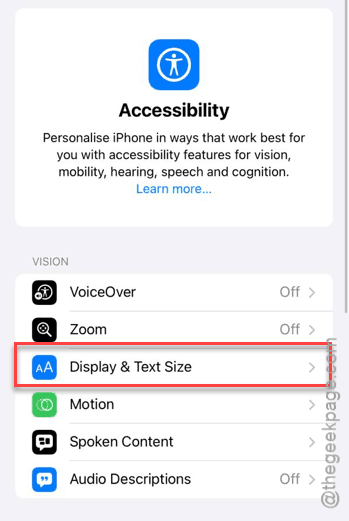
Step 3 – Toggle the Reduce Transparency mode to ON.
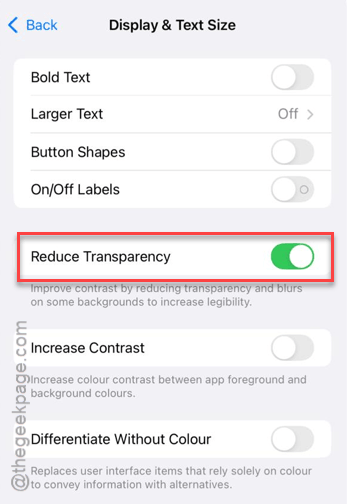
This should reduce the complex blurring effect and offers a constant solid color effect to the hovering screenshot panel that won’t
Fix 5 – Free Up More Space in iPhone
If the system data storage is too high, the screenshot process may not have ample space to save the temporary files and operate on it.
Step 1 – Open the iPhone Settings. Proceed to the General tab.
Step 2 – Load up the iPhone Storage settings.
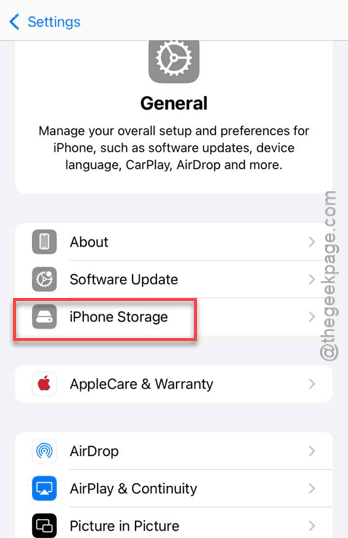
Step 3 – Scroll to the bottom to find the System Data settings.
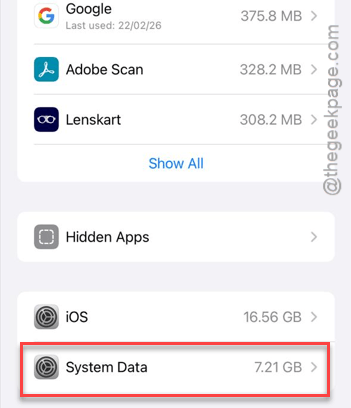
If you see the System Data has taken over 25-30 GB, follow these steps to force-restart the device once –
Quickly press the Volume Up, Volume Down and then, hold the Side button until the Apple logo shows up on the device.
This should flush the temporary files and fix the screenshot issue that you are having.