Some iPhone users have complained about the Stopwatch app freezing in the background on their devices. Basic tasks like a countdown in Stopwatch should never get restricted on iOS. Though iPhones do put restrictive action on several battery-hogging heavy applications, native processes like Stopwatch are not included in that list. If you are affected by such issues, here are some tips to tackle this problem yourself.
Fix 1 – Turn OFF the Adaptive Power Mode
If the stopwatch does freeze in the background, aggressive battery restrictions in adaptive power mode can be responsible for it.
Step 1 – Proceed to the iPhone Settings. Go to the Battery settings. Open up the Power Mode settings.
Step 2 – Ensure the Adaptive Power Mode is toggled to OFF.
Step 3 – Turn it to Low power mode if you still want to save battery.
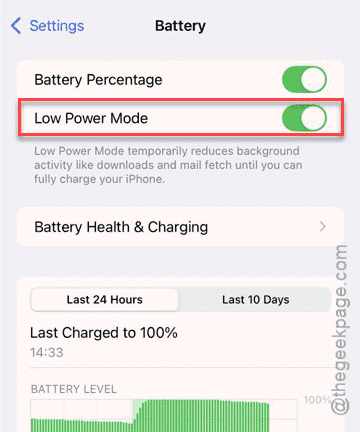
This way, iOS won’t put background apps such as Stopwatch to sleep.
Fix 2 – Toggle the Background Refresh
Even the Clock app is a system service, iOS can sometimes misread it as a background service and block the app refresh.
Step 1 – Go to the iPhone Settings. Next, load up the General tab.
Step 2 – Load up the Background App Refresh settings. Ensure the master switch is toggled to ON mode.
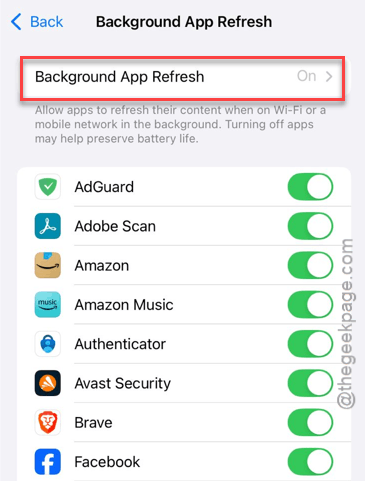
Step 3 – Scroll down to find the Clock app and toggle it to OFF. Wait for 5 seconds. Then, turn it back ON.
After refreshing this setting, the Stopwatch app will continue to work properly, even in the background.
Fix 3 – Turn OFF Reduce Transparency
Some users have reported that enabling the transparency reduction system in iPhone Settings can throttle the stopwatch’s activity in the background.
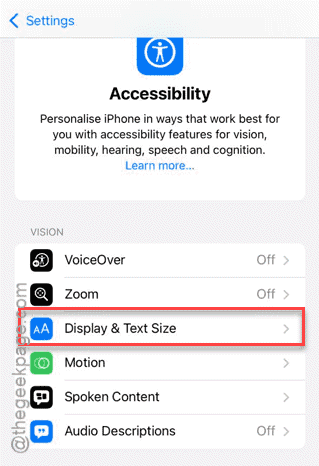
Step 1 – Go to the iPhone Settings. Then, load up the Accessibility settings. Open the Display & Text Size settings.
Step 2 – Locate the Reduce Transparency feature and toggle it to OFF.
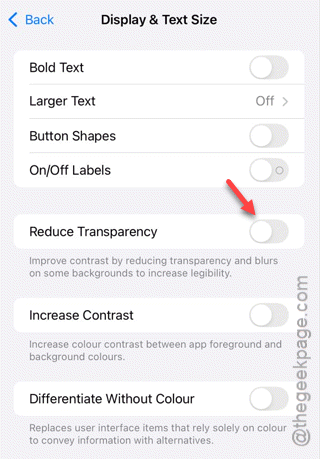
Once it is disabled, use the stopwatch and leave it open in the background to test whether this works out.
Fix 4 – Clear the Live Activity Cache
The Live Activity framework is used by the Stopwatch app to show the stopwatch data directly on the Dynamic Island on the iPhone.
Step 1 – Go to the iPhone Settings. Then, go to the Face ID & Passcode tab.
Step 2 – Under the Allow Access When Locked section, toggle the Live Activities to OFF and to ON.
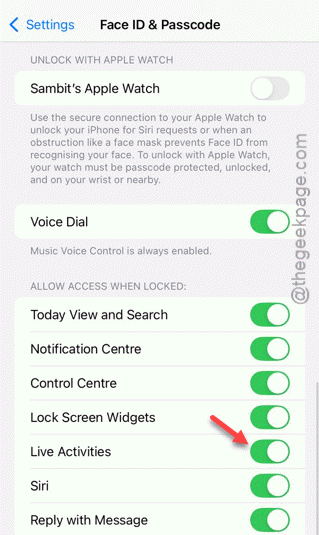
This should reset everything and fix the issue in the due process.
Fix 5 – Do a force-restart on the iPhone
If this is just a bug or glitch of iOS, force-restarting the iPhone should resolve the issue.
Step 1 – Quickly hit the Volume Up button and release it.
Step 2 – Then, press and release the Volume Down button.
Step 3 – Finally, press-hold the Side Button until the screen completely shuts down and the Apple logo shows up.