Having some problem unmounting the installation media in Hyper-V manager? There are certain scenarios where users may face some problem unmounting installation media or the ISO file from Hyper-V Manager. This situation can create quite an inconvenience for the users who manage multiple VMs from the Hyper-V hub. Here is a detailed guide exploring the reason behind this problem, alongside the key resolutions to resolve the issue so that you can finally unmount the ISO file and continue your productive routine.
Fix 1 – Restore the ISO file and disconnect it from VM
One of the key workarounds to this problem is to change the CD drive settings for the VM and then, proceed to delete it.
Step 1 – At first, load up the Hyper-V Manager.
Step 2 – Next, right-click the virtual machine where you are facing this issue, and tap the Settings button.
Step 3 – Then, go to the DVD Drive settings. Set the ‘Media’ to None.
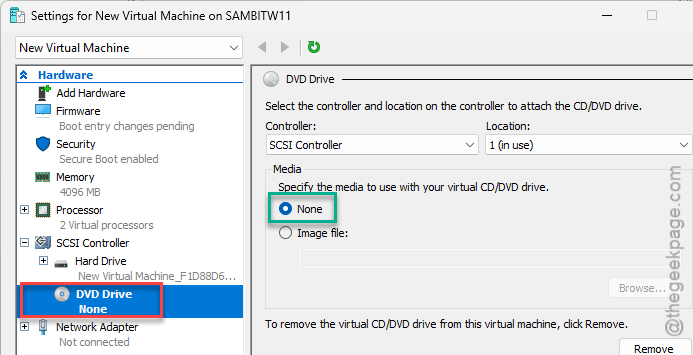
Step 4 – Save the changes using Apply and OK.

Step 5 – Shutdown the VM later.
Step 6 – After this, you may run the virtual machine once to check whether it is booting correctly or not. If the
Step 7 – If you have already deleted the ISO file, restore exactly in the same location. Then, proceed to unmount the ISO file.
This is the best practice for unmounting the installation media for any of your existing virtual machine from Hyper-V Manager.
Fix 2 – Force-Delete the ISO reference using PowerShell
Even if you have deleted the ISO file from the host, the ISO is still configured in the virtual machine settings.
Step 1 – You can remove such configurations using a PowerShell command. So, search powershell from the search box.
Step 2 – Next, right-click the Windows PowerShell and tap Run as administrator.
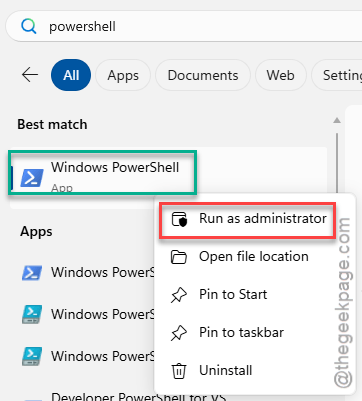
Step 3 – Now, paste this line in the terminal, edit it according to your system and hit Enter to disassociate the ISO link up from the virtual machine.
Get-VM -Name "VMName" | Get-VMDvdDrive | Set-VMDvdDrive -Path $null
Replace the VMName with the name of your virtual machine in the code and execute it.

This command resets the path of the mounted ISO file to blank or a null value, eventually clearing the blockade that is causing this issue.
Fix 3 – Delete the VM’s Checkpoint Tree
As checkpoints can revert to older setup images, you should delete any checkpoint tree before trying to dismount the ISO file.
Step 1 – In the Hyper-V Manager console, find the VM.
Step 2 – Now, right-click your VM and locate the main checkpoint in the Checkpoints panel.
Step 3 – Right-click the checkpoint and tap Delete Checkpoint tree.
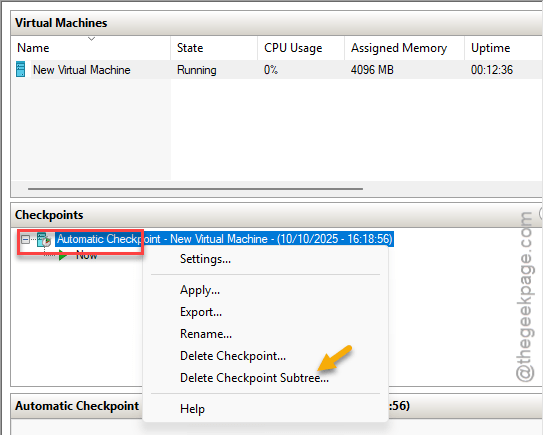
After deleting the checkpoint, give it another try.
Why can’t I unmount ISO in Hyper-V?
If you delete the main ISO file from the Hyper-V host machine, you are bound to run into issues while unmounting the ISO file in Hyper-V Manager. The main reason why you are not able to dismount the installation media or the ISO file is that, even if you have deleted, it is still associated with the virtual machine. Unless this configuration or link-up is severed, you can’t properly dismount the installation media.
Is Hyper-V available on all Windows versions?
No. Hypervisor is not available for the Windows Home editions, on both the Windows 11 and 10. Hypervisor is offered exclusively with the Windows Pro and Enterprise editions. Hypervisor is offered as a part of optional features, and users need to enable it in their Windows devices manually.
How do I safely unmount the installation media in Hyper-V?
The process of dismounting the installation media in Hyper-V is as follows – Load up VM Settings. Go to the DVD Drive settings and select the Media to None option. Then, click Apply and OK to apply the changes to VM. Later, shut down the VM, and try to unmount the ISO file.