Your internet was fine. Then a Windows update landed. Now it crawls.
Downloads stall. Pages hang. Speed tests come back way under what you pay for. And the timing? Right after KB5089549 installed.
Why This Happens
The gist? KB5089549 messed with the network stack — the part of Windows that actually runs TCP/IP and moves your traffic.
And it pulls a couple of sneaky moves. It can swap your real network driver for a generic Windows one. It can also flip advanced adapter settings — offloading, RSS, MTU — to values that quietly throttle your speed.
You didn’t change a thing. The update did. Annoying, right?
Some machines choke for a different reason. Windows Security gets in the way mid-install. The update half-applies, the stack lands in a weird state, and your speed never recovers.
Fix 1 – Install the Real Network Driver From the Vendor
First thing to check. If the update swapped you to the default Windows driver, that’s likely your whole problem. Get the proper one from your hardware maker.
1 – Press Windows + X and click Device Manager.
2 – Expand Network adapters.
3 – Note the name of your adapter — usually Intel, Realtek, or Killer.
4 – Go to that maker’s website and download the latest driver for your exact model.
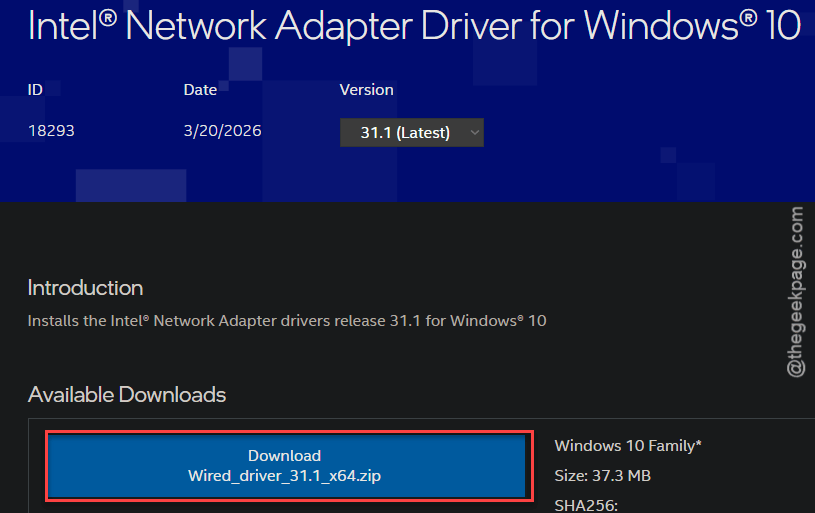
5 – Install it, then restart.
And vendor drivers, not the Windows Update ones.
Fix 2 – Reset the TCP/IP Stack
If the update left junk in the network stack, this clears it out. Three commands. Two minutes.
1 – Press Windows, type cmd, right-click Command Prompt, and pick Run as administrator.
2 – Type these codes one-by-one and hit Enter.
netsh int ip reset
netsh winsock reset
ipconfig /flushdns
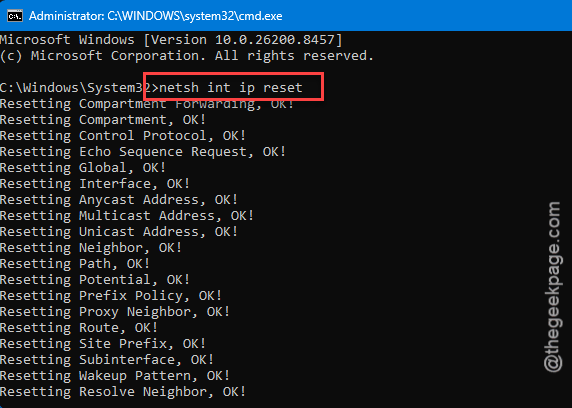
Once the process is completed, do restart your PC. The reset only takes hold after a reboot.
So this wipes any lingering stack changes the update made. Often the single biggest fix.
Fix 3 – Reset Advanced Adapter Settings to Default
The update sometimes changes deep adapter settings — the kind nobody touches by hand. Offloading, RSS, MTU. So put them back to default and your speed usually returns.
1 – Press Windows + X and open Device Manager.
2 – Expand Network adapters, right-click yours, and choose Properties.
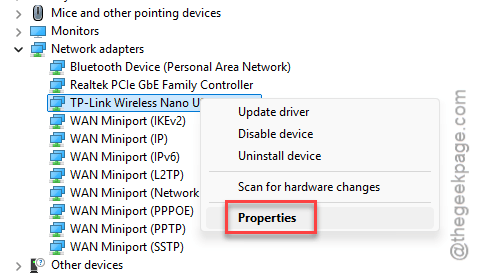
3 – Click the Advanced tab. This is where all the hidden settings live.
4 – Look through the list for Large Send Offload, Receive Side Scaling (RSS), and Jumbo Frame / MTU.
5 – Set each one back to its default value. If you’re not sure, RSS should be Enabled and Jumbo Frame Disabled on most home setups.
6 – Click OK and restart.
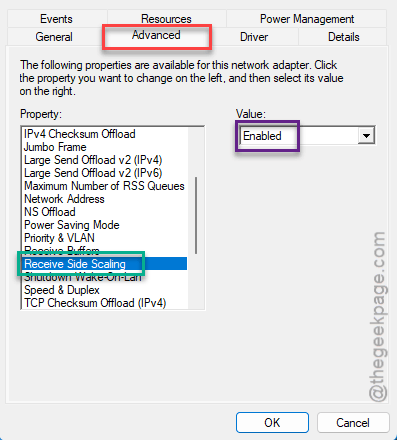
Fiddly, yes. But the update loves changing exactly these. Resetting them fixes a lot.
Fix 4 – Disable Windows Security, Then Reapply the Update
Sometimes the real-time protection may interuppt the update process.
1 – Search for Windows Security, and open it from the search result.
2 – Then, proceed to Virus & threat protection. Then, load up the Manage settings option.
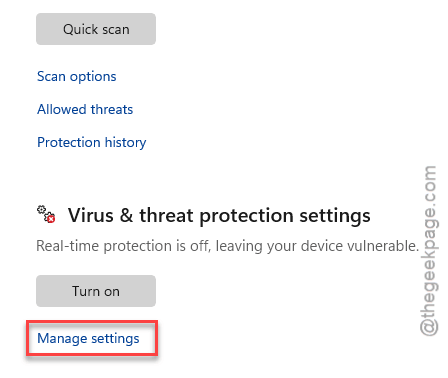
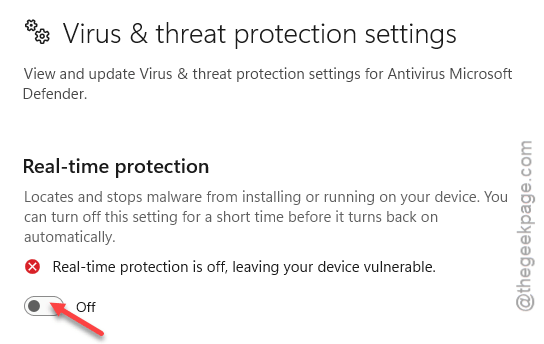
3 – Later, turn off the Real-time protection.
4 – Now, proceed to the Windows Update section.
5 – Reinstall the KB5089549 package from there.
NOTE – When it’s done, go back and switch Real-time protection back on.
Check if this works.
Fix 5 – Uninstall KB5089549
Nothing above worked? Just pull the update.
1 – Start by pressing the Windows + I shortcut keys briefly.
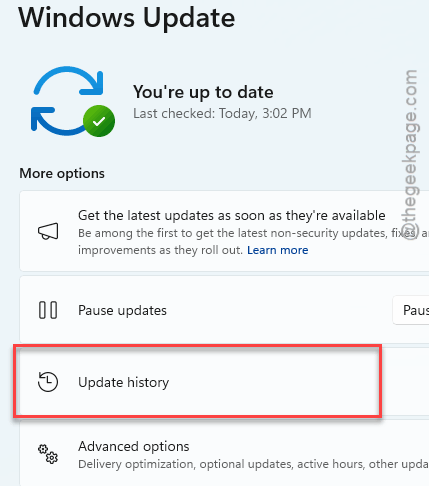
2 – Then, go to Windows Update tab. Tap the Update history button on the right-hand tab.
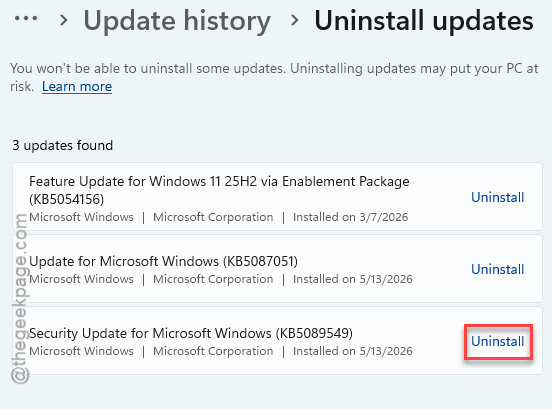
3 – Tap the Uninstall updates in the section.
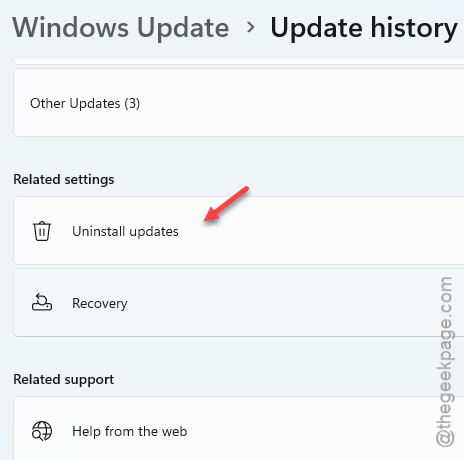
4 – Locate the KB5089549 in the list and click Uninstall.
5 – Restart.
And then pause updates (next fix). Otherwise Windows just shoves it back in.
Fix 6 – Pause Updates and Run the Troubleshooter
Two things to wrap up. Stop the update from reinstalling, and let Windows take a crack at the connection.
1 – In Settings > Windows Update, click Pause updates. Pause for a few weeks until Microsoft ships a fix.
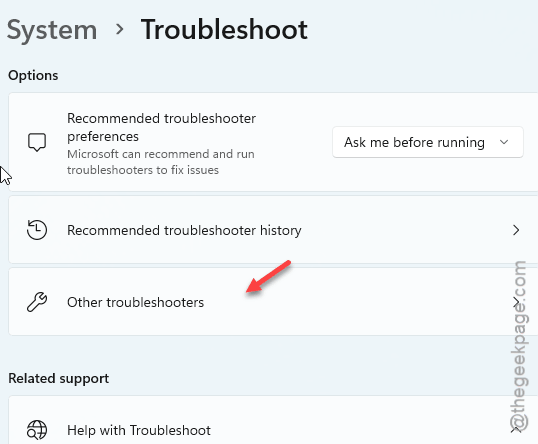
2 – Later, go to the Troubleshoot settings in the System settings on Windows.
3 – Then, proceed to the Other troubleshooters setting.
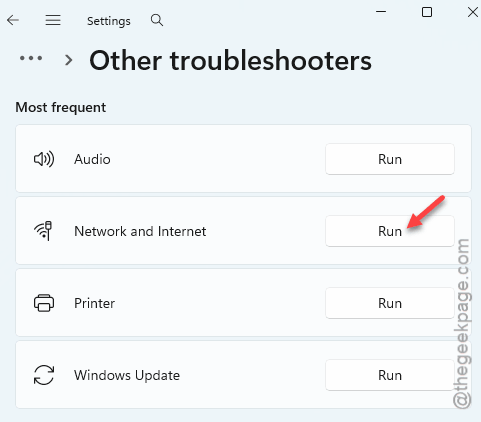
3 – Then, run the Network and Internet troubleshooter. Let it find and reset whatever’s off.
And it’s worth watching the Windows Update Health Dashboard. Microsoft posts known issues and workarounds for KB numbers there (usually within a few days of a bad release).
How to Prevent This
- Get network drivers from Intel, Realtek, or your laptop maker — not Windows Update. The default ones are slower.
- Hold off on cumulative updates for a week or two. Let the bad ones get caught first.
- Leave advanced adapter settings on default unless you really know why you’re changing them. Less to break.
People Also Ask
Why is my internet slow after a Windows update?
Resetting the TCP/IP settings or usign the proper network driver should resolve the issue. That covers most post-update slowdowns.
Should I uninstall KB5089549?
Only if the other fixes don’t help. Try the driver reinstall and stack reset first, since they keep your security patches in place. If the slowdown sticks, uninstall it and pause updates until Microsoft releases a servicing fix.