The user reports ‘Not enough memory resources are available to process this command’ error message may show up due to a variety of factors such as, insufficient RAM, low memory bandwidth and system file corruptions. However, sometimes if a software utility is unable to free up used memory on your system, it may run into a similar situation, prompting this error message. Here are some solutions that should fix the issue at your end.
Fix 1 – Enhance the IRPStackSize value in system registry
The IRPStackSize parameter controls the allocation of stacks for I/O requests while execution of certain processes. Low value of IRPStackSize may lead to ‘not enough memory’ error.
NOTE – Editing the system registry is never risk-free. So, before you proceed, make sure to back up your system registry. You can follow these steps.
Step 1 – At first, press the Win+S keys together and type regedit in the search box.
Step 2 – Then, tap on the Registry Editor utility to load it up.
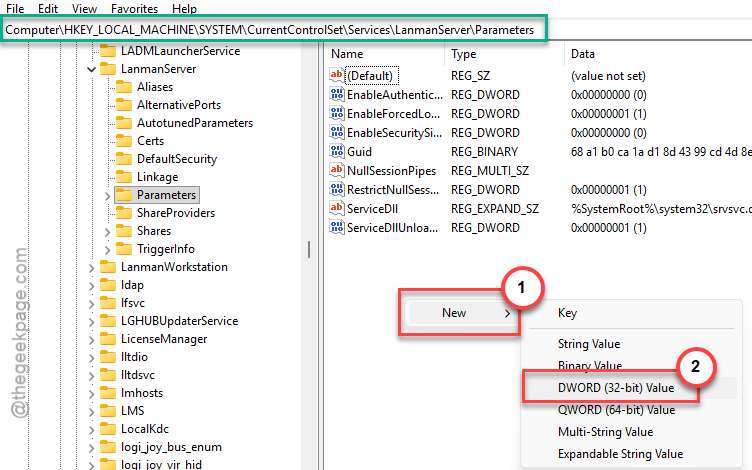
Step 3 – Go to this address –
HKEY_LOCAL_MACHINE\SYSTEM\CurrentControlSet\Services\LanmanServer\Parameters
Step 4 – On the right-hand pane, look for the IRPStackSize dword value.
Step 5 – If you can’t find it, right-click once and select New>DWORD (32-bit) Value to create it.
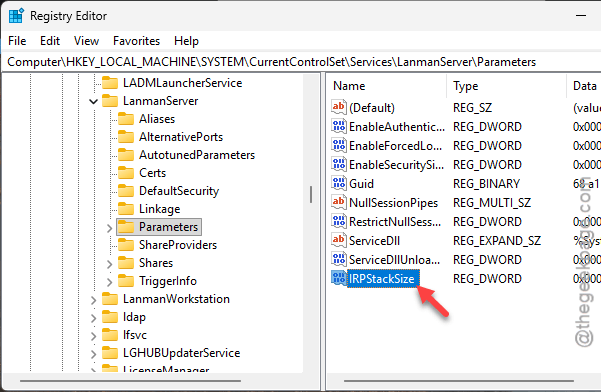
Step 6 – After this, double-tap the IRPStackSize value to edit it.
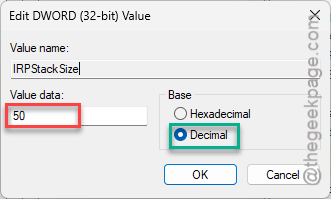
Step 7 – Choose the Decimal base system and fix the value to 50.
Step 8 – Click OK to save the change for the value.
After modifying the system registry, close the Registry Editor. Then, restart your system.
After this, try to execute the same process.
Fix 2 – Boot into the Safe Mode and reboot normally
Rebooting the system into the Safe Mode and then, restarting the system normally will repair any corrupted system files that is causing this issue.
Step 1 – Press the Win button once to open the Start menu. Next, tap the Power button there.
Step 2 – Now, while pressing the Shift button tap the Restart button to reboot the device in Recovery Mode.
Step 3 – From there, follow this path –
Troubleshoot > Advanced options > Startup Settings
Step 4 – Next, tap the Restart button to reboot the device.
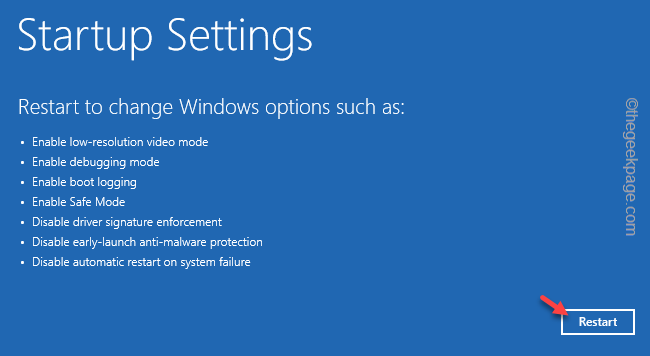
Step 5 – Finally, tap the F4 or F5 key to boot the device into Safe Mode or Safe Mode with Networking access, respectively.
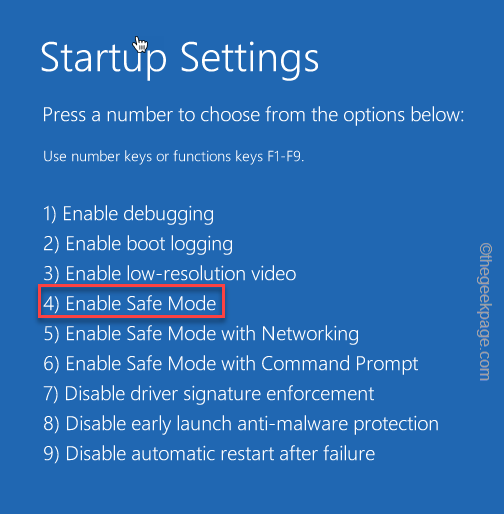
Wait for a few seconds for the device to reboot.
Step 6 – Now, once you have booted into the Safe Mode, restart the device normally.
This will resolve any bugs that are causing this problem.
Fix 3 – Run DISM, SFC scanning commands
Another way to tackle this issue is to run deployment image scanning commands, where any system file corruption can be repaired.
Step 1 – At first, search cmd in the search box. Next, right-click the Command Prompt in there, and tap Run as administrator.
Step 2 – Then, copy-paste these codes one-by-one in the CMD terminal. Then, hit Enter to run the scans.
Dism /Online /Cleanup-Image /RestoreHealth
sfc /scannow
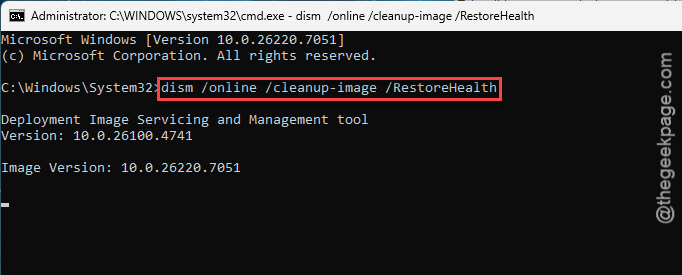
These scans may take some to complete. You can just minimize the terminal and focus on your work. Reboot the system once you have run all the scans.
Try to run the same process that incurred the error in the first place.
Fix 4 – Clean up the Temp folder
Having too many files in the Temp folder for too long can lead to this problem.
Step 1 – Simply, hit the Win+R buttons to pull up a Run panel. Then, put this in the Run code and, click OK.
%temp%
Step 2 – In the Temp folder, select all the contents in the Temp folder and press the Delete button to clear out the Temp folder.
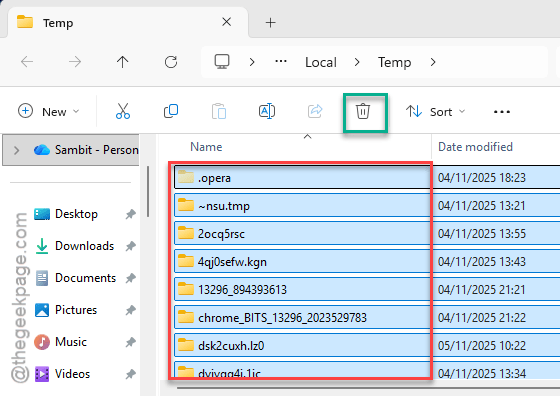
Step 3 – After clearing the Temp folder, proceed to the Temp folder in Windows drive, at this location –
C:\Windows\Temp
Step 4 – Delete the entire content of this folder.
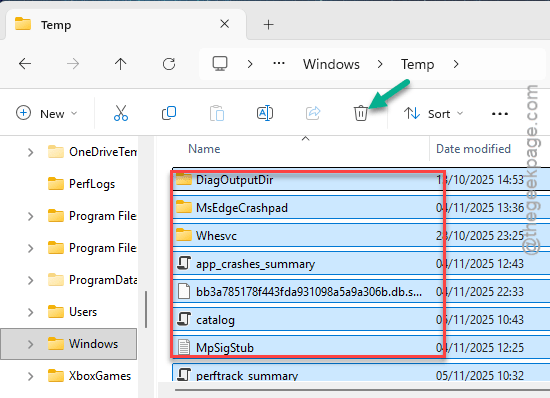
After clearing out the folders, try to run the same process. Check whether this works.