While trying to preview a file on your Windows computer, you may see the following ‘The file you are attempting to preview could harm your computer’ error message. Whenever your Windows detect a protected content, it shows up this message on the preview pane. The basic troubleshooting for this issue includes unblocking the file, a registry tweak and a few other steps.
Fix 1 – Unblock the File Manually or via Terminal
If you are facing this issue for a few particular files, you can unblock the file manually or using terminal.
Unblocking files via GUI
Step 1 – Go to the file in the File Explorer. Next, right-click the file, and tap Properties.
Step 2 – Then, check the Unblock checkbox.
Step 3 – Apply this change and save it.
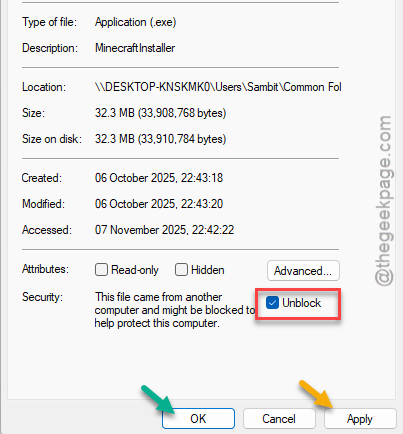
Then, try to access the same file again. See if this works or not.
Alternatively, you can unblock the file from the PowerShell as well.
Unblocking files via Terminal
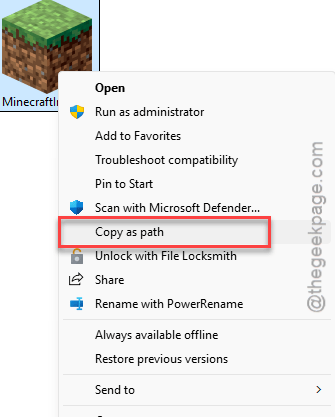
Step 1 – Select the file in the File Explorer. Right-click it once, and tap Show more options.
Step 2 – Next, tap the Copy as path to copy the file path directly.
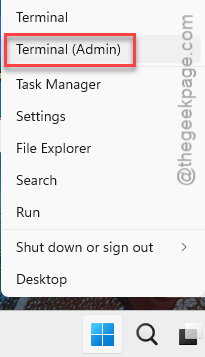
Step 3 – Next, press Win+X and tap Terminal (Admin) to load up a terminal with administrative rights.
Step 4 – Make sure to open up a Windows PowerShell page. Then, write Unblock-file and paste the copied path, and hit Enter to unblock the file.
Unblock-file <copied file path>
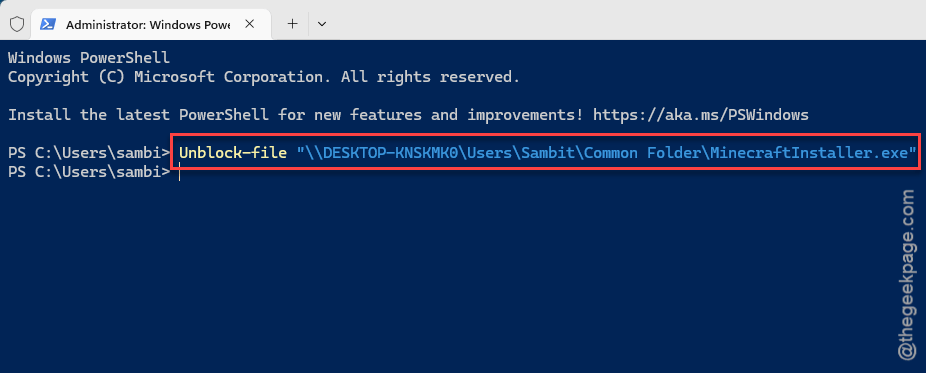
This will unblock the file for sure.
NOTE – You can also unblock all files in a particular path with a command like this –
dir "C:\Users" -Recurse | Unblock-File
This does unblock all the files in the C:\Users root directory. Replace it according to your requirement.
Unblocking files in the Network Locations
If you are facing this problem with the files stored in a network location, here are the steps to fix it-
Step 1 – Check the network address or the IP range (like 192.168.1.*) where the files are located.
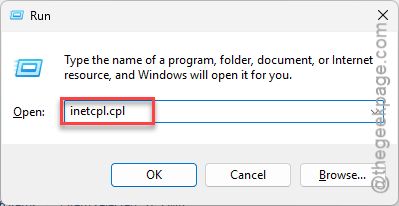
Step 2 – Then, open a Run box. Paste this code and hit Enter.
inetcpl.cpl
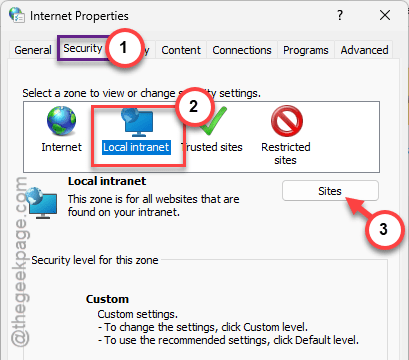
Step 3 – Next, go to the Security tab. Select the Local Intranet and tap Sites.
Step 4 – Then, check the Automatically detect intranet network settings. Click OK.
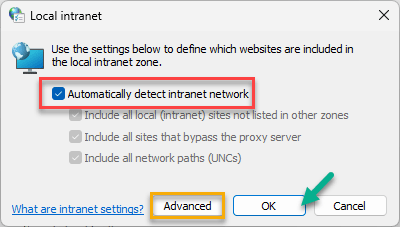
This way, all the files in the intranet are ‘trusted’ and won’t be blocked from previewing.
(Optional)
If you want to put an IP address range manually, so that, the files in that particular web server is considered ‘trusted’,
Step 5 – Tap the Advanced option.
Step 6 – Input the web address or range (like – 192.168.1.10) in the website box and click Add.
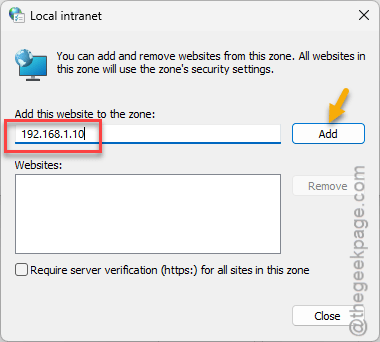
After this, all the files in this server will not be blocked from previewing.
Fix 2 – Disallow Preview Pane Viewing Policy in Local Policy
There is a local policy that can disable the preview system in the File Explorer completely. Disable it by following these steps –
Step 1 – Press the Win+R buttons together.
Step 2 – Put this there and hit Enter.
gpedit.msc
Step 3 – Next, follow this path –
User Configuration ⇾ Administrative Templates ⇾ Windows Components ⇾ File Explorer ⇾ Explorer Frame Pane
Step 4 – Then, double-tap the Turn off Preview Pane policy.
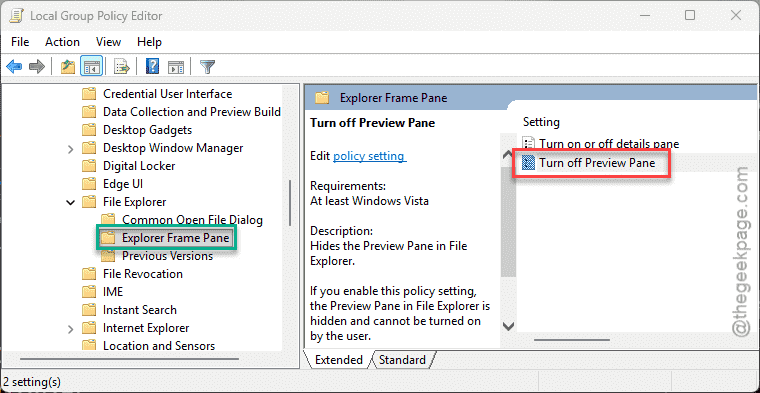
Step 5 – Make sure this policy is set to Not Configured or Disabled mode.
Step 6 – Save this policy modifications.
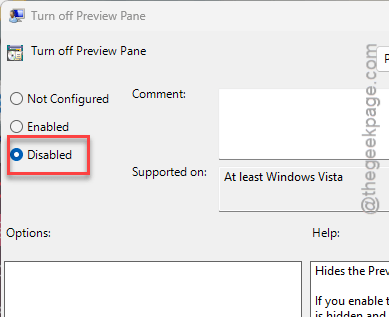
After applying this change, you can easily preview files in the File Explorer.
Fix 3 – Add the SaveZoneInformation Dword value
Some users have fixed this issue by adding a new DWORD value in the system registry.
NOTE – You must back up the system registry before enacting these steps.
Step 1 – Type regedit in the search box and open up the Registry Editor.
Step 2 – Then, proceed to this location –
Computer\HKEY_CURRENT_USER\SOFTWARE\Microsoft\Windows\CurrentVersion\Policies
Step 3 – Next, right-click the Policies key and tap the New > Key.
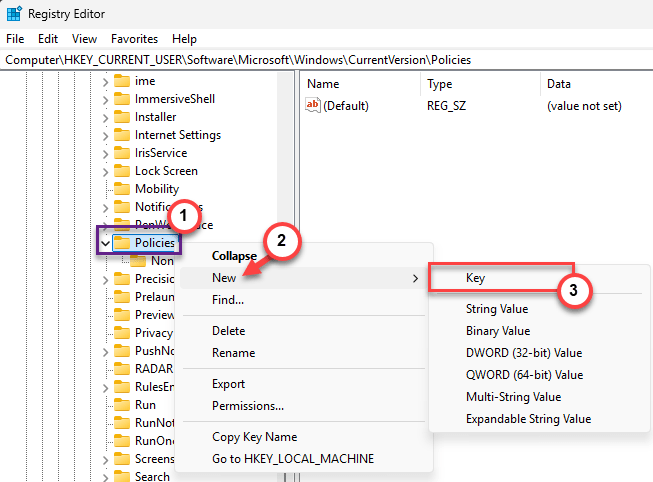
Step 4 – Name this new key Attachments.
Step 5 – Now, on the right-hand tab, right-click and tap New > DWORD (32-bit) Value.
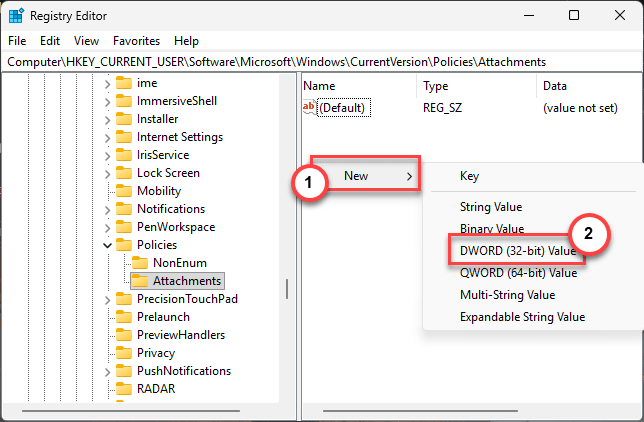
Step 6 – Name the new value SaveZoneInformation.
Step 7 – Double tap to change the value.
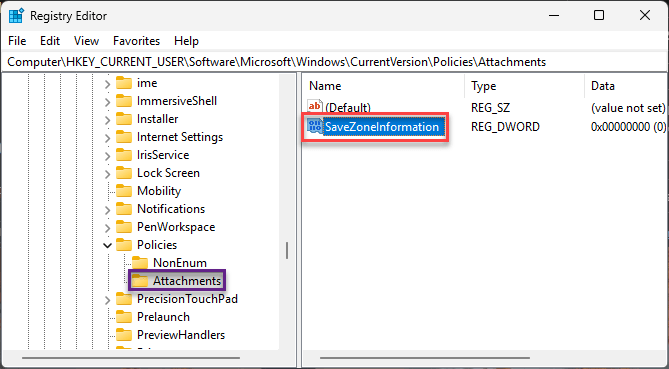
Step 8 – Then, set it to 1 and click OK.
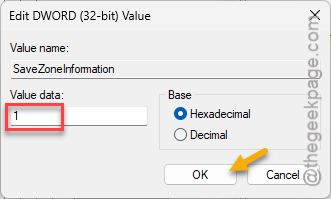
After tweaking this change in the Registry Editor. Close everything and restart the computer.
Fix 4 – Use Microsoft PowerToys tools to preview
Microsoft PowerToys has the Peak feature to preview the files on your Windows PC. This is an official Microsoft application, so you can use it without any worries.
Step 1 – Open the Microsoft Store and install Microsoft PowerToys app.
NOTE – You can manually edit the Peek settings in this location of PowerToys –
File Management ⇾ Peek ⇾ Enable Peek
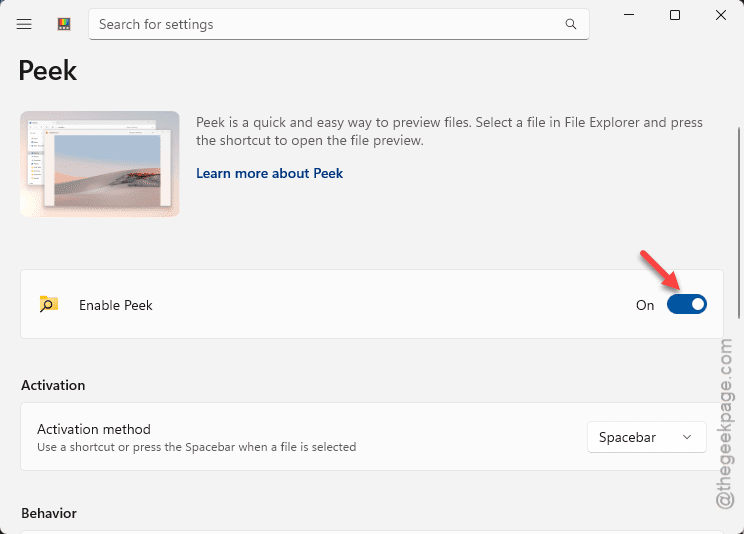
Step 2 – Once the utility is installed, go to the location of the file you want to preview.
Step 3 – Select that particular file, tap the Spacebar to view the file in a hovered overlay.
Step 4 – You can also use Left and Right or Up and Down buttons to go through different files in the same folder.
This provides an excellent alternative to the normal preview system in the File Explorer. This should have fixed the preview issue that you are having in the File Explorer.
Fix 5 – Uninstall the Latest Windows Update
The latest October 2025 update for Windows 11 seems to have a special security feature that sometimes flag certain files from preview panel in the File Explorer. So, if your computer has recently received an update patch, uninstall it.
Step 1 – At first, press the Win+R buttons.
Step 2 – Then, type this there, and click OK.
appwiz.cpl
Step 3 – Tap the View Installed Updates option to view the list of installed Windows updates on your device.
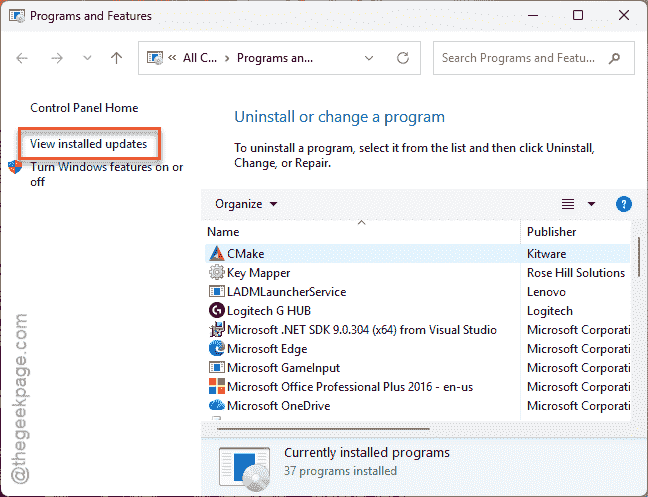
This will take you to Windows Update page in Settings.
Step 4 – Look for any recent update that you have installed in September-October, and tap Uninstall to roll back that update.
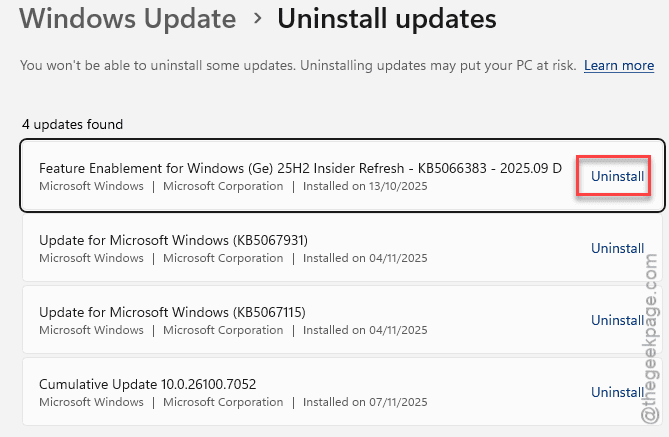
Allow a few minutes for Windows to uninstall the Windows update package from your system. Your system will be restarted several times during this process.
NOTE – This is a temporary solution, as you can not prevent the Windows Update from installing on your device for too long.