Not getting any access code on your email inbox from Zoom? Waiting to receive an access code to join meetings or conference calls on Zoom via e-mail and not ultimately having that can be a very frustrating experience. Access codes add an important step of validating access while logging into your Zoom account or getting access to a particular meeting or call. So, this issue should be dealt with utmost emergency.
Fix 1 – Check the Spam/ Trash folder
Sometimes the e-mail with the code find its way to the spam or trash folder of your inbox.
Step 1 – Open up your e-mail inbox. Go to the Spam, Junk Emails or the Trash folder.
Step 2 – Check if the access code has arrived in any of these folders.
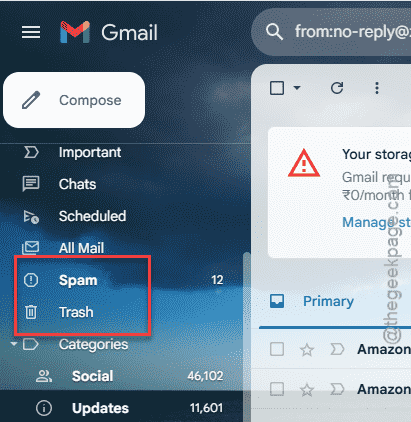
Apart from the spam or the trash folder, you must look for the verification code in other folders in your e-mail. You should check out these folders—
Promotions
Social
Updates
Fix 2 – Wait and Resend the code
Sometimes due to connectivity issues, the e-mail message with the access code gets bounced off. Like other services, Zoom also has a robust system of waiting and resending the access codes. So you recommend set the recipient should wait for a minute or two. If the e-mail message still does not get delivered, resend the access code.
Fix 3 – Put Zoom in the Safe Sender list
You must create a new filter to put zoom into the Safe Senders list.
Step 1 – To do this, open up your Gmail on a browser of your choice.
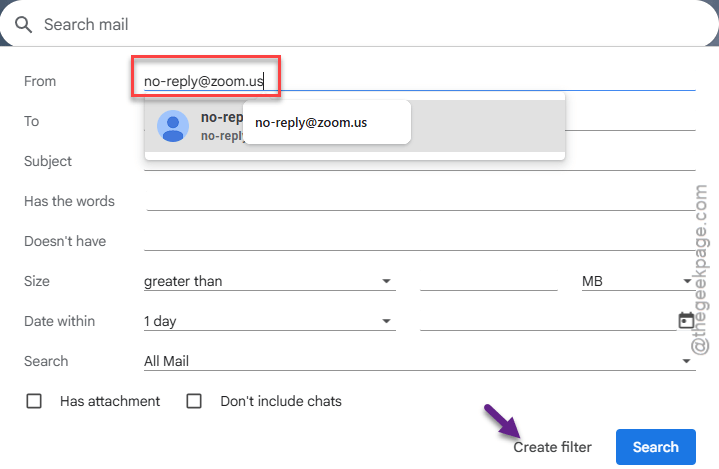
Step 2 – Once you have logged in there, tap the Show search filter option in the search box.
Step 3 – Then, paste this default zoom address in the ‘From:‘ box.
[email protected]
Step 4 – Tap the Create filter to create a new filter there.
Step 5 – Now, check the Never send to Spam option later. Finally, tap the Create filter to create this new filter.
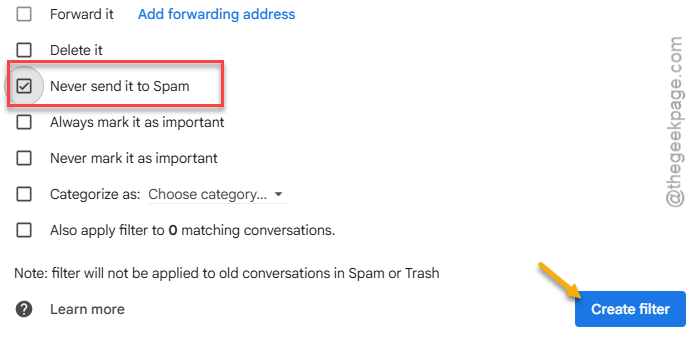
Once you have created this filter, all the email messages from Zoom (including the ones containing access code) directly into your inbox.
Fix 4 – Use the search bar parameters
To find out the specific e-mail messages from zoom, you may take advantage of the search bar in Gmail.
Step 1 – Load up the Gmail inbox once again.
Step 2 – Paste this there and hit the Enter key to run a search across the inbox on your Gmail.
from:[email protected]
Step 3 – Apart from this, you can specify the subject to narrow down your email search to find out the access code email in your inbox.
subject:"Zoom access code"
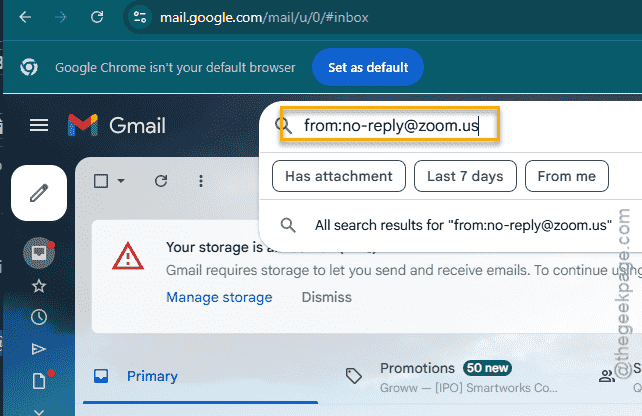
This way, you can find the access code quickly among the heap of all the other email messages.
NOTE – If you are still having problems detecting the access code via email from Zoom, you should directly consult with the Zoom Customer Support. Zoom has a dedicated team of phones and live agent support ready for their premium, enterprise clients. They will be able to help you out in this case.