You fire up an older OpenGL game. And the colors are all wrong. Inverted. Washed out. Sometimes weirdly neon. Turn Auto HDR off and it looks fine again. So you know the feature is the problem. But you’d rather not lose it for everything.
Why This Happens
Quick background. Auto HDR is a Windows feature that stretches an older game’s colors into a richer HDR range on the fly. On modern games it works great. On OpenGL games? Not so much.
OpenGL is an older graphics system that a lot of emulators and classic games still use. And Auto HDR was really built with newer DirectX games in mind. So when it wraps its HDR layer around an OpenGL window, the color mapping gets scrambled. That’s your inversion.
There’s usually a second thing feeding it too. Your monitor’s color profile — the little file that tells Windows how to display color — can clash with the expanded HDR range. When they fight, colors go haywire.
And Windows sometimes forces a modern display pipeline onto an app that wasn’t designed for it. Same result. Broken color. So a few different knobs can each cause this, which is why one fix doesn’t cover everyone.
Fix 1 – Turn On the Windowed Games Optimization
Start here. Windows has a built-in setting made exactly for this — it re-wraps older games into a modern pipeline the right way, fixing the color mapping. Microsoft added it specifically to modernize legacy games.
1 – Press Windows + I to open Settings.
2 – Click System, then Display.
3 – Scroll down and click Graphics.
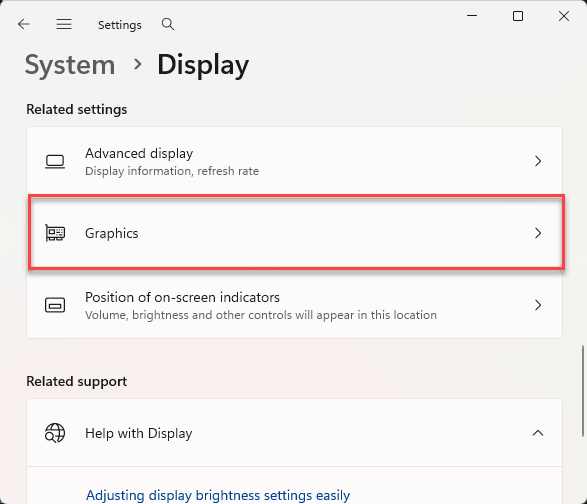
4 – Click Default graphics settings at the top.
5 – Find Optimizations for windowed games and switch it On.
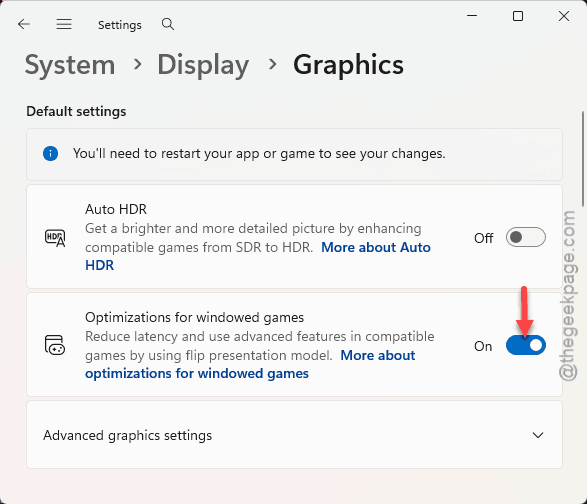
6 – Restart your game and check the colors.
Fix 2 – Turn Off Auto HDR Just for That Game
This is the smart middle ground. You keep Auto HDR on for your modern games and switch it off only for the broken one.
1 – Launch the game.
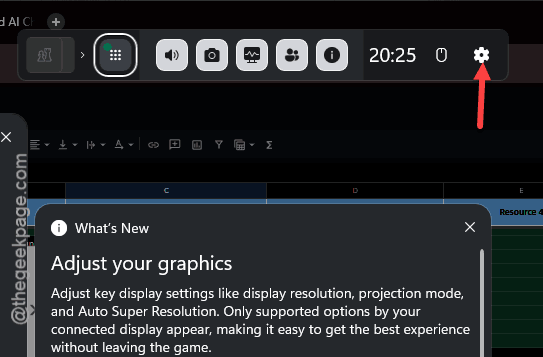
2 – Press Windows + G to open the Xbox Game Bar overlay.
3 – Click Settings (the gear icon). Then, go to the More Settings.
4 – Click Gaming features.
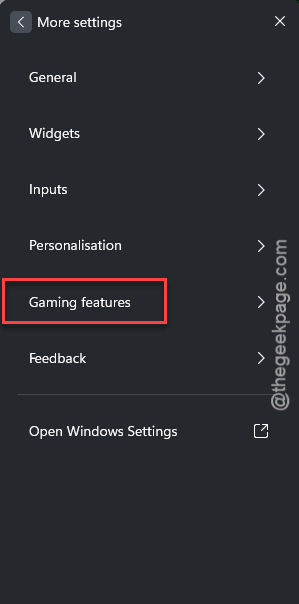
5 – Uncheck Use Auto HDR with this game. Disable the Use Auto HDR with supported games feature.
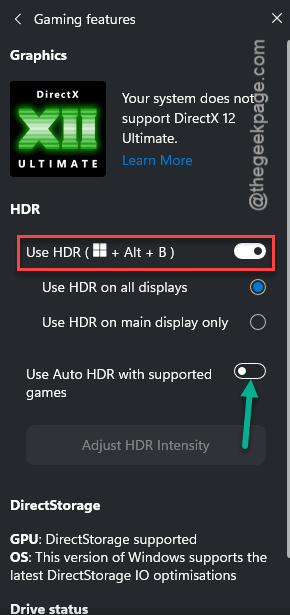
Colors snap back for that title, and everything else keeps its HDR. Best of both.
Fix 3 – Turn Off Auto HDR Everywhere
Just want to confirm Auto HDR is the villain? Kill it system-wide as a quick test.
1 – Press Windows + I together.
2 – Go to System > Display > HDR.
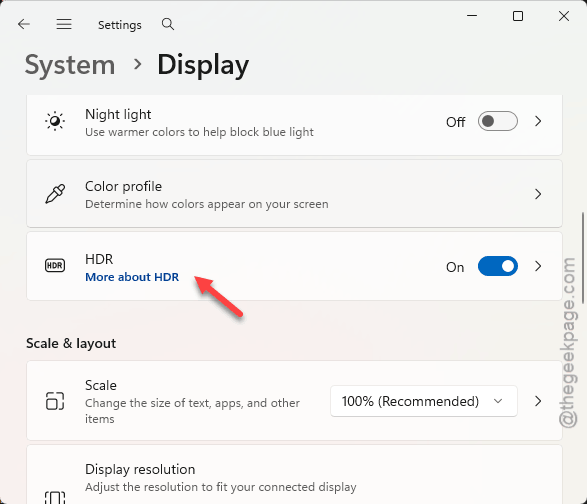
3 – Then, toggle Auto HDR to Off.
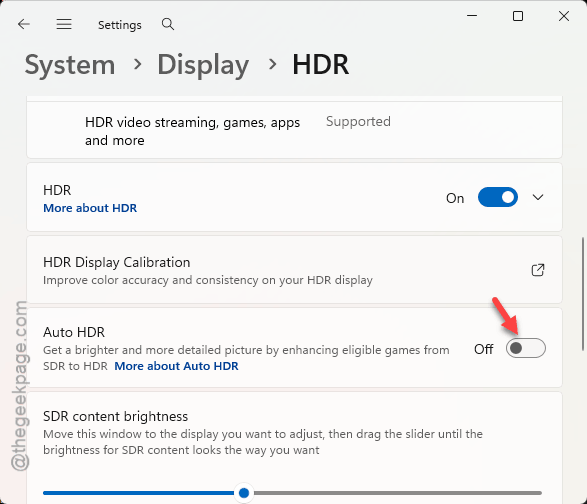
If the colors go back to normal instantly, you’ve found your culprit — and you can re-enable it and use the per-game trick in Fix 2 instead.
Fix 4 – Switch Your Color Profile to sRGB
A corrupted or mismatched color profile clashes hard with HDR. Setting a clean, standard sRGB profile often clears the weirdness.
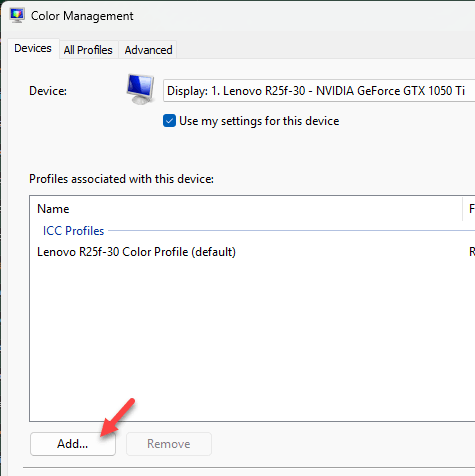
1 – Click Start, type Color Management, and open it.
2 – At the top, pick your monitor from the Device dropdown.
3 – Check Use my settings for this device.
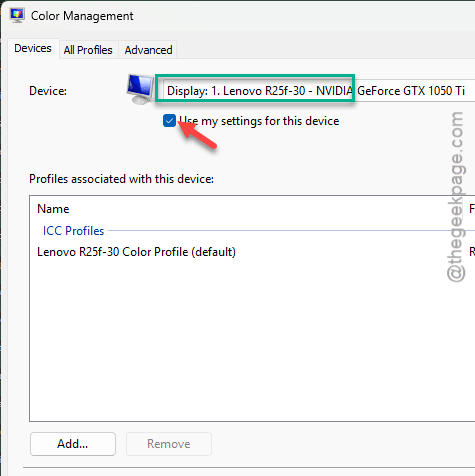
4 – Click Add near the bottom.
5 – Choose sRGB IEC61966-2.1 from the list and click OK.
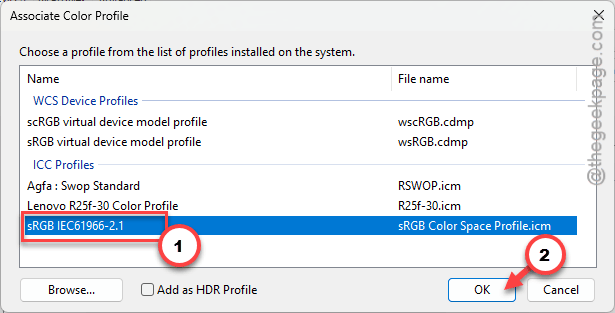
6 – Set it as the default profile, then close the window. sRGB is the safe standard most displays expect.
Fix 5 – Remove the Flip Model Override
Still off? Windows may be forcing a modern presentation model onto the OpenGL window. There’s a per-game entry in the registry you can strip out. Editing the registry is powerful, so follow the path exactly.
1 – Press Windows + R, type regedit, and press Enter.
2 – Paste this into the address bar at the top and press Enter:
HKEY_CURRENT_USER\Software\Microsoft\DirectX\UserGpuPreferences
3 – On the right, find the entry named after your game’s .exe file and double-click it.
4 – In the text, look for DxgiSwapEffect=4 and delete just that part. Leave the rest alone.
5 – Click OK and restart the game.
Check if this works.
Fix 6 – Clear the Display Cache
Last resort. Windows caches your monitor’s info, and a stale cache can lock in a bad color handshake. Clearing it forces a fresh one. Back up your registry first — click File > Export in regedit before you touch anything.
1 – Open regedit like in Fix 5.
2 – Paste this path into the address bar and press Enter:
HKEY_LOCAL_MACHINE\SYSTEM\CurrentControlSet\Control\GraphicsDrivers\Configuration
3 – Delete the keys (the folders) sitting under Configuration.
4 – Restart your PC. Windows rebuilds the display data and re-negotiates the color space from scratch.
How to Prevent This
– For OpenGL games and emulators, use the per-game Auto HDR toggle instead of the global one. Cleaner, less collateral.
– Keep a proper sRGB profile set for your monitor. A mismatched profile is behind a lot of these color clashes.
– Leave the windowed games optimization on. It’s the setting Microsoft built for exactly this situation.
– Update your GPU driver now and then. Color-handling bugs get patched there too, not just in Windows.
People Also Ask
How do I fix washed out HDR in Windows 11?
Washed out color usually means a profile mismatch. Set a clean sRGB profile in Color Management, then check your HDR brightness balance under Settings > System > Display > HDR. For older OpenGL games specifically, turning on the windowed games optimization fixes the washed-out look most of the time.
How do I force Auto HDR in Windows 11?
You can easily enforce the Auto HDR settings directly from the Display settings on your computer.