You point at the widgets icon and… nothing. No slide-out panel. No weather, no news. It used to open the second you hovered. So what happened? Microsoft changed how it works and forgot to tell anyone.
Why This Happens
Two different things are usually going on here, and they get mixed up.
First, the hover. Microsoft turned off open-on-hover in a recent update. On purpose. Too many people kept bumping the corner and getting a face full of widgets. So now it only opens on a click, unless you switch hover back on yourself.
Second, the blank board. Widgets run on two hidden pieces — the Web Experience Pack (the app behind the whole panel) and WebView2 (a mini-browser engine that actually draws the content). If either one gets corrupted, the board opens empty or won’t open at all.
And the news? Microsoft split the Discover feed off into its own toggle. So the articles didn’t vanish. They just got switched off, and nobody mentioned it.
Fix 1 – Turn Hover Back On
If your widgets used to pop open when you pointed at them and now they don’t, this is why. The setting still exists — it’s just off. (And if you’d rather not bother with hover at all, a single click on the weather icon opens the board right now.)
1 – At first, left-click the weather or widgets icon on the far left of your taskbar to open the board.
2 – Click your profile picture or the Settings gear in the top-right corner of the board.
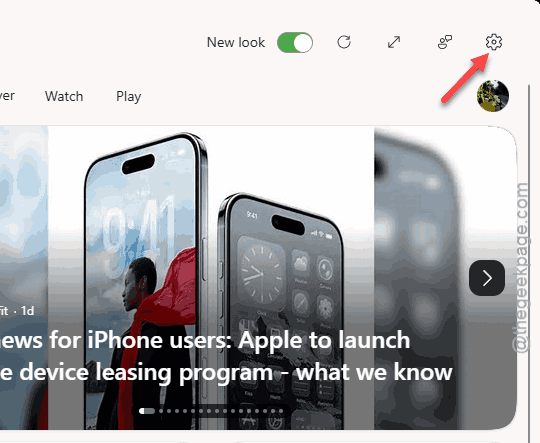
3 – Find the Taskbar behaviors section.
4 – Turn on the Open Widgets on hover feature.
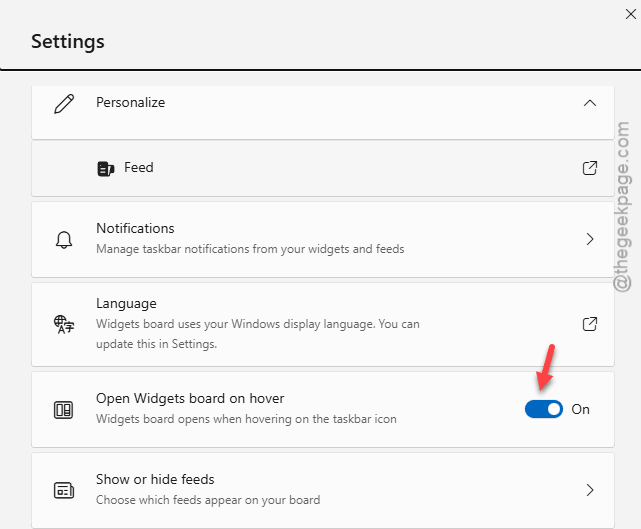
5 – Close the board and point at the icon again.
Back to the old behavior. If the board won’t even open to reach this setting, jump to Fix 3.
Fix 2 – Bring the News Feed Back
Widgets open fine but the news is gone? It got moved, not removed.
1 – Open the Widgets board by clicking the taskbar icon.
2 – Click the Settings gear in the top-right corner.
3 – Find Show or Hide Feed and toggle it On.

4 – Close and reopen the board.
The articles come back. If the feed looks thin at first, give it a day to learn what you actually read.
Fix 3 – Repair the Web Experience Pack
Board opens empty, or flashes and dies? Start with a repair — it resets the app without wiping anything.
1 – Press Windows + I to open Settings.
2 – Click Apps, then Installed apps.
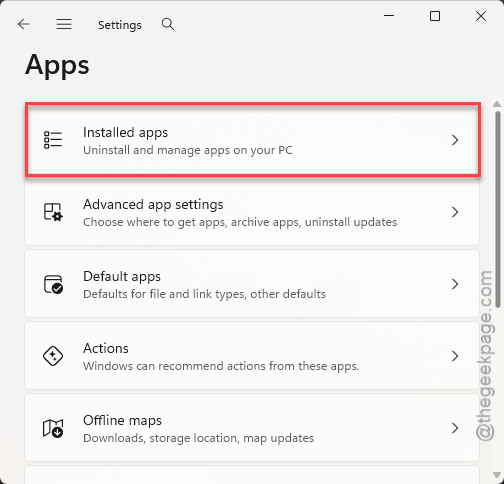
3 – Write down Web Experience in the search box at the top.
4 – Click the three dots (⋯) next to Windows Web Experience Pack and choose Advanced options.
5 – Scroll down and click Repair. Wait for the checkmark to appear next to it.
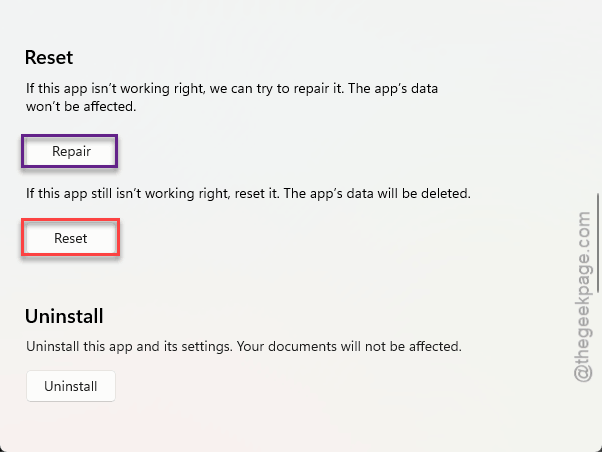
Open the Widgets board again. And a repair clears up a surprising number of these without the heavier steps below.
Fix 4 – Re-register the Widgets Package
If a repair and a WebView2 reinstall both came up short, force Windows to rebuild the Widgets app from its own files. Sounds scary.
1 – At first, right-click Start and choose Terminal (Admin).
2 – Paste this in exactly and press Enter:
Get-AppXPackage *WebExperience* -AllUsers | Foreach {Add-AppxPackage -DisableDevelopmentMode -Register "$($_.InstallLocation)\AppXManifest.xml"}
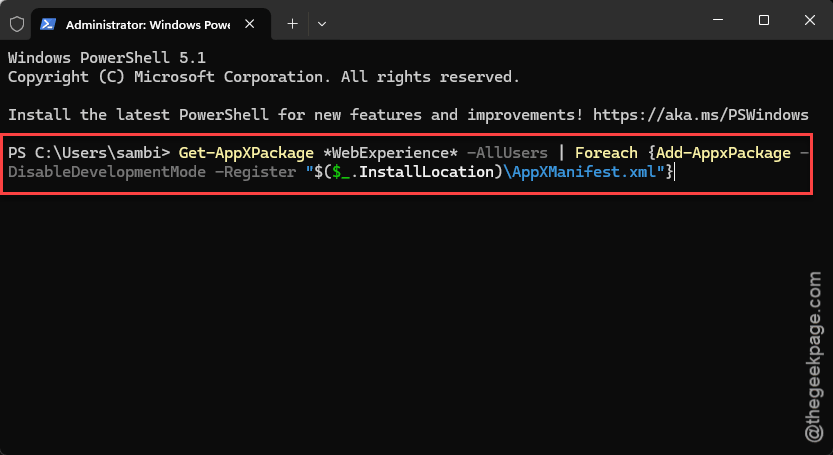
3 – Wait for the lines to stop scrolling. No red error text means it worked.
4 – Restart your PC.
Fix 5 – Jolt the Graphics Driver
Every other fix checked out but the board still hangs? Try disabling and re-enabling the graphics card.
1 – Right-click Start and open Device Manager.
2 – Expand Display adapters.
3 – Right-click your graphics card and choose Disable device. Your screen flashes black for a second — that’s normal, don’t panic.
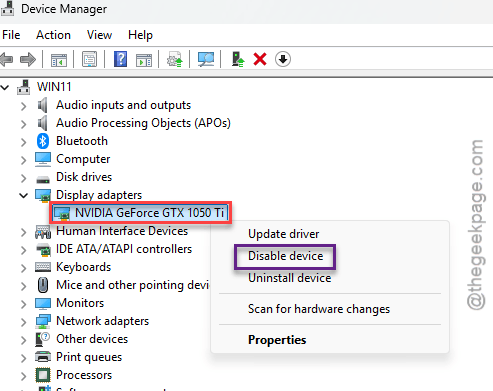
4 – Click the Widgets icon to see if the board opens now.
5 – Right-click the graphics card again and choose Enable device to turn it back on.
But don’t skip step 5. Leaving the adapter off leaves you stuck on a low-res screen until you flip it back.
How to Prevent This
– Keep Windows updated. These pieces get patched often, and an old build breaks in odd ways.
– Don’t uninstall Edge to save space. Widgets, and a few other things, quietly depend on it.
– If you like hover, re-check that toggle after big updates. It has a habit of resetting itself.
– Pin only the widgets you actually use. A cluttered board loads slower and breaks easier.
– Restart every few days. A lot of widget weirdness is just a session that’s been running too long.
People Also Ask
How do I fix Widgets not working in Windows 11?
Start with a repair — Settings > Apps > Installed apps > Windows Web Experience Pack > Advanced options > Repair. If the board’s still blank, reinstall the WebView2 runtime from Microsoft’s site, since that’s the engine drawing the widgets. For hover, re-enable Open Widgets on hover in the board’s settings.
How do I enable the news widget in Windows 11?
Open the Widgets board, click the Settings gear in the top-right corner, and turn on Show Discover Feed. Microsoft moved the news into its own toggle, so it often looks missing after an update. Flip it back on and the articles return within a day or so.
Why won’t my taskbar show when I hover over it?
If it’s the Widgets panel that won’t appear on hover, that’s by design now — Microsoft disabled open-on-hover by default. Turn it back on under the board’s Taskbar behaviors settings. If the whole taskbar is hiding, check Settings > Personalization > Taskbar and switch off Automatically hide the taskbar.