Microsoft Teams actually allows you to record meetings on the go. While this feature is essential in the organizational environment for documentation purpose or convenience of the users, the automatic recording simplifies the whole process. Microsoft Teams for work or enterprise solution supports this feature where you can record all the meetings under strict reset conditions. We have created this guide to help you set up this automatic record function for your Microsoft Teams account.
How to record Microsoft Teams meetings automatically
Step 1 – Load up the Microsoft Teams Admin Center console.
Step 2 – Find the Meetings section and navigate to the Meeting policies subsection.
Step 3 – Now look for any meeting policies in there. If you can’t find any meeting policy, you must create a new one.
Step 4 – Turn on the Allow cloud recording option to On mode.
Step 5 – After this, enable the Record automatically function.
Step 6 – Finally, save the changes to this policy and apply the changes for the appropriate users.
NOTE – As of 2025, Microsoft has limited the automatic recording function for all the meetings across the ecosystem. Due to privacy and security purposes, they have included manual operation of initiating the recording for every individual meeting on Microsoft Teams. Now, every organizer with proper credentials may start a recording of a meeting manually for all the meetings.
But, there are some alternative tools that you can apply to do this. Like, using the OBS Studio or Camtasia to record the meetings and automate it. We have given a brief layout of the whole process where you can automate this recording feature.
Step 1 – Install the OBS Studio or Camtasia or any other free recording tool (make sure it is trusted or open source).
Step 2 – Now, configure this application to record the Teams window.
Step 3 – Just select Add Capture > Window Capture mode. Then, opt for the Create New function.
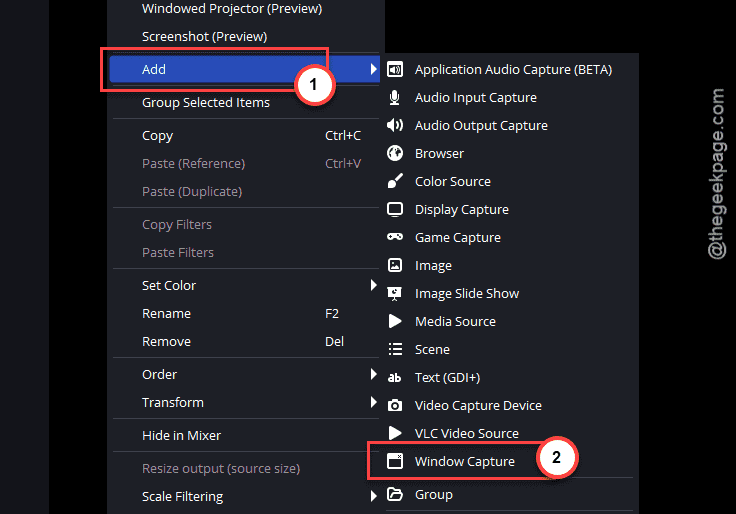
Step 4 – Finally, set the Microsoft Teams window panel from the Capture Window drop-down.
Step 5 – Later, make sure to check the Audio Capture option and tap Start recording to begin the recording process.
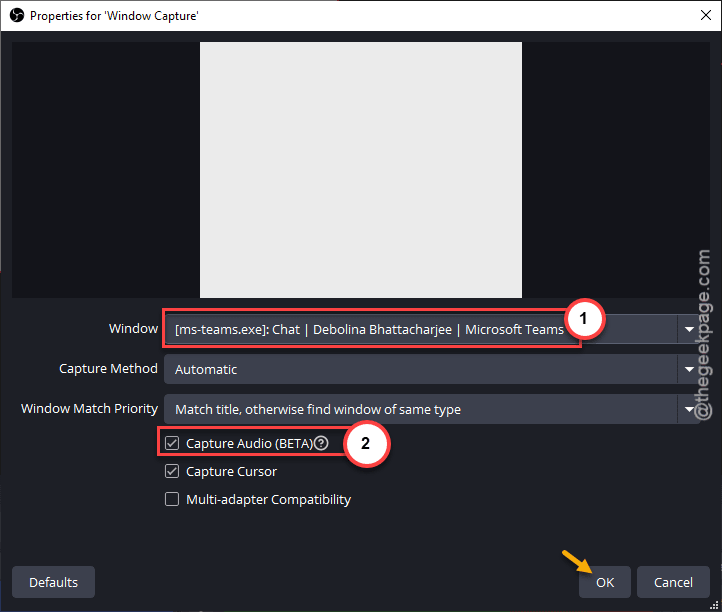
Step 6 – Depending upon your requirements, set the preference to record the meetings with mic (input) and system sound (output) from the configuration.
Step 7 – Download the OBS_Auto_Record on your system.
Step 8 – Extract the contents of zip file in a location of your choice.
It contains an easily configurable script file.
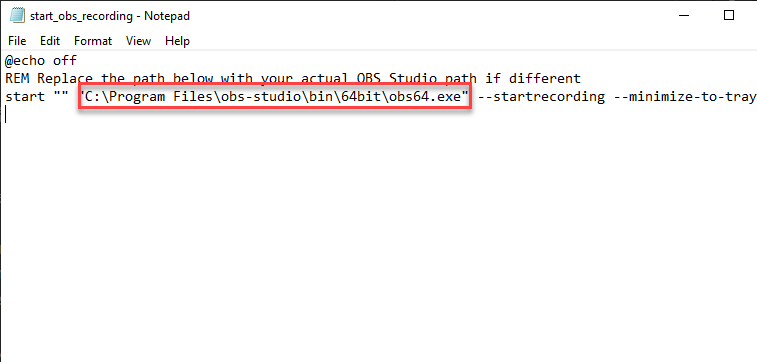
[You can open up the same batch file in Notepad to edit it. Make sure to check and change the installation directory of the OBS tool (if you have installed it in a different folder) in the code.
start "" "C:\Program Files\obs-studio\bin\64bit\obs64.exe" --startrecording --minimize-to-tray
]
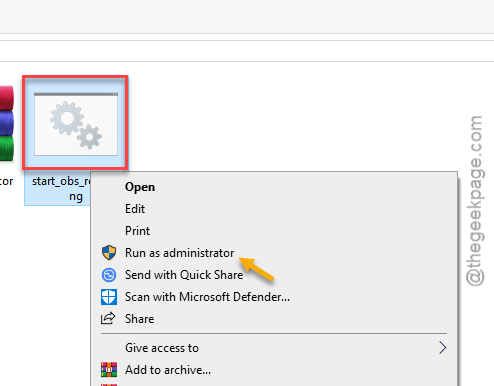
Step 9 – Now, right-click the batch file and use the Run as administrator option there to run the batch file with elevated rights to check whether it is able to start up the OBS Studio.
This is the brief way of recording your teams meeting with external tools.
There is one more step you can perform to execute this at the start of your meeting. If you have a particular meeting which starts at a fixed or preset time, you can use the Task Scheduler to automate the whole process.
Step 1 – Load up the Task Scheduler utility.
Step 2 – Next, tap the Create Task option.
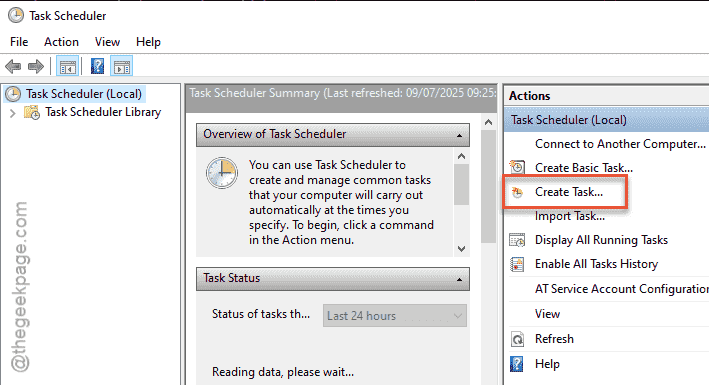
Step 3 – Follow the on-screen steps to perform the basic stesteps,ke providing a suitable task name as your preference.
Step 4 – But, the most important function here is to set the Trigger. Set it to the specified date, time of the meeting and make it to repeat, if the meeting occurs at a regular interval.
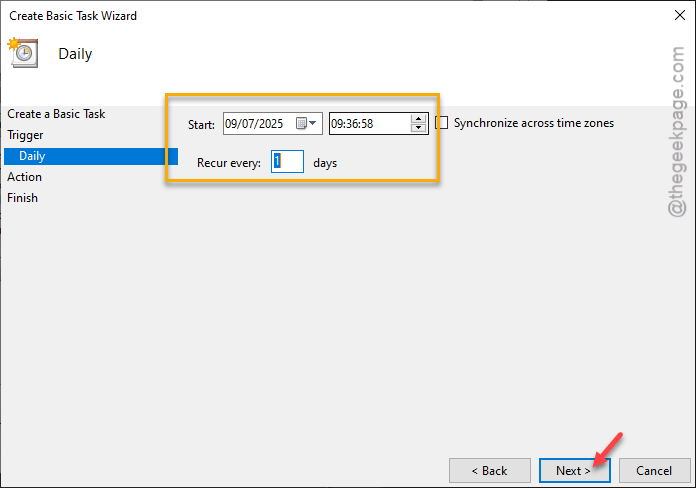
Step 5 – Next, go this way –
Action > Start a program
Step 6 – Tap the “Browse” button and select the script file that you have to launch the OBS executable.
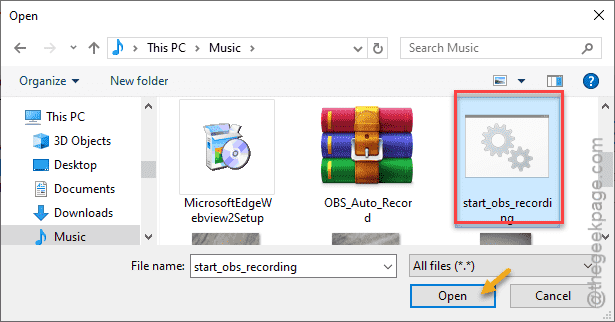
Proceed through the rest of the steps to save and schedule the task on your system.
Remember that even if this starts recording your Teams meeting in that particular timing, you have to stop the recording function when the meeting is over manually.