Does your email messages continues to get stuck in the draft folder on Microsoft Outlook? Some of the users have recently expressed their disregard about the outgoing email messages becoming stuck in the Outlook Draft folder. Draft folder stores up the messages that you want to send.
Preliminary Workarounds –
1. Try the web version
2 – Check the internet connection on your device. Sometimes, the emails can get stuck due to Internet connectivity issues.
3 – If you try to deliver an e-mail that contains an attachment more than the size of 25 MB, it can get stuck. You can just delete the attachment from that e-mail and resend it.
4 – Switch to the New Outlook, You are using the Outlook (classic) version, you should give the New Outlook function a try to get past of this issue on your Outlook client.
Fix 1 – Run in safe mode & Disable All add ins
1 – Press Windows and R key together to open RUN
2 – Now, type outlook.exe/safe to open outlook in safe mode without add ins.
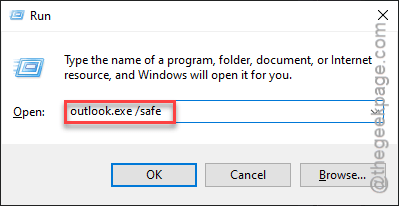
3 – If it works, try disbaling add ins one by one to locate culprit add in.
Fix 2 – Create another mail and send it
You can send the draft message directly from the Drafts folder and then delete it from there.
Step 1 – Open up the stuck e-mail message from the Drafts folder. Then copy the entire content of the e-mail message.

Step 2 – Start composing a new e-mail message. Then, paste the copied contents into the new email body and send it.
Step 3 – Later, just remove the particular draft from the Drafts folder.
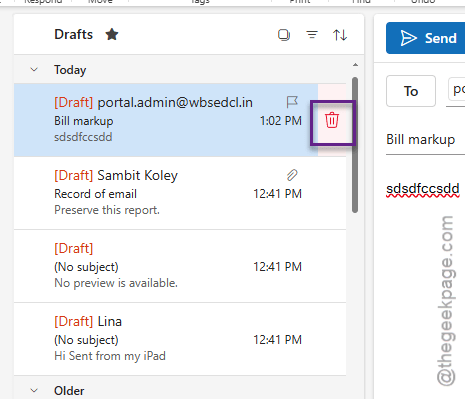
This will fix the problem for sure.
NOTE – If you are handling only a few of these stuck e-mail messages in the Drafts folder, then this method makes sense.
Fix 3 – Clear your account storage
If you have too many email messages left in your email inbox, it can cause this issue.
Step 1 – You must delete some of the email messages from your account to save space.
Step 2 – Delete unnecessary email messages from the inbox that contains large attachment file with it.
Step 3 – Go to the Trash or Junk Email folder and Empty Folder from there.
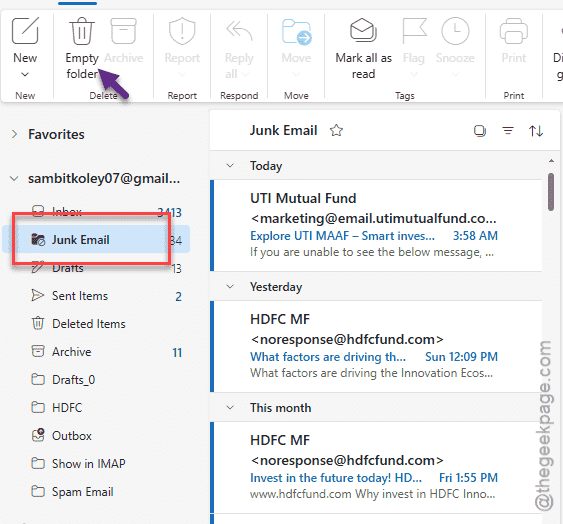
Once you have enough storage, the messages won’t get stuck in the Drafts folder.
Fix 4 – Clear the Outlook cache
Clearing out the cache on the Microsoft Outlook should fix the issue.
Step 1 – Close the Outlook console.
Step 2 – Then, press the Win+R keys briefly to show up the Run dialogue box.
Step 3 – Paste this address and click OK.
%localappdata%\Microsoft\Outlook
Step 4 – Delete all the files and folders from there to clear out the entire Outlook console.
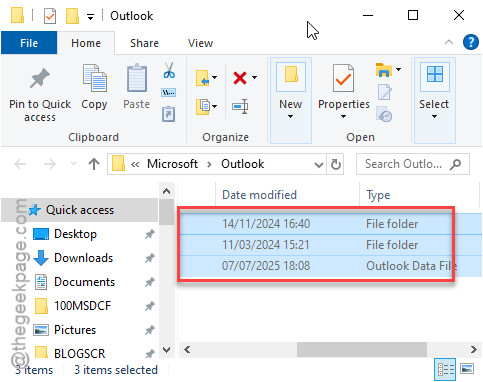
Finally, you can relaunch the Outlook client.
You have to log in using the proper credentials. Outlook will recreate the Outlook Data File in the local storage, while it synchronize all the email messages there.
Once the entire process is done, check again.
Fix 5 – Repair the Outlook and check
You can just repair the MS Outlook client to fix the issue.
Step 1 – Search for Outlook from search box.
Step 2 – Next, right-click the Outlook app and tap “App Settings“.
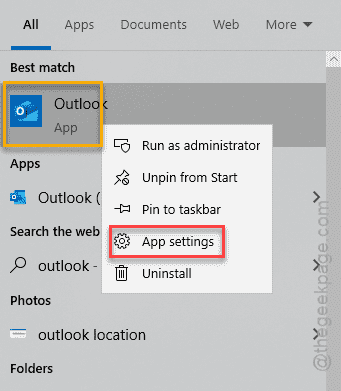
Step 3 – When this loads up the Outlook app settings, use the Repair function to repair the app.
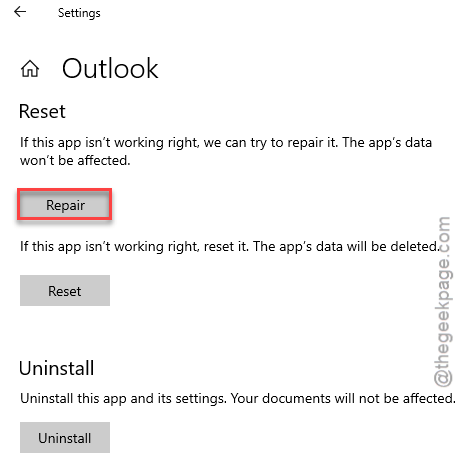
Step 4 – After this, open your Outlook client once again. You may have to log in using your account credentials.
Check whether it works or not.
Fix 6 – Use the Outlook on web
Outlook can be easily accessed via the web browser as well. So, you should use that.
Step 1 – Open up the Outlook on a browser of your choice.
Step 2 – You have to log in using the Outlook credentials.
Once you have logged in properly, try to send the email message again from the saved draft email message from the Drafts section.
Check if this works out for you!