Why is Edge greeting you with “5 latest features” every single morning? You didn’t open it. Nobody opened it. And yet there it is, sitting on top of whatever you were actually about to do.
What’s Triggering It
Several launchers, one tab. Windows itself relaunches Edge after updates to show off new features. A hidden scheduled task does the same after reboots (more on that in Fix 3). And Edge’s own background mode keeps the browser half-alive even when you close it.
Kill one trigger and another fires. That’s why this feels unfixable. The fixes below shut down all of them, quickest first.
Fix 1 – Turn Off the Windows Welcome Experience
Windows has a setting whose whole job is launching this stuff after updates. Off it goes.
1 – Press Windows + I to open Settings.
2 – Click System, then Notifications.
3 – Scroll to the bottom and click Additional settings to expand it.
4 – Uncheck these two options –
Suggest ways to get the most out of Windows and finish setting up this device
Get tips and suggestions while using Windows
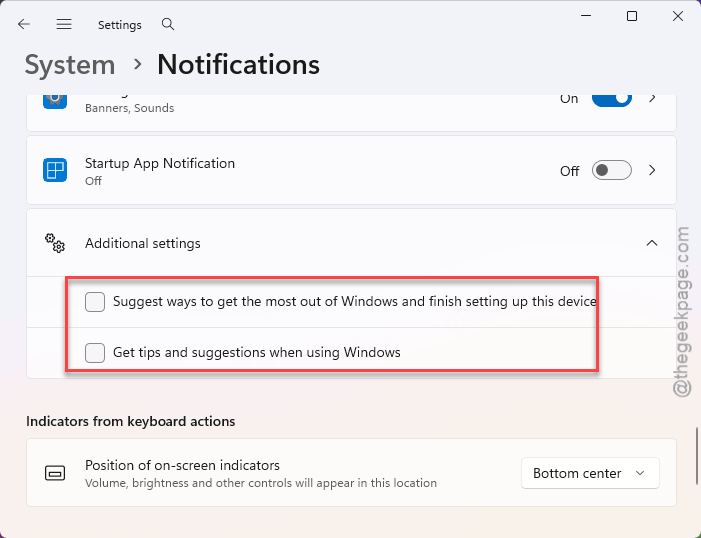
That’s the OS-level trigger gone. Two more to go.
Fix 2 – Kick Edge Out of Startup Apps
Basic, but it catches the plain old auto-launch.
1 – Press Ctrl + Shift + Esc to open Task Manager.
2 – Click the Startup apps tab in the left sidebar.
3 – Find Microsoft Edge in the list.
4 – Right-click it and choose Disable.
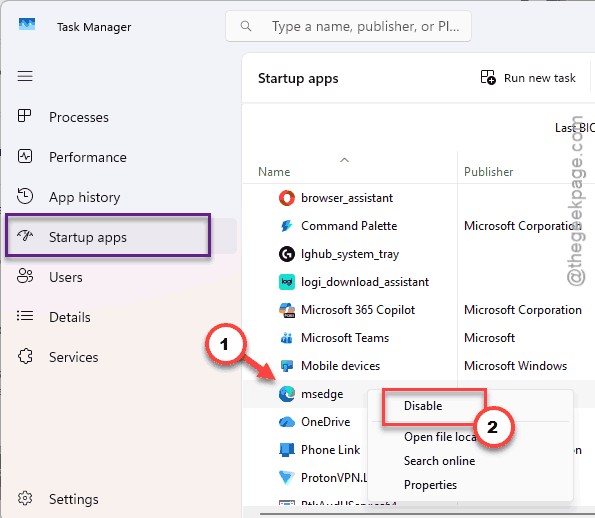
Not listed there? Fine — skip ahead. But the scheduled task in Fix 3 is the sneakier one anyway.
Fix 3 – Disable Edge’s Scheduled Tasks
Here’s the trigger most people never find. Windows Update quietly creates a scheduled task that launches Edge after a reboot. And it doesn’t show up in Startup apps. Hidden by design.
1 – Click Start and type “Task Scheduler“.
2 – Open Task Scheduler.
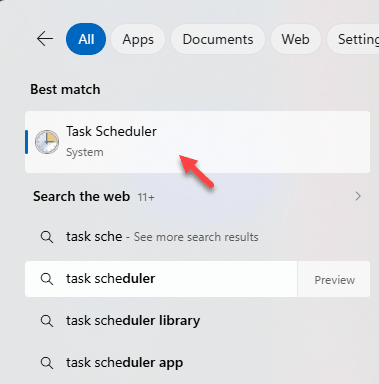
3 – Click Task Scheduler Library in the left panel.
4 – Look for tasks whose names start with MicrosoftEdge.
5 – Right-click each one and choose Disable.
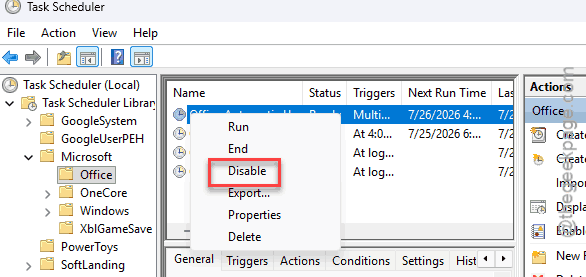
Do not delete them. Disabling is enough (and reversible if anything ever acts up).
Fix 4 – Stop Edge Running in the Background
Edge keeps itself half-running after you close it (officially, to keep extensions alive). And that background process is what pops the welcome tab. Cut it off.
1 – Open Edge.
2 – Click the three dots (⋯) in the top right corner and choose Settings.
3 – Click System and performance in the left sidebar.
4 – Toggle off Continue running background extensions and apps when Microsoft Edge is closed.
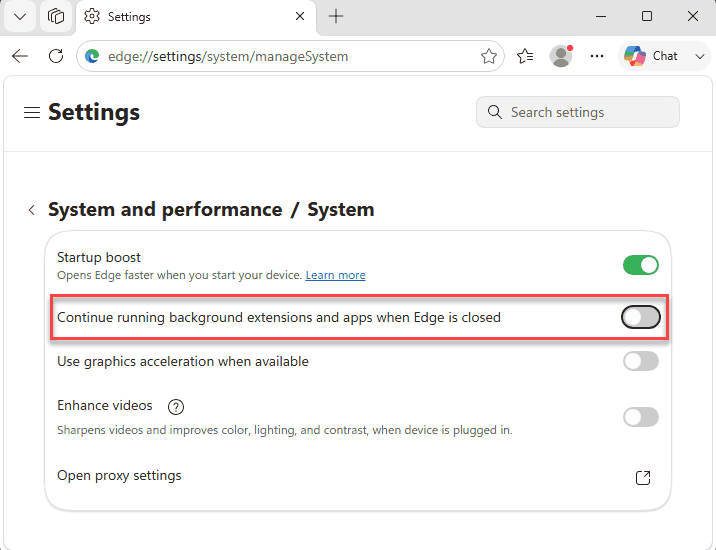
Closing Edge now actually closes Edge. Novel concept.
Fix 5 – Set the Registry Flag
Belt and suspenders. This registry value tells Edge the first-run tour already happened, so it quits trying to show it.
1 – Press Windows + R, type “regedit”, and press Enter. Click Yes on the prompt.
2 – Paste this into the address bar at the top and press Enter.
HKEY_LOCAL_MACHINE\SOFTWARE\Policies\Microsoft\Edge
3 – If the Edge folder does not exist, right-click Microsoft in the left panel, choose New > Key, and name it “Edge”.
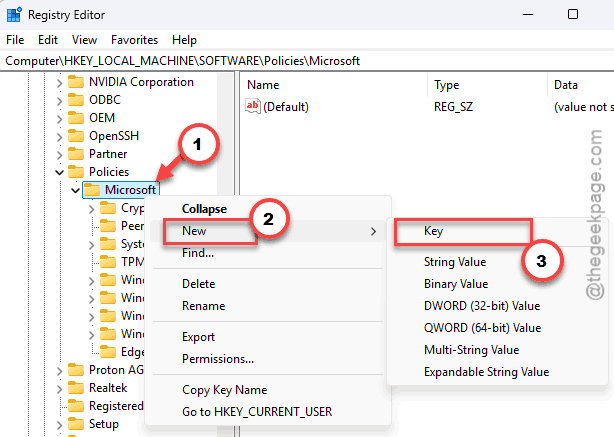
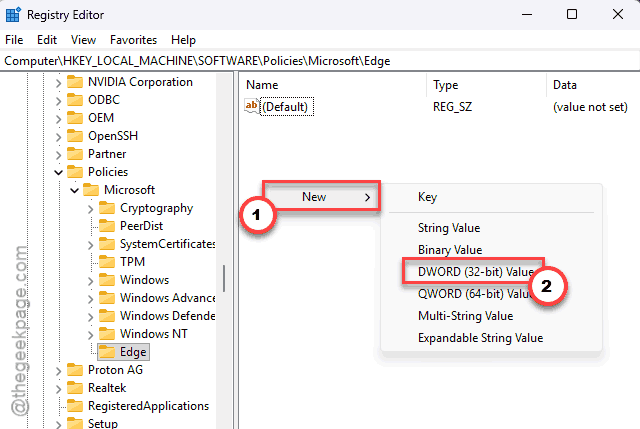
4 – Right-click empty space in the right-hand pane and choose New > DWORD (32-bit) Value.
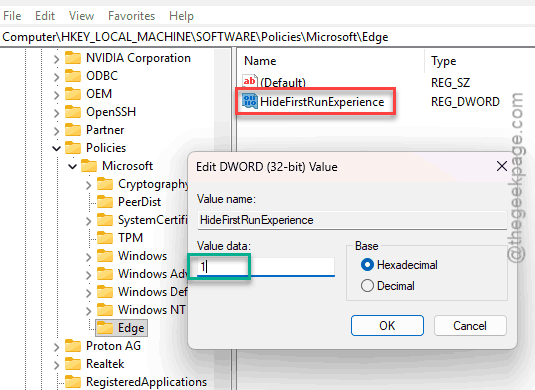
5 – Name it HideFirstRunExperience.
6 – Double-click it and set Value data to 1.
7 – Click OK and restart the PC.
That’s the last door bolted. Big feature updates sometimes switch the welcome experience from Fix 1 back on. So if the tab ever returns, re-check that box first.
People Also Ask
Why does Edge open by itself when I start my computer?
A few separate triggers do it. Windows relaunches Edge after updates to show new features, a hidden scheduled task fires it after reboots, and Edge’s background mode restarts it too. You have to disable each one — startup apps, the welcome experience setting, and the MicrosoftEdge scheduled tasks.
Is it safe to disable the MicrosoftEdge tasks in Task Scheduler?
Yes. Those tasks handle things like relaunching the browser after reboots, not updating Windows. Edge keeps updating itself through its own updater regardless. Disable rather than delete, though — that way you can flip anything back if you notice odd behavior later.
Will these changes break Edge or my extensions?
No. Edge runs normally whenever you open it yourself. The one visible change comes from Fix 4: extensions stop working the moment you close the browser, instead of running behind the scenes. If you rely on an extension running 24/7, leave that single toggle on.