Your disk activity light won’t quit. The culprit? Recall. That new AI feature. And all those writes slowly eat into your SSD’s lifespan.
Why This Happens
It’s a rough idea. Because every snapshot is a write to your SSD. And SSDs don’t last forever — each one can only handle so many writes before the memory cells wear out. Recall pushing writes all day, every day, burns through that budget faster than normal use ever would.
But it gets worse when something breaks. Recall keeps its index in a database file. If that file gets corrupted, the AI loops — writing, failing, rewriting, over and over. That’s when disk usage pins at 100%.
And heavy folders make it pile on. Big video folders, a busy Downloads folder — Recall re-indexes them again and again. Not ideal for a drive you’d like to keep.
Fix 1 – Turn Off Recall Snapshots
Want it to stop right now? This is the switch.
1 – Press Windows + I to open Settings,
2 – click Privacy & security, then Recall & snapshots.
3 – Find Save snapshots and toggle it Off.
The disk writes stop the instant you do. If you don’t use Recall at all, honestly, just leave it off.
Fix 2 – Tell Recall to Skip Your Busy Folders
Want to keep Recall but ease the load? Cut out the folders it re-scans the most.
1 – Press Windows + I, then go to Privacy & security.
2 – Click Recall & snapshots.
3 – Click Exclude folders.
4 – Add your heavy ones — think Downloads, video project folders, or any drive you edit media on.
Recall leaves those alone from now on, which cuts a big chunk of the writing.
Fix 3 – Delete the Corrupted Snapshot Database
If disk usage is stuck at 100%, the database is probably corrupted and looping. Wiping it forces Recall to build a clean one.
1 – At first, click Start, type cmd, right-click Command Prompt, and choose Run as administrator.
2 – Type this exactly and press Enter:
del /q /f /s "%LocalAppData%\CoreAI\Snapshots\*.db"
3 – Restart your PC.
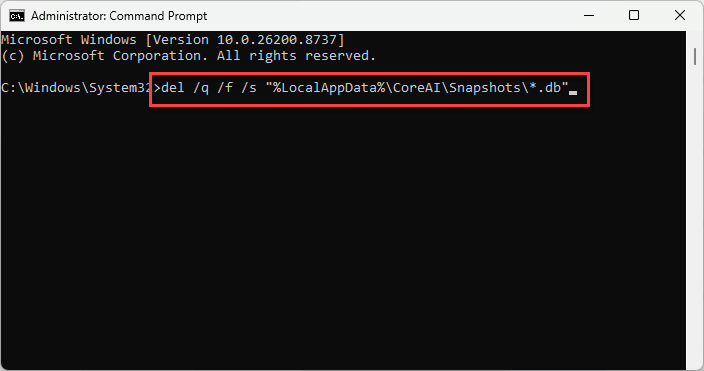
The looping should stop. Recall quietly rebuilds a fresh index in the background.
Fix 4 – Clear the Capability Database
There’s a second database, tied to how Windows tracks app permissions, that can corrupt and drive the same constant writing. Clearing it works a lot like Fix 3, but you stop the search service first.
1 – Open Command Prompt as administrator, like in Fix 3.
2 – Type this and press Enter to stop the search service:
net stop wsearch
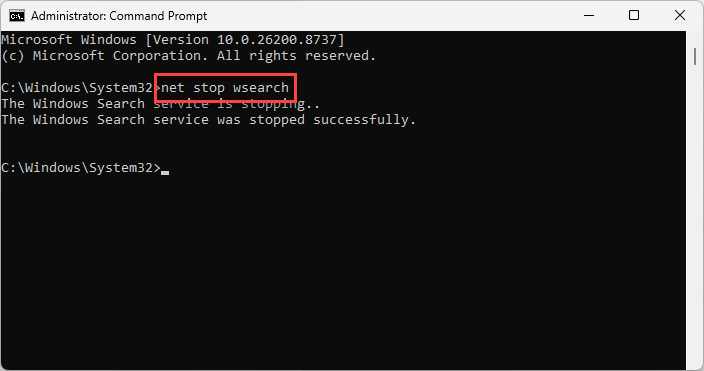
3 – Press Windows + E and go to this folder:
C:\ProgramData\Microsoft\Windows\CapabilityAccessManager
4 – Delete the .db file and its matching db-wal file (for example, CapabilityAccessManager.db).
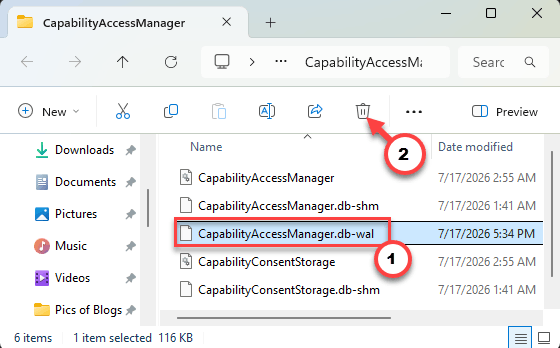
5 – Back in Command Prompt, type this and press Enter:
net start wsearch
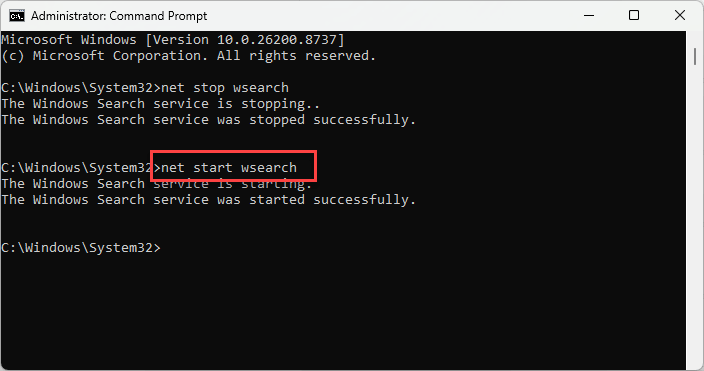
Check if this works.
Fix 5 – Kill the Background Snapshot Task
If the drain won’t quit even with snapshots off, there’s a hidden background task still poking the drive. You can disable it directly.
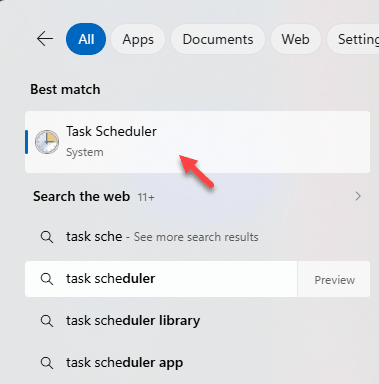
1 – Click Start, type Task Scheduler, and open it.
2 – In the left pane, expand this path one folder at a time: Microsoft > Windows > AI > Recall.
3 – In the middle pane, right-click SnapshotManager.
4 – Choose Disable.
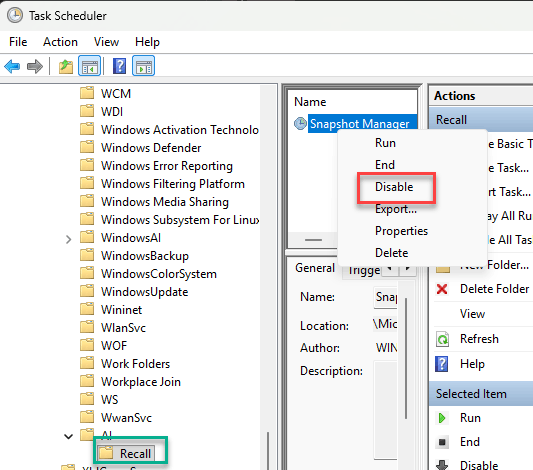
That shuts down the watcher that keeps waking the disk. No restart needed.
Fix 6 – Roll Back to the Previous Build
Nuclear option, and only if nothing above tames it. If the AI service simply won’t behave and you’re worried about your drive, rolling Windows back to the last build is the safe call. Press Windows + I, go to System, then Recovery, and click Go back next to the previous version of Windows. Note this only works for a short window after a big update — after that, the option grays out.
How to Prevent This
– If you don’t actually use Recall, keep Save snapshots off. Simplest way to spare your SSD.
– Using it? Exclude your Downloads and any media folders. Those are the writing-heavy ones.
– Keep an eye on Task Manager’s disk column now and then. Catching a runaway loop early saves write cycles.
– Install Windows updates when they come. Microsoft has been tuning Recall’s write behavior, so newer is gentler.
People Also Ask
Can chkdsk fix 100% disk usage?
Not usually, not for this. Chkdsk repairs file-system errors and bad sectors. If your 100% usage is coming from Recall constantly writing snapshots, chkdsk won’t touch the cause. Turning off snapshots or clearing the corrupted database is what actually stops it.
Are Windows 11 updates killing SSDs?
Updates themselves don’t kill drives, but features they add can pile on writes. Recall is the clear example — constant snapshotting adds real wear over time.
How do I permanently fix 100% disk usage?
First find what’s writing. Open Task Manager, click the Disk column to sort, and see what’s on top. If it’s Recall, turn off snapshots or clear its database. If it’s the search service, clearing the capability database helps. Fix the actual source rather than chasing generic tweaks.