Another day, another thing Microsoft quietly broke. You press Windows + . for the emoji panel, click the GIF tab, and get “GIF service not available.” It worked last month. Nobody touched anything. I’ve seen this on machine after machine since early summer. And the cause is dumber than you’d expect.
The Short Version
Microsoft switched GIF suppliers. The panel used to pull its GIFs from Tenor.
So what happens on a PC that hasn’t taken that update yet? The panel keeps calling the old Tenor service. Which is dead. The panel is knocking on a door with nobody behind it — hence the error.
Classic Microsoft, honestly. Change the plumbing, tell no one, let the error message explain nothing.
Fix 1 – Install the June or July Update
The real fix. The same update wave that rerouted the backend also carries the new connection — your panel only talks to GIPHY once KB5095093 (or the later KB5101650) is installed.
1 – Press Windows + I to open Settings.
2 – Click Windows Update at the bottom of the left sidebar.
3 – Click Check for updates.
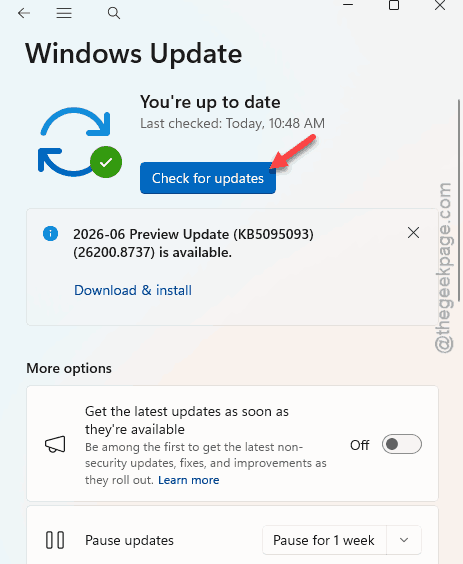
4 – Install everything it offers. You’re looking for KB5095093 or KB5101650 in the list.
5 – Restart the PC when it asks.
And going forward, don’t sit on updates for months. This exact kind of silent backend swap is why old builds slowly rot.
Fix 2 – Restart the CTF Loader
Panel frozen or half-loading even after updating? The input process behind it probably hung while pinging the dead server. Killing it forces a clean restart.
1 – Press Ctrl + Shift + Esc to open Task Manager.
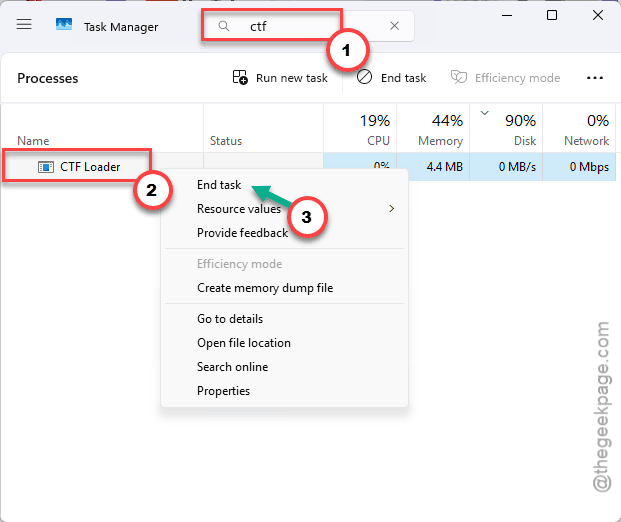
2 – Type “ctf” in the search box at the top.
3 – Right-click CTF Loader (that’s ctfmon.exe) and choose End task.
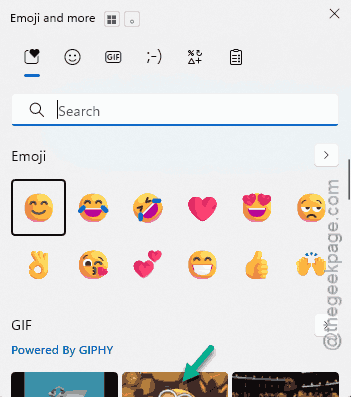
4 – Press Windows + . to reopen the emoji panel.
And the moment you click into any text field, Windows restarts the process on its own. No harm done.
Fix 3 – Clear the Clipboard History
Old cached Tenor thumbnails can gum things up too. The panel tries to load previews that no longer exist, chokes, and throws the error. Wiping the history clears them out.
1 – Press Windows + V.
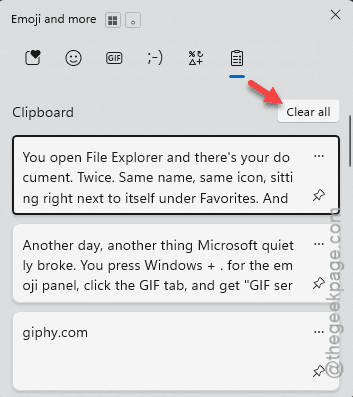
2 – Click the three dots (⋯) on any item in the list.
3 – Click Clear all.
Takes five seconds. But pinned items survive — everything else goes.
Fix 4 – Reset the Emoji Panel’s Settings
Stubborn case? Make Windows rebuild the panel’s configuration from scratch. A fresh config forces it to set up the new GIPHY connection instead of clinging to old cached settings.
This one is a registry edit. Nothing scary — the key regenerates automatically.
1 – Type “regedit” in the search box. Click Registry Editor to open it up.
2 – Paste this into the address bar at the top and press Enter.
HKEY_CURRENT_USER\Software\Microsoft\Input\Settings
3 – In the left-hand tree, right-click the Settings folder and choose Delete.
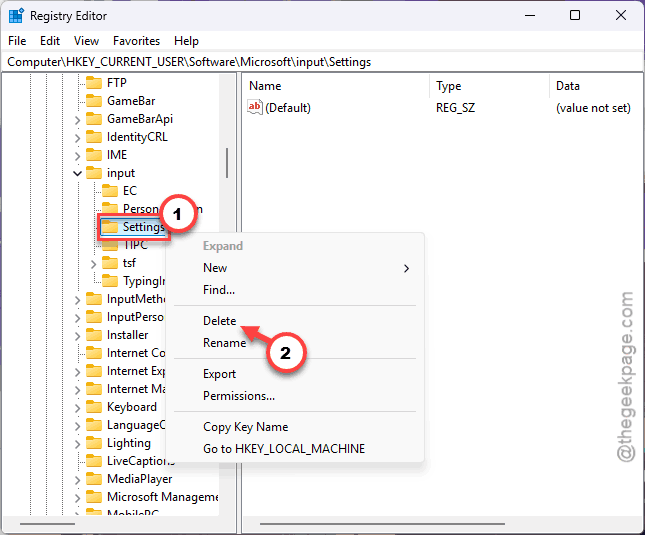
4 – Confirm with Yes.
5 – Restart your PC.
After the restart, Windows rebuilds the key with defaults. But your custom input settings (like text suggestion toggles) reset too — worth knowing before you commit.
Fix 5 – Go Straight to the Source
On a work machine where IT controls updates? You might be stuck waiting. Corporate policies can hold back KB5095093 for months, and no amount of panel-poking fixes a blocked update.
So the workaround is low-tech.
1 – Open Giphy in your browser.
2 –Search and find your GIF in there.
3 – Then, right-click it, and choose Copy image.
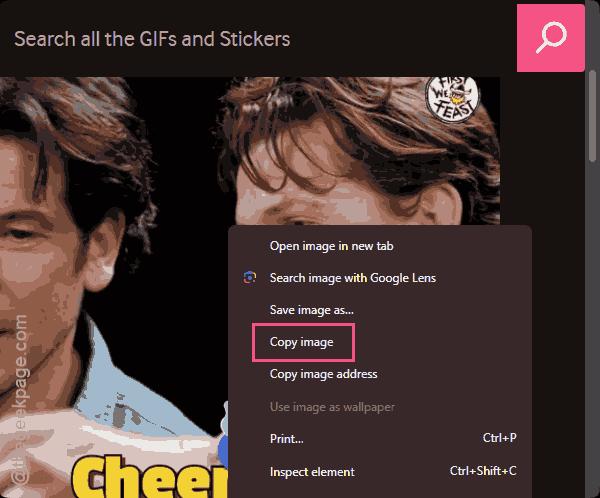
Then paste it into your chat. Same GIFs — it’s the exact service the fixed panel uses anyway. Just with more clicks.
And nudge IT to approve the update. They usually do not know this one breaks anything.
People Also Ask
Did Windows 11 remove GIFs from the emoji panel?
No — the tab is staying. It just broke on machines running older builds while Microsoft switched providers. Update Windows and the GIFs come back.
Is it safe to end the ctfmon.exe process?
Yes. CTF Loader handles input features like the emoji panel and voice typing. And Windows relaunches it automatically the next time you click into a text field. Ending it just clears a hung state — you lose nothing, and no restart is needed.