Looks bad. Your Copilot+ PC suddenly can’t do the one thing it was sold on — AI image search is just gone from Windows Search. But this is rarely a hardware problem. It’s almost always a stuck component update, and you can unstick it yourself.
Why This Happens
The AI features on Copilot+ machines don’t ship inside Windows itself. They arrive as separate component packages through Windows Update. Different pipeline, different failure points.
And that pipeline breaks quietly. A package half-installs, the component store gets corrupted, or the update never lands at all. Windows doesn’t complain. The features just vanish from Search like they were never there.
One more wrinkle: these features are tied to your Microsoft account’s entitlements. Wrong sync state? No AI for you.
Fix 1 – Restart the Windows AI Host Service
Start small. A background service runs the AI components, and restarting it forces them to re-initialize.
1 – Press Windows + R.
2 – Type “services.msc” and press Enter.
3 – Scroll down to Windows AI Host. The list is alphabetical, so the W entries sit near the bottom.
4 – Right-click it and choose Restart.
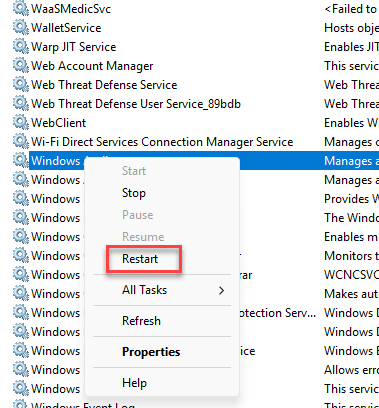
5 – Wait for the progress box to close, then try an image search.
Two minutes, no reboot, nothing to lose.
Fix 2 – Repair the Windows Image
If the component store (the master copy Windows installs features from) is damaged, the AI binaries can go missing. DISM checks the store and re-downloads the broken pieces.
1 – Click Start and type “cmd”.
2 – Right-click Command Prompt and choose Run as administrator.
3 – Type this and press Enter.
DISM /Online /Cleanup-Image /RestoreHealth
4 – Wait it out. The counter tends to sit at 62% for ages. And that’s normal — not frozen.
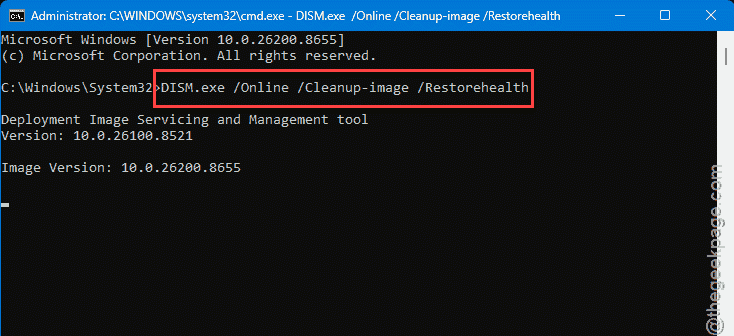
5 – Restart the PC when it finishes.
Grab a coffee. The whole scan takes 10 to 20 minutes on most machines.
Fix 3 – Install the AI Package Manually
Windows Update failed to deliver the component? Deliver it yourself.
1 – Open your browser and go to the Microsoft Update Catalog.
2 – Search for KB5121767.
3 – Click Download next to the version that matches your PC, and save the .msu file to your Downloads folder.
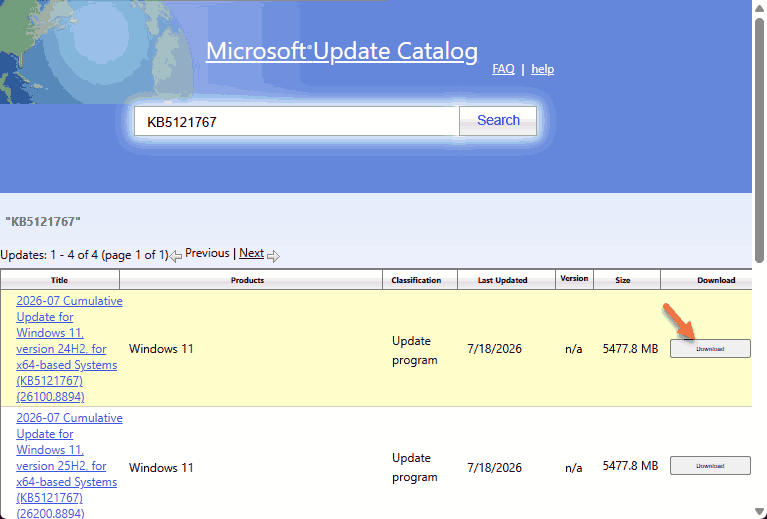
4 – Open an admin Command Prompt like in Fix 2.
5 – Type this with your actual file path swapped in, then press Enter.
DISM /Online /Add-Package /PackagePath:”C:\Users\You\Downloads\Update.msu”
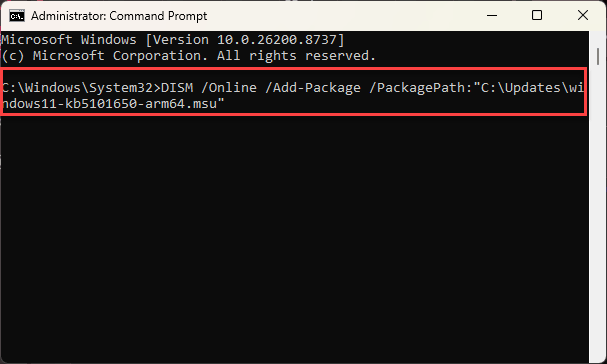
6 – Restart when the command completes.
Most Copilot+ laptops are Arm64, not x64. And the wrong build just errors out, so check which one you have before downloading.
Fix 4 – Unlink and Relink Your Microsoft Account
Last resort. The AI features run a license check against your account, and that check can get stuck. So sign out to a local account and back in — it forces a fresh one.
1 – Press Windows + I to open Settings.
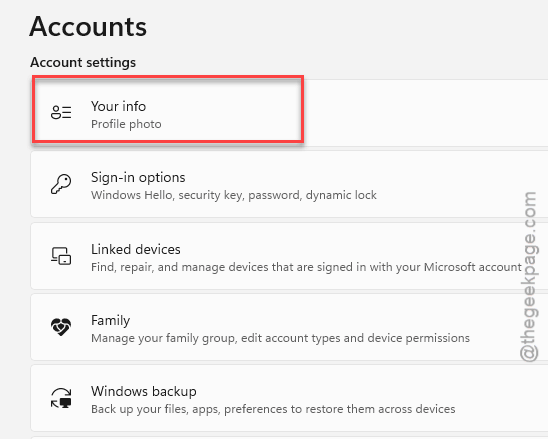
2 – Click Accounts in the left sidebar.
3 – Click Your info.
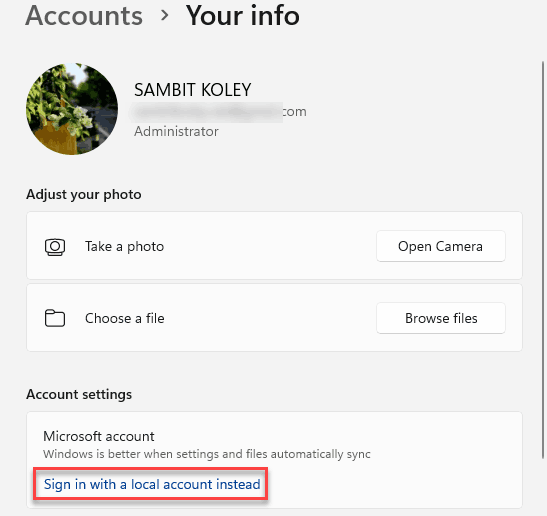
4 – Click Sign in with a local account instead and follow the prompts. Your files stay put — this only changes how you log in.
5 – Restart the PC.
6 – Go back to Settings > Accounts > Your info and sign back into your Microsoft account.
Give Windows a few minutes online after signing in. The entitlement sync isn’t instant.
How to Prevent This
– Let feature updates finish. Interrupted installs are how component stores get corrupted in the first place.
– Check Windows Update monthly even when it looks quiet. And the AI packages update separately from everything else, so “up to date” can still miss them.
– Stay signed into your Microsoft account on Copilot+ hardware. Local accounts and AI features do not mix. At all.
– Run the DISM repair from Fix 2 once or twice a year. Cheap insurance.
People Also Ask
Do I need a Copilot+ PC for Windows AI image search?
Yes. These features need the NPU (a dedicated AI chip) that only Copilot+ certified machines carry. But a regular Windows 11 PC won’t get them through any update or registry trick. If your machine is Copilot+ certified and the features vanished, it’s software — fixable.
Is it safe to install KB packages manually with DISM?
Yes, as long as the .msu file comes from Microsoft’s own Update Catalog. DISM’s Add-Package runs the same install Windows Update would have done. The one thing to watch is architecture: Arm64 machines need the Arm64 package, and most Copilot+ laptops are Arm64.