You search OneNote for something you know is in there. Zero results. Or it only finds half of it.
The note exists. You’re looking right at it. But search swears it doesn’t. Maddening. Especially when you’ve got hundreds of pages. Let’s fix the search.
Why This Happens
Here’s the deal. OneNote doesn’t do all the searching itself. It leans on the Windows Search Index for full-notebook searches.
So if that index is broken or out of date? OneNote can’t find your notes. Even when sync is working perfectly. The index is the weak link.
Sometimes it’s just one stubborn notebook that didn’t sync right. The rest search fine. That one? Invisible. Annoying, but easy to spot once you know to look.
Fix 1 – Restart OneNote and Your PC
Start simple. Close OneNote completely. Then restart the whole computer.
Sounds basic. But it clears stuck processes and kicks the search index back into gear. Several people found this alone fixed their search. Worth the two minutes before you dig deeper. Search working now? Done.
Fix 2 – Close and Reopen the Notebook
If search fails in one specific notebook, this resets it. Quick and safe — your notes are on the cloud, so nothing gets lost.
1 – In the notebook list on the left, right-click the notebook that won’t search.
2 – Click Close This Notebook.
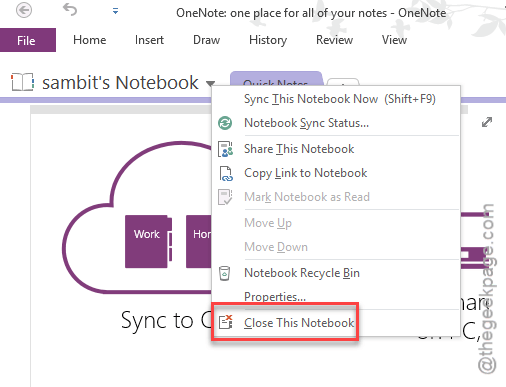
3 – Now click File at the top.
4 – Click Open.
5 – Select that same notebook to reopen it.
Reopening forces OneNote to re-read and re-index the whole thing. Try searching again.
Fix 3 – Rebuild the Windows Search Index
This is the real fix. Since OneNote depends on the Windows index, rebuilding it from scratch fixes the most search problems. It takes a while to finish — but it works.
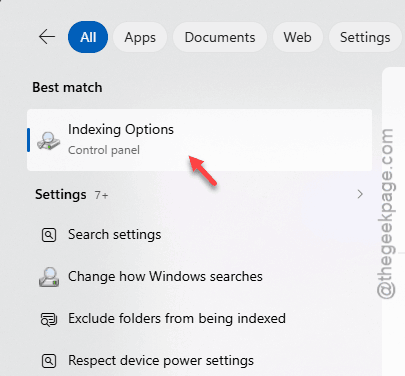
1 – Click Start, type Indexing Options, and open it.
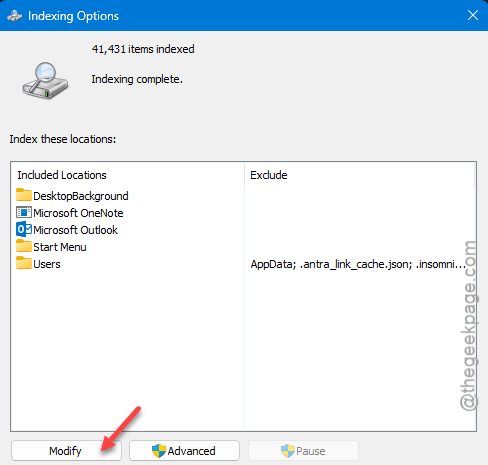
2 – Click the Modify button.
3 – Make sure the folder holding your notebooks is checked — usually your OneDrive or Documents folder. Click OK.
4 – Back on the main window, click Advanced. (You may need admin rights.)
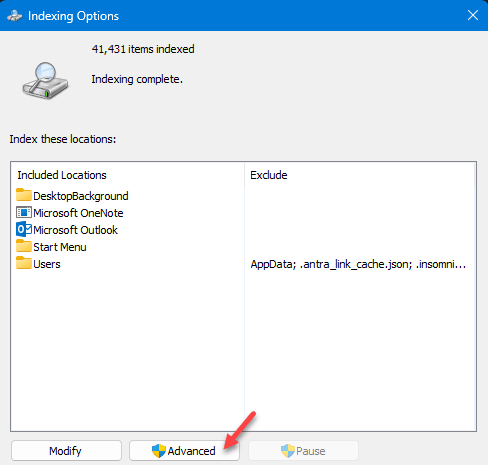
5 – Under the Index Settings tab, click Rebuild.
6 – Click OK to confirm.
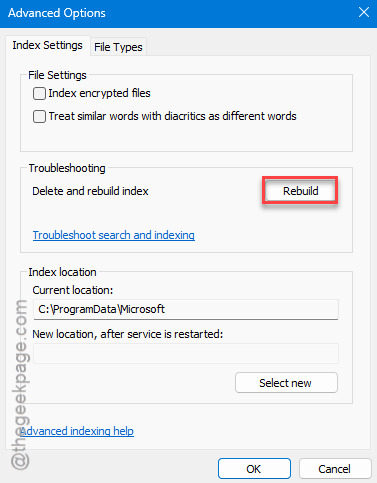
7 – Restart your PC and give it time to re-index — could be an hour or more on a big drive.
Don’t expect instant results here. Let it finish indexing in the background, then test search.
Fix 4 – Clear the OneNote Cache
A corrupted cache breaks search in weird ways. Clearing it forces OneNote to pull fresh copies from the cloud. Your notes are safe — this only touches the local cache.
1 – Close OneNote completely.
2 – Press Windows + R to open the Run box.
3 – Type this and press Enter:
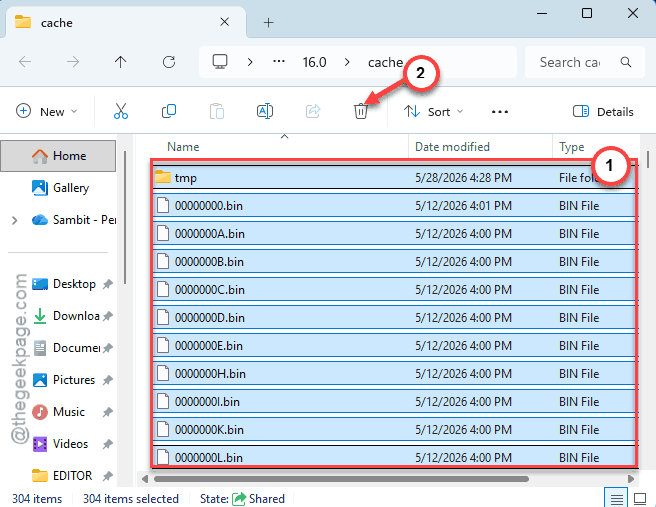
%LocalAppData%\Microsoft\OneNote\16.0\cache
4 – Select everything inside that cache folder and delete it. Delete the contents — not the folder itself.
5 – Reopen OneNote.
6 – Wait for it to fully resync every notebook before you test search.
That last step matters. Search won’t work right until the resync finishes. Be patient.
Fix 5 – Test Search in a Fresh Notebook
Not really a fix — a diagnostic. It tells you whether the problem is OneNote itself or just one bad notebook.
1 – Create a brand-new notebook.
2 – Type a few lines of test text — a word you’ll easily recognize.
3 – Press Ctrl + E to open search.
4 – Search for that test word.
Shows up fine? Then OneNote’s search engine is healthy — your old notebook is the problem (go back to Fix 2 and Fix 4). Doesn’t show up? The issue is system-wide, so the index rebuild in Fix 3 is your answer.
Fix 6 – Make Sure Search Is Set to All Notebooks
Easy thing to miss. OneNote can limit search to just the current page or section — and then act like your notes vanished.
Hit the Ctrl + E buttons together to jump to the search box at the top. Type your term. Now look just below the box — there’s a little drop-down for the search scope. Make sure it says All Notebooks, not “This Page” or “This Section”. That tiny setting trips up a lot of people.
How to Prevent This
– Keep your notebooks in an indexed folder like OneDrive or Documents. OneNote search relies on that index, so it has to be covered.
– Let OneNote fully sync before you go searching. Half-synced notebooks return half the results.
– After a big Windows update, give the search index a day to settle. Updates sometimes reset it quietly.
People Also Ask
How do I search in OneNote for Windows 11?
Press Ctrl + E to jump straight to the search box, then type your term. Check the little scope drop-down right below it and set it to All Notebooks. That way OneNote searches everything, not just the page you’re on, which is where most people get caught out.
Why can OneNote find some notes but not others?
This happens due to the possibke synchronization fault of your notes. If you want to resolve this issue, you can close the notebook and re-open the notebook to force re-index the file.