You double-click a PDF. Nothing.
Then you open Task Manager and there it is — three or four Acrobat processes just sitting there. Doing nothing. Eating memory. The app refuses to actually launch.
Why This Happens
Short version? Adobe Acrobat has a Protected Mode sandbox that crashes silently. The app starts. The sandbox dies. The UI never appears.
And the launcher doesn’t know. So it spawns another process. And another. You end up with five Acrobat processes in Task Manager and zero windows on screen.
Why does the sandbox die? A few reasons. Windows updates that change file handling. Old user profile data that got corrupted. Compatibility mode flags from years ago. Licensing checks that hang.
And honestly? Adobe ships updates that break stuff for some users. Not always. But enough that it’s a known pattern.
Fix 1 – Kill All Acrobat Processes First
You must kill all the Adobe Acrobat background processes from the Task Manager.
1 – Hit the Ctrl + Shift + Esc buttons together to load up Task Manager.
2 – Go to the Details tab.
3 – Click the Name column to sort alphabetically.
4 – Look for anything starting with Acro, Acrobat, Adobe, or Creative Cloud.
5 – Click each one. Click End task in the bottom-right.
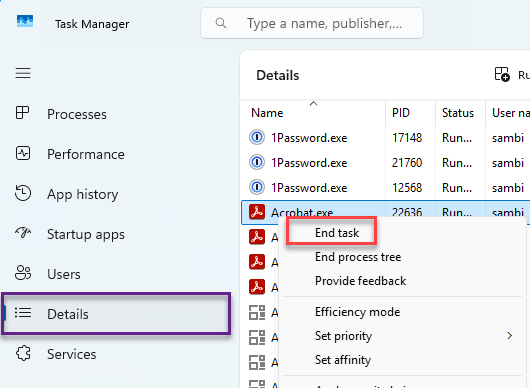
6 – Repeat until all of them are gone.
7 – Now try opening a PDF.
If this fixes it temporarily? You’re hitting the zombie-process bug. The next fixes stop it from coming back.
Fix 2 – Disable Protected Mode
Protected Mode is what’s crashing for most people.
1 – Open Acrobat. If the app is still not opening up, skip to Fix 3 first. Otherwise continue.
2 – Tap the Menu (≡) on the top-left corner.
3 – Click Preferences. A new window opens.
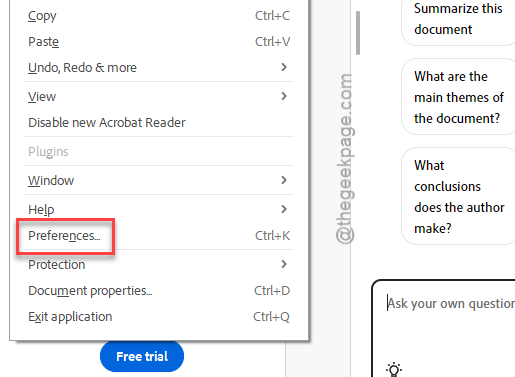
4 – In the left sidebar, click Security (Enhanced).
5 – Uncheck Enable Protected Mode at startup.
6 – Click OK at the bottom.
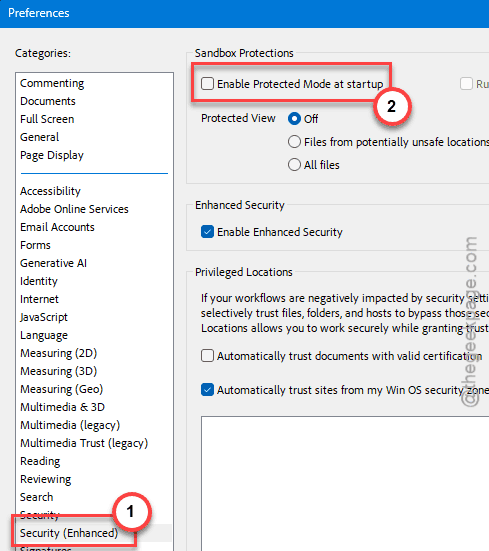
7 – Close Acrobat completely. Reopen.
Most people stop having problems right here. Yes, you’ve made it slightly less secure. Trade-off.
Fix 3 – Remove Compatibility Mode Flags
If you have installed Adobe Reader years ago, this must be a compatibility issue.
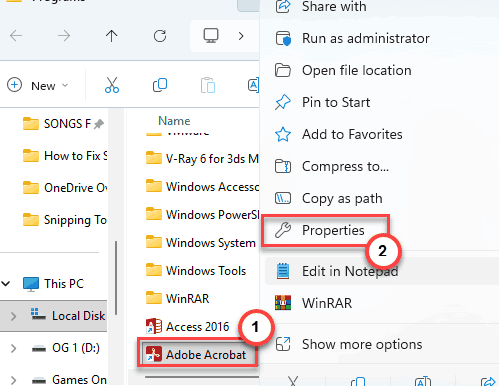
1 – You have to find the Acrobat shortcut on the destkop. Otherwise, simply search for Acrobat in Start. Then, right-click that result, tap Open file location.
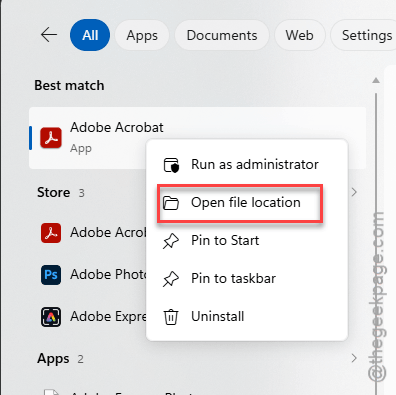
2 – At first, right-click the shortcut or the .exe file.
3 – Click Properties.
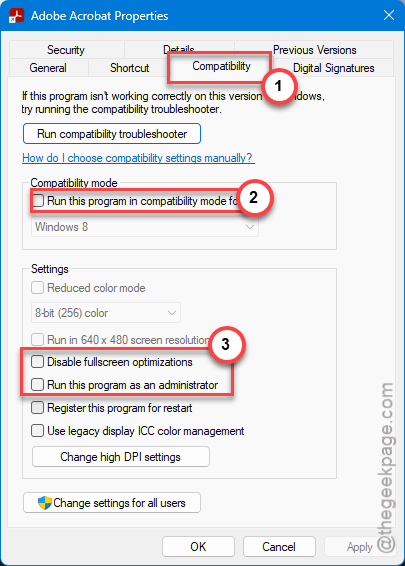
4 – Go to the Compatibility tab.
5 – Untick these options –
Run this program in compatibility mode for
Disable full-screen optimizations
Run this program as an administrator
6 – Click Apply then OK.
7 – Try opening a PDF.
Old compatibility flags survive Acrobat updates. They’re invisible unless you check.
Fix 4 – Wipe Acrobat’s AppData Folders
Corrupted user data is a huge cause of the background-process bug. Deleting Acrobat’s AppData folders forces it to rebuild from scratch.
Close every Adobe-related process first. Use Fix 1 if you haven’t already.
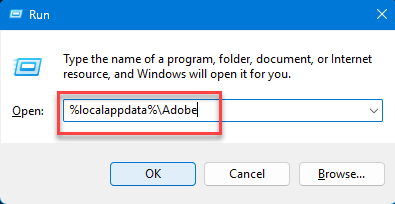
1 – Press Windows + R.
2 – Type %localappdata%\Adobe and press Enter.
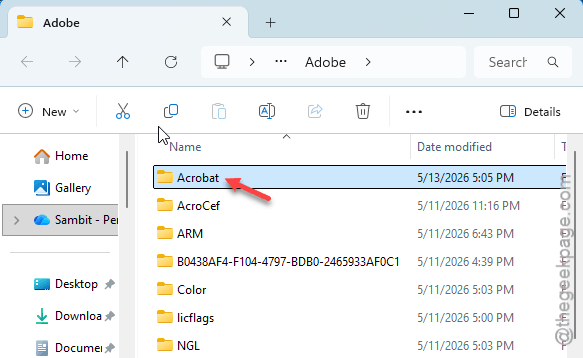
3 – Find the Acrobat folder. Delete it.
4 – Press Windows + R again. Type %localappdata%Low\Adobe. Hit Enter.
5 – Delete the Acrobat folder if it’s there.
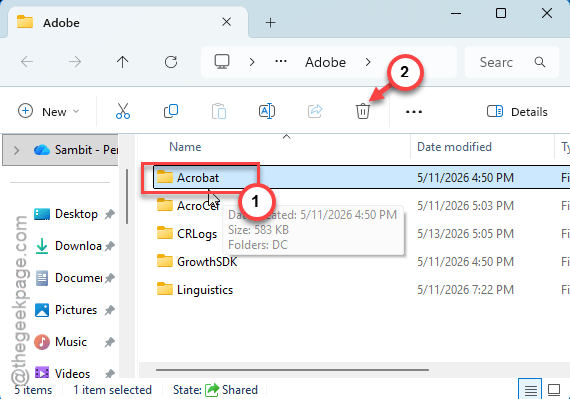
6 – One more time — Windows + R, type %appdata%\Adobe, Enter.
7 – Delete the Acrobat folder.
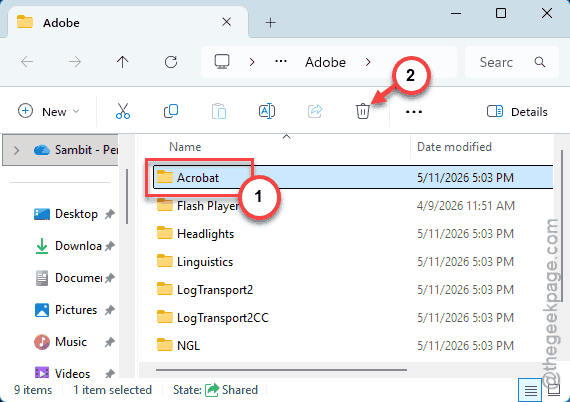
8 – Launch Acrobat. It rebuilds fresh.
You’ll lose recent files and preferences. But the app should actually launch this time.
Fix 5 – Repair the Install
Adobe has a built-in repair option. Doesn’t touch your data — just fixes broken install files.
1 – Press Windows + I to open Settings.
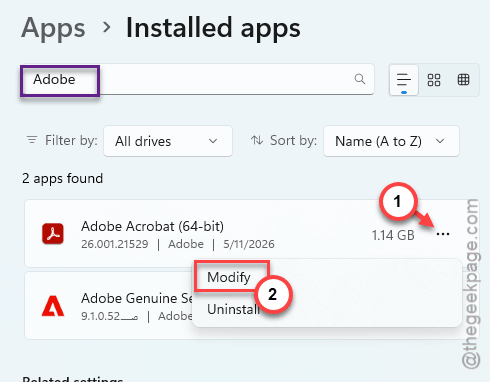
2 – Click Apps > Installed apps.
3 – Type Acrobat in the search box at the top.
4 – Click the three dots (⋯) next to Adobe Acrobat.
5 – Click Modify. An Adobe wizard opens.
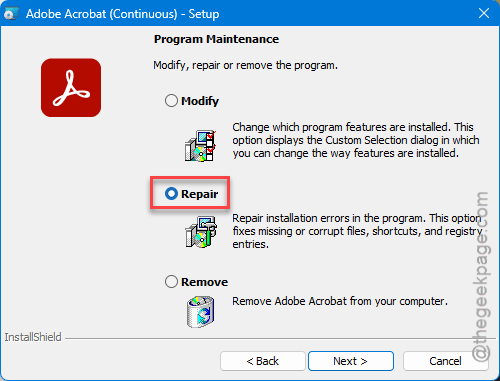
6 – Choose Repair when prompted. Click Next.
7 – Let it run to 100%. Don’t cancel.
8 – Restart your PC after.
Try opening a PDF. Repair fixes most file-corruption issues without losing settings.
Fix 6 – Uninstall a Bad Windows Update
If this started right after a Windows update, that’s probably your culprit. Microsoft has shipped updates that break Acrobat’s file handler. Annoying.
1 – Press Windows + I.
2 – Click Windows Update in the left sidebar.
3 – Click Update history.
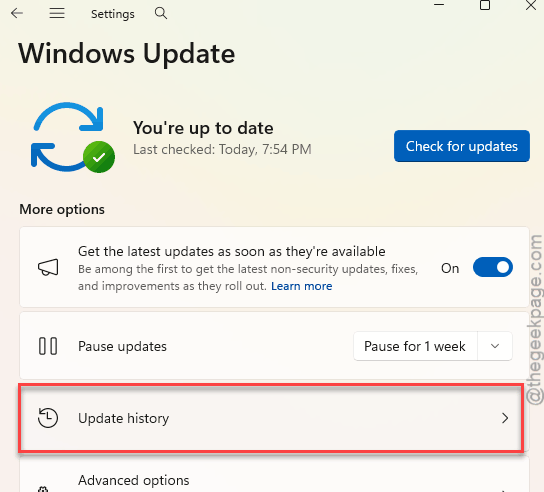
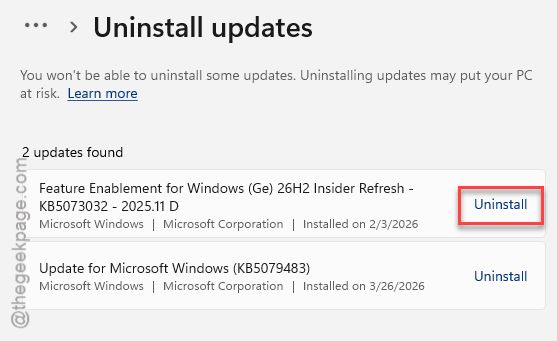
4 – Scroll all the way down. Click Uninstall updates.
5 – Sort by date. Find the most recent update.
6 – Click Uninstall next to it. Confirm.
7 – Restart your PC.
Pause Windows Update for a week or two after, otherwise it reinstalls itself immediately. Settings > Windows Update > Pause for 1 week.
How to Prevent This
- Adobe doesn’t test for the compatibility mode and weird things break.
- If you don’t actually need Acrobat Pro features, the free Reader is more stable. Less stuff to break.
- Keep Protected Mode off if you’ve had repeat crashes. Less secure, but stops the background-process loop.
People Also Ask
How to fix Adobe Acrobat PDF not opening?
You have to terminate the Adobe processes from the Task Manager. Then disable Protected Mode in Preferences > Security (Enhanced). If it still won’t open, repair the install through Settings > Apps. One of those almost always fixes it.
How do I unfreeze my Adobe Acrobat?
You must kill the Adobe Acrobat processes in the Task Manager. Then check your shortcut’s compatibility tab and uncheck everything. Compatibility flags from old Windows versions cause silent freezes.
Why can’t I open PDF files on Windows 11?
The app starts but the UI never loads. Disable Protected Mode in Acrobat preferences. If Acrobat won’t even open enough to change settings, delete the Adobe AppData folders to force a clean rebuild.