A handful of Windows users have come across this annoying “Please wait while BIOS backup processing” message repeatedly. This prompt seems to only shows up during the boot. While you may easily ignore the prompt if you have come across it once or twice, but anyone can get annoyed if they have to face this for numerous number of times.
Fix 1 – Do a power reset on the device
The process, otherwise known as clearing the CMOS or hard resetting the device, can help you fix this BIOS problem.
Step 1 – Switch off your laptop or computer. Disconnect it from the power supply.
Step 2 – If you are using a laptop, remove the battery from the device. You can do that by removing the back panel and then, detaching the device battery carefully.
Step 3 – Now, press-hold the Power button for 30 seconds. This will drain up any surplus charge from the electrical parts inside, including the CMOS battery.
Step 4 – Later, you may reconnect the device to power and restart it.
See whether you are still getting the same error.
Fix 2 – Reset the BIOS to default settings
Have you done any recent changes to the device BIOS? Reset the BIOS to the default settings to fix the problem at your end.
Step 1 – Restart your device and wait until the screen lits up to show you the manufacturer’s logo.
Step 2 – Repeatedly press the button that is connected to your BIOS to load up the BIOS console on your machine.
Step 3 – Find the “Restore BIOS settings to default” option there. Usually, you can find this setting at the bottom part of the BIOS page.
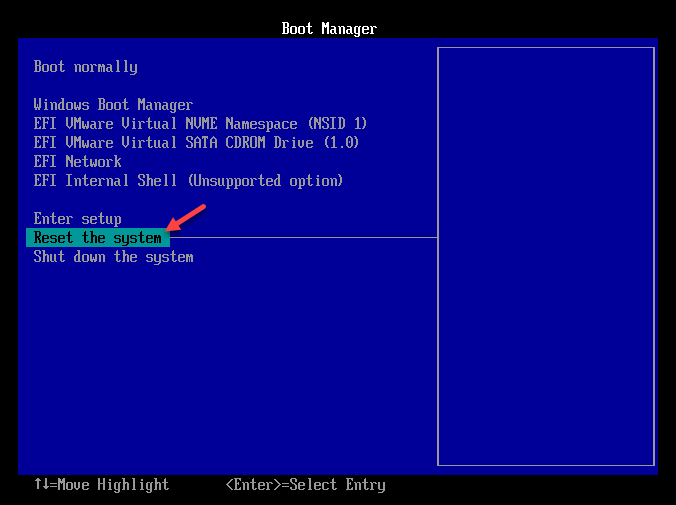
Windows will restart automatically while resetting the BIOS settings to the normal settings. You won’t see the “Please wait while BIOS backup processing” message again.
Fix 3 – Restore the BIOS Self-Healing file
[For Lenovo users]
If your system BIOS is behaving this way, it is creating a self-healing BIOS file. This may cause the device to go into the Recovery mode repeatedly.
Step 1 – Type “cmd” in the search box.
Step 2 – Next, right-click the “Command Prompt” and tap “Run as administrator” to load up the CMD tool.
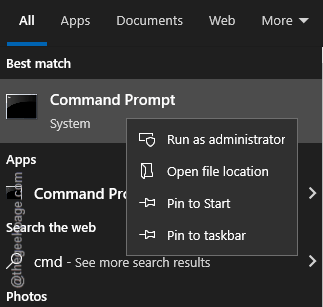
Step 3 – Execute these lines of commands in the Command Prompt terminal.
shell
mountvol Y: /s
cd /d Y:\EFI\Lenovo\BIOS
ren selfhealing.fd selfhealing_backup.fd
move C:\Lenovo\BIOS\selfhealing.fd Y:\EFI\Lenovo\BIOS\
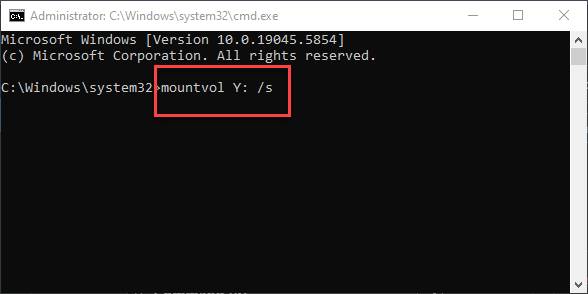
After running this set of code, it will rename the existing self-healing backup file.
Restart your computer once, and you shall never get to see the same error message again.
Fix 4 – Update the BIOS
Lenovo users seem to encounter this problem mostly. You can update your Lenovo laptop’s BIOS this way. The actual process of updating the BIOS differs device to device. BIOS updates are sent alongside the Windows updates. So, make sure to update the BIOS on your computer.
There are also dedicated tools available to update the BIOS firmware, like Winflash for Asus devices. Only take the definite approach to update the BIOS as any misleading steps can cause fatal system crash.
Check if this works!