After a major iOS overhaul such as iOS 26, iCloud sync and backup issues are not unheard of. Many iOS 26 users have flocked to the Apple Community to express their frustration over this sync and backup issue on their iPhones. These users often discover their device backup process stuck in ‘Estimating’ phase. Generally, network instability, iCloud services re-authentication or background sync restrictions halts the backup and sync process on iCloud.
Fix 1 – Clear out any sync related warning
Check whether any sync-related prompt is present in the iCloud settings and clear it out.
Step 1 – Open the iPhone Settings. Then, tap the Apple ID once to open the Apple ID settings.
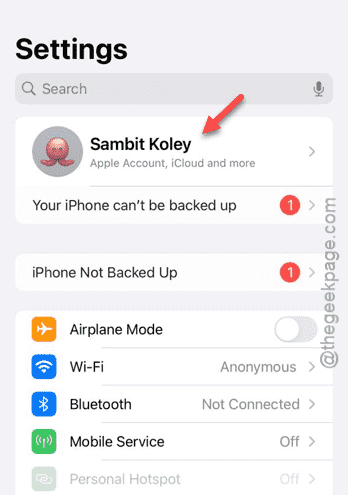
Step 2 – Look for any warning message, like any prompt to sign in to re-authenticate your access.
Step 3 – Input your Apple ID and password to sign in to the iCloud account, if needed.
This should any sync related issues that is restricting the iCloud backup process.
Fix 2 – Force iCloud Re-Sync
Just refresh the iCloud synchronization for all the iCloud services like Photos, Contacts, Drive, etc.
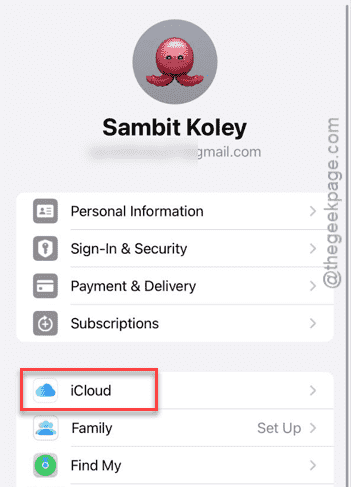
Step 1 – On the iPhone Settings console, tap the Apple ID banner once. Load up the iCloud settings.
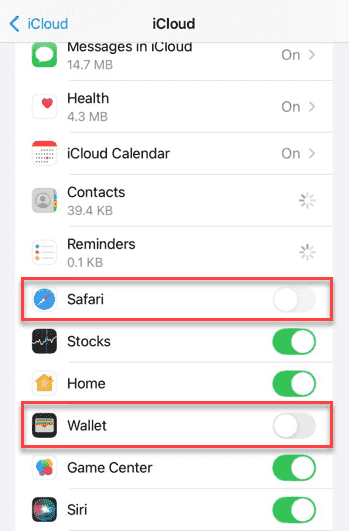
Step 2 – Now, turn off any of the affected services that are stuck there. Like, if your Photos or Contacts are not syncing, turn off the Photos, and Contacts services.
Step 3 – Next, wait for 30 seconds or so. After this, turn those services on.
Step 4 – Make sure the iPhone is connected to Wi-Fi.
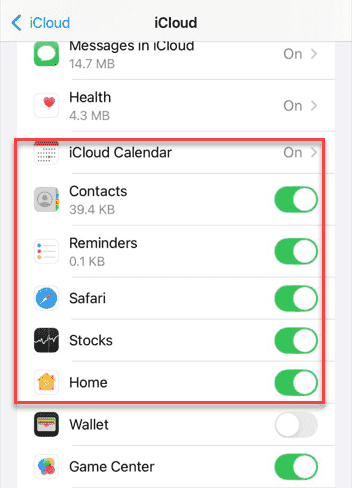
Now, all those stuck iCloud services will resume operation and sync the pending files to the iCloud server.
Fix 3 – Check for iCloud Storage
If your iCloud storage is completely exhausted, no further files will be uploaded and the sync-backup process will be stuck.
Step 1 – Tap your name banner (Apple ID) in the iPhone Settings page. Go to the iCloud tab.
Step 2 – You can see the iCloud Storage status directly in there.
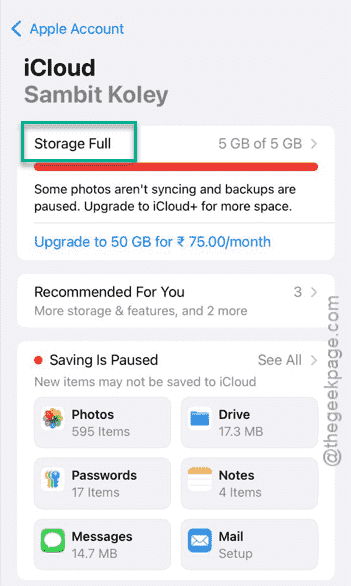
Step 3 – If iCloud storage is completely full, it will show up ‘Storage Full‘ indication there. You must delete some of the older files from the iCloud to sync new things.
Otherwise, you can upgrade to iCloud+.
See whether this works or not.
Fix 4 – Reboot the iCloud Backup System
Temporarily turn off the iCloud Backup system, and then turn it back on to restart the whole iCloud backup system.
Step 1 – In the iPhone Settings console, load up the iCloud settings.
Step 2 – Later, open up the iCloud Backup tab.
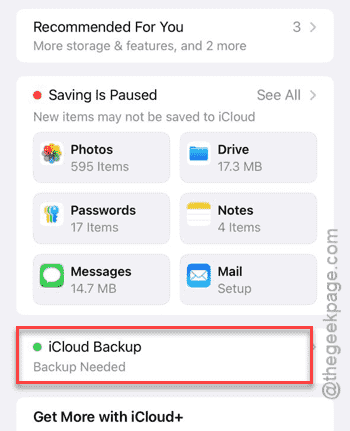
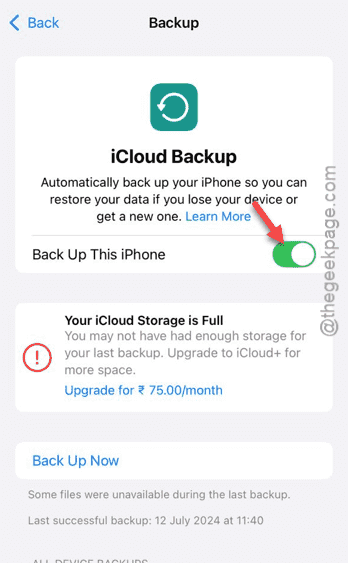
Step 3 – Then, turn the iCloud Backup off.
Step 4 – Later, restart your iPhone.
Step 5 – Turn on the iPhone. Next, turn on the iCloud Backup option.
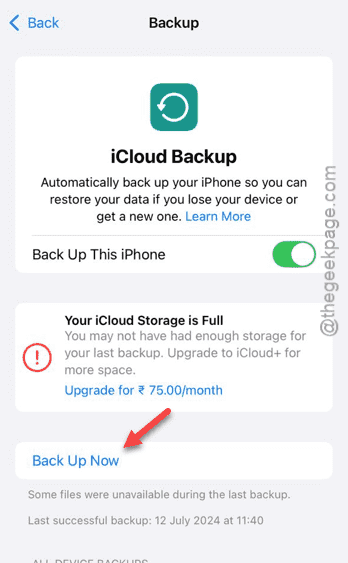
Step 6 – Now, tap the Back Up Now button to start backing up your data to iCloud.
See if this fixes the issue.
Fix 5 – Turn off Low Power Mode, Use Wi-Fi
iCloud synchronization gets halted while your iPhone is in Low Power mode.
Step 1 – Go to the Battery settings on the iPhone.
Step 2 – Next, turn off the Low Power mode in there.
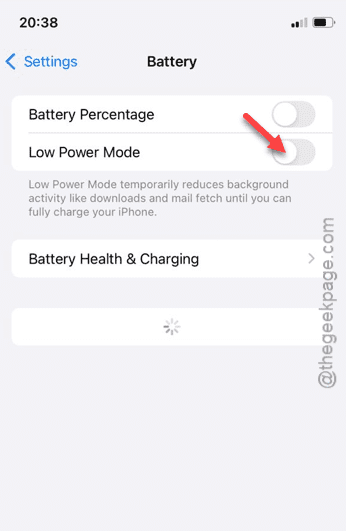
After turning off the low power mode, the backup and synchronization process will resume normally. Remember that iCloud backup system functions properly when the device is connected to Wi-Fi. So, make sure your iPhone is connected to the Wi-Fi while