Can’t change the edition or version of Windows 11/10 during the installation process? Windows offers a plethora of version of the OS to install on the machine. It shows up this choice at the nascent stage of the installation process, where the user has the full control over which version of OS is going to be installed on the device.
Fix 1 – Insert a configuration file to ISO
This problem can be easily fixed by injecting a configuration file into the Windows 11/10 ISO drive directly. This solution consists of multiple steps. I
NOTE – You must perform these steps on another device apart from the device where you are installing the Windows. You may skip the Step 1, if you have the ISO/ bootable drive ready.
STEP 1 – Create a ISO file
At first, create a bootable Windows 11/10 ISO file on your computer.
Step 1 – Download the Media Creation Tool for Windows 11. If you are trying to install Windows 10, you may use this link.
Step 2 – You have to agree to some certain terms and conditions and get the MCT on your device.
Step 3 – Run the “mediacreationtool“.
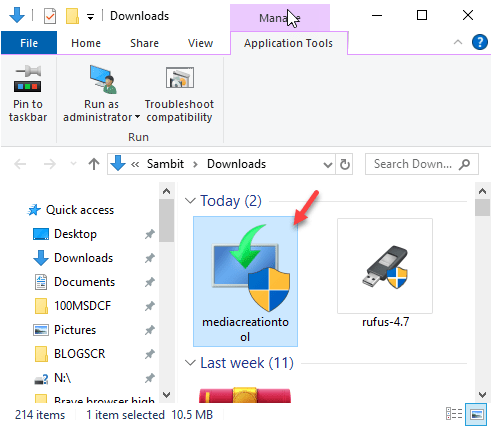
Step 4 – Wait for a few seconds and assert to the agreements and proceed to the next step.
Step 5 – Now, uncheck the “Use the recommended options for this PC” option*.
Step 6 – Select the OS language of your choice, Windows version, and tap “Next” to proceed further.
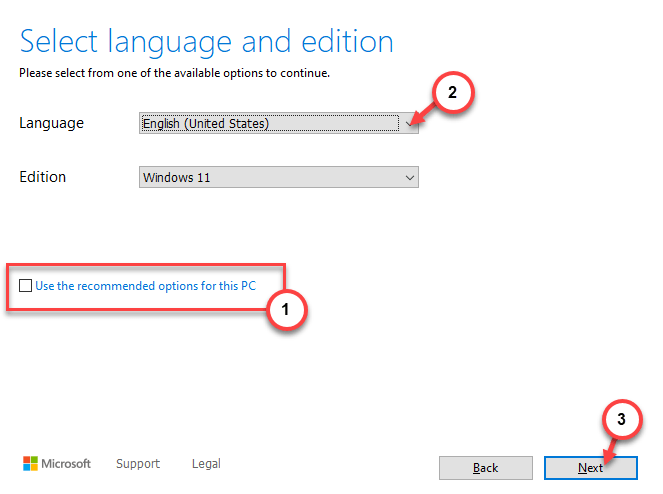
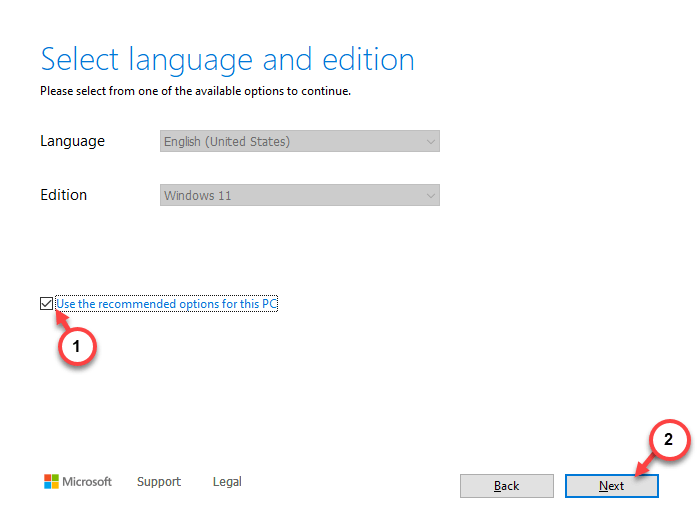
*NOTE – If you are installing Windows on this device, you don’t have to create a bootable drive. You can leave the “Use the recommended options for this PC” option checked and proceed to the next steps. This way, Windows will download the appropriate OS accordingly and complete the installation.
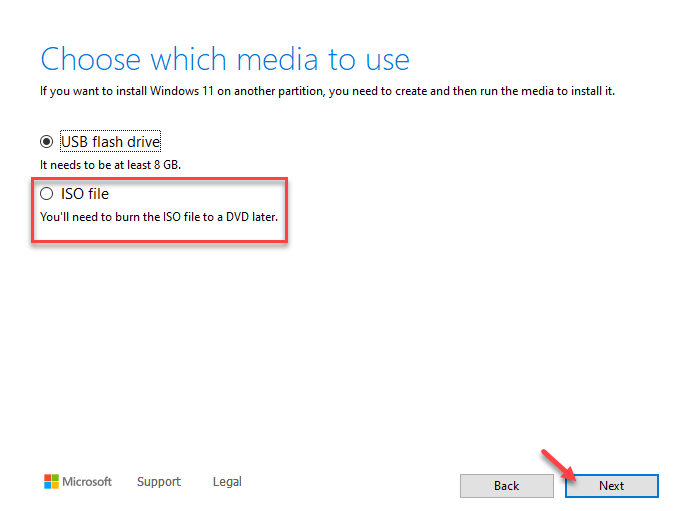
Step 7 – In the Choose which media to use page, select the “USB flash drive“, if you have the media drive ready and connected to your machine.
Step 8 – Otherwise, you can just select the “ISO file” in there. You have to use Rufus to burn the ISO file into the bootable drive later.
Wait patiently as Windows downloads the Windows 11/10 ISO to your device. The downloading size hangs around 4-5 GB in size.
Step 9 – You will find the bootable drive in the File Explorer.
Step 10 – If you have chosen to create an ISO file, mount it.
Proceed to the next part of the solution.
STEP 2 – Make an ei.cfg file
You have to create a separate configuration file in the Windows bootable drive.
Step 1 – Load up the ISO file in the File Explorer.
Step 2 – Go to your desktop or anywhere else. Next, right-click on the space and tap “New> ” and choose “Text document” to create a next file.
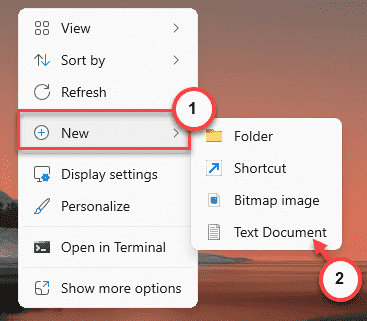
Step 3 – Open up this new text file.
Step 4 – Paste these lines in there and hit Enter.
[EditionID]
Professional
[Channel]
Retail
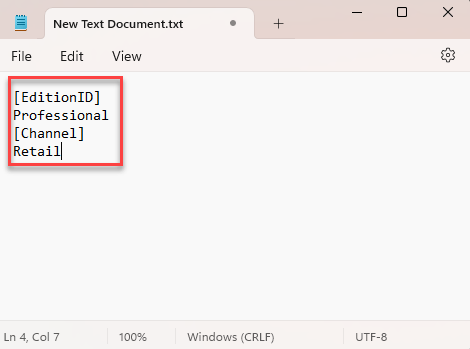
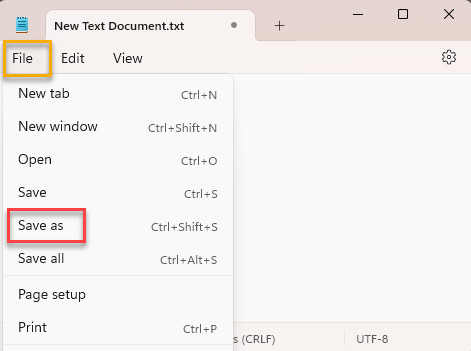
Step 5 – Next, tap “File” and click “Save as“.
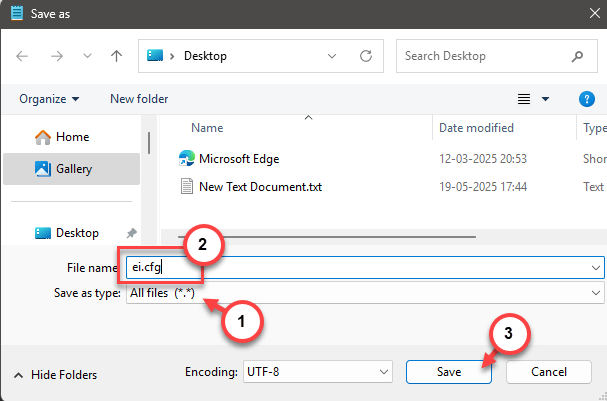
Step 6 – At first, set the ‘File Type:’ to “All files“.
Step 7 – Then, name the file “ei.cfg” and save the file.
Step 8 – Once you have saved the file, close the Notepad.
Step 9 – Now, copy the “ei.cfg” file from there.
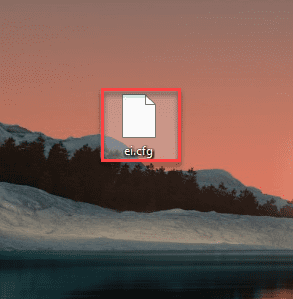
Step 10 – Next, load up the bootable drive or the ISO file.
Step 11 – Open up the “Sources” folder there.
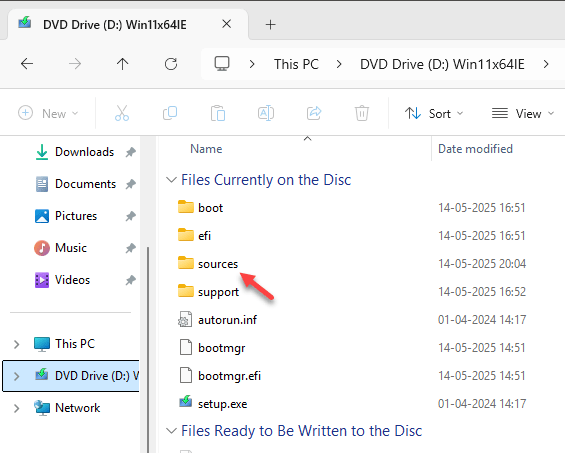
Step 12 – Paste the “ei.cfg” file in there.
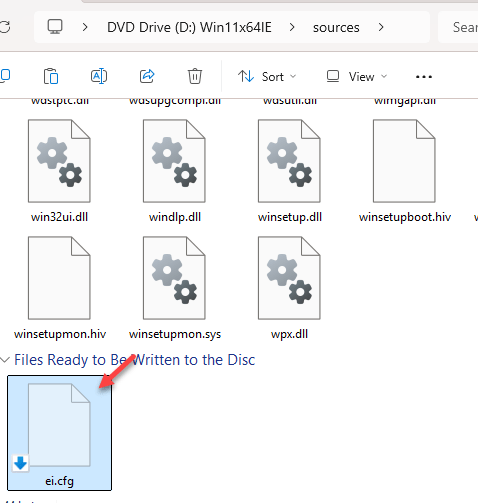
Once you have done this, the bootable drive is ready for installation. You will get to choose the Windows edition normally.
NOTE – If you still can’t change the Windows edition type during installation, it may be related to the channel type of Windows you are using.
1. For Retail channel or personal channel users, open the “ei.cfg” file and add these two lines in there –
[Channel]
Retail
2. If you have an organizational license or VL, you must add these lines –
[Channel]
_Default
[VL]
0
This way, you can complete the installation of the Windows 11/10 on your device. There won’t be any more problem during selection of Windows edition. Check if this works!