Lock screen widgets are very popular among the iPhone users. But, some of those users are struggling with the lock screen widgets freezing up. The possible reasons behind the widgets getting stuck is either the absence of background refresh or improper synchronization of the widget application. Fixing this problem won’t take much time. You can easily troubleshoot the issue by implementing these set of solutions.
Fix 1 – Remove and re-add the widget
The best way to deal with the widget is to remove the stuck widget from the lock screen and add it afresh.
Step 1 – Hold down anywhere on the lock screen except the widgets. Then, tap the Customize button. Choose the lock screen to customize.
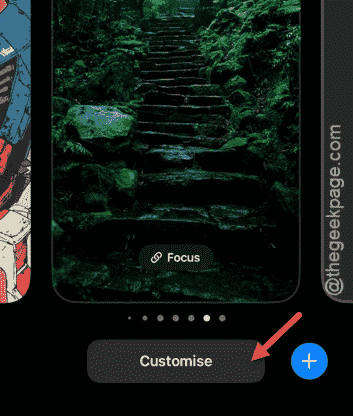
Step 2 – Next, tap the widget that is stuck and tap the ➖ button at the top of that particular widget to delete it.
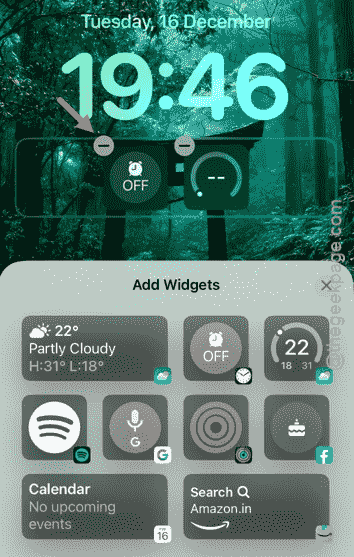
Step 3 – Now, select the same widget from the Add Widgets hovering panel and add it to the lock screen. Tap Done to save the changes.
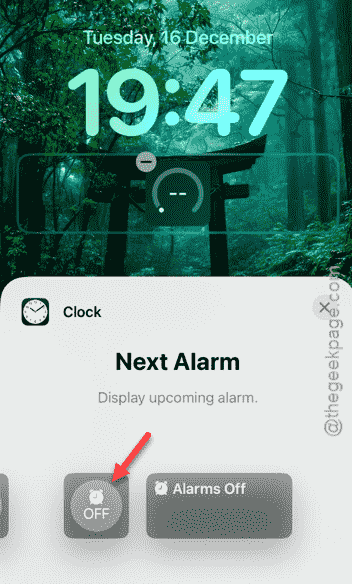
The widget will refresh automatically.
Fix 2 – Turn on the Background Refresh for the Widget-app
The app of the problematic widget should be allowed to refresh in the background for it to work properly.
Step 1 – In iPhone Settings panel, load up the General settings.
Step 2 – Then, go to the Background App Refresh panel.
Step 3 – In the list of all the other apps, make sure that widget app is turned on.
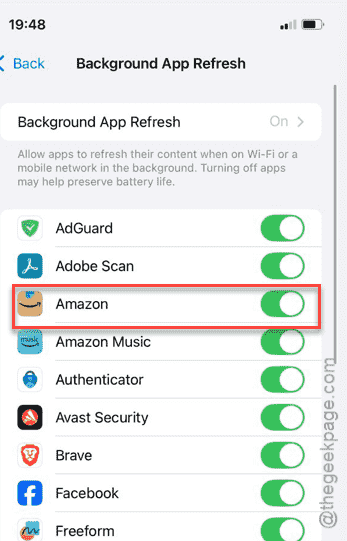
If the background app refresh is enabled for that app, the widget won’t get stuck.
Fix 3 – Force-Refresh the Widget-app
Another way of refreshing a stuck app widget is just open up the subordinate app and let it sync automatically.
Step 1 – Check the stuck widget belongs to which application, like if an alarm widget is stuck, it belongs to the Clock app.
Step 2 – Now, open up the subordinate app. Leave the app opened for 10–15 seconds.
Step 3 – Close the particular app.
Take another look at the stuck widget on the lock screen.
Fix 4 – Turn off Low Power Mode
iPhones running on iOS 26 or later automatically halts the widget activity on the lock screen if it is put on low power mode.
Step 1 – Go to the Battery settings on your iPhone.
Step 2 – Find the Low Power Mode and set it to Off mode.
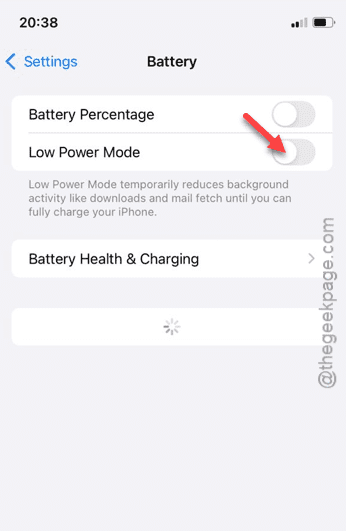
Setting the iPhone to normalcy from the low power mode should free up those background activities of the frozen widgets.
Fix 5 – Refresh the Live Activities Feature
If the widget shows live activities on your iPhone lock screen, refreshing it should help you fix this stuck widget issue.
Step 1 – Open the iPhone Settings.
Step 2 – Then, load up the Face ID & Passcode settings.
Step 3 – Set the Live Activities to Off mode.
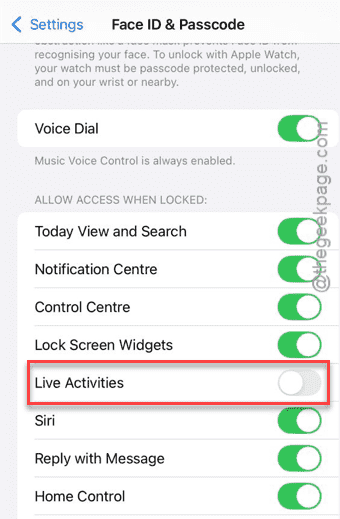
Step 4 – Now, restart your iPhone.
Step 5 – Once the iPhone restarts, turn the Live Activities mode to On mode.
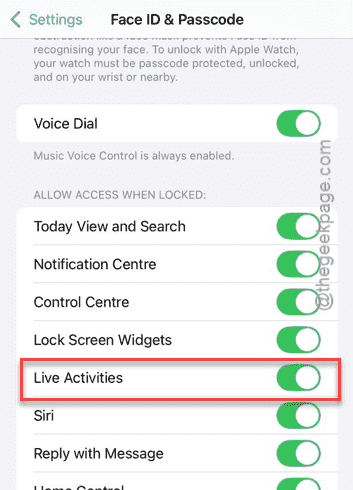
Restarting the Live activities should solve the widgets issue on the iPhone.
Additional Fix
Some of the widgets requires additional services to convey the live information through widgets on the lock screen. Like, the Weather widget needs the constant location services to provide the live weather information. Make sure such dependent services or utilities are switched on.