Unable to share anything from your iPhone? This sharing issue may stem from several possible regions, like a corrupt share sheet of a new application, Shortcut complications, iOS bug or a mere temporary AirDrop/Bluetooth glitch. So, we recommend you apply these solutions one-by-one to fix this sharing problem quickly. We have listed only the proven solutions according to the users recommendations, so that your problem should be resolved as soon as possible.
Quick Fix table –
| Issue Cause | What to Do | Time Required |
|---|---|---|
| Temporary iOS Airdrop/Bluetooth glitch | Press and release – Volume Up Volume Down Press-hold – Power button until the device restarts |
2-3 min |
| corrupt app/ particular app crash | Identify and remove the app | 2 min |
Fix 1 – Force Restart your iPhone and Retry Sharing
If the problem from almost any of the discussed reasons, you should do a force-restart of your iPhone. Later, you can share the files again.
Step 1 – At first, press and release the Volume Up button.
Step 2 – Then, press-release the Volume Down button as well.
Step 3 – Finally, hold the Power button of your iPhone for at least 10 seconds. We are doing this to restart the device forcefully. You may stop pressing the Power button once you have seen the Apple logo on the iPhone screen.
After force-restarting the device successfully, try sharing the files once again from your iPhone.
Fix 2 – Disable the Siri Suggestions
The Share Sheet corruption that you are having on your iPhone can stem from a Siri suggestion/Shortcut conflict as well.
Step 1 – Open up the iPhone Settings. Then, go to the Siri settings.
Step 2 – On the Siri page, proceed to the Suggestions box. Later, turn off the Show When Sharing option.
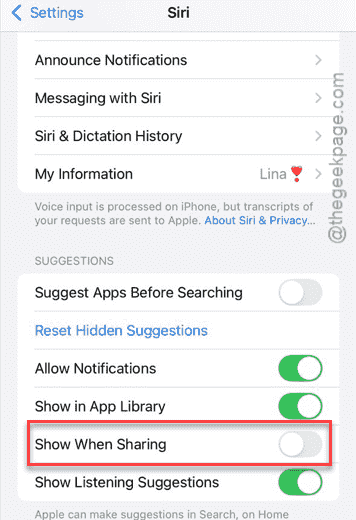
After turning off this feature, you must restart your iPhone at once. Later, after rebooting the device, proceed to share the files.
This time, you won’t face the problem again.
Fix 3 – Uninstall any Newly Installed Third-party App
Facing this problem since downloading a new app on your iPhone? While this is unusual, but there is a fraction of users has reported having this issue with the application.
If the problem has started since installing a new update, find it out and remove it right away.
Optional Steps –
The issue can also arise from Share Sheet complications as well. Resolve those manually.
Step 1 – Open the Shortcuts app next. Tap the arrow on the left-corner.
Step 2 – Then, open up the Share Sheet folder.
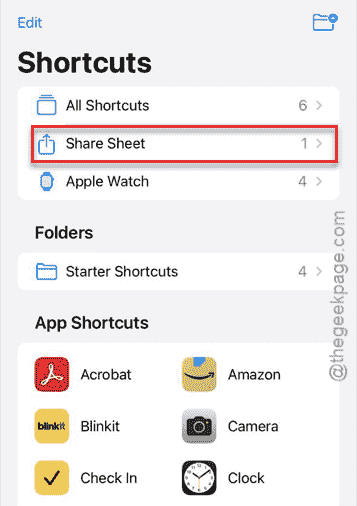
Step 3 – Later, open all of your share sheet shortcuts from there and resolve the complications one-by-one.
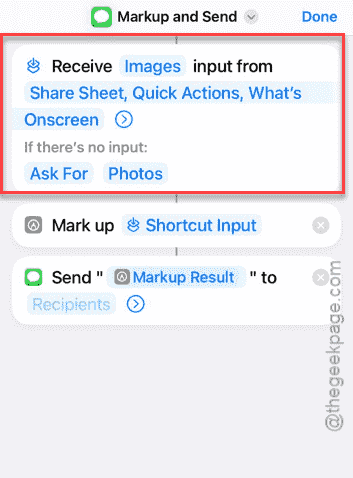
This should have fixed the issue altogether.
Bonus Tip – Check the file that you are sharing
Sometimes, it is the not sharing mechanism, but the files are that you are sharing are corrupt and can’t be shared. iOS does optimize the files for transfer before it even initiates the transfer process. If any of the file that you are trying to share is corrupt, it may get stuck in the preparation phase, bricking the whole share sheet mechanism altogether.
FAQs–
1. Why can’t I share files from my iPhone?
The reason behind the Share Sheet crash issue can be a buggy app integration, temporary glitches like Airdrop/Bluetooth issues. This inhibits the entire sharing mechanism on iPhone. The best way of solving this issue is to force restart your iPhone.
2. Why my Airdrop fails when I try to share?
AirDrop on Apple devices like iPhone, iPad needs the Bluetooth, Wi-Fi and Personal Hotspot disabled. If you have turned any of these three things while airdropping something, the transfer process may fail. Turn these off, restart the device, and then you can use Airdrop again.
Hope these fixes have helped you solve the conflict!