You turned off Windows Ink. Maybe through group policy, maybe in your tablet driver. And now your pen draws the same thin line no matter how hard you press. Pressure? Gone. Every brush feels dead.
Why This Happens
Basically? Windows has two ways for a pen to talk to your apps. Windows Ink is the modern one. WinTab is the old-school one that comes with your tablet’s driver.
Most art apps default to Windows Ink. So when you kill it globally, those apps lose the pressure data. They still see the pen moving (the cursor works fine), but the pressure channel goes silent.
And here’s the annoying part. The fix isn’t one setting. It depends on which app you’re in. Each one hides its tablet option somewhere different.
Fix 1 – Switch Clip Studio Paint to WinTab
CSP can run with Windows Ink off and still give you full pen pressure. You just have to tell it to use the other service.
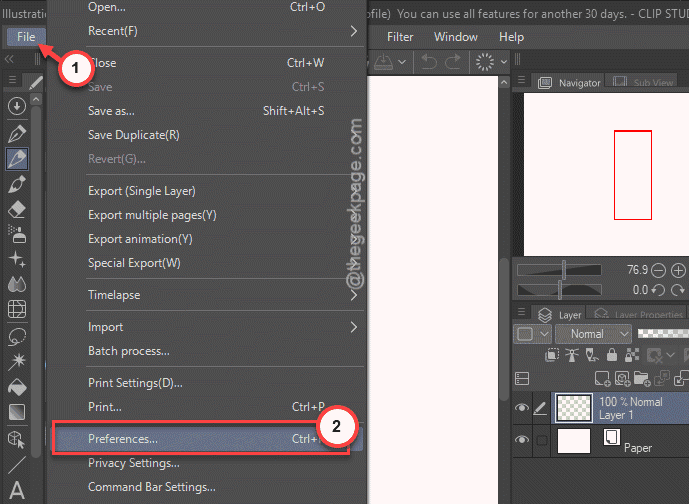
1 – Open Clip Studio Paint.
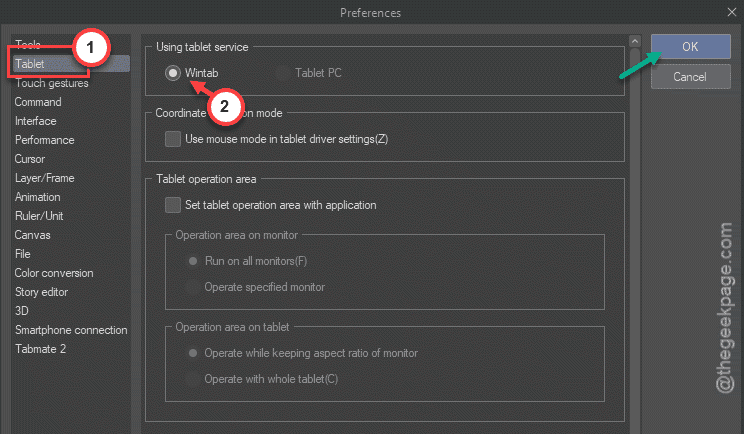
2 – Go to File > Preferences and click Tablet.
3 – Find the Using tablet service option.
4 – Select WinTab instead of Windows Ink.
5 – Close and reopen CSP.
Scribble something. Pressure should be back. (Photoshop users — same idea applies, but the option lives in a different spot.)
Fix 2 – Pick the Right Tablet API in Krita
Krita lets you choose which pen system it listens to. Wrong choice, no pressure. Simple as that.
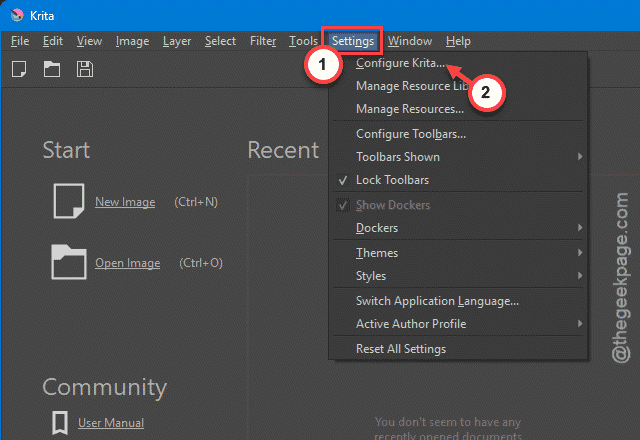
1 – Open Krita.
2 – Click Settings on the top bar.
3 – Click Configure Krita.
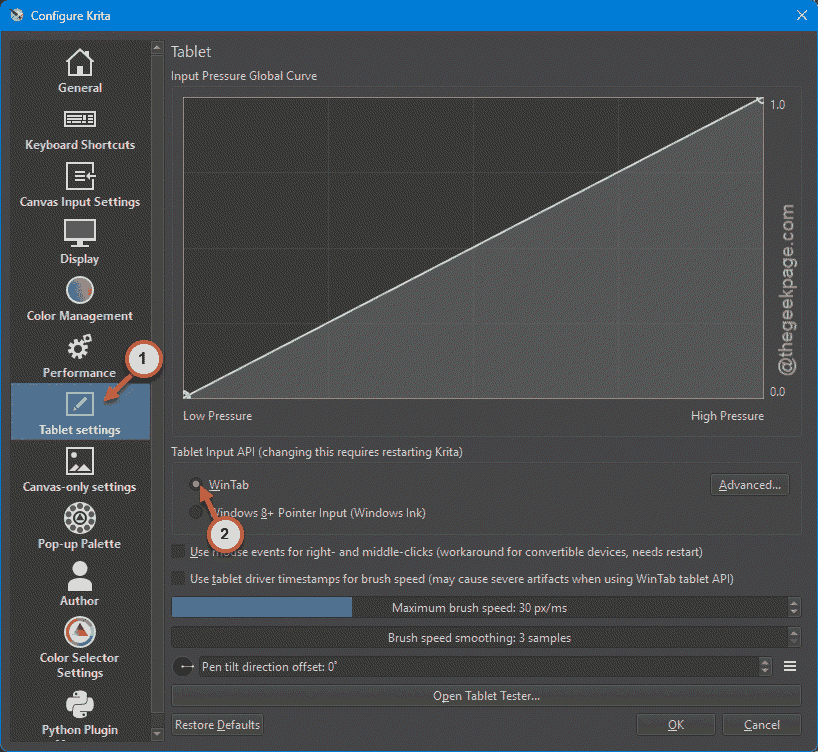
4 – Find the tablet settings and switch the API. With Windows Ink disabled on your system, WinTab is the one you want.
5 – Restart your computer. Not just Krita — the whole machine. Annoying, I know. But the change doesn’t take properly without it.
And if you ever turn Windows Ink back on system-wide, come back here and flip this to Windows Ink instead.
Fix 3 – Set It in the Tablet Driver, Not the App
XP-Pen users, this one’s for you (and probably other brands too). The driver software has its own Windows Ink setting, and it overrides whatever you pick inside Krita.
1 – Open your tablet’s driver app.
2 – Go to the Pen settings.
3 – Check the Windows Ink box there.
4 – Then in Krita, make sure WinTab is selected.
Weird combo, right? But that pairing is what actually works with these drivers. Don’t change it in Krita alone — the driver wins every argument.
Fix 4 – Check Your Brush Settings
Sometimes the pen is fine and the brush is the problem. A brush only responds to pressure if pressure is actually mapped to something.
1 – In Krita, open your brush settings.
2 – Look for the Size option.
3 – Activate it, so pen pressure controls brush size.
Quick test after that. Light stroke, heavy stroke. Different widths? You’re done. People reinstall the whole app over this one (seriously), and it’s just an unchecked brush option.
Fix 5 – Double-Check the Group Policy You Changed
If you disabled Windows Ink through group policy, it’s worth confirming exactly which policy you touched — and whether it’s the one breaking things.
1 – Press Windows + R, type gpedit.msc, and press Enter.
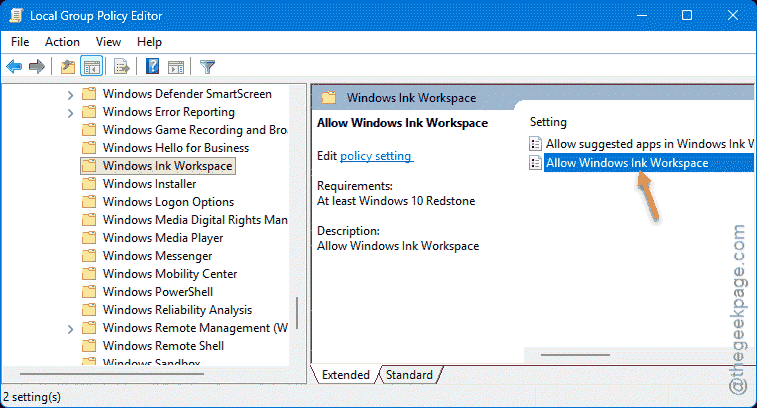
2 – Go to Computer Configuration > Administrative Templates > Windows Components > Windows Ink Workspace.
3 – Double-click Allow Windows Ink Workspace.
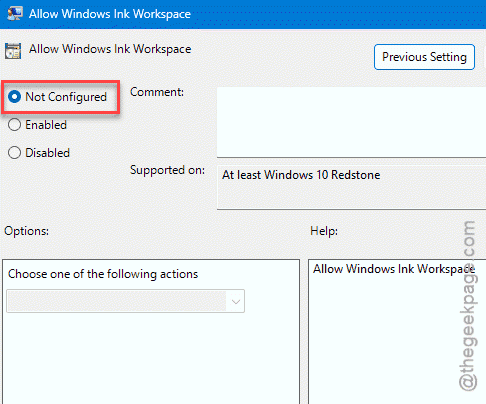
4 – Set it back to Not Configured for a moment, click Apply, then OK, and restart.
Pressure comes back? That policy was your trigger. Now you can make a real choice — leave it on, or disable it again and switch each art app to WinTab using the fixes above. But at least it’s a decision instead of a mystery.
How to Prevent This
- Pick one pen API and stay consistent across your apps. Mixing Ink here and WinTab there breaks something eventually.
- Keep your tablet driver installed even if Windows sees the pen without it. WinTab comes from the driver. No driver, no WinTab.
- After every driver update, scribble a quick pressure test in your art app (ten seconds, tops). Catches problems before a real session.
- And jot down which API each app is set to. Future you will be grateful.
People Also Ask
Do drawing tablets have pressure sensitivity?
Nearly all of them, yes — even the budget ones. The pen tip measures how hard you press and the driver passes that to your art app. But it only works when the driver, the pen API, and the app’s tablet setting all agree. One mismatch and pressure vanishes.
Is 4096 or 8192 pressure sensitivity good?
Both are plenty. Honestly, most artists can’t feel the difference between them in real drawing. What matters way more is a properly configured driver and a good pressure curve. A well-set-up 4096 tablet beats a misconfigured 8192 one every single time.
Why is my tablet pen not sensitive to pressure?
Nine times out of ten it’s an API mismatch — your app expects Windows Ink while the system or driver is serving WinTab, or the other way around. Check the app’s tablet setting first. Then the driver. And check the brush itself, too. Pressure has to be mapped to size.