Your Wi-Fi icon shows a little globe and the words No Internet. But you’re reading this page just fine. So clearly you do have internet.
Weird, right? The connection works. Browsers load. Yet Windows insists you’re offline — and worse, some apps believe it and refuse to update or sign in. Let’s get Windows to tell the truth again.
Why This Happens
Here’s the deal. Windows doesn’t just assume you’re online. It actively checks.
There’s a background feature called NCSI (Network Connectivity Status Indicator). Every so often it quietly pings a Microsoft server. If the ping comes back, you get the normal Wi-Fi icon. If it doesn’t, you get the dreaded “No Internet” globe.
So what goes wrong? Sometimes that probe gets switched off — by an update, a VPN, or a tweak you don’t remember making. The actual internet works perfectly. Windows just can’t run its little test, so it assumes the worst.
A stale network profile can do it too. And so can a sleepy network adapter that needs a kick. None of it means your connection is broken. It just means the status check is lying. We fix the check.
Fix 1 – Switch the Internet Check Back On
This is the one that fixes it for most people. We’re turning Active Probing back on so Windows can actually run its connectivity test.
1 – Press Windows + R, type regedit, and press Enter. Approve the prompt to open the Registry Editor.
2 – In the left sidebar, work your way down this folder path, one folder at a time:
HKEY_LOCAL_MACHINE\SYSTEM\CurrentControlSet\Services\NlaSvc\Parameters\Internet
3 – Click the Internet folder. On the right side, find the value named EnableActiveProbing.
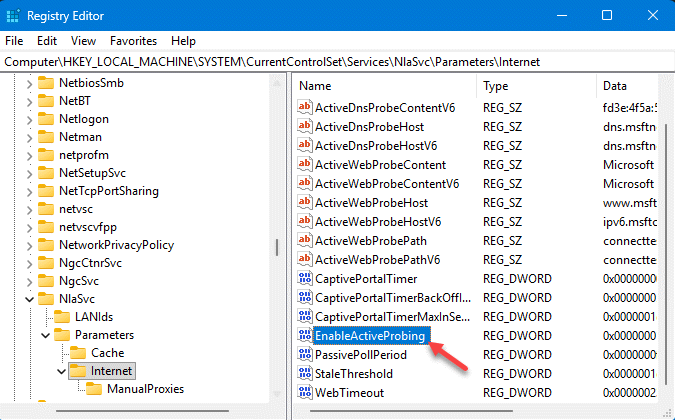
4 – Double-click it. You have to set that Value data to 1.
5 – Leave the Base set to Hexadecimal and click OK.
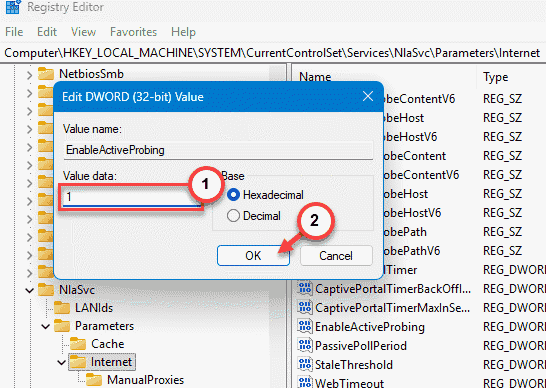
6 – Finally, quit the Registry Editor. Then, restart the PC.
After the reboot, the globe should be gone. If a 0 was sitting in that value, that was your whole problem — the probe was simply disabled.
Fix 2 – Restart the Network Adapter
Try rebooting the network adpater.
1 – Press Windows + I to open Settings.
2 – Go to Network & internet, then click Advanced network settings at the bottom.
3 – Find your Wi-Fi or Ethernet adapter in the list and click Disable.
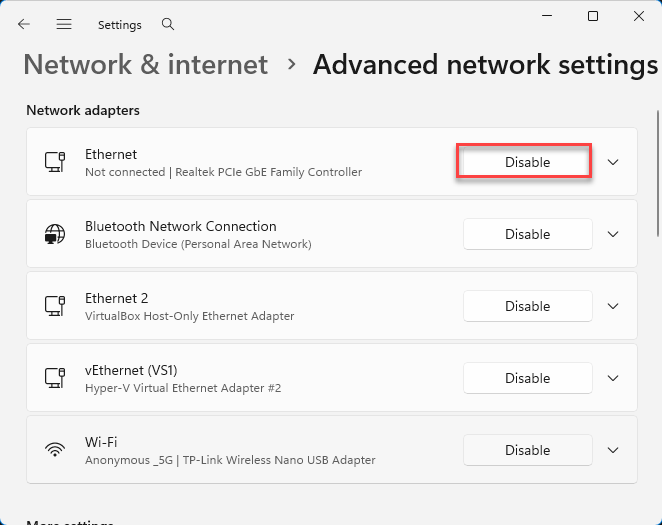
4 – Wait about 10 seconds. Let it fully power down.
5 – Click Enable to switch it back on.
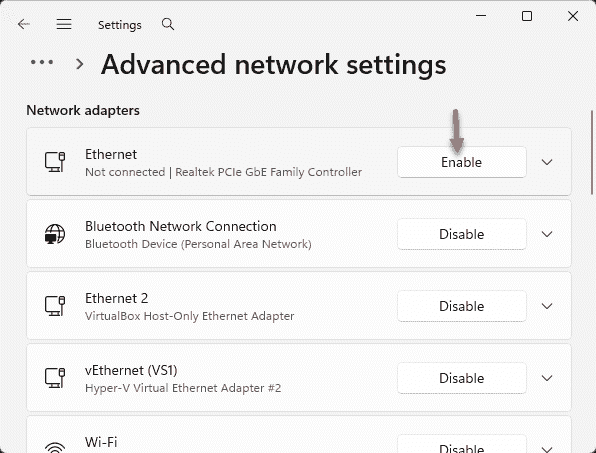
Your connection drops for a moment and comes right back. Watch the icon — sometimes that’s all it takes for Windows to admit you’re online.
Fix 3 – Restart the Network Services
The service behind that status check can get stuck.
1 – Press Windows + R, type services.msc, and press Enter.
2 – Scroll down to Network Location Awareness.
3 – Right-click it and choose Restart.
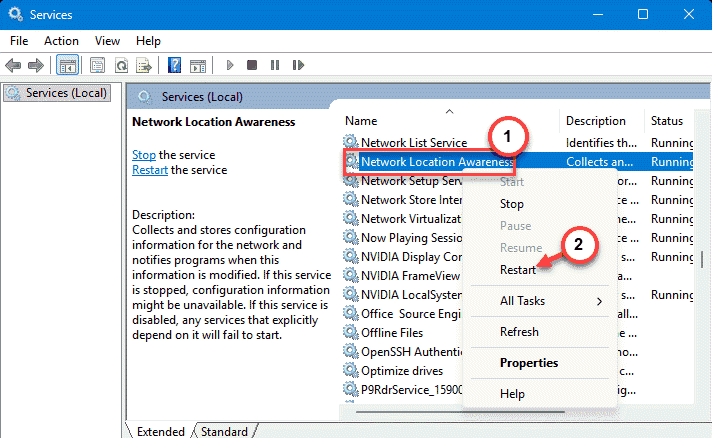
4 – Do the same for Network List Service, just below it.
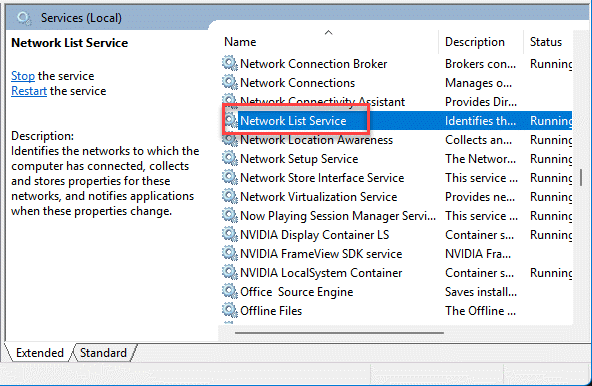
5 – Close the window and check the Wi-Fi icon.
These two services decide what that flyout shows. See if this works.
Fix 4 – Forget and Reconnect to Your Wi-Fi
A saved network profile can quietly corrupt, and then Windows misreads the connection.
1 – Press Windows + I, go to Network & internet, then Wi-Fi.
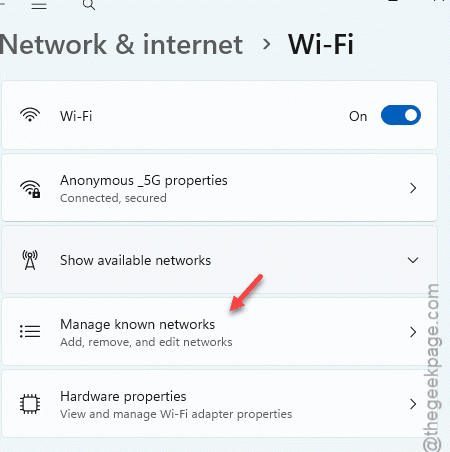
2 – Click Manage known networks.
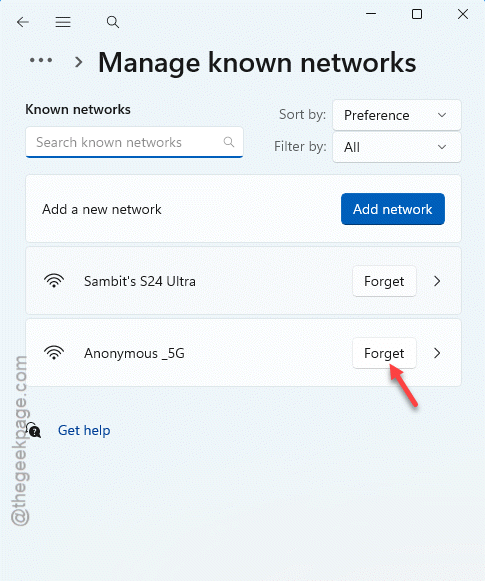
3 – Find your Wi-Fi name in the list and click Forget.
4 – Open the Wi-Fi flyout, click your network, and reconnect.
5 – Type your password again when asked.
Have the Wi-Fi password handy before you start — once you forget the network, Windows won’t remember it for you.
Fix 5 – Reset the Network Stack
You have to reset the network stack.
1 – Write cmd in the start menu.
2 – Then, right-click the Command Prompt and tap Run as administrator.
3 – Then type these codes one-by-one, and press Enter.
netsh winsock reset

ipconfig /flushdns
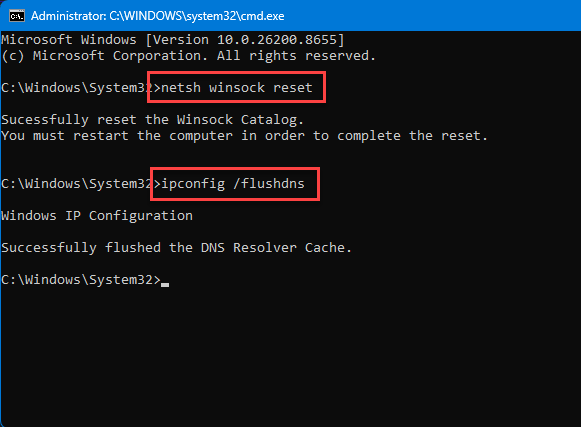
Restart the PC. This clears any tangled network settings underneath the status check. It’s the catch-all when nothing above sticks.
How to Prevent This
– Leave EnableActiveProbing set to 1 in the Registry. Some “privacy” tweaks switch it off and break the status check. Don’t let them.
– Watch your VPN settings. A lot of VPNs block the Microsoft probe and cause the exact same false alarm.
– After big Windows updates, glance at the Wi-Fi icon. Updates sometimes reset network values without telling you.
– Don’t pile on third-party network “optimizers.” They mess with the same services and create more problems than they solve.
People Also Ask
Why does my network say no internet but I’m connected?
Windows runs a background check that pings a Microsoft server to confirm you’re online. If that probe is switched off or blocked — often by an update or a VPN — you get a “No Internet” warning even though everything works.
Why does my Wi-Fi show full signal but no internet?
Full bars mean a strong link to your router, not a working internet check. Windows shows “No Internet” when its connectivity probe fails, even with a great signal. Restart the network adapter, restart the Network Location Awareness service, or re-enable Active Probing to clear the false reading.
Why does my PC say no internet when I do have internet?
Because the status indicator and your actual connection are two separate things. The connection works; the indicator’s test is failing. A disabled probe, a corrupted Wi-Fi profile, or a stuck network service is the usual culprit. Re-enable Active Probing first, then forget and rejoin your network if needed.