One update. And suddenly two things break at once — your laptop camera won’t turn on, and your wired network drops. Weird combo.
But it’s not random. Both usually trace back to the same little chip and the same power setting. So one round of fixes tends to bring both back.
Why This Happens
What gives? It’s almost always power management gone wrong.
A lot of laptops run their camera and Ethernet through the same Realtek controller — a small chip that manages several devices at once. When a Windows update changes how power gets handled, that chip starts timing out.
Windows thinks the device is idle. So it cuts the power to save battery. And the connection just… drops. Camera goes dark. LAN disappears.
There’s also the driver angle. The June update swapped in a Realtek driver that some machines hate. It looks installed, but it doesn’t actually run the hardware right. Annoying, and easy to miss.
Fix 1 – Fully Drain the Laptop’s Power
Weird first step, but it clears a stuck hardware state that a normal restart can’t.
1 – Shut the laptop down completely. Not sleep — a full shutdown.
2 – Unplug the charger.
3 – Hold the power button down for a full 60 seconds. Count it out.
4 – Plug the charger back in and turn it on.
Check the camera and network now. If both are back, you might be done. If not, keep going.
Fix 2 – Stop Windows From Powering Down the Chip
This is the core fix. You’re telling Windows to quit cutting power to the Realtek devices.
1 – Press Windows + X and open Device Manager.
2 – Expand Network adapters.
3 – Right-click the Realtek controller and choose Properties.
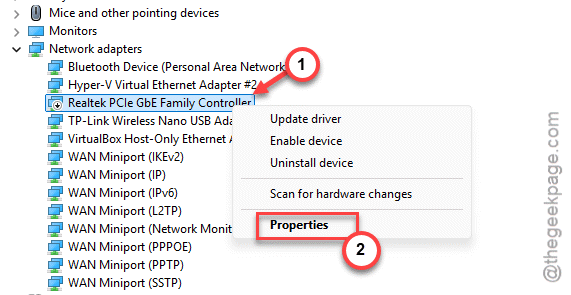
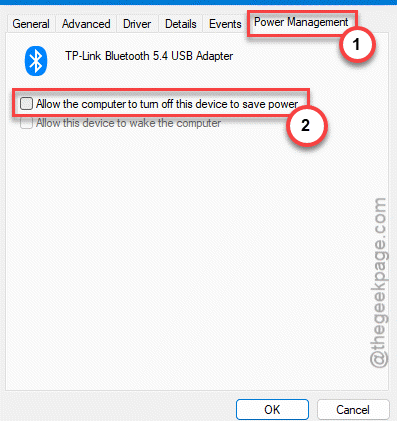
4 – Open the Power Management tab.
5 – Now, just uncheck Allow the computer to turn off this device to save power, then click OK.
6 – Now expand Universal Serial Bus controllers.
7 – Do the same power-management uncheck for the Realtek Hub and for each USB Root Hub in the list. The camera often rides on one of these.
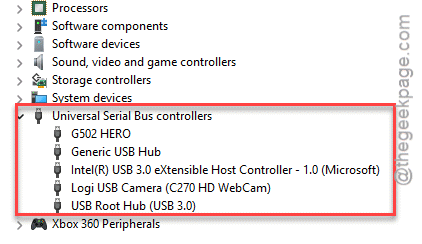
Once none of them can be powered down, the random drops usually stop for good.
Fix 3 – Turn Off PCIe Power Throttling
Same idea as Fix 2, but deeper in the power plan. The PCIe bus — the internal highway your chip talks over — has its own power-saving mode.
1 – Press Windows + R, type this, and press Enter.
control powercfg.cpl,,3
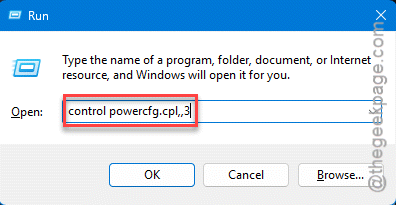
That opens the advanced power settings directly.
2 – Scroll down and expand PCI Express.
3 – Expand Link State Power Management.
4 – Set both On battery and Plugged in to Off.
5 – Click Apply, then OK.
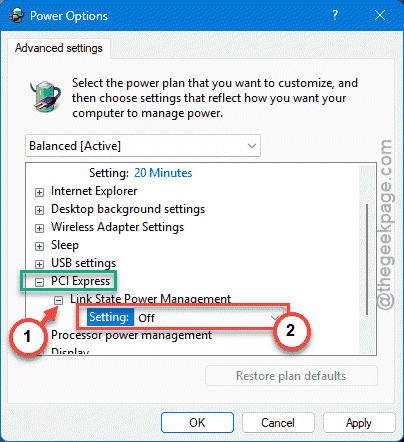
Check if this works.
Fix 4 – Roll Back to the Older Realtek Driver
If the June driver is the culprit, going back to the 2025 one your laptop shipped with often fixes it instantly.
1 – Go to your laptop maker’s support page.
2 – Then, download the older Realtek driver package that was wokring on your system, listed under your exact model.
3– In Device Manager, right-click the Realtek device and choose Update driver.
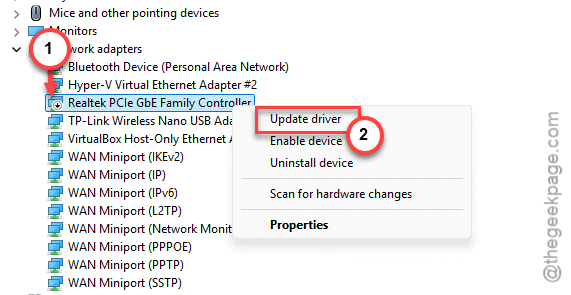
4 – Pick Browse my computer for drivers.
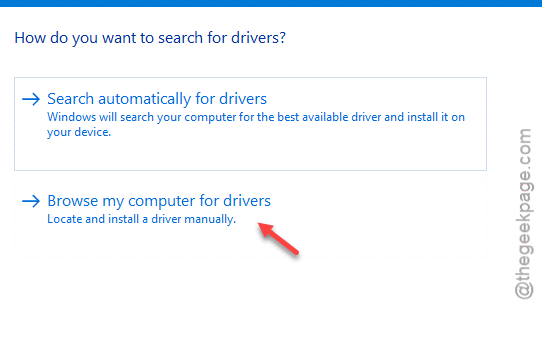
5 – Now, you have to Point it to the folder where you saved the 2025 package and let it overwrite the current one.
6 – Restart when it’s done.
The manufacturer’s driver is tuned for your machine. Microsoft’s generic one often isn’t. Big difference on some laptops.
Fix 5 – Keep Windows From Reinstalling the Bad Driver
One catch with Fix 4 — Windows might shove the broken June driver right back in on the next update. To stop that, you block it by hardware ID.
1 – On Windows 11 Pro, open gpedit.msc,
2 – Then, go here –
Computer Configuration > Administrative Templates > System > Device Installation > Device Installation Restrictions
3 – Then, enable Prevent installation of devices that match any of these device IDs.
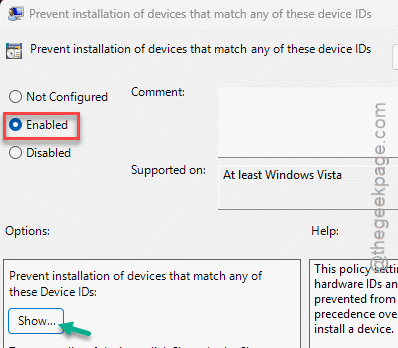
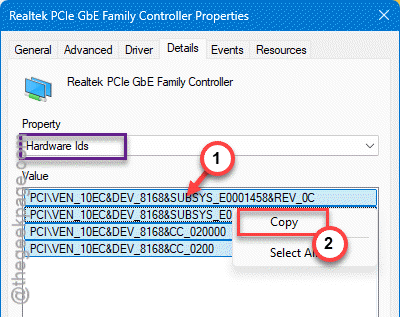
4 – Tap Show to Add the Realtek device’s hardware ID.
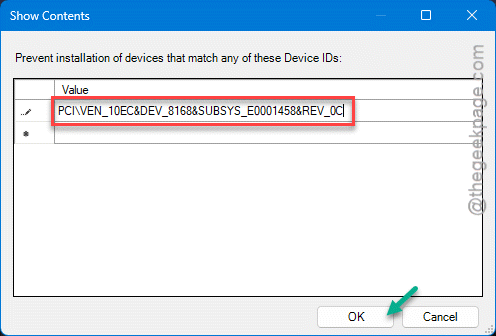
NOTE – Grab it from the device’s Details tab in Device Manager.
Now your good driver stays put.
How to Prevent This
– Turn off power saving for network and USB devices right after a fresh Windows install. It’s the setting behind most of these mystery drops.
– Grab your drivers from the laptop maker, not Windows Update. Their versions actually match your hardware.
– On a laptop you use plugged in a lot, make a power plan with PCIe power management switched off.
– Before installing a big update, note your working Realtek driver version.
People Also Ask
Why did my camera and Ethernet stop working at the same time?
On many laptops both run through the same Realtek controller. When an update changes power handling, that one chip times out and takes both devices down together.
How do I fix the Realtek PCIe GBE Family Controller dropping out?
Two settings fix most cases. First, disable power management for the adapter in Device Manager. Second, open advanced power options and set PCI Express Link State Power Management to Off for both battery and plugged in. If it still drops, roll back to your laptop maker’s 2025 Realtek driver.