You load into a map, and the world stops. Music still playing, friends still talking, screen completely stuck. Sometimes it’s a micro-stutter every few seconds instead — a little rhythmic hitch, like the game is breathing wrong.Path of Exile 2 players have chased this one across a dozen forums. And the causes turned out to be genuinely weird. Chat channels. Shader files — even controller firmware. Let’s walk through all of it, quick fixes first, deep surgery last.
What’s Actually Going On
A few separate problems wear the same costume here.
The strangest? Chat. Every time global chat updates, the engine parses the new messages — and busy channels update constantly. That’s the rhythmic micro-stutter. It ticks along with the message flow. Wild, right?
Shaders are the second culprit. PoE2 compiles thousands of tiny GPU programs and caches them on disk. When that cache corrupts (or your driver’s copy of it does), loading screens hang while the game fights the broken files.
And a couple of system-level settings pile on. NVIDIA Reflex has a bug in the current build that pushes latency into the negative, so the game spirals into a lag loop. The game also pins itself to your first two CPU cores — which is why a frozen loading screen can lock up the entire PC instead of just the game.
Fix 1 – Move to Empty Chat Channels
Easiest fix on the list, and weirdly effective against the rhythmic stutter.
1 – Load into the game and press Enter to open the chat box.
2 – Type /global 8201 and press Enter. Any random 4-digit number works — you just want an empty room.
3 – Type /trade 9671 and press Enter to get an empty trade channel too.
The stutter that ticks with chat messages should stop right away. One more bit of cleanup: find the client.txt file in your Path of Exile 2 logs folder and delete it (it’s the accumulated chat log). And it grows huge over time. The game recreates it fresh.
Fix 2 – Turn Off NVIDIA Reflex
1 – Open the in-game Graphics options tab.
2 – Find NVIDIA Reflex.
3 – Turn it Off.
The current build drives Reflex latency into the negative and the game gets stuck in a lag loop. Off means stable. You can switch it back on once a patch fixes the math.
Fix 3 – Unpin the Game From CPU 0 and CPU 1
This one is damage control. Wondering why a frozen loading screen takes your whole PC down with it? The game hogs the same two cores Windows itself needs.
1 – Launch the game, then press Ctrl + Shift + Esc to open Task Manager.
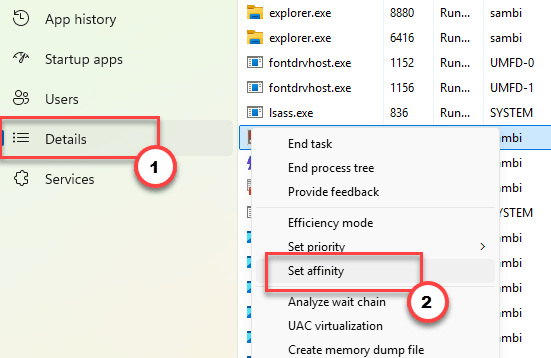
2 – Click Details in the left sidebar.
3 – Find the Path of Exile 2 process, right-click it, and choose Set affinity.
4 – Uncheck CPU 0 and CPU 1.
5 – Click OK.
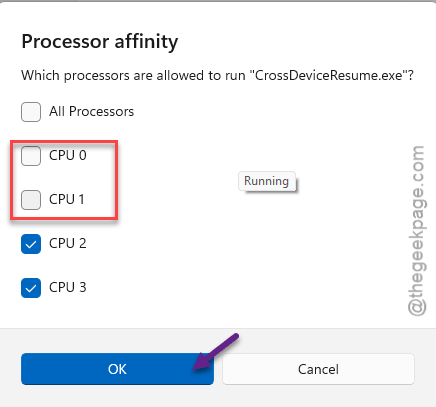
Now a frozen load screen stays the game’s problem, not your PC’s — you can still Alt-Tab out and close it. (Affinity resets when the game exits. So redo this each session, or just live with it until a patch.)
Fix 4 – Wipe Every Shader Cache
Ready for the deep clean? Three caches, three places (takes about five minutes total). This clears the corrupted shader files that hang loading screens.
1 – Press Windows + R, type %appdata%, and press Enter.
2 – Open the Path of Exile 2 folder and delete ShaderCacheD3D12 or ShaderCacheVulkan — whichever one is there.
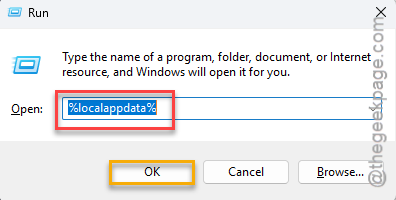
3 – Press Windows + R again, type %localappdata%, and press Enter.
4 – Open the NVIDIA folder (or AMD, depending on your card).
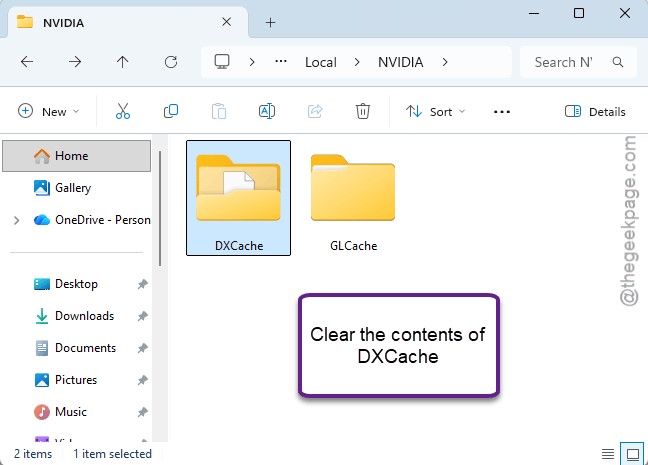
5 – Open GLCache, select all the files inside (Ctrl + A), and delete them. Windows may refuse to delete the folder itself — fine, the files are what matters.
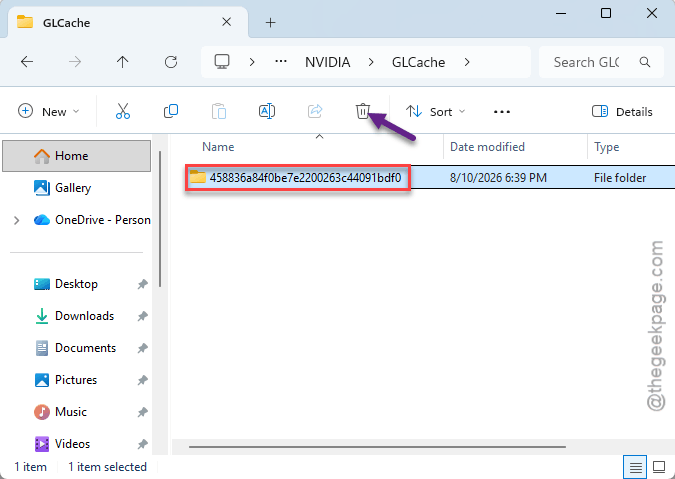
6 – Do the same inside the DXCache folder.
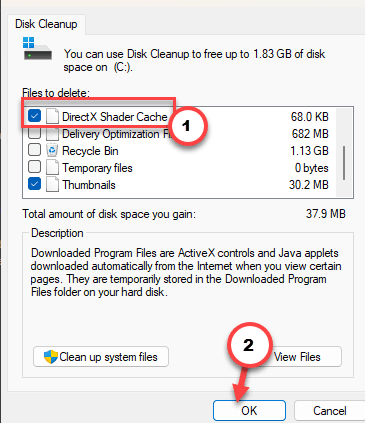
7 – Last one: click Start, type “Disk Cleanup”, open it, and check only DirectX Shader Cache. Click OK.
The first launch after this rebuilds shaders. So expect choppiness for a few minutes. That’s normal, and then it’s gone.
Fix 5 – Give the Driver More Cache Room and Full GPU Priority
Two settings that stop the shader cache from constantly evicting and rebuilding itself.
1 – Right-click your desktop and open NVIDIA Control Panel.
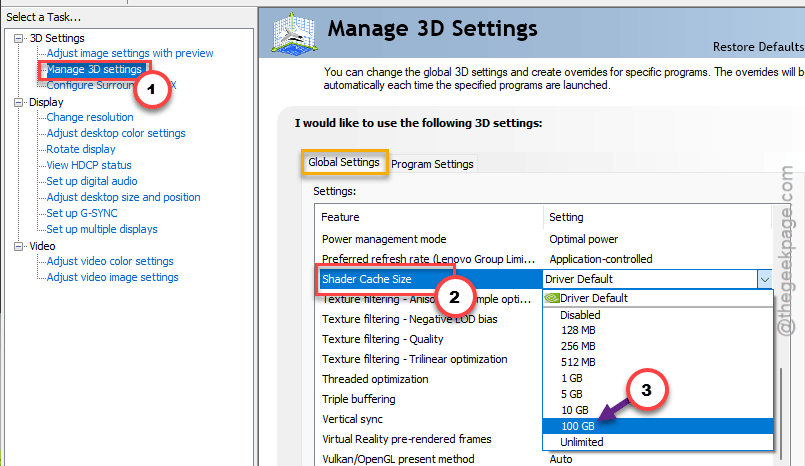
2 – Go to Manage 3D Settings, then the Global Settings tab.
3 – Scroll down to Shader Cache Size and set it to 100 GB. Sounds huge, but it’s a ceiling, not a reservation.
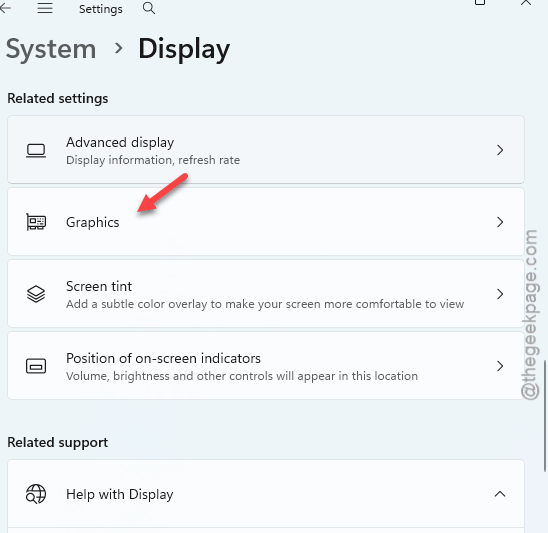
4 – Now the Windows side. Press Windows + I and go to System > Display > Graphics.
5 – Set the app dropdown to Desktop app, click Browse, and add your PoE2 executable. Add both PathOfExile.exe and PathOfExile_x64.exe if you have both.
6 – Click each entry in the list, choose Options, and pick High performance.
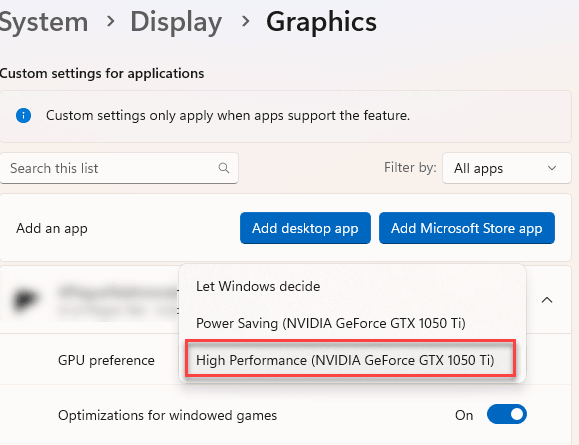
Check if this works.
Fix 6 – Update Your Xbox Controller’s Firmware
Playing on a controller? Old firmware’s wireless polling errors show up as severe stutter in this game specifically. Strange but true.
1 – Open the Microsoft Store, search for Xbox Accessories, and install the app.
2 – Plug your controller in with a USB cable.
3 – Open the app and install any firmware update it offers.
No controller? Skip straight past this one.
Fix 7 – Turn Off Memory Integrity
One player’s summary after months of freezes: switching off memory integrity in Windows Defender was the only thing that stopped it. It is a real security feature (it shields core Windows processes from tampering). So weigh the trade — but if nothing else has worked, this is a known fix.
1 – Click Start, type “Core isolation”, and open it.
2 – Find the Memory integrity toggle.
3 – Switch it Off.
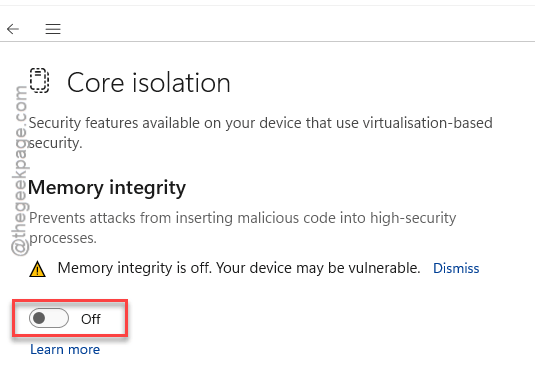
4 – Restart your PC.
You can flip it back on any time to test whether a game patch made it unnecessary.
Fix 8 – Move the Shader Cache to a Second Drive
Got two drives? Putting the cache on the one the game isn’t hammering can end the freezes for good.
1 – On your second drive, create a folder — for example D:\shaderpoe2.
2 – Open Documents > My Games > Path of Exile 2 and open production_config.ini in Notepad.
3 – Scroll down to the [GENERAL] section.
4 – Add this line: cache_directory=D:\shaderpoe2\
5 – Save the file and close it.
And if even that fails, there’s one more community-proven step: install the game through the official launcher instead of Steam (directly onto an SSD) and repeat the shader steps. That combination solved it for players nothing else had helped.
How to Avoid this –
- Stay in your quiet chat channels. The stutter returns the moment you rejoin the busy default ones.
- Delete client.txt now and then. It regrows. Slowly, but it does.
- Redo the CPU affinity change each session if the load-screen freezes come back.
- After every big game patch, give the shader caches one clean wipe. New patch means new shaders anyway.
Quick Answers
Why is Path of Exile 2 stuttering and freezing?
Several causes stack up: busy chat channels make the engine parse messages constantly, corrupted shader caches hang the loading screens, and a NVIDIA Reflex bug in the current build creates lag loops. Empty chat channels plus a full shader cache wipe fixes the majority of setups.
Why does Path of Exile 2 freeze on loading screens?
Loading screens are where the game reads its shader cache hardest, so corrupted cache files hang it right there. Wipe the game’s ShaderCache folder in %appdata%, plus your driver’s GLCache and DXCache folders. And because the game pins itself to CPU 0 and 1, unchecking those in Task Manager keeps a freeze from locking the whole PC.
How do I fix micro-stutters in PoE2?
Join empty chat channels first — type /global 8201 and /trade 9671 in-game. That rhythmic hitch tracks chat updates, and silence cures it. Then turn off NVIDIA Reflex, delete the oversized client.txt log, and update your controller firmware if you use one.
Does deleting shader caches cause problems?
No lasting ones. Shader caches are rebuilt automatically — the first session afterward runs choppy for a few minutes while that happens, then performance comes back better than before. Your settings, characters, and items are untouched. It’s one of the safest fixes there is.